What an invisible cut does
An invisible cut conceals the join between two shots so the viewer's attention stays with the scene. The transition may use similar frames, an obstruction or another planned visual event. The production still contains an edit, even when the cut itself is difficult to notice.
Adobe's explanation of invisible cuts describes joining similar frames and using an object or darkness to cover the transition. It also discusses a whip-pan approach. Those are production strategies to test, not guarantees that every viewer will miss a join.
This guide includes an original conventional editing exercise: two owned source clips, a direct hard-cut control and the same join covered by a moving opaque panel. The panel is a visible authored wipe. The experiment shows how a cut can sit beneath full coverage; it does not claim the entire transition is imperceptible.
Keep the cut the wipe and the continuous take distinct
| Term | What it describes | Review question |
|---|---|---|
| Hard cut | One shot ends and the next begins | Does the change serve the intended scene |
| Concealed cut | The join is placed where it is harder to see | Does the surrounding action and sound remain convincing |
| Foreground wipe | A foreground shape covers and then reveals the picture | Does its travel support the transition |
| Genuine uncut take | One continuous recording or authored sequence without a join | Does the complete route remain coherent |
Use the continuous-shot filmmaking guide for the difference between an uncut take and a continuous appearance. Use the match-cut guide when the intended connection is a corresponding shape or composition. A match can remain visibly edited; concealing a join answers a different production question.
Watch the hard cut and covered join together
Watch this clip and view its details
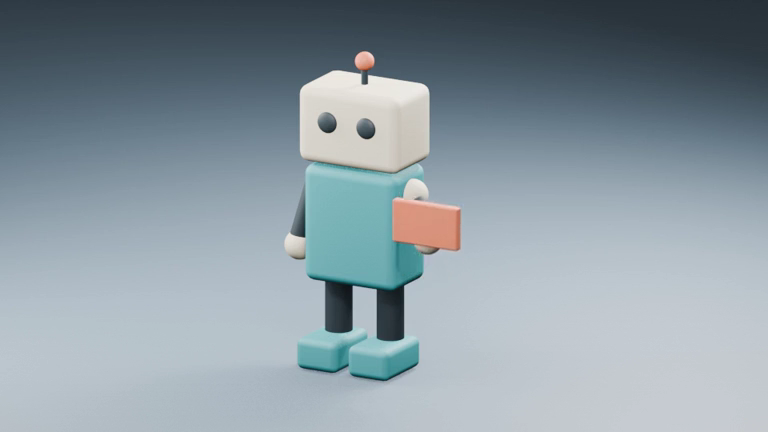
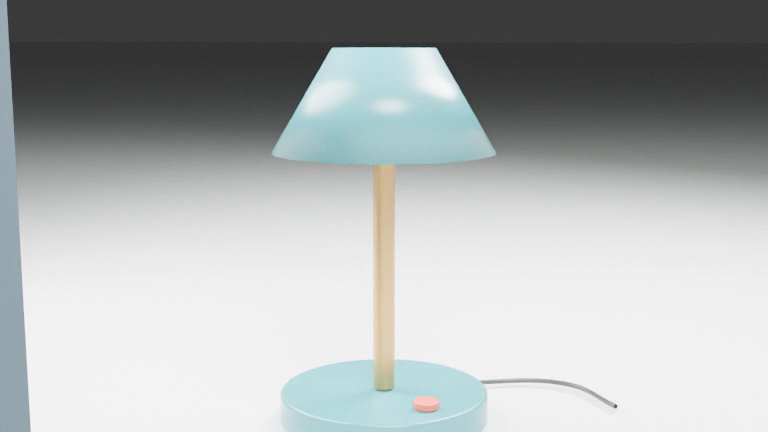
The silent four-second comparison shows the hard-cut control at left and the authored wipe at right. Both underlying edits use the same two prepared clips and the same cut at two seconds. The left view changes directly from the courier robot to the lamp; the right view covers that change with an opaque black rectangle.
Open the dedicated editing reference page. It contains 96 frames at 24 fps. Each comparison panel is scaled to 640 by 360 with a label band, producing a 1280 by 410 export. For fine inspection, use the full-size source and variant downloads rather than treating the scaled comparison as a detail benchmark.
The source material comes from our original authored courier animation and lamp camera study. The two scenes deliberately contain different subjects. This is an assembled scene transition, not evidence of preserving one character or set through a generated camera move.
Prepare the source handles and the exact join
Source A uses the first 48 frames of the courier animation, scaled to 768 by 432. Source B uses frames 192 through 239 of the original lamp study at that same size. Each prepared file lasts two seconds at 24 fps and contains no sound.
In the four-second assembly, source A occupies zero-based frames 0 through 47 and source B starts at frame 48. At 24 fps, the cut begins at two seconds. The boundary pair is therefore frame 47 followed by frame 48. Frame numbers and display time need an explicit convention when you hand the edit to someone else.
For your own footage, preserve usable material before and after the intended cut. Mark the outgoing and incoming states before adding a cover. A missing beginning, changed prop or incomplete action remains a production issue even if the join is temporarily obscured.
Place the cut under complete coverage
The example overlays a full-height opaque black rectangle and moves it from left to right. It enters, covers the frame around the cut, then exits to reveal source B. The cover is an authored compositing layer rather than a photographed person or object passing the lens.
In a layer-based editor, keep the two source clips and the foreground layer separate. Position the join inside a reviewed coverage interval, then check the incoming and outgoing edges of the cover. Do not assume the cut is hidden merely because the center of the picture is dark while a corner remains exposed.
Download the scoped conventional recipe and original edit brief. The recipe records the FFmpeg overlay expression and output choices. It is one reproducible exercise, not a universal preset for every moving occluder or editor.
Inspect the decoded frames on both sides
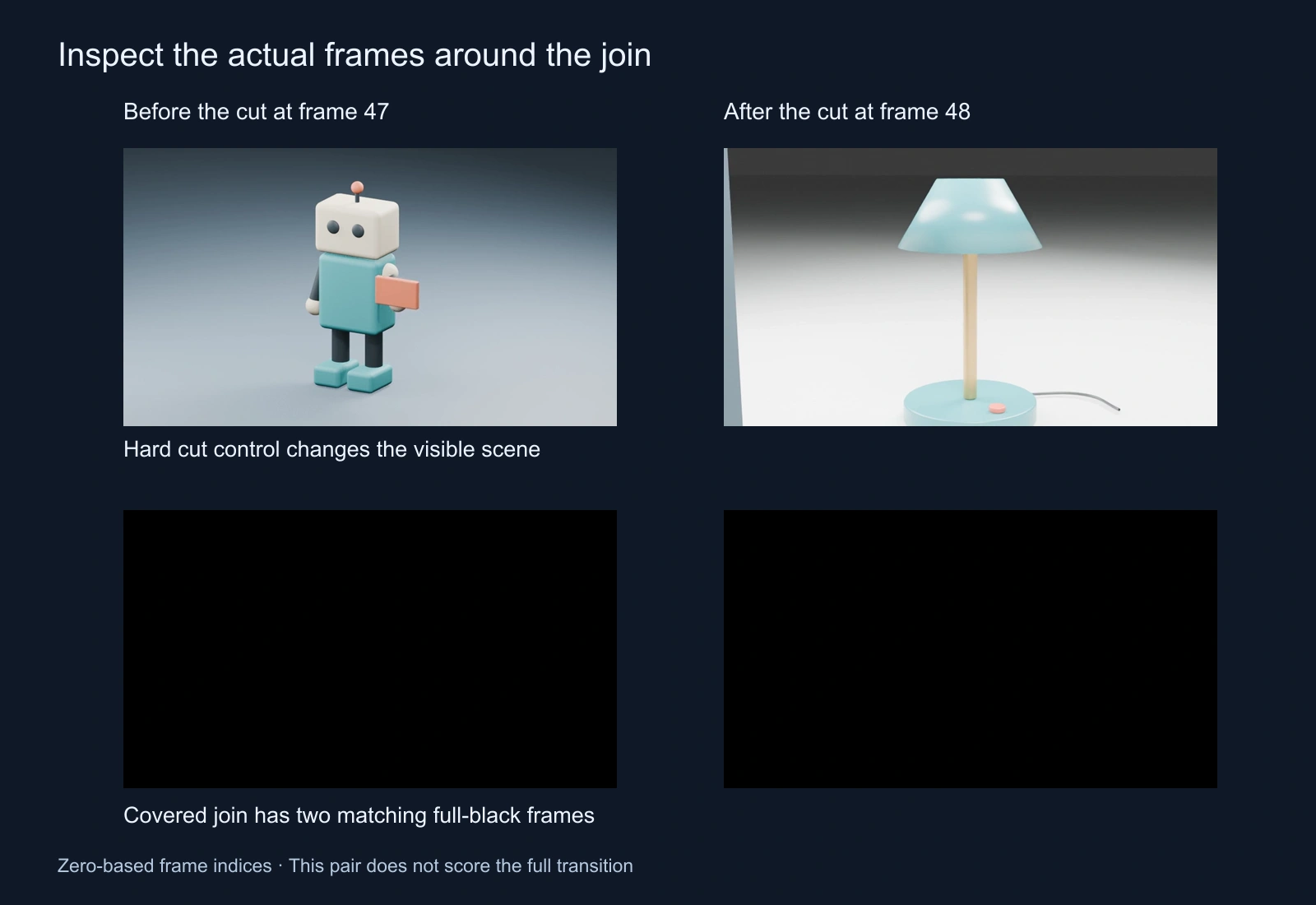
The top row shows the hard-cut control immediately before and after the join. The bottom row shows the covered variant at the same frame indices. The two selected covered frames decode to full black and have zero absolute channel difference in the recorded RGB comparison.
That result is deliberately narrow. It verifies this pair of fully covered frames, not the quality of the whole edit. It does not establish matching camera speed, identity retention, a plausible new location or the absence of an audible join. The panel's movement and the reveal still need normal playback review.
Inspect the original PNG pairs: control before, control after, covered before and covered after. The scoped study report records the decoded boundary check, media properties, hashes and processing limits.
Match the surrounding movement rather than only the black frame
Watch how the foreground edge enters and leaves. A sudden reversal, different travel speed or unexplained scale change can draw attention even when the central cut is covered. Review the lead-in, the covered interval and the reveal as one editorial event.
For a camera-recorded occluder, inspect its shape, lighting and relationship to the scene. Our flat rectangle establishes none of those physical properties. Use the actual recorded or generated source to decide whether its obstruction feels motivated by the action.
For a whip pan, assess both the camera direction and the picture revealed afterward. Fast motion alone should not be treated as a repair for a changed character or a broken scene. This exercise does not contain a whip-pan render or certify a speed at which a join becomes unnoticeable.
Check sound independently
The example is silent. It proves nothing about dialogue continuity, music phrasing or room tone. For a speaking scene, listen across the edit without picture and check for missing syllables, clicks, abrupt ambience changes and an ending that belongs to the next shot.
Keep an accepted voice recording on its own track when the workflow permits it, and decide the sound edit deliberately. A visual cover does not automatically preserve a sentence. The dubbing workflow separates approved recordings and caption timing, while the audio-ducking guide addresses a music bed's level rather than repairing an audio join.
Use the technique with AI-generated source clips
Approve the outgoing and incoming clips before assembling them. Record the character, wardrobe, prop and camera state at each boundary. A concealed cut can change the scene intentionally, but it should not hide a production mistake that becomes obvious when the cover clears.
If the goal is to keep the same person in the same room, compare the actual source frames and the reveal against the references. If the goal is a change of place, make that new information readable. State the intended transition rather than accepting any attractive pair that happens to fit under a wipe.
Keep one generated clip, an extension and an assembled edit as different routes in the take record. A concealed join remains an edit. For longer scenes, use the video-extension guide to review continuation boundaries separately from this compositing exercise.
Accept the complete transition with a review ledger
| Review area | Inspect | Record |
|---|---|---|
| Outgoing action | Whether the first clip reaches a usable state | Source A out point and observation |
| Cut coverage | Actual decoded frames around the join | Frame convention and coverage interval |
| Reveal | Subject, camera and scene coherence after the cover | Source B in point and first visible defect |
| Sound | Complete words, ambience and music across the edit | Separate audio decision |
Use the blank invisible-cut review ledger to preserve those decisions. Leave acceptance blank until you have watched and listened to the complete delivery file. A matching frame pair is evidence for one small check, not an automatic approval.
Plan the scene's reveal with the AI short drama workflow. Develop original cast references and shot ideas in Clout AI Cinema and explore supported visual operations in Image & Video. This guide supplies a conventional editing reference; it does not run an automatic invisible-cut service or claim that Clout reproduces the exact FFmpeg overlay.