

For choosing the sound relationship across a scene change, use the sound-bridge guide and continuous ambience comparison.
J cut versus L cut
A J cut lets the incoming sound arrive before the incoming picture. An L cut lets the outgoing sound remain after the picture changes. Both are split edits because the sound and picture boundaries occur at different times. Adobe's J-cut and L-cut overview explains that distinction and its storytelling uses.
For an AI drama, you might hear the next character while still watching a listener, or continue a speaker's sentence over a reaction shot. The purpose is a deliberate relationship between what the audience hears and sees. Moving every audio clip earlier is not a reliable way to create that relationship.
| Edit | Picture changes | Sound changes | Possible scene use |
|---|---|---|---|
| Sync control | At the same boundary | At the picture cut | A direct change of scene and sound |
| J cut | After incoming sound begins | Before the picture cut | Introduce the next speaker or location |
| L cut | Before outgoing sound ends | After the picture cut | Keep a line over a reaction or detail |
Hear the original sync J-cut and L-cut comparison
Watch this clip and view its details
Play with sound at a comfortable level. The nine-second clip contains three sequential three-second examples. Picture A is an authored archive-desk graphic with a low 220 Hz tone. Picture B is an authored blue-door graphic with a high 660 Hz tone. The tones identify the two sound sources; they are not dialogue, ambience or an AI-generated soundtrack.
In each example, the picture switches halfway through its three-second segment. The control changes sound at the same instant. The J-cut segment changes to the high tone half a second before the picture. The L-cut segment holds the low tone half a second after the picture changes.
This controlled example makes the boundary audible without relying on a film excerpt or a recorded performance. It does not establish the best overlap for a real conversation. The appropriate timing depends on the words, performance, reaction, scene meaning and source handles.
Read the timeline and exact example boundaries
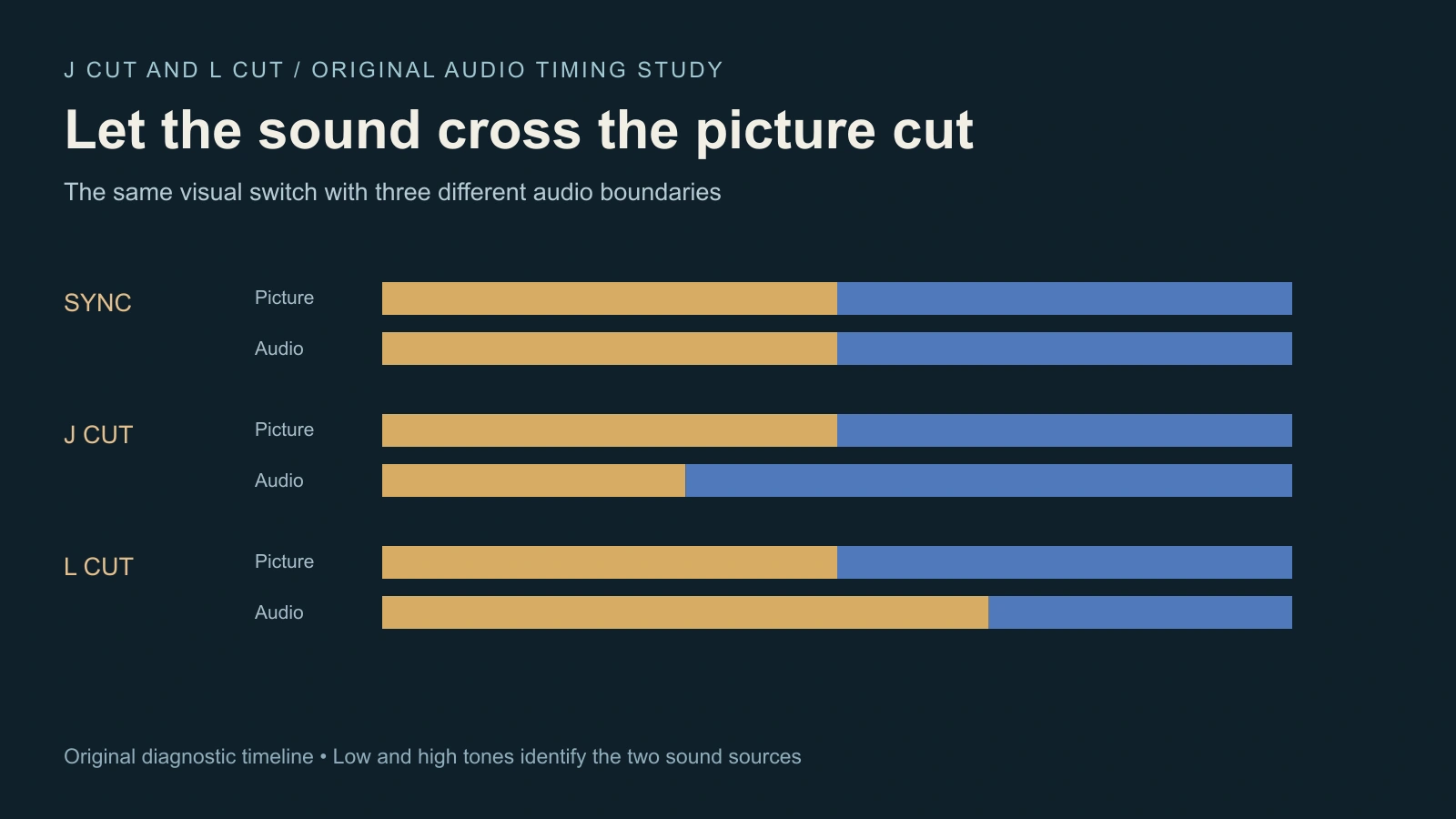
| Segment in the file | Picture boundary | Audio boundary | Relationship |
|---|---|---|---|
| Control at 0–3 seconds | 1.5 seconds | 1.5 seconds | Change together |
| J cut at 3–6 seconds | 4.5 seconds | 4 seconds | Incoming sound leads by half a second |
| L cut at 6–9 seconds | 7.5 seconds | 8 seconds | Outgoing sound lingers by half a second |
The short fades around tone changes reduce clicks in the diagnostic signal. They are separate from the placement of the picture and sound edit. A crossfade changes how sound overlaps or changes level; a J-cut or L-cut describes where its boundary falls relative to the picture.
Open the scoped media report for measured duration, dimensions, frame count, audio-track presence and frequency checks from the decoded MP4. Those checks confirm the intended source tone in specific windows. They do not measure dialogue intelligibility or prove that a real scene feels natural.
Plan the overlap around a dramatic reason
Use a J cut when the next sound should change how the current image is understood. A knock could arrive while the viewer still sees a character thinking. The following door shot then reveals its source. Write down what the audience should infer before choosing a lead duration.
Use an L cut when the current sound should retain meaning over a new image. A speaker's complete warning can continue while the listener's reaction becomes visible. Or a line can continue over the detail that explains it. Preserve the words that make the response understandable.
Compare the split edit with a direct sync cut. If the lead reveals a surprise too early or the lingering line explains a reaction twice, shorten the overlap or choose another cut. The technique should serve the scene rather than appear at every boundary.
Prepare AI dialogue clips with usable handles
Keep the approved full speech and each returned performance. Leave enough picture before and after the chosen edit point to show a listener, a neutral hold or the required detail. A clip that ends exactly on the final word may offer little room for a useful tail.
For a two-person AI scene, establish who is speaking, who is listening and which take contains each complete line. Use the multi-shot coverage plan and eyeline review to preserve the visual relationship. Split editing is an assembly decision applied to accepted material.
Create original cast references and scene plans in Clout AI Cinema. Use the selected supported voice, performance or video workflow for its actual role, then inspect its returned file. This guide does not imply that a particular generator automatically delivers synchronized multi-character dialogue or finished split edits.
Trim the edges without slipping a visible performance
In your editor, expose the separate sound and picture edges and decide which boundary should move. Retain the relationship between a speaking face and its own recording whenever that face is visible. A listener shot provides visual coverage; it does not fix a speaker whose sound has been displaced from their mouth movements.
The current Premiere split-edit instructions describe selecting audio and picture independently and adjusting the overlap. Apple's Final Cut Pro guide explains expanding audio, adjusting edges, retaining sync and using sufficient media handles. Follow the controls for your editor and version.
We did not execute either desktop editor for this study. The published example was assembled conventionally from authored frames and tones. It demonstrates the boundary concept, while the linked vendor instructions cover their current interface workflows.
Review words sync and the sound bed
- Complete words — Listen for clipped first syllables, repeated words and missing sentence endings.
- Visible sync — Check any speaking face against its retained recording.
- Reaction timing — Confirm the listener responds to information that has actually been heard.
- Sound bed — Listen for an abrupt change in room tone, noise or ambience.
- Delivery — Inspect the encoded export, including the beginning and ending of the sequence.
A room-tone or level problem can need a separate audio adjustment. Use the audio-ducking guide for a planned level envelope and the lip-sync timing workflow when timing within a visible performance is wrong. Do not silently stretch speech to fill a gap without reviewing the resulting voice and sync.
Download the split-edit practice materials
The Desk to Door practice brief preserves the original timings. The uncompressed diagnostic tone track lets you inspect the planned sound independently of the MP4. The blank split-edit review sheet records actual source clips, picture and audio boundaries, complete words, visible sync and the acceptance decision.
For a visual action continuing through a cut, use the match-on-action study. Its comparison addresses movement phase rather than sound lead or tail. Combine the methods only after each relationship works in the material you intend to publish.


