

For a sound lead or tail across a picture cut, use the J-cut and L-cut workflow with an original audible split-edit comparison.
What is audio ducking
Audio ducking reduces the level of one sound while another needs attention. In a dialogue-led video, that usually means lowering music around the spoken line and bringing it back afterward. The useful result is a readable performance with a deliberate musical shape, not merely a quieter soundtrack from beginning to end.
A short AI drama or product scene can contain a generated voice, music, room tone and effects from different sources. Accept those assets separately, then listen to their combination. A voice that sounds clear alone can be masked by the music in the assembled edit. Ducking is one way to make space, alongside choosing an appropriate arrangement, revising the bed or editing the music around the scene.
This guide includes a free local music-bed processor, an original six-second tone exercise and a reusable review packet. It creates a new file from a permitted music bed. It does not generate a voice, recognize dialogue, separate stems or automatically mix a finished soundtrack.
Keep the accepted voice and music separate
Preserve the approved dialogue recording and the original music bed as distinct files. Mark the activity times after listening to the actual voice in your editor. Include the words and endings that matter, then decide whether a pause should let the music return or remain subdued for the next line.
A full mixed soundtrack is not an isolated music bed. If speech is already baked into the file you process, the scheduled gain lowers that speech too. This tool does not extract the music or protect a voice inside a mixed recording. Use a separate bed when you need independent control.
Do not assume subtitle display intervals are measured voice activity. Captions may begin early, remain visible after a line or use different segmentation. The dubbing workflow and SRT timing review treats those caption values separately from actual recordings. Use the recording to make the mix decision.
Choose scheduled gain or a signal-driven workflow
| Route | What drives the reduction | What to review |
|---|---|---|
| Manual gain automation | Reviewed points or time intervals | Whether the fades support the actual performance |
| Sidechain compression | A separate source signal crossing the configured behavior | Triggering, reduction and recovery during real playback |
| Editor auto-ducking | The editor's analysis and selected track types | Generated keyframes and changes after a new analysis |
| Local tool on this page | Your explicit activity intervals | The new music-only file with the approved voice in an editor |
The local tool uses linear-amplitude gain ramps. It does not run a sidechain detector or reproduce another editor's algorithm. A threshold-based compressor responds to its input signal; a scheduled envelope follows the times you supplied. Choose the route that gives you the control and review process your scene needs.
Begin with a short accepted scene. Compare it with the original mix at a sensible listening level and keep the voice fixed while testing the bed. If the voice itself is unclear, do not expect a deeper music dip to repair pronunciation, missing words or an unsuitable performance.
Prepare a short music bed in your browser
Choose a mono or stereo PCM 16 bit little-endian RIFF/WAVE file up to 5 MB and 15 seconds. The reader supports sample rates from 8 to 192 kHz and preserves the input rate, channel count and frame count. It does not use a browser codec decoder, upload your audio or resample it.
Compressed WAV, floating-point audio, 24 bit PCM and WAVE extensible formats are outside this tool's supported input. Export a compatible PCM 16 bit copy from your editor if needed, and keep the original separately. The output is a new PCM file; other WAV metadata is not copied.
Enter one start, end pair per line in seconds, with up to 20 intervals. Each pair must fit within the bed and end after it starts. Then set the reduction, fade-down time and fade-up time and select Prepare music bed. A format or timing problem produces an error rather than a repaired source file.
Fade down begins before each activity start so the requested reduction is reached at that start. Fade up begins at the activity end. When envelopes overlap, the tool takes the lower gain rather than stacking reductions. These are explicit processing rules, not claims about detected speech.
Hear the original tone-bed exercise
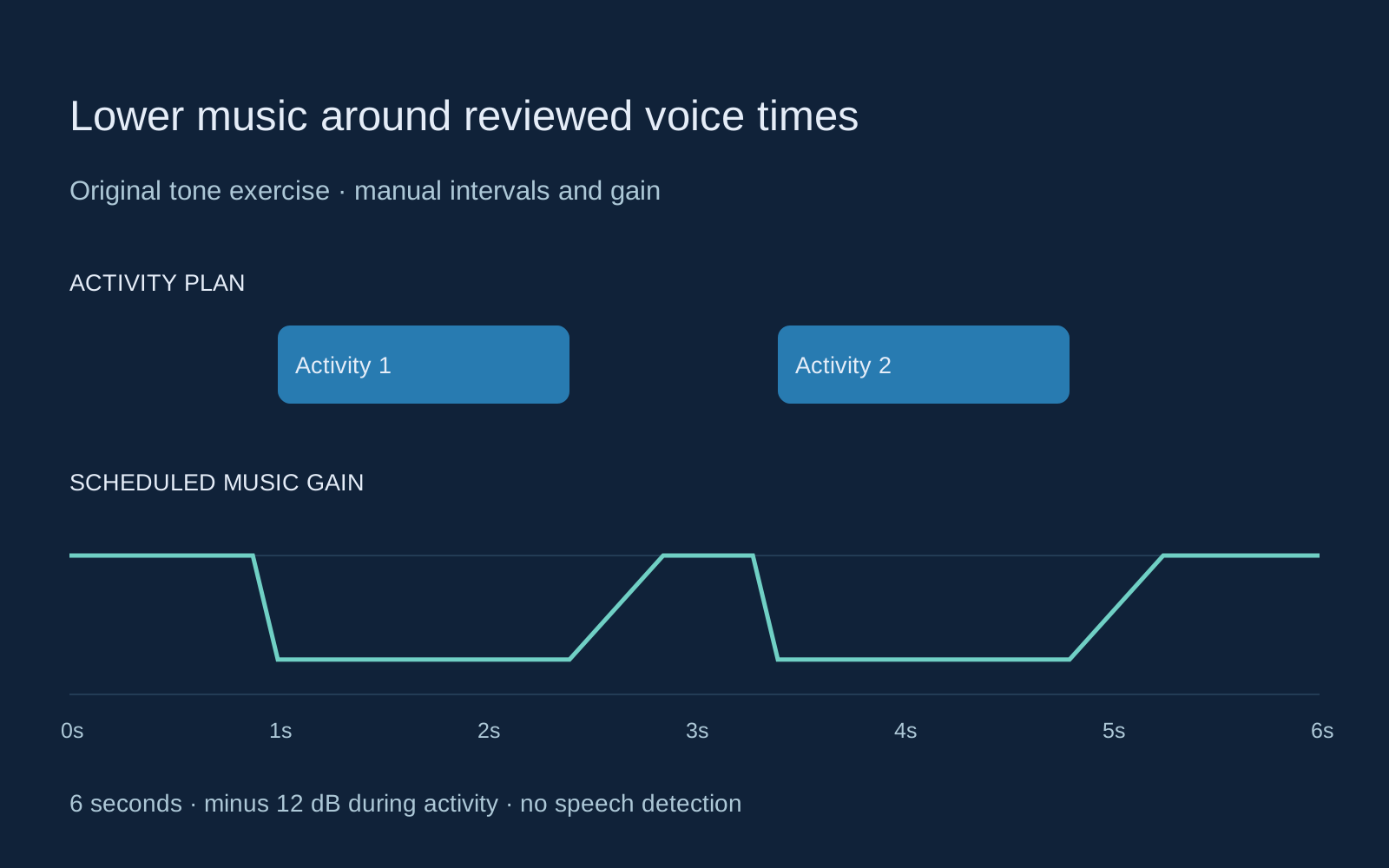
Select Try original tone bed. The source is a six-second mathematical chord built from three tones with short edge fades. It contains no speech, recorded performance or generated music. The example resets the activity intervals and settings so its behavior is reproducible.
The two planned intervals are 1 to 2.4 seconds and 3.4 to 4.8 seconds. The example uses minus 12 dB during activity, a 120-millisecond fade down before each start and a 450-millisecond fade up after each end. Minus 12 dB corresponds to an amplitude multiplier of approximately 0.251 while the interval is active. This is an example setting, not a universal dialogue-mix recommendation.
Play Original bed preview and Ducked bed preview separately. Compare the level change and recovery rather than treating the tone as a test of speech intelligibility. Both exports last six seconds at 24,000 Hz, mono PCM 16 bit. The gain chart shows the scheduled envelope, not a waveform or an audio activity measurement.
Download the original tone bed and reduced tone bed, or inspect the scoped export report. It records file hashes, decoded sample properties and scheduled gain values. Whole-bed RMS and sample peak do not establish LUFS, true peak or a finished mix's intelligibility.
Shape the music around the meaning of the line
Listen for the beginning of the sentence and its final syllable. If the music returns before the thought is complete, review the interval end and fade up. If it swells during every breath, consider holding it lower through the connected phrase. A pause can be part of a performance rather than an invitation to restore the bed immediately.
Keep the scene's emotional change in mind. Music may need to stay quiet after a line so a listener's reaction can read. In another scene, the return can support a reveal. Review the cut and the performance together rather than choosing a fade solely from the appearance of an envelope graph.
If the first interval starts close to the beginning, part of its fade down may fall before the file. The processor cannot add that missing preroll: it keeps the original length, so the bed can begin below full level. A fade up near the ending can likewise be cut short. Reposition or extend the source in your editor when the scene needs more room.
Use Premiere auto-ducking with reviewable keyframes
Adobe's current Premiere instructions use Essential Sound track types, including Music and Ambience, with selected sources to duck against. The operation generates editable gain keyframes through an Amplify effect. Generating them again replaces manual keyframe changes, so preserve the accepted version before another analysis.
Follow the current application instructions for your installation. Then replay the music with the real dialogue and inspect the generated transitions. A feature that generates keyframes still needs an editorial decision about pauses, emphasis and the ending. The browser example on this page does not establish identical settings or results in Premiere.
Use OBS sidechain ducking for a live source
The official OBS compressor documentation describes lowering a background or desktop source using a microphone or auxiliary source as the sidechain input. Threshold, ratio, attack and release influence the behavior. Its suggested values are starting points for that setup, not universal settings for every microphone and music bed.
For a live workflow, test with actual quiet and loud speech, pauses and background sound. Check which source triggers the reduction and which source is being reduced. A scheduled file export and a live sidechain filter solve related mixing problems but have different inputs and timing behavior.
Distinguish editing from VoiceOver audio ducking
Apple also uses audio ducking for its VoiceOver accessibility behavior, where other audio is reduced around VoiceOver speech. The official VoiceOver sound guide covers that device setting. It is separate from editing a music bed for a video; this page does not change any system or accessibility setting.
Accept the assembled scene rather than the isolated bed
Bring the new music-only WAV into your editor at the correct source position and keep the approved voice on its own track. Listen to the complete scene, including room tone and effects. The tool preserves the bed's sample timeline but does not know the start position of your editor sequence or any timing metadata from the source container.
Use the original mix brief and blank review ledger to record the voice version, activity times, reduction, fades, export properties and accepted mix. A new language recording may need different activity intervals; do not reuse the old times without listening.
For sound creation and placement, use the AI sound-effects and synchronization guide. For prepared dialogue tracks, use the two-person dialogue workflow. Keep sound generation, speech acceptance and mixing as separate production decisions.
Explore Clout AI Cinema to develop the scene and Image & Video for its supported visual and lip-sync operations. Finish by reviewing the actual exported picture and sound together. This local music-bed tool does not establish automatic soundtrack mastering or a built-in Premiere or OBS connection in Clout.


