For runtime selection and current model-specific recipes, use the LightX2V workflow guide.
What HuMo AI video generation does
HuMo is a human-centric video generation research project with text, image and audio conditioning. For a speaking character, the useful production question is how the approved appearance and actual speech reach the generation workflow, then whether the returned take preserves the intended performance.
This guide covers the open model linked from the official Phantom-video repository. Similarly named websites and apps may offer different products or wrappers. Check their affiliation and terms independently rather than assuming a shared name identifies the research project.
Start with one short scene: an archivist realizes that a closed blue folder changes the story. The downloadable packet below supplies original fictional input artwork, a line to record, visual direction and a blank take ledger. It contains no generated speech or HuMo video. You can use it to prepare a controlled first attempt without treating an attractive still as evidence of successful motion.
Choose the repository or ComfyUI route
| Route | Start here | Keep explicit |
|---|---|---|
| Official repository | Current setup and inference examples | Selected mode, checkpoint and runtime requirements |
| Native ComfyUI workflow | Official linked workflow and its model notes | Exact graph revision, files and connected inputs |
| Hosted service | The service's own current documentation | Operator, supported controls, charges and data handling |
The repository documents text-audio and text-image-audio inference modes and released both 1.7B and 17B weights in September 2025. Its setup is a separate route from importing a ComfyUI graph. Follow the dependencies and model instructions for the route you actually choose; a command copied from another wrapper can describe a different implementation.
ComfyUI announced native support in September 2025. That dated announcement establishes the integration history, not a reason to pin an old application release today. Open the current supported installation and inspect the linked workflow before downloading large model files.
Check the current graph before choosing a model
The official downloadable graph checked October 22, 2026 selects the 17B fp8 model, not a presumed 1.7B default. Its image-to-video node is configured for 640 by 640 and 97 frames; CreateVideo is set to 25 fps. These are inspected settings, not measured output properties or hardware requirements.
The graph also names a text encoder, VAE, Whisper audio encoder and a LightX2V LoRA. Follow the graph's model notes for each selected file. A smaller model mentioned in a release announcement is not proof that replacing one filename makes the complete graph compatible. Preserve the working graph before experimenting with a different model combination.
Download the scoped workflow audit for the exact inspected revision and audio connections. The upstream main branch can change. Record your own downloaded revision and selected filenames when creating a take so a later graph update does not silently change your comparison.
Prepare one fictional character reference

This original reference shows an adult archivist with short dark curls, a teal overshirt, cream top and a blue folder. It was created with built-in imagegen as input artwork. It is not a real actor photograph, a HuMo output or a tested model comparison.
Download the full PNG reference and its generation prompt and provenance note. Inspect the face, both hands, folder and background before using it. The two hands rest separately on the table; the closed folder provides a simple object whose shape and position can be checked through the take.
For your own scene, choose a permitted reference that makes the intended subject readable at the actual input crop. Keep the mouth visible and avoid covering the face with a microphone, hand or prop. Check the loaded image preview rather than assuming the source file's composition survives every resize or crop.
Keep the initial staging restrained. An opening folder, large hand gesture and moving camera introduce additional changes to inspect. Begin with a seated line and a stable object, then add the action that the story needs after you have an accepted baseline.
Approve the speech before generating the performance
This folder changes everything
Record that original line with a permitted voice and approve the actual recording. The text is a script, not an audio file and not a timing measurement. Listen for the complete beginning, the word everything and the breath or hold after it. Keep the approved recording separately from any later converted copy.
Measure the recording after editing, including intentional leading and trailing room. Select a frame budget that can contain the performance in the chosen workflow. Do not calculate a guaranteed delivered line from a word count or assume every recording fits the example graph settings.
If the line feels rushed, revise the performance or shot plan before rendering repeatedly. A short pause after the sentence may carry the realization more clearly than a large gesture during it. Write down which version you approved so an accidental audio replacement is visible during review.
Keep conditioning audio and saved audio aligned
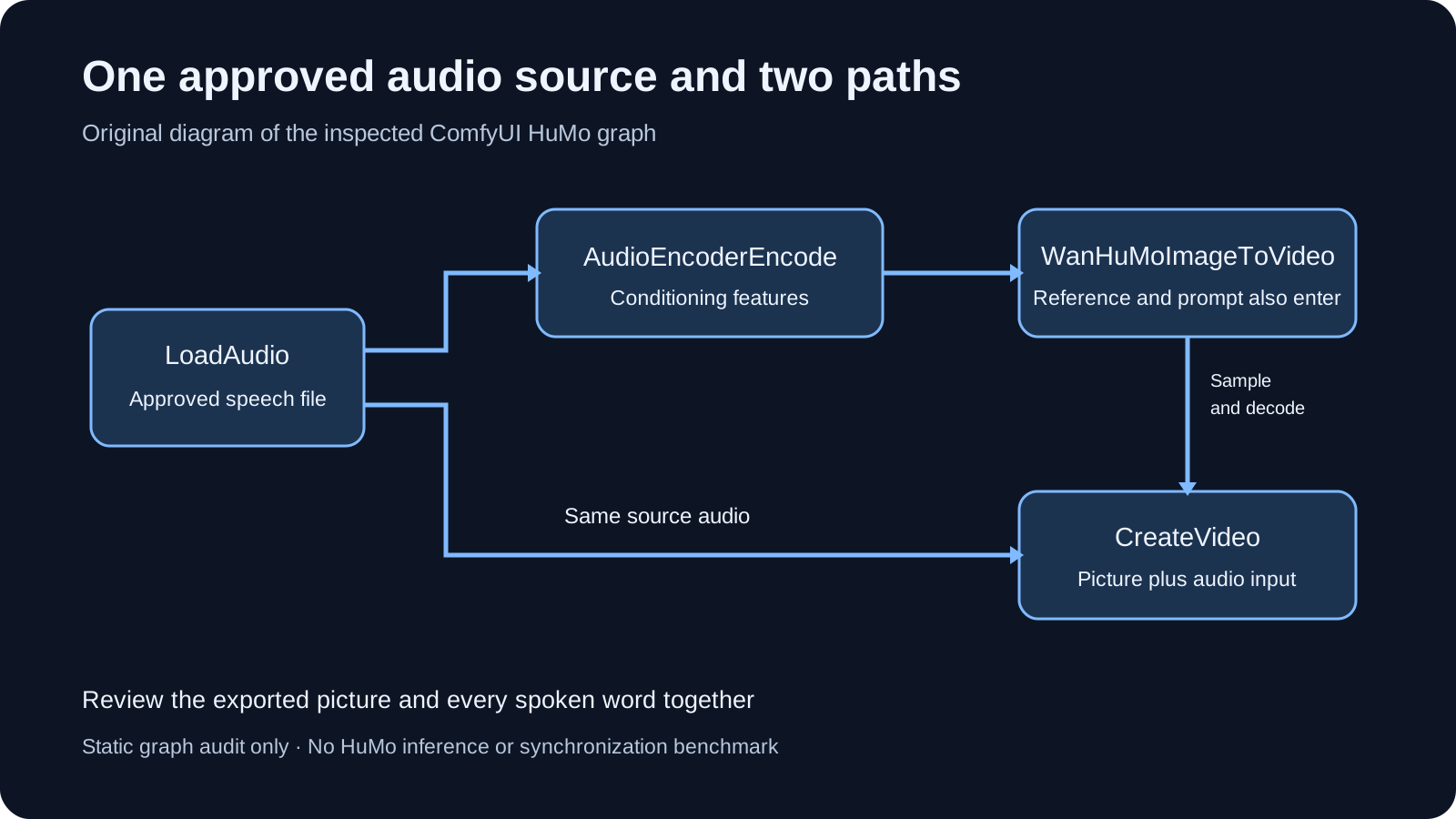
In the inspected graph, LoadAudio feeds both AudioEncoderEncode and CreateVideo. The encoder output enters WanHuMoImageToVideo as conditioning. This is a useful handoff to inspect: the audio used to influence the generated performance and the audio provided for the saved video come from the same source.
No trim node appears in that graph. This observation does not establish how every node or exporter handles duration internally. If you add trimming, offsets or a replacement recording, inspect both paths and verify the final file rather than assuming the old connection diagram still describes your take.
Keep the accepted speech version fixed during the first visual revision. If you replace it, review the motion against the new recording from beginning to end. Attaching a different soundtrack after generation does not by itself establish that the performance follows those words.
Brief a restrained dialogue shot
A fictional adult archivist sits at the wooden table with the closed blue folder. Preserve the approved face, short dark curls, teal overshirt and cream top. A quiet realization accompanies the supplied speech. Keep both hands resting separately on the tabletop and keep the folder closed. The camera remains steady. Let the thought register after the spoken line.
This original visual direction states the identity landmarks, action boundaries and ending. Use the approved audio through the workflow's actual audio input; typing the dialogue into a visual prompt is not a substitute for supplying a recording.
Download the scene brief and blank take review ledger. Add the actual reference and audio hashes, model files, graph revision, seed and exported duration when you make a take. Blank acceptance fields are deliberate because this packet has not been run through HuMo.
Inspect the complete exported video
| Review point | Look and listen for | Action if it fails |
|---|---|---|
| Opening | Full first word and recognizable reference identity | Check input timing and reject a clipped beginning |
| During the line | Readable mouth, stable face and coherent hands | Record the specific failure before changing the brief |
| Final word | Complete speech with picture still available | Review actual export duration and both audio paths |
| After the line | A readable reaction and stable folder | Revise the shot budget or ending direction |
Play the saved file at normal speed with sound. Then inspect the opening, middle and ending frames. A good thumbnail cannot establish identity stability across time. A waveform or container duration cannot establish that every word is present or that mouth movement follows it.
Use the MP4 picture and sound track inspector when you need a bounded container-header check. That tool reports metadata, not perceived synchronization or intelligibility. Review the actual playback in the delivery environment as well.
If a take drops the last word, first compare the accepted recording with the exported audio and check the actual picture duration. If the folder changes shape, keep the speech fixed and simplify the visual change. Change one meaningful input at a time so the next comparison answers a specific production question.
For version-specific alternatives and a static audio-window check, use the EchoMimic V2 and V3 workflow guide.
Connect the shot to an AI drama workflow
The archivist line can lead into a separate insert of the folder or a listener's reaction. Plan those as distinct shots instead of asking one generation to invent the entire scene. Keep the closed folder, lighting direction and character reference consistent across the edit.
Use the AI short drama workflow for the scene's objective and shot order, and the two-person dialogue preparation guide for separate speaker tracks and reaction space. For translating existing footage rather than generating a new performance, use the video dubbing workflow.
Develop original cast references and scene ideas in Clout AI Cinema and explore the supported operations in Image & Video. This guide does not establish that Clout hosts HuMo or imports its ComfyUI graph. Keep the chosen generation system and the final editorial handoff explicit.