Choose the EchoMimic route before preparing the scene
EchoMimic is a family of human-animation research workflows. The version matters because the reference, performance controls and configuration do not all travel through the same path. Start with the scene you want to make, then use the matching implementation and input contract.
This guide focuses on preparing one short speaking scene with an original fictional archivist. It includes a free local frame-window calculator, a reusable scene brief and a revision-scoped input audit. No EchoMimic model, generated voice or quality benchmark is presented here.
| Route | Input distinction | First handoff check |
|---|---|---|
| EchoMimic V2 | Reference image, audio and hand-pose sequence in the official project description | Image and pose alignment for the intended half-body performance |
| V3 preview | Version-specific demo file layout and mask-coordinate handling | Matching image, audio, prompt and coordinate source |
| V3 Flash Pro | Separate inference script with image, audio and prompt arguments | Actual configured paths and the audio/frame window |
The official V2 project page describes a reference image, audio and a hand-pose sequence. Keep that path distinct from a single-image speaking request. A hand resting in a still image is a visual reference, not an extracted pose sequence.
The official V3 repository lists separate preview and Flash Pro routes. Its January 22, 2026 update describes Flash Pro as not requiring a face mask. That statement belongs to the named release; it does not mean every older script or community wrapper has the same inputs.
Prepare the archivist reference and a complete recording

The original reference candidate shows an adult archivist seated behind a blue folder. It was created with built-in imagegen for our reference-image workflow series. Reusing that same candidate makes the scene's visual landmarks explicit; it does not imply that any model has successfully animated it.
Download the original fictional reference PNG and inspect its creation prompt and provenance note. Keep the short curls, teal overshirt, cream top, two resting hands and closed folder visible when reviewing the actual crop. This is input artwork rather than a real actor photograph or an EchoMimic result.
Keep the blue folder closed
Record this original line with a permitted voice, then approve the actual recording. Listen to the beginning, the last word and the pause after it. A script does not establish the duration of a performance, so measure the complete edited recording before choosing a frame request.
The original scene brief asks for a restrained seated warning, a steady camera and a readable ending. Keep the first attempt simple enough to inspect. A broad gesture, turning head and moving camera introduce additional changes that can obscure whether the basic performance works.
Inspect the Flash Pro script instead of paste-running placeholders
The inspected official Flash Pro launcher contains placeholder paths for the image, audio, base model, transformer and audio encoder. Replace them deliberately in your selected environment. The example asks for 81 frames at 25 fps and eight inference steps; those values describe that launcher rather than a universal scene preset.
Keep the matching checkpoints, configuration and inference file together. A filename containing Flash does not establish that a preview checkpoint, wrapper and script can be mixed. Save the source revision with the take so an upstream change does not silently alter the next comparison.
The scoped route audit links the inspected files and records the configuration assumptions. It is a static audit. We did not install the runtime, download model weights or verify a provider's speed or memory claim.
Check the audio window before rendering
In the inspected Flash inference implementation, the frame count is capped by the recording duration and requested video length, then aligned using the VAE temporal ratio. The saved audio is subclipped from the beginning to the resulting picture window. A request shorter than the recording can therefore exclude its ending.
The matching configuration sets the temporal compression ratio to four. The local calculator above fixes that ratio and 25 fps. It is a planning calculation from an entered duration, not an inspection of your audio file or a guarantee about a model output.
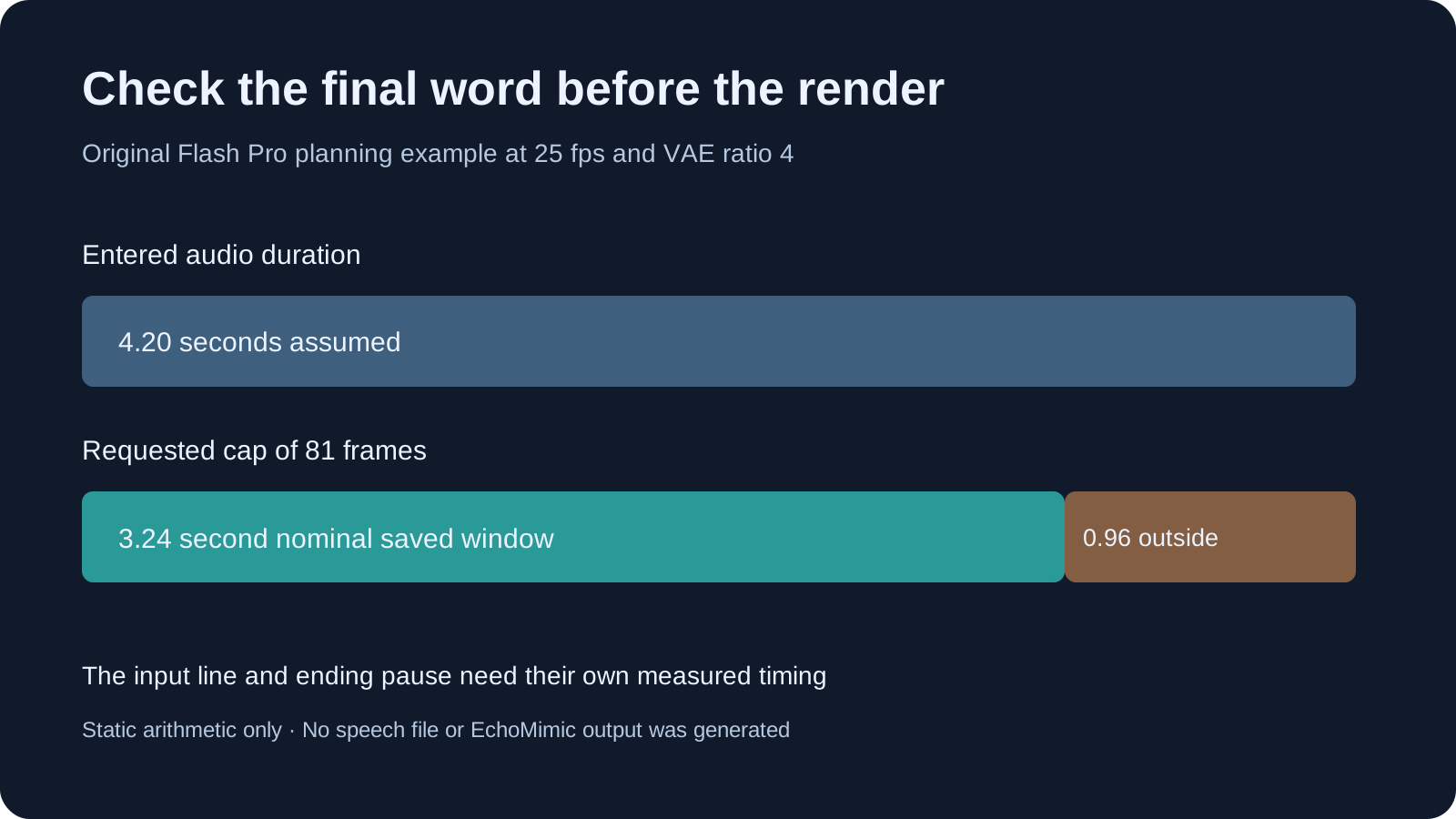
Select Try the planning example. An assumed 4.2-second recording contains a frame cap of 105 at 25 fps. A requested cap of 81 already fits the four-frame grouping, leaving a nominal saved window of 3.24 seconds. The remaining 0.96 seconds is outside that calculated window. No recording was generated or measured for this example.
Now enter two seconds with the same request. The audio cap becomes 50 frames, then alignment reduces it to 49, or 1.96 seconds. The example shows why checking only the requested count can miss another timing change. Download the artificial calculation record to inspect the first case.
The calculator accepts 0.04 to 60 seconds and 1 to 1500 requested frames. Those are tool input bounds, not tested model limits. Changing a value clears the previous result. Confirm the newly calculated window against the actual accepted recording, especially the last word and intended pause.
Keep the selected frame rate explicit
The inspected Flash implementation also uses literal 25 fps values in audio-feature slicing and embedding calls. This calculator therefore does not offer an arbitrary frame-rate selector. Changing a launcher fps argument alone is not evidence that every internal timing path follows the change.
If your implementation, VAE ratio or wrapper differs, inspect that route independently. A duration calculation can tell you that an entered recording extends beyond a planned window. It cannot recognize a clipped syllable, judge mouth movement or establish the delivered file's synchronization.
Handle preview mask coordinates as their own input
The inspected preview script matches demo names across image, audio and prompt folders. It loads mask coordinates from a NumPy file when available and otherwise calls its coordinate-detection helper. That coordinate representation is different from painting a raster PNG mask.
Do not rename a painted mask to a NumPy extension or copy another character's coordinates without checking the intended source and dimensions. Follow the selected implementation's actual coordinate and resizing logic. This guide does not generate a preview coordinate array or establish that Flash Pro needs that older handoff.
Keep a record of which route produced a take. A missing-file problem in a preview demo and a placeholder-path problem in the Flash launcher need different fixes. If the file exists but the result is wrong, inspect the loaded input and configuration rather than treating every failure as a model-quality issue.
Use ComfyUI wrappers with a separate compatibility check
A community ComfyUI integration has its own version, nodes and model-loading rules. Start with the workflow documented by its maintainer, then confirm which EchoMimic route and checkpoints it supports. A native Python command and a graph can expose different controls even when they refer to the same research family.
Use the ComfyUI workflow guide to keep environment changes and graph inputs organized. This article does not install a custom node or certify an arbitrary downloaded graph. Preserve an accepted environment before revising dependencies for a new route.
Review identity speech and gestures separately
| Review | Archivist landmark | Acceptance question |
|---|---|---|
| Identity | Face, curls and clothing | Does the person remain recognizable through the full take |
| Speech | Complete first and last words | Does the saved recording contain the accepted line |
| Gesture | Hands and closed folder | Does the intended restrained action stay coherent |
| Ending | Pause after the warning | Can the final performance support the next cut |
Listen to the output without picture, then watch it at normal speed. Compare identity and hand detail at the opening, middle and ending. A recognizable thumbnail is not evidence that the full performance works, and complete audio does not establish matching mouth movement.
Use the blank take ledger to preserve the route, revision, reference and recording hashes, actual duration, requested frames and observations. Leave acceptance blank until the returned file has been reviewed. Change one meaningful input at a time when a take fails.
Build the warning into an AI drama scene
The line can lead to a silent reaction or an insert of the blue folder. Plan that coverage as separate shots. Keep the folder state, clothing and light direction consistent when cutting to the next angle; do not ask a speaking shot to invent an entire scene transition unless the selected workflow supports the intended operation.
Use the AI short drama workflow for the reveal and reaction, the two-person dialogue guide for separate speaker tracks and the HuMo guide for another model-specific image-and-audio handoff.
Develop original cast references and scene ideas in Clout AI Cinema and explore supported visual operations in Image & Video. This page does not establish EchoMimic hosting, model import or ComfyUI execution inside Clout. Choose the generation system deliberately and review the actual editorial handoff.