

Choose the LongCat workflow that matches the shot
A two-person drama scene needs more than two moving mouths. The audience must understand who speaks, who listens and what changes after each line. Begin with the approved exchange and visual positions, then choose a workflow that accepts the inputs you actually have.
The official LongCat Video repository separates the base text, image and video-continuation model from its audio-driven Avatar releases. Use Avatar for the dialogue exercise below; do not assume a base image-to-video command consumes two voice tracks. Meituan's Avatar 1.5 technical article was published May 25, 2026. This is a current workflow guide, not a claim that the release is new this week.
| Your starting point | Production decision | First review |
|---|---|---|
| Original scene image | Decide whether the task needs speech conditioning or only visual motion | Composition and intended performance |
| Approved voice recordings | Keep speaker identity and timeline assignment explicit | Words, pauses and who speaks |
| Existing generated clip | Decide whether continuation preserves an accepted beat | Boundary, repeated motion and new content |
For the broader local-model choice, read the open-source AI video workflow guide. For a general extension job, keep the video extension guide separate from the version-specific Avatar path here.
For a single reference-image and speech handoff, use the HuMo AI video workflow guide with its original fictional reference and current ComfyUI graph audit.
Approve the exchange before generating the faces
Person 1: The letter was already open when I arrived.
Person 2: Then someone knew you were coming.
This original recording brief puts person 1 on frame left and person 2 on frame right as a production intention. Record each line separately in a voice you are permitted to use. Listen for the complete first sentence, a readable reaction pause and the second speaker's change in meaning. Do not correct unclear words by asking the video model to invent a better performance.
Approve the input image independently. Both faces should be readable, with stable positions and enough space for the intended gestures. Save that exact image with the recordings. If you later swap the left and right people, update the assignment record before queuing another take. A script label alone does not prove that an integration maps the voice to the intended face.
Prepare separate audio on one shared timeline
The free tool above takes two short permitted recordings and produces two equal-length mono WAV files. Choose Person 1 then person 2 to place the second clip after the first and the entered gap. Each file contains silence when its person has no clip. Choose Both start at zero to preserve simultaneous starts and pad the shorter track at its end.
These are whole-clip operations. Leading or trailing silence already present in a recording stays there. The tool does not recognize speakers or words, trim breaths, remove noise or stretch delivery. For an A–B–A exchange, prepare a full timeline in an editor or split the production into reviewed beats; this two-clip tool does not infer a multi-turn edit.
Each input is limited to 5 MB and 15 seconds, with mono or stereo decoding. Stereo channels are averaged to mono, and browser decoding may resample. The resulting files are mono PCM 16 bit WAV at the displayed rate. Listen for downmix changes, especially if a stereo recording contains opposing channels. Preserve your original recordings separately from the prepared tracks.
Try the original timing exercise before using speech
Select Try original tone exercise with sequential order and a 0.25-second gap. The first source is a 500-millisecond 440 Hz tone; the second is a 750-millisecond 660 Hz tone. Both are original mathematical signals with short fades, not voices, speech references or model outputs. Playback starts only when you press the audio control; choose a comfortable listening level.
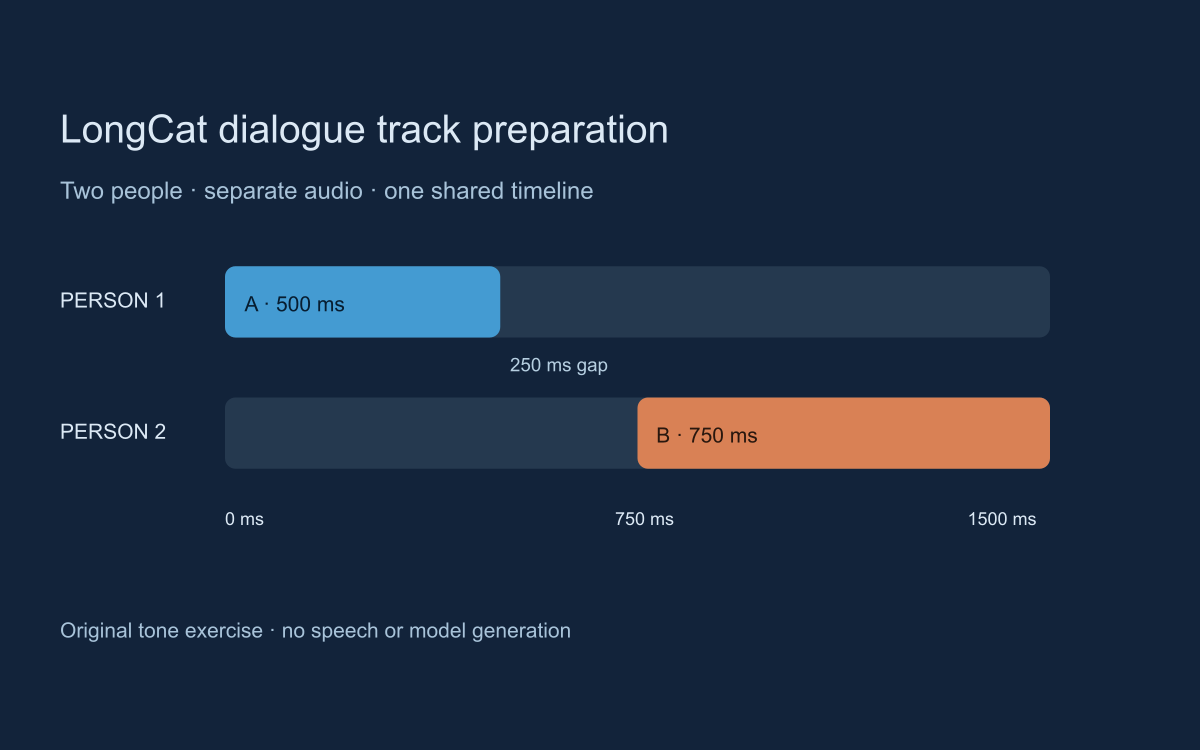
The prepared pair should each last 1.500 seconds, with person 2 beginning at 0.750 seconds. Listen to each padded track separately and then the preview. The preview uses half gain per person to provide headroom; the individual tracks preserve decoded level. It is a listening aid, not a claim that an upstream model applies the same mixing gain.
Download the original person 1 tone and person 2 tone, or inspect the scoped fixture report. The report records source durations, format and hashes. The helper tests check padding, start position and WAV encoding. None of this measures speech alignment, speaker assignment or the quality of a generated video.
Match the prepared pair to the selected audio mode
The official repository documents two dual-audio modes: para sums equal-length tracks, while add concatenates inputs with its padding semantics. Its multi-audio example names separate person1 and person2 files under cond_audio, alongside a prompt, image and audio mode.
The tool's sequentially placed, equal-length pair is intended for a shared-timeline review before choosing a parallel-track route. Do not feed an already placed pair into a concatenation route and assume it preserves the same timing. That can concatenate the padded timelines themselves. Start with the original unpadded clips when evaluating a sequential integration, then inspect the actual combined audio and its duration.
Write the chosen mode in the blank two-person take ledger. Save source recordings, prepared recordings and returned audio as distinct files. Compare what actually played with the intended exchange before judging facial animation.
Keep Avatar release settings and model files together
The official Avatar 1.5 examples select --model_type avatar-v1.5 and require --use_distill, with a matching checkpoint directory. Its multi-audio script is separate from the base model's continuation script. Follow the current upstream setup and record the repository revision, model and configuration rather than applying an older release's defaults.
We did not install that environment, download weights or run inference for this guide. Do not interpret a documented command as proof that it works on your device or with your chosen input. Preserve a known environment before an upgrade, and keep the returned file with the exact input and settings used. A successful process exit is only the beginning of the editorial review.
Inspect the named ComfyUI integration carefully
ComfyUI LongCat Avatar by rookiestar28 is a community Avatar 1.5 implementation, not the official Meituan runtime. Its current documentation describes CUDA inference, required distill weights, single-audio modes and multi-audio support in ai2v. Its macOS-MLX branch is identified as testing, not a general Mac compatibility guarantee.
For its two-person path, the documented left_audio input means the person on the left of the visual frame; audio means the person on the right. These are visual assignments, not stereo channels. Its optional person boxes use source-image coordinates in [y_min, x_min, y_max, x_max] order. Check that package's current example graph and control definitions before connecting prepared tracks.
- Confirm the supported version and prerequisites for the integration you selected.
- Inspect the graph's image, prompt and audio conditioning inputs before queuing.
- Map each approved recording to its intended visual person.
- Keep the input image, graph and actual settings with the take record.
- Locate the saved video and listen to its audio before reviewing the faces.
We inspected the documentation, not an executed graph. Maintainer startup or node-registration checks do not establish inference performance on your machine. For graph organization and safe environment changes, use the ComfyUI workflow guide.
Review the speaker and listener as separate performances
First listen without picture. Confirm the full words, order, pauses and end of each line. Then watch at normal speed. Does the intended person speak while the other listens? Does the listener react to the meaning rather than visibly speaking along? Keep those observations separate from global audio delay: a correct track offset does not prove the voice was assigned to the correct face.
Review the opening, speaker change and ending closely. Compare identity, teeth, chin, hands and background with the accepted input. Look for repeated gestures across a longer continuation and whether the final reaction still fits the next cut. Record the first visible defect and the corresponding time rather than giving an unsupported overall quality score.
Use the flash and click timing exercise for a separate playback timing reference and the narration workflow for approved voice preparation. Those tools do not diagnose speaker identity or replace watching the returned take. The MuseTalk guide covers another existing-visual-source dialogue path.
Cut the accepted exchange into the larger drama
Place the wide shot, exchange and reaction in sequence. If the second line lands too quickly, decide whether to revise the pause, shorten the first performance or change coverage. Preserve an accepted baseline and test one production change at a time. A different prompt, different voices and a new image together may create a better scene without showing which change helped.
Plan the reveal with the AI short drama workflow and the multi-shot coverage guide. Explore Clout AI Cinema for its available project and scene operations. This article does not establish LongCat hosting, model import or execution of a local ComfyUI graph inside Clout.


