

Make one line and one reaction work first
A useful first Kandinsky video AI exercise is a small dramatic beat: an archivist gives one instruction beside a closed door, then listens. One speaker, one camera position and one visible state make the result easier to judge than a crowded scene with overlapping dialogue. The goal is an accepted shot you can cut into a story.
The official Kandinsky 6 repository describes text- and image-conditioned video with audio, Lite and Pro variants and a separate super-resolution model. Its open-release entry is dated October 6, 2026. That release date does not establish a new trend today. This guide covers the video workflow, rather than older Kandinsky image-model instructions or unrelated paintings.
Start with the original scene brief and blank take ledger. They are planning assets, not generated examples. No Kandinsky weights or inference were used for this article. The inspector's built-in MP4s are separate original calibration files without speech.
Choose the implementation before installing anything
| Route | Starting decision | Keep with the take |
|---|---|---|
| Official native pipeline | Match the documented environment and a suitable configuration | Repository revision, checkpoint, actual configuration and returned files |
| Official bundled ComfyUI integration | Use its own extensions and matching example graph | Extension version, saved graph and expanded captions |
| Diffusers implementation | Check the documented library version and audio export call | Library revision, pipeline inputs and export settings |
These are separate implementation paths. An installed interface does not prove that every component needed by the chosen graph is present. Keep a known working environment before changing dependencies, then record one complete baseline rather than combining installation instructions from several wrappers.
For the broader local-model decision, use the open-source AI video generator guide. For graph organization, use the ComfyUI workflow guide. Neither page replaces the selected release's installation instructions.
Prepare the native pipeline deliberately
The official native quick start specifies NVIDIA hardware, Python 3.13 or 3.14, uv and just. It documents just setup, checkpoint download and just generate. Its default configuration targets an H100; it is not a promise that the default fits another GPU. Select the configuration for your environment before running a job.
The native instructions accept an image with --image and describe --no-audio for a video-only output. Without an explicit output destination, the documented run directory includes the MP4, launch record and expanded prompt. Preserve those together. A command can download missing model files, so inspect the current upstream instructions and storage needs before executing it.
We did not run these commands or measure setup time, memory, rendering speed or output quality. First prove that your selected configuration completes, then inspect the actual shot. A successful process exit is useful operational evidence; it does not establish that the dialogue is complete or the performance is usable.
Keep the official ComfyUI graph and captions together
The bundled ComfyUI documentation describes ComfyUI 0.38 or later and Python 3.10 or later, distinct from the native environment. It names kandinsky6 and kandinsky6-sr extensions under publisher kandinskylab. Base generation can run without super-resolution, while the bundled templates require both extensions.
Its text- and image-to-video-and-audio templates default to Pro Distill PiFlow with 10 steps and CFG 1. The documentation distinguishes the default downloadable bundle from optional Lite weights. Registered nodes alone do not prove the required model files are ready.
In this integration, Beautify Prompt expands separate video and audio captions. Preview as Text exposes the expansion; disabling expansion uses the captions directly. Documented spoken text belongs in the video caption between <S> and <E>, while voice and other sound belong in the audio caption. Save the actual expanded captions before evaluating a take. Do not assume the native pipeline expands them identically.
Write a scene the audience can understand
An original adult archivist in a navy jacket stands beside a closed blue door in a quiet archive room. One static medium shot. The archivist says <S>Stay by the door<E>, then returns to a listening expression. The door stays closed.
For a route with a separate audio caption, specify one calm adult voice, the approved line, quiet room tone afterward and no music. Use voices and references you are permitted to use. The brief deliberately gives the actor one action and the scene one stable physical state. It is an original production exercise, not a tested prompt or a guarantee of exact words.
Before queuing, decide what would make the shot fail. For this exercise, an opened door contradicts the blocking, missing words change the instruction and a second speaking person confuses the scene. A prettier room does not compensate for those failures. Record the intended line and door state in the ledger so that a later revision has a clear comparison.
If the expanded caption changes the line, introduces a second action or adds music, revise it before comparing takes. If the returned line is incomplete, first check the actual caption and available time. Avoid changing camera, performer, wording and model settings simultaneously; you would lose the useful baseline.
Preserve the audio when saving the video
The Diffusers main documentation shows a Kandinsky video-and-audio pipeline followed by encode_video using both returned frames and audio, with the pipeline's audio sample rate. Its sample_audio=False option selects video only. Check the documentation for your installed version rather than assuming a main-branch example matches an older stable package.
Keep the first returned file before an editor export. If a later export lacks sound, compare the source and edited file independently. There are several different questions: was audio requested, was it returned, was it included in the saved MP4 and is it actually audible? A visual preview answers only part of that chain.
Inspect declared tracks in the actual MP4
Use the free tool above with a local MP4 up to 50 MB. It reads selected container headers in your browser and does not upload your file. It reports declared video and audio track counts, sample-entry codes, movie duration and separate presentation and media timelines. It does not fetch media referenced by the file or decode the track contents.
The MP4 Registration Authority handler registry identifies vide as video and soun as audio. A declared audio track is useful evidence of container structure. It does not prove there are spoken words, that the samples decode correctly or that the voice matches the mouth. A file with no declared audio track also tells you nothing about whether the original request asked for one.
Unknown duration stays unknown; a declared zero stays zero. If fragmented media is indicated, the tool flags that it does not aggregate fragment timing. The W3C ISO media byte-stream note describes initialization and fragment structures for Media Source Extensions. This small header reader is not a full MP4 conformance checker or a simulation of a player's edit-list behavior.
Try the two original calibration files
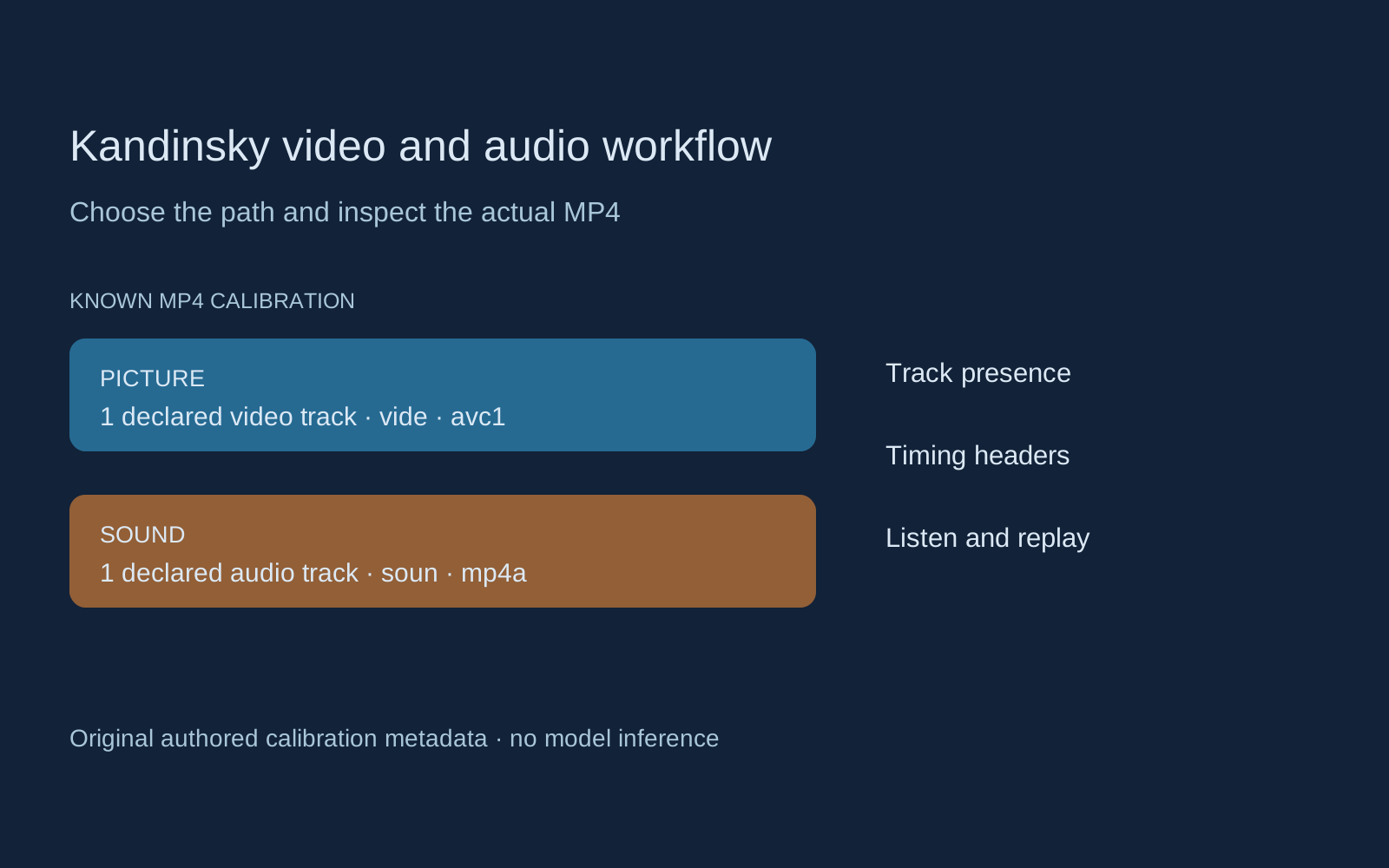
Select Inspect original picture and sound. The known file declares one video track, one audio track and a four-second movie timeline. Its audio media header is approximately 4.0213 seconds, while the audio presentation header is four seconds. Those are different declared timelines, not proof of a playback offset. The tool does not execute the file's edit list or diagnose the cause of the difference.
Select Inspect original silent video. That separate lamp turntable declares one video track, zero audio tracks and a four-second movie timeline. Both examples were authored for earlier calibration exercises, not rendered by Kandinsky. Neither contains speech. Read the scoped track study and file hashes to inspect exactly what was measured.
For playback, use the existing flash-and-click timing exercise and original lamp turntable. These are distinct reference assets. Their track counts do not establish the quality, timing or capabilities of a model.
Accept the performance before building a sequence
- Listen without picture and write down the words actually heard.
- Watch at normal speed for a readable instruction and listening beat.
- Inspect the face, mouth, hands and door at the beginning and end.
- Check the returned file and any edited export for the intended picture and sound tracks.
- Place the accepted shot beside its previous and next shots, then review the cut.
For this scene, the silence after the instruction is part of the performance. Do not extend the line merely to fill the planned duration. If the listening beat feels rushed, decide whether the next shot should carry the reaction. Build the scene with the AI short drama workflow, then plan coverage with the multi-shot guide.
Keep generated-audio work separate from a workflow that already has an approved recording. The LongCat Avatar guide addresses prepared dialogue tracks; the LatentSync guide covers an existing-video synchronization route. Explore Clout AI Cinema for its available scene and project operations. This guide does not establish Kandinsky hosting or local-graph execution inside Clout.


