
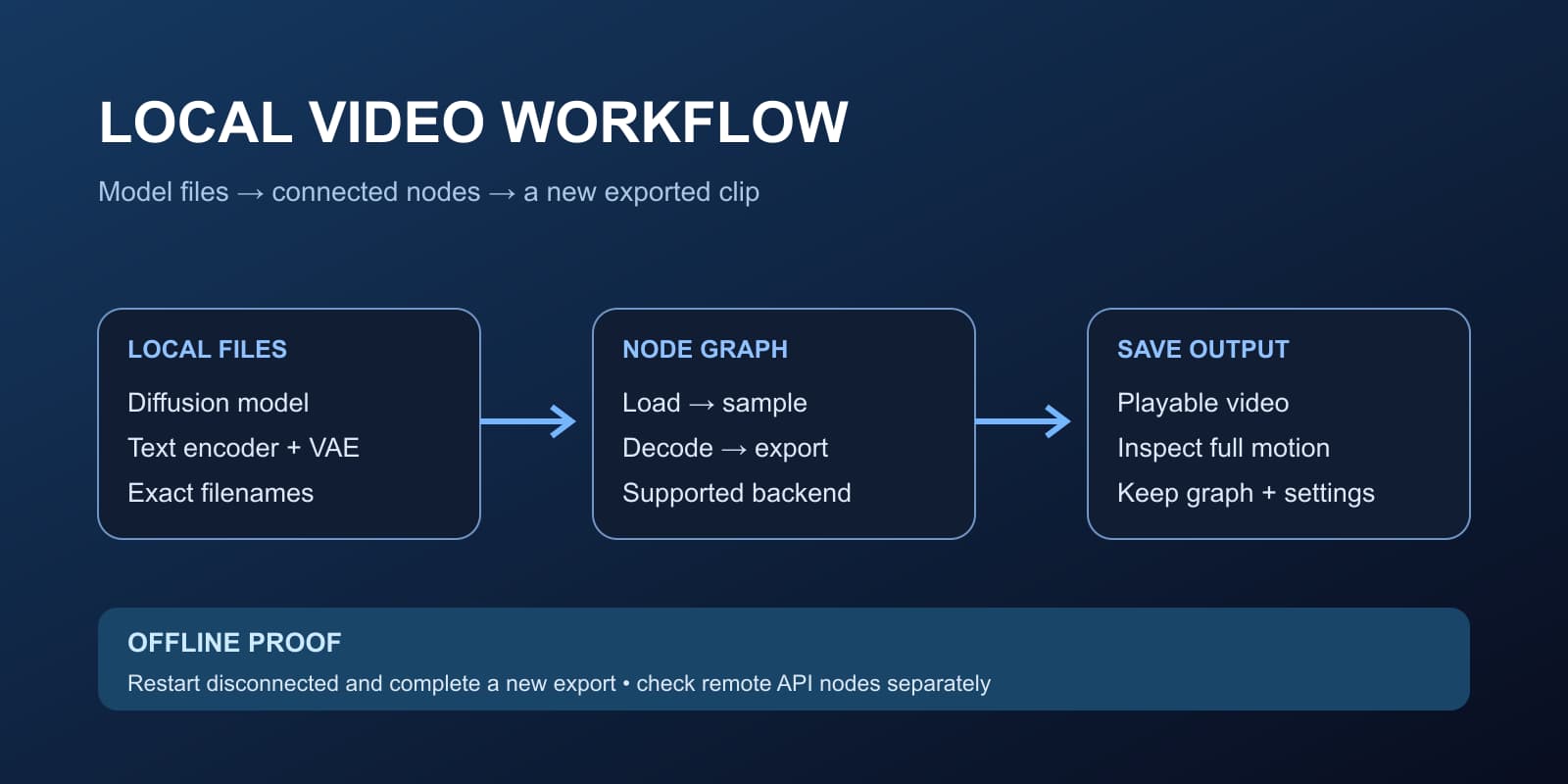
An open source AI video generator gives you more control over the generation pipeline, but software availability is only the beginning. You still need compatible model weights, the correct workflow, usable hardware and time to maintain the installation. Start with one complete maintained example before collecting community graphs.
This guide helps you choose a local route. For exact Wan template setup, continue with the Wan ComfyUI first-video guide. For hosted production and motion quality, use the realistic AI video guide and review workspace. These pages address different decisions rather than treating every workflow as interchangeable.
Compare the local generation routes
| Route | What it provides | What to verify first |
|---|---|---|
| ComfyUI with Wan | A visual node graph with official video templates | Template version, model components and offloading requirements |
| Wan reference repository | Inference code and downloadable model variants | The exact task command and its documented GPU requirements |
| Lightricks LTX | Published video-model code and associated workflows | The current release repository, checkpoint and license |
| CogVideoX | Text and image video-generation implementations | Variant-specific dependencies, hardware and weight terms |
| Hosted creator studio | A managed production interface | Available controls, export terms and account pricing; it is not offline |
The official Wan repository distinguishes text, image and hybrid variants. The LTX-Video repository directs current development toward LTX-2; do not mix instructions across releases. CogVideo's repository is another primary source to investigate. This is a route comparison, not a tested ranking of image quality or speed.
Keep code and weight licensing separate in your decision record. An open repository does not establish identical terms for every checkpoint or extension. Read the license attached to the exact files you intend to use, especially if you will redistribute a workflow or ship it inside a product.
What a node based AI video generator actually means
The graph exposes stages such as loading weights, encoding a prompt, supplying a reference, sampling, decoding and saving. The node editor is an interface; the model produces the visual content. Replacing the interface does not remove model requirements, and a colorful canvas is not evidence that a job completed.
For your first graph, identify three things: which files it loads, which settings you will change and where the result is saved. Keep an untouched version of the official template. Once a baseline succeeds, save a working copy with a clear name and modify one setting at a time. Use the ComfyUI workflow guide for graph concepts and workflow saving and importing for a repeatable handoff.
Choose hardware by the implementation
The official ComfyUI Wan tutorial says the 5B hybrid workflow should fit 8 GB VRAM with native offloading. Wan's standalone TI2V-5B reference command instead lists at least 24 GB VRAM with its specified options. These figures describe different software paths. Neither establishes speed, headroom or a guarantee for your installation.
| Your starting point | Practical decision | Unproven until tested |
|---|---|---|
| An 8 GB discrete GPU | Investigate the documented ComfyUI 5B offloading path | Completion time and available host memory |
| A 24 GB discrete GPU | Compare the relevant native template and standalone reference route | Whether your exact settings fit comfortably |
| Apple Silicon | Check the supported backend and model-specific workflow | Compatibility and performance of the chosen video graph |
| CPU only | Prove a small supported test before planning a production batch | Whether turnaround meets your needs |
| No suitable local hardware | Evaluate rented compute or a hosted studio | Actual accepted-output cost; rented compute is still remote |
ComfyUI's system requirements list Windows, Linux and Apple Silicon macOS. Its Mac backend uses PyTorch MPS. Platform support for ComfyUI does not prove that every third-party video model or custom node works on that platform. Do not equate unified memory on a Mac with the same amount of discrete CUDA VRAM.
Check the required model files locally
Download the read-only local video setup checker. It looks for the three component filenames used by ComfyUI's native Wan 5B example and reports whether each file exists and is nonempty. In the Python environment running the script, it also checks whether Torch imports and whether CUDA or MPS is available. It does not download models, install packages, submit jobs or contact a service.
python3 check-local-video-setup.py --models-dir /path/to/ComfyUI/modelsRun it using the Python environment associated with your ComfyUI installation. Running a different system Python can report Torch absent even when the application has its own working environment. To retain the inventory, redirect the JSON output into a review file:
python3 check-local-video-setup.py --models-dir /path/to/ComfyUI/models > local-video-inventory.jsonThe expected paths are diffusion_models/wan2.2_ti2v_5B_fp16.safetensors, text_encoders/umt5_xxl_fp8_e4m3fn_scaled.safetensors and vae/wan2.2_vae.safetensors. A different model variant needs its own documented files. File presence is an inventory result, not checksum validation or proof that inference works.
Prove an offline AI video generator is really offline
- Install the chosen runtime and download the exact model components while connected.
- Complete one baseline generation with the official template and save the graph.
- Check every operation for remote dependencies, including API nodes and prompt expansion.
- Close and reopen the runtime, disconnect the network, then repeat a small generation with the saved inputs.
- Confirm the exported file exists and plays completely, then record the settings and result.
Wan's documentation offers both API-based and local prompt expansion. For a disconnected test, omit remote expansion or prepare the appropriate local dependencies. Opening a page at localhost only proves where the interface is served; a node inside the graph can still call an external service.
Do not claim offline success because the editor opened or because cached thumbnails remained visible. The useful proof is a new completed export after disconnection. Keep the first experiment simple: one approved frame, one short action, one output. This guide's script checks inventory only; we did not run a CUDA inference benchmark on our machine.
Troubleshoot before adding more nodes
| Symptom | Inspect first | Useful next action |
|---|---|---|
| Missing model selection | Filename, model directory and chosen template | Match the official component list for that variant |
| Missing node | Template release and startup import logs | Resolve the version mismatch before changing the graph |
| Out of memory | Actual backend, other GPU workloads and settings | Return to the documented baseline and supported offloading route |
| Works connected only | Remote operations and lazy downloads | Prepare dependencies and retest after restarting offline |
| Checker reports no Torch | The Python environment used to run it | Use the installation's environment rather than installing blindly |
| Completed clip looks wrong | Input quality, action and full exported motion | Use the timestamped realism review and revise one failure |
Build a setup around accepted creator content
The best setup for AI video generation is the one that meets your actual production brief and can be reopened reliably. Record setup time, elapsed generation time, revision effort and accepted outputs. Include hardware or rental costs when comparing a local route with hosted services. A zero software price does not make those costs disappear.
If managing weights and graphs is part of your work, keep the local setup and improve the record around each accepted export. If your priority is a recurring creator campaign, create an AI character in Clout and build photos and videos around that identity. Clout is a hosted creator option, not an offline installation or a ComfyUI graph importer.


