

For a streaming multi-shot research workflow, see the ShotStream source and continuity pilot.
Choose the official FramePack implementation first
FramePack is a progressive video-generation approach for working with long frame histories under a bounded context budget. The useful production question is whether your selected implementation can generate an accepted shot on your hardware. A low memory requirement is not a promise of fast rendering, a coherent long take or support for every GPU.
Start at the official FramePack repository. It documents Windows and Linux, supported Nvidia RTX generations and a minimum of 6 GB GPU memory. Its Windows instructions use the linked package, update.bat and run.bat; model downloads exceed 30 GB. Use the repository’s current instructions for the environment you are actually running. We did not install its models or execute CUDA inference for this guide.
The research project page explains the frame-context packing idea. That research description is separate from a measured claim about your own output. Keep implementation, model variant and repository revision in the production record before comparing runs.
Separate the default demo F1 and P1 preview
The official F1 announcement describes forward prediction from history and the separate demo_gradio_f1.py entry point. The default demo has a different generation order. The project also labels P1 as a preview; do not treat preview examples as proof that a matching installable release is present in your checkout.
| Route | What to record | What to verify |
|---|---|---|
| Default repository demo | Revision and demo entry point | The actual controls and returned frame order |
| FramePack F1 | F1 entry point and accepted baseline | The complete exported action and ending |
| P1 preview | Preview source and date | Whether the requested code and weights are actually available |
| A community interface or fork | Maintainer and exact repository | Its own dependencies and supported features |
FramePack Studio and community ComfyUI integrations are separate software paths. An instruction for one should not be copied into another without checking its source. This page owns the official-project first-run and output-review workflow. The local video setup guide covers the broader choice between model families and node interfaces.
Use the free read-only setup inventory
Download check-framepack-setup.py and run it from the Python environment associated with your intended installation. It inventories the demo files, requirements file, helper directory and installed package metadata. If available, it queries the existing nvidia-smi utility for reported GPU memory. It does not install packages, import the model runtime, download weights or contact a service.
python3 check-framepack-setup.py --repo /path/to/FramePack
python3 check-framepack-setup.py --repo /path/to/FramePack --skip-gpu-query
A missing or empty file stays visibly missing in the report. An unavailable GPU query stays unavailable. The report does not turn file presence into a readiness verdict: authenticity, model hashes, CUDA compatibility, memory at generation time and successful inference remain unverified. On this guide’s Mac environment, the operating system is outside the upstream list and the Nvidia utility is unavailable; that is an inventory observation, not a failed model benchmark.
Prepare one reference and one visible action
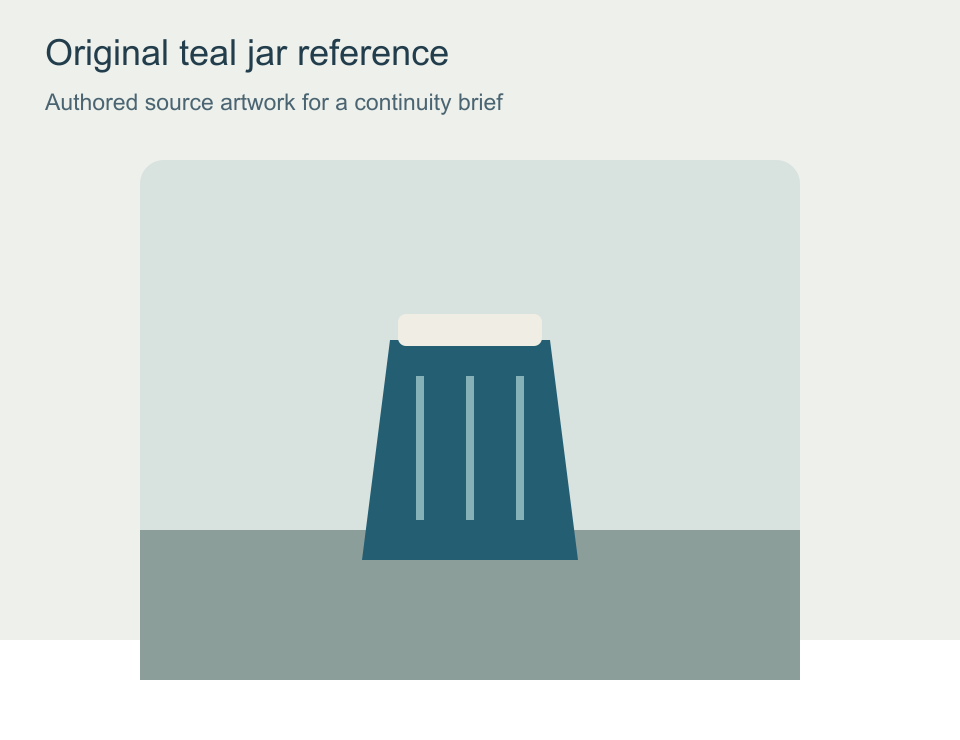
Our practice brief uses an original teal jar on a workbench. Keep the jar silhouette, three front ribs and pale lid recognizable. Ask for a restrained lateral camera move with the jar remaining on the bench. This isolates one visible action and gives the review specific details to inspect. It avoids combining a person, dialogue, a product transformation and several cuts in the first request.
A short continuous lateral camera move past the accepted teal jar on the same workbench. Preserve its silhouette, three front ribs, pale lid and contact with the bench. Keep the room and lighting consistent. End with the same intact object in a readable composition.
This is an original unexecuted direction exercise. Save your own approved input and prompt alongside the actual returned file. For recurring creator scenes, the same method can name a costume detail, prop holder and room anchor instead of the jar’s ribs.
Start short and keep the actual demo settings
The default demo source exposes an image, prompt, seed, requested duration, steps, TeaCache and memory-preservation controls. It saves MP4 outputs at 30 fps and displays section progress. Its visible note explains that ending actions may appear before starting actions during inverted generation. Inspect the completed output before declaring the opening missing.
Begin with a short baseline, record the settings and keep the source revision fixed. Change one variable when a take fails. A larger requested duration multiplies the material you must inspect; it does not resolve a reference that is already ambiguous in the first composition. The blank take-review ledger records the prompt, seed, cache setting, actual duration and acceptance decision.
Review the long take for identity and action order
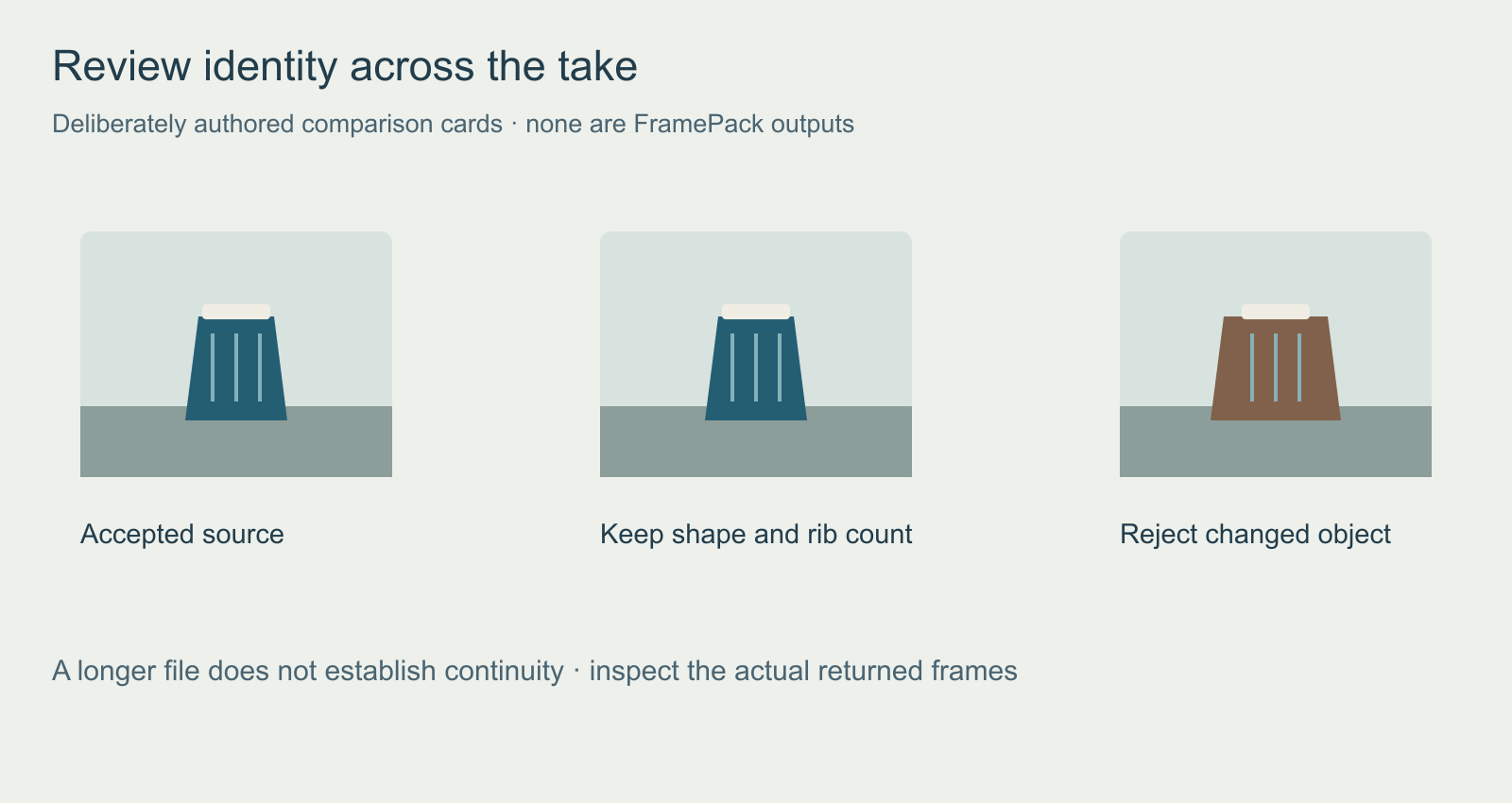
Inspect the beginning, representative middle moments and ending, then watch the complete file at normal speed. For this exercise, a different jar width or changed rib pattern is a specific continuity failure. Record the first visible change and whether it persists. Do not approve the take because a thumbnail resembles the input.
Separate intended camera movement from unstable scene geometry. A wall that bends around the jar is a different defect from a small whole-frame shake. Use the stabilization workflow and original source/result study for global movement. It cannot establish that a changed product or face has been restored.
Keep local generation and hosted scene production distinct
A local setup gives you a different operational job from a hosted production interface. Record setup time, maintenance effort, generation time and the number of accepted takes when evaluating it for a project. Do not compare a software download price with the complete cost of an edited scene.
Use Clout AI Cinema for its available project and scene workflow, or Image and Video for supported visual-generation operations. This guide does not establish FramePack hosting or a local-runtime importer inside Clout. For a sequence with deliberate cuts, use the multi-shot production guide; for native frame arithmetic in another local model, see the LTX 2 prompt guide.
Finish by reopening the exported file in the editor that will receive it. Confirm duration, dimensions, frame rate, playback and any required sound. Keep the accepted master, source image and settings record together. That completed handoff is the evidence that the workflow served the brief.


