Start with a performance rather than an audio file
Use LivePortrait when you have a portrait to animate and a recorded performance whose movement you want to transfer. For a drama insert, this can be a restrained reaction: a character hears a line, blinks and turns slightly toward the off-screen speaker. Write that acting beat before choosing settings.
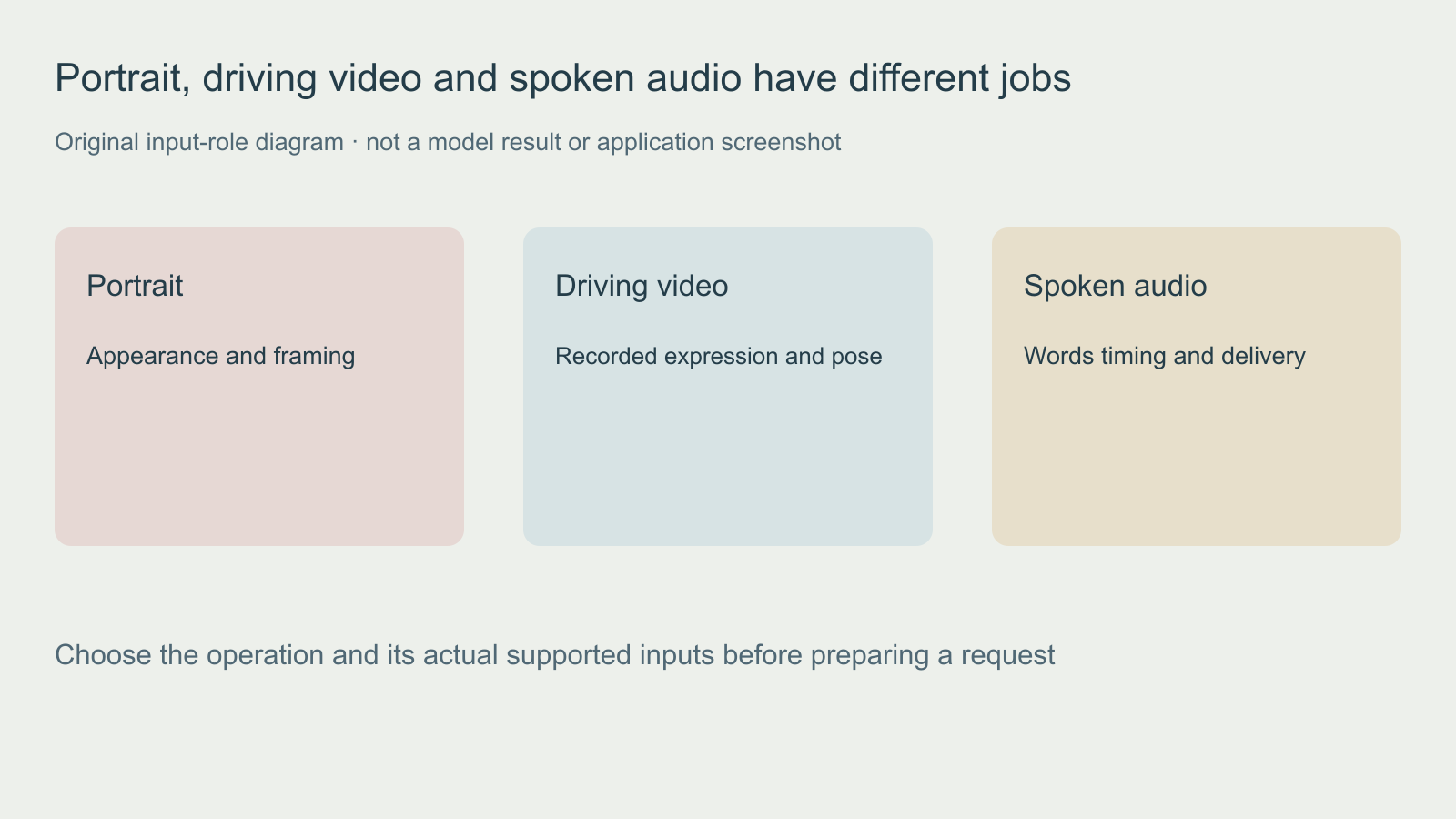
The official LivePortrait repository documents source and driving inputs. Its driving recommendations include a focused head crop and a neutral front-facing first frame. A source portrait supplies appearance; a separate driving clip supplies the performance. The official argument configuration defines the source, driving and crop options. Check the current project instructions for your platform before installation.
Prepare one readable source portrait
Use a single permitted subject, a clear face and enough room around the chin and hair. Keep the starting composition simple so you can identify the origin of a defect. Our fictional adult portrait gives the exercise a stable appearance baseline: short dark curls, a slate-blue shirt and a warm-gray background.
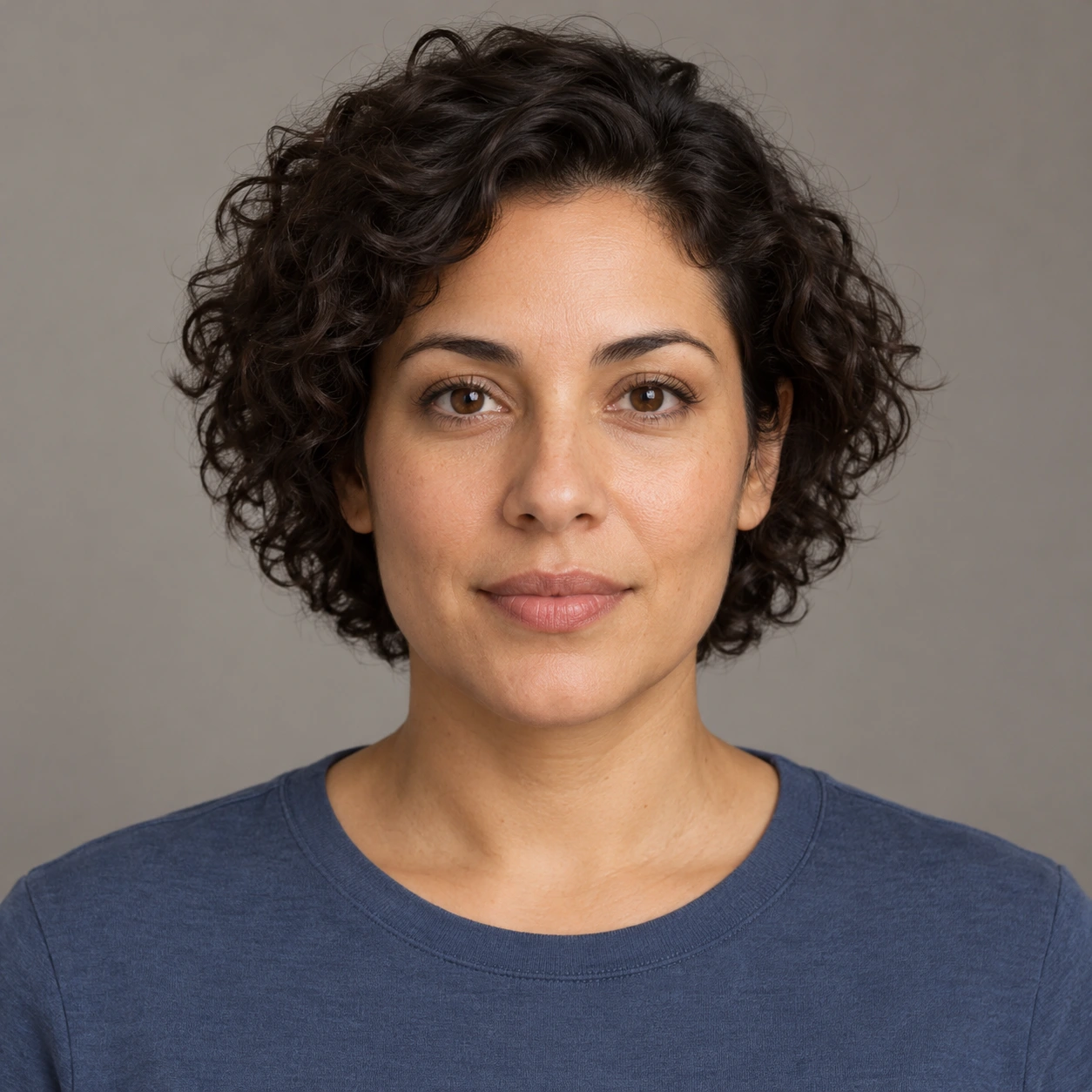
Download the original source portrait. Keep the unmodified original alongside your test. This is a preparation asset, not evidence that a model has detected its face or generated a successful animation.
Write those details into the manifest before recording. Do not replace the source midway through a comparison and attribute the new appearance to a setting. If you need a different angle, save it as a separate input with its own filename.
Rehearse a restrained performance before recording
This original eight-second schematic is a recording plan: neutral start, planned blink, small turn and return. It is authored animation, not a human performance, usable face-driving footage or a model output. Record the plan with your own permitted performer and review that recording before inference.
Watch this clip and view its details
Open the motion plan watch page or download the silent planning clip. It contains no spoken audio.
Keep the first command small and traceable
After following upstream setup instructions, the documented command structure uses a source and driving file. Replace these placeholder paths with your own accepted media and run from the project environment.
python inference.py -s source.png -d driving.mp4 --flag_crop_driving_videoThis is an illustrative command, not a command executed for this article. Record the repository revision, environment and actual settings with the exported file. A valid MP4 container does not prove the face crop, tracking or generated result is usable.
Keep ComfyUI workflows tied to their maintainer
A ComfyUI LivePortrait workflow adds a node interface and its own dependencies. Record the exact integration, node versions and workflow file. Inspect what each input node expects before connecting the source and driver. A screenshot of a graph is not proof that the required nodes or model files are installed.
For a node-based test, begin with one source and one short driver. Save the graph with the accepted result and note any preprocessing. Do not silently carry a crop or resize from an earlier test into a new comparison. See the local video setup guide for the broader environment decision.
Check local media roles before inference
The free read-only portrait input checker uses an existing ffprobe to inspect local files. Run python3 check-portrait-inputs.py --source source.png --driver driving.mp4 --mode motion for a video driver, or use --driver speech.wav --mode speech for audio. It prints metadata only, installs nothing and makes no network requests. Unknown frame counts fail the motion-role check conservatively. A match verifies media roles only, not face detection, compatibility, word accuracy or successful inference.
Review the whole take against a written brief
Watch once at normal speed without pausing. Then inspect the start, each intended action, the return to rest and the last frame. Log the first visible defect with a timestamp. A recognizable first frame does not establish that the face stays recognizable through a turn.
| Check | Question | Record |
|---|---|---|
| Identity | Do the hairline, eyes, nose and jaw remain the intended character | First change and whether it persists |
| Motion | Does the requested movement happen once and end cleanly | Action order and unwanted repeats |
| Mouth | Do the lips and teeth remain coherent during speech or rest | Specific word or frame interval |
| Edges | Do the chin, hair and shoulders separate cleanly from the background | Warping, crop or boundary movement |
| Handoff | Does the exported file reopen with expected picture and sound | Actual duration, dimensions and audio presence |
Use the blank portrait animation review sheet and input manifest. Record your actual run rather than filling the sheet with predicted scores. Change one input or setting at a time so a better result has a traceable cause.
Choose another route when the input job changes
If your starting material is a portrait plus a voice recording, use the SadTalker audio-driven workflow. For an existing face video that needs a different approved speech track, read the SadTalker and Wav2Lip input comparison. For body movement and scene replacement, use the Wan Animate workflow.
Build the accepted portrait into a scene
A talking portrait is one shot in a production. Decide who speaks, what the listener does and where the cut belongs before generating several variations. Use the AI short drama workflow for scene structure and multi-shot guide for coverage and continuity. A close-up should answer a story question rather than simply demonstrate moving lips.
Explore Clout AI Cinema for the available project and scene workflow, and Image and Video for supported generation operations. This guide does not establish that Clout hosts these open-source models or imports their local runtimes.