Approve the line before animating the portrait
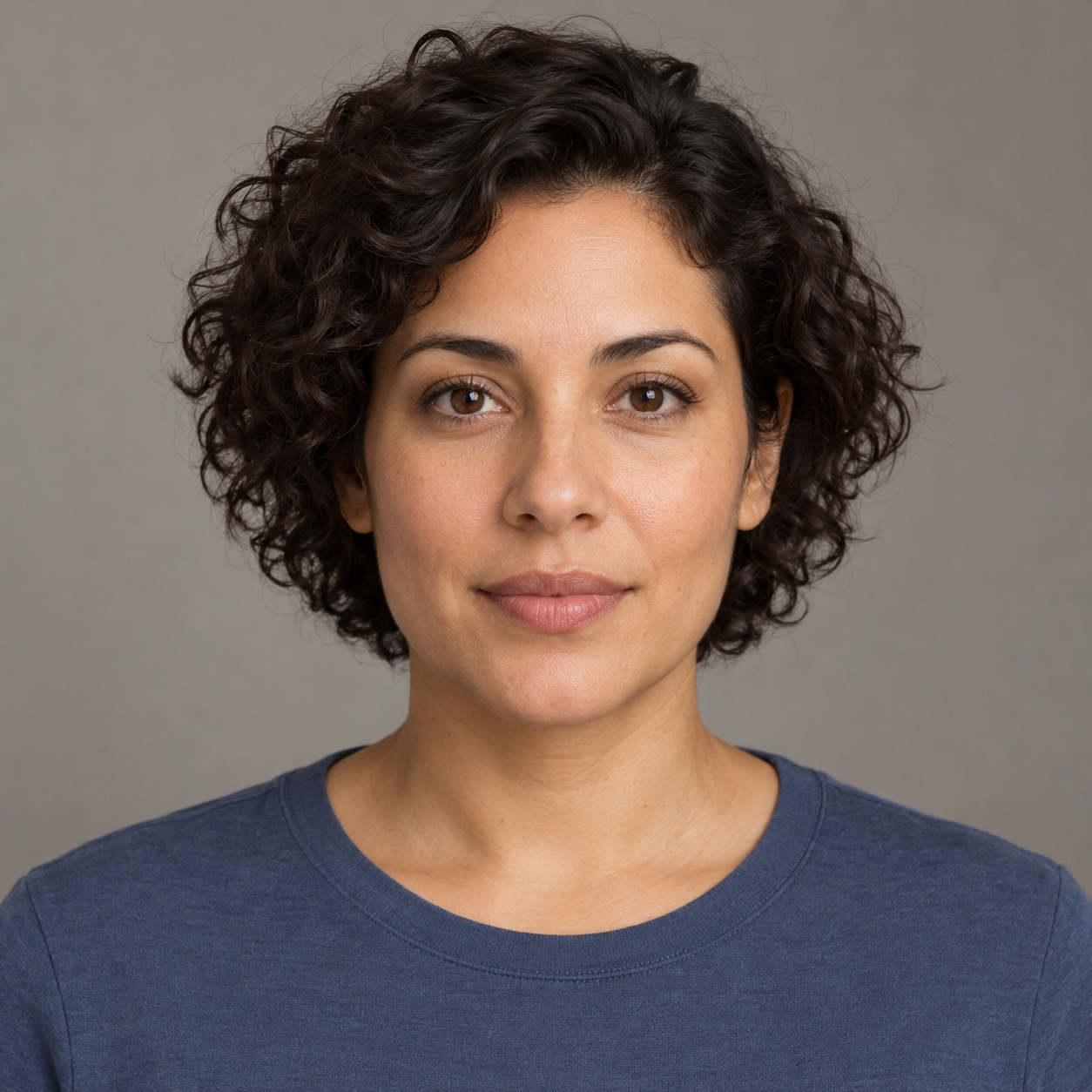
An audio-driven portrait is useful for a short narrated insert, a character message or a rehearsal of a dialogue beat. Begin with the actual words and intended delivery. A technically playable animation can still be the wrong take if it cuts off the first word or emphasizes the wrong phrase.
The official SadTalker repository documents a source image and driven audio. Its inference source defines those arguments and the output directory. Follow the repository setup for the implementation you are using; a similarly named hosted interface can have different controls.
Keep a stable appearance baseline
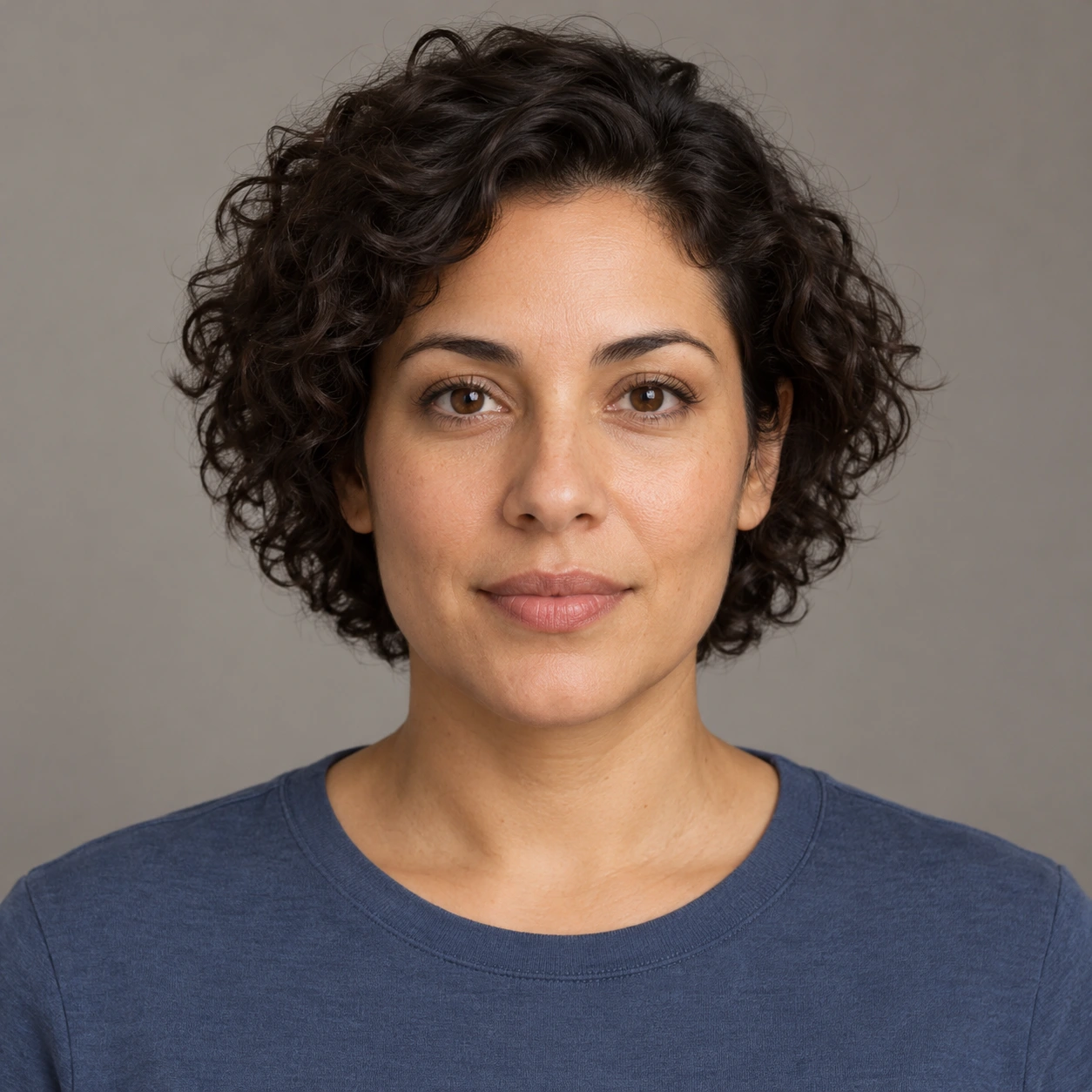
Download the original source portrait. Keep the unmodified original alongside your test. This is a preparation asset, not evidence that a model has detected its face or generated a successful animation.
For the first test, keep the composition and background unchanged. Record the source filename, the voice recording filename and the intended line in the manifest. The portrait is fictional; the guide supplies no recorded voice or completed talking-head render.
Record the original speech brief in your own approved voice
The blue notebook is on the desk. Please read the final line before we begin.
Download the original test script and recording brief. Record a clear delivery with a short quiet lead and tail. Listen to the recording before inference, confirm both sentences are complete and measure its actual duration. The written script does not predict word timings or establish a lip-sync result.
Keep the first version dry and understandable. If music or room noise obscures a syllable, revise the source before blaming the animation. Preserve the approved recording so future tests use the same words and pacing. For a dramatic message, record a second delivery only after logging the first one as a separate take.
Run the documented portrait and audio route
python inference.py --driven_audio speech.wav --source_image source.png --result_dir resultsThese are placeholder local filenames and an illustrative upstream command, not an executed model test. The repository also documents full-image preprocessing with still mode. Choose settings deliberately, save them and inspect the actual result location after the run. Do not assume a fixed returned filename across revisions.
A media file opening successfully is only the container check. The project can still fail during face processing, and an output can still require editorial rejection. Keep the terminal outcome separate from your review of the exported picture and sound.
Check speech and picture in separate passes
- Listen without watching and compare the entire line with the approved script.
- Watch at normal speed for a believable overall delivery.
- Inspect mouth closures, teeth, chin and the return to rest around important words.
- Check the face and shoulders for drift against the source.
- Reopen the export in the destination editor and confirm the audio remains present.
Use actual timestamps from the returned file. Do not label a mouth shape correct merely because it changes while sound plays. If a defect repeats on the same phrase, preserve that interval and change one variable for the next take. A different voice recording and a different portrait at the same time make the cause hard to identify.
Check local media roles before inference
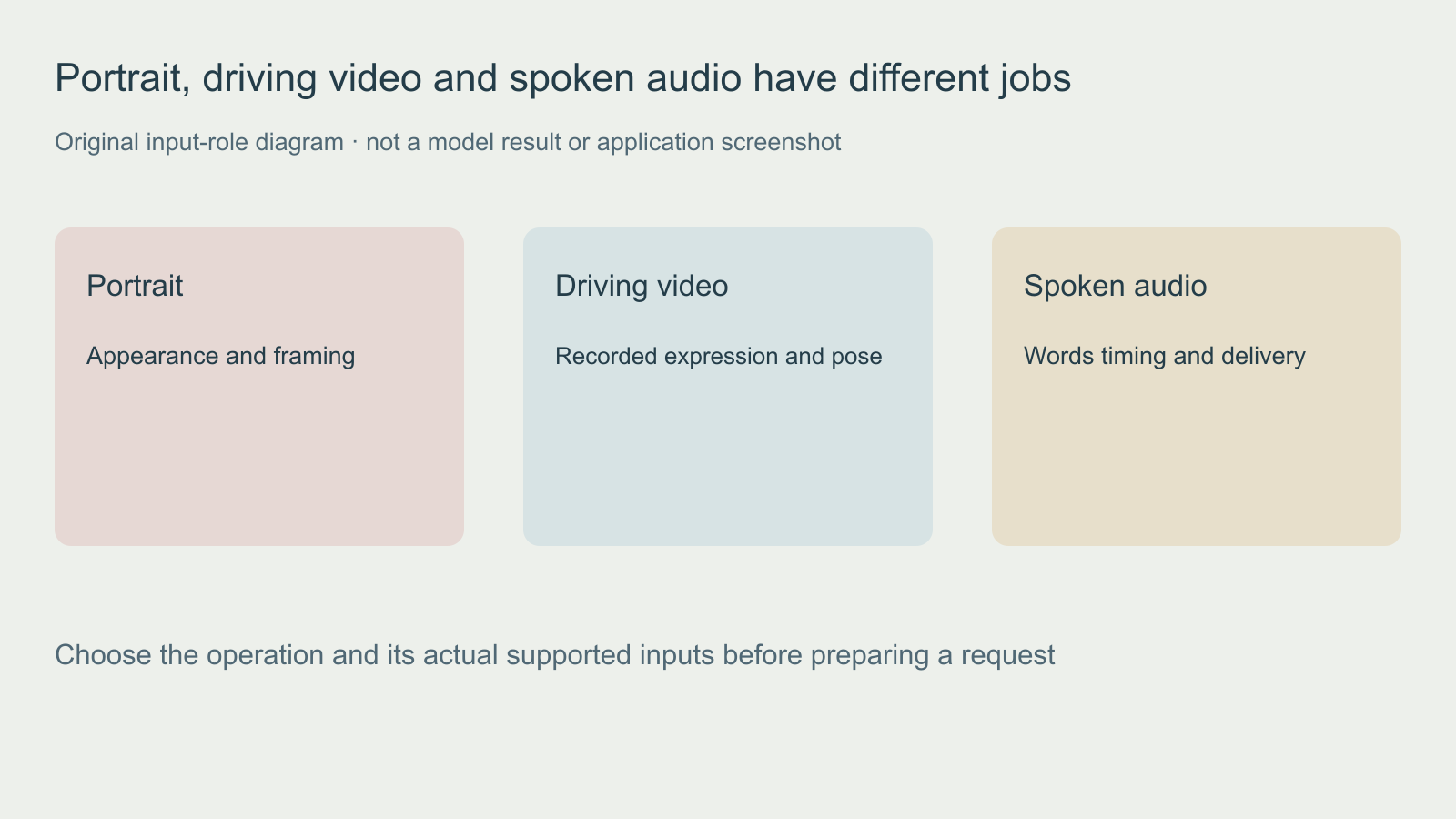
The free read-only portrait input checker uses an existing ffprobe to inspect local files. Run python3 check-portrait-inputs.py --source source.png --driver driving.mp4 --mode motion for a video driver, or use --driver speech.wav --mode speech for audio. It prints metadata only, installs nothing and makes no network requests. Unknown frame counts fail the motion-role check conservatively. A match verifies media roles only, not face detection, compatibility, word accuracy or successful inference.
Review the whole take against a written brief
Watch once at normal speed without pausing. Then inspect the start, each intended action, the return to rest and the last frame. Log the first visible defect with a timestamp. A recognizable first frame does not establish that the face stays recognizable through a turn.
| Check | Question | Record |
|---|---|---|
| Identity | Do the hairline, eyes, nose and jaw remain the intended character | First change and whether it persists |
| Motion | Does the requested movement happen once and end cleanly | Action order and unwanted repeats |
| Mouth | Do the lips and teeth remain coherent during speech or rest | Specific word or frame interval |
| Edges | Do the chin, hair and shoulders separate cleanly from the background | Warping, crop or boundary movement |
| Handoff | Does the exported file reopen with expected picture and sound | Actual duration, dimensions and audio presence |
Use the blank portrait animation review sheet and input manifest. Record your actual run rather than filling the sheet with predicted scores. Change one input or setting at a time so a better result has a traceable cause.
Decide whether generated motion fits the scene
A spoken message may need only a stable close-up. A dialogue scene may need an exact reaction, eyeline or directed turn. If the performance itself is the input you need to preserve, use the LivePortrait driving-video workflow rather than assuming a speech recording will specify the same acting.
If you already have the face footage and need to evaluate changing its speech, use the SadTalker versus Wav2Lip workflow comparison. That page separates input roles and review criteria without claiming an unperformed quality ranking.
Build the accepted portrait into a scene
A talking portrait is one shot in a production. Decide who speaks, what the listener does and where the cut belongs before generating several variations. Use the AI short drama workflow for scene structure and multi-shot guide for coverage and continuity. A close-up should answer a story question rather than simply demonstrate moving lips.
Explore Clout AI Cinema for the available project and scene workflow, and Image and Video for supported generation operations. This guide does not establish that Clout hosts these open-source models or imports their local runtimes.