

Can Claude generate images is a question about the output you need. A written photo prompt, an editable diagram, an analysis of an uploaded picture and a photograph returned by an external tool are different deliverables. Start by naming the file you want to publish.
This independent guide explains Claude image generation and video workflows using official documentation checked October 3, 2026. It includes an original editable SVG, three campaign briefs and a blank output review sheet. The examples are editorial planning material, not a claimed Claude account test or generated-footage benchmark.
What Claude can create and what needs a media tool
Anthropic’s image capability guide distinguishes photographic synthesis from Claude’s HTML and SVG visuals and uploaded-image analysis. Its March 16 guidance says Claude does not produce photos or illustrations the way image-generation tools do.
| Your intended result | Useful first request | What proves completion |
|---|---|---|
| A creator photo | Prepare an identity and composition brief for an image tool | A reviewed photographic export |
| An editable diagram or title design | Build a code-based visual with exact labels | The rendered design and editable source |
| A critique of an existing photo | Compare visible details with your brief | A checked list of observations |
| A moving creator scene | Plan one action and the required inputs | The complete playable video export |
| A photo edit | Describe the area to change and the parts to preserve | An accepted result from the chosen editing tool |
A file extension is only part of the answer. A PNG screenshot of a diagram and a generated portrait can both be image files, while requiring very different production methods. Likewise, a shot description is useful work but does not supply an MP4 you can upload.
Use a code visual when you need exact type and layout
For a simple social card, editable shapes and type may be the finished deliverable. Define the canvas, message, spacing and palette. Make the desired labels part of the brief so you can inspect spelling and fit rather than hoping a photographic generation produces exact typography.
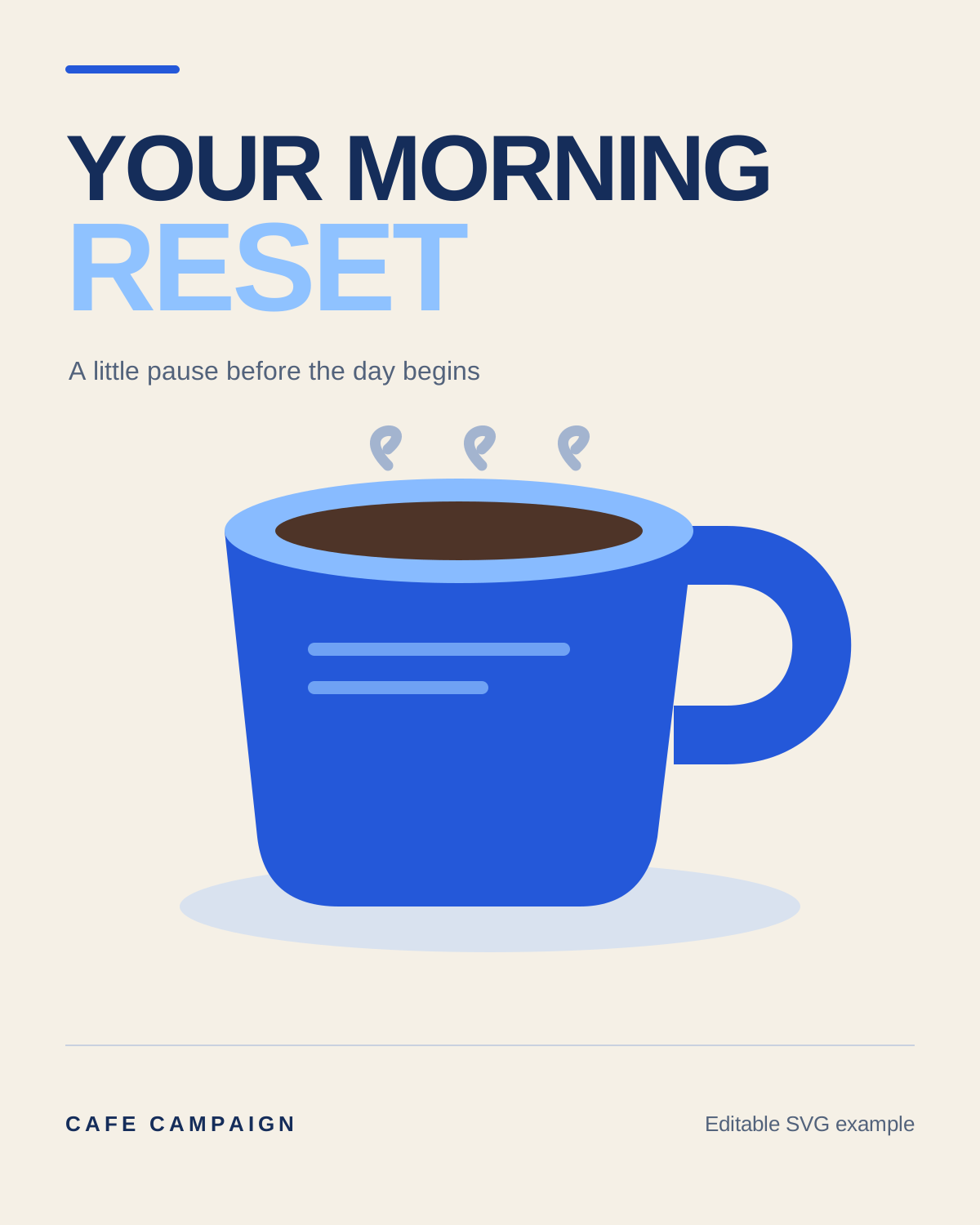
Download the original editable SVG card. It uses a cream background, cobalt cup and two-line headline on a 1200 by 1500 canvas. The file contains editable vector shapes and text, with no embedded photograph or external font dependency.
Create an editable SVG social card on a 1200 by 1500 canvas. Use a cream background and cobalt blue. Put the headline “YOUR MORNING RESET” on two lines with generous padding. Draw a simple steaming cup beneath it and leave the footer uncluttered. Keep all text within the canvas and return the SVG source rather than describing an imaginary finished image.
This is an original prompt to adapt. Open the resulting file at its intended display size and inspect the actual letters and shape boundaries. A browser preview can look good while a platform thumbnail becomes unreadable. Keep the source so the headline can be shortened without starting the design again.
Write a photographic brief around one recurring creator
Our campaign uses a fictional adult café creator with dark curly hair, a cream shirt and a cobalt ceramic mug. The three stills have different jobs: establish identity, show the setting and show the prop. The same face and wardrobe are requirements to review, not assumptions that every tool will satisfy.
Plan a three-photo campaign for an original adult café creator with dark curly hair and a cream shirt. Keep the same cobalt ceramic mug across the series. Deliver a portrait, a seated café scene and a mug detail. For each asset, specify framing, lighting, reference roles and rejection criteria. Do not invent mug specifications or claim the files have been generated.
| Asset | Original production brief | Review before the next asset |
|---|---|---|
| Identity portrait | Chest-up view with soft window light and the mug below the face | Face, hair, shirt and room above the head |
| Café context | Seated medium-wide view with the same creator and mug | Identity, wardrobe and the relationship to the table |
| Prop detail | Close view of the cobalt mug resting on the table | Handle, rim, silhouette and visible color |
Download all three still briefs and the motion brief. The file separates the planning request from the prompts you can adapt for your generation tool. It also contains the vector-card prompt and a comparison request.
Name each reference by what it contributes: creator identity, mug shape or café layout. A location reference should not silently choose a different actor. When a real product must be exact, use approved product photography and documented facts instead of the fictional mug in this example.
Move the accepted brief into an image generator
For a manual handoff, select a tool that supports the operation you need, attach the approved references through its own input controls and choose the delivery crop. Start with the identity portrait. Review the downloaded file before using it as the baseline for the other scenes.
Write the prompt around observable requirements. “A premium viral image” does not explain where the mug belongs or whether the face must match. A useful revision says “keep the approved identity, lower the mug so it does not overlap the jaw and leave more room above the curls.”
Save the accepted prompt, reference set and settings beside the export. If a later café scene changes the creator, return to the approved identity reference and revise that requirement first. Changing the face, environment and tool at once makes it harder to tell which decision helped.
For image-tool selection, read the AI image generation guide. For a recurring identity, use the consistent creator workflow. Switching to a different language-model label does not by itself establish a photographic rendering operation.
Use image analysis to review visible details
Give the reviewer a specific checklist and the actual image. Keep observed details separate from assumptions: a picture can show a mug’s handle, but it cannot establish an unseen material specification or a customer’s satisfaction with it.
Compare this image with the café campaign brief. Check whether the mug overlaps the face, whether the cream shirt is visible, whether the handle shape is readable and whether the crop leaves room above the hair. Separate visible observations from uncertain judgments. Do not infer product claims or say the image is approved on my behalf.
Compare the notes with the export yourself. For a sequence, put the accepted portrait beside the next image. Inspect face proportions, hair, wardrobe and prop outline. A fluent critique is a review aid; it is not a measured identity score or a substitute for viewing the files.
For photo editing, name one change and the areas to preserve, then use an editing operation that supports those inputs. If you only ask for a new prompt, you have a new prompt. Inspect the edited file before treating the request as completed.
Can Claude generate videos from your brief
Separate video planning from the operation that creates moving pixels. A script, shot list, code animation and external video-model job can all appear in an assistant workflow. Inspect which one ran and which file it returned before deciding that you have finished footage.
For the café campaign, begin with the accepted portrait and one simple action. Our motion brief is a short scene in which the creator sets the mug on the table, pauses and gives a small smile. Avoid adding a camera orbit, a changing outfit and several cuts to the first test.
Using the approved café portrait as the identity and setting reference, plan one continuous medium shot. The creator sets the cobalt mug on the table, pauses and gives a small smile. Keep the cream shirt, lighting and background fixed. Use a steady camera. Give the chosen video workflow a concise action prompt and review criteria; do not claim the shot already exists.
If you need spoken dialogue, write the exact line separately and choose an operation that supports the intended sound. Check the complete exported clip for timing, mouth movement, captions and unexpected audio. A silent preview does not prove that the final sound is right.
Watch the action from start to finish. Inspect hand contact, the mug’s handle and rim, the creator’s face and the end position on the table. Then inspect the crop in the destination format. Use the image-to-video workflow when you are animating an approved composition and the reference-to-video guide when separate asset roles fit the scene.
Check what a connector or video skill actually runs
Anthropic documents remote MCP connectors for external tools. A supported connector can change the handoff, but a connected badge alone does not prove image generation, video editing or export.
Inspect the provider’s supported operation and the result of its actual tool call. Did it submit a job, retrieve a file or only produce a plan? Save the job identifier and inspect the final state. A queued or processing job is still waiting for an output you can review.
The separate Higgsfield-to-Claude setup guide covers that provider’s connection, reference inputs and credit checks. Use the video MCP guide for broader workflow comparisons. This page does not claim a Clout Claude connector or a universal free generation allowance.
For a video skill, read its actual inputs and outputs. If it writes animation code, you still need to render and inspect that animation in a compatible environment. If it invokes a media provider, check that provider’s charge and exported file. Calling both operations video generation does not make their results interchangeable.
Work with images in Claude Code
Claude Code’s image workflow documentation describes adding an image by drag and drop, clipboard paste or an accessible path. These are ways to supply visual context for analysis and code suggestions, rather than proof of native photo synthesis.
For this campaign, a developer could use the SVG source as the editable design and an exported screenshot as visual context. Ask for a specific layout correction, such as more space around the headline. Review the changed source and its render before replacing the accepted asset.
For Claude Code image or video generation through external tooling, identify the tool being invoked and its output. A local file path in a brief does not automatically upload that file to a remote media service. Confirm the provider input before spending on a new attempt.
Review the actual files before publishing
Download the blank campaign review sheet. It leaves observations and decisions empty for the vector card, three stills and moving shot. Record what your files actually show, including rejected attempts.
| Delivered item | Inspect | A useful rejection note |
|---|---|---|
| SVG social card | Type fit, contrast and render at delivery size | The headline is clipped in the thumbnail |
| Portrait and café still | Face, hair, shirt and composition | The second image changed the hairstyle |
| Prop detail | Mug outline, handle and visible surface | The handle differs from the approved reference |
| Moving shot | Full playback, contact, sound and crop | The mug shape changes during the lift |
A review note should point to a change you can request. “Looks bad” is less useful than identifying the frame where the handle changes or the edge where the text clips. Keep accepted exports together with their source references so another editor can continue the same campaign.
Create the recurring character behind your campaign
Clout lets you create an original character and coordinated photos and video scenes around that identity. Use your accepted brief to build the creator, then direct a portrait, context scene and simple action around the same visual idea.
Create your campaign character in Clout and bring the café brief into that workflow. Keep the identity, prop and scene requirements concrete, then review the actual files you plan to publish. See Clout pricing for the current product offer.


