Give the character one action worth watching
An AI animation generator is easier to direct when the shot has a visible purpose. Start with a small action that changes what the audience sees: a courier raises an envelope, a mascot reveals a product or a character turns toward a new sound. Approve that beat before asking for several gestures, a camera move and a location change in the same take.
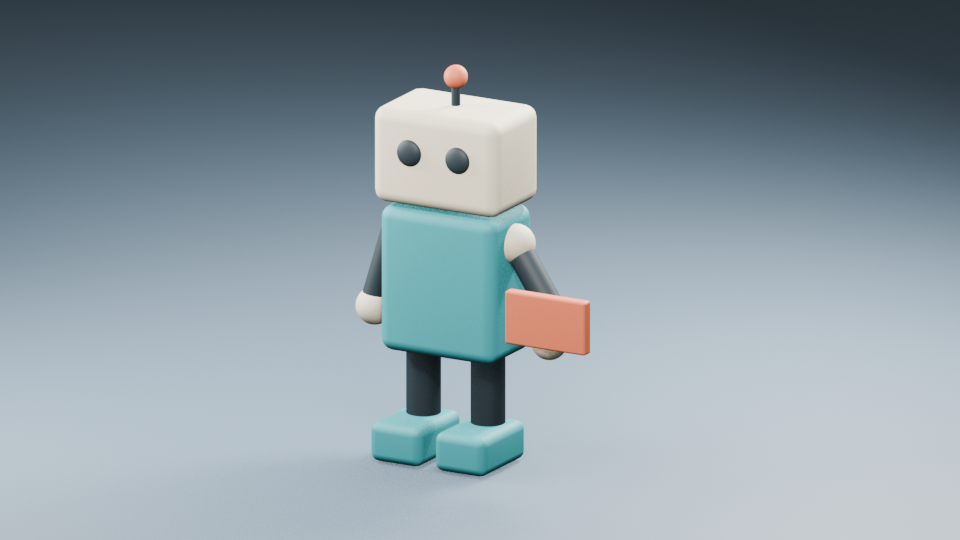
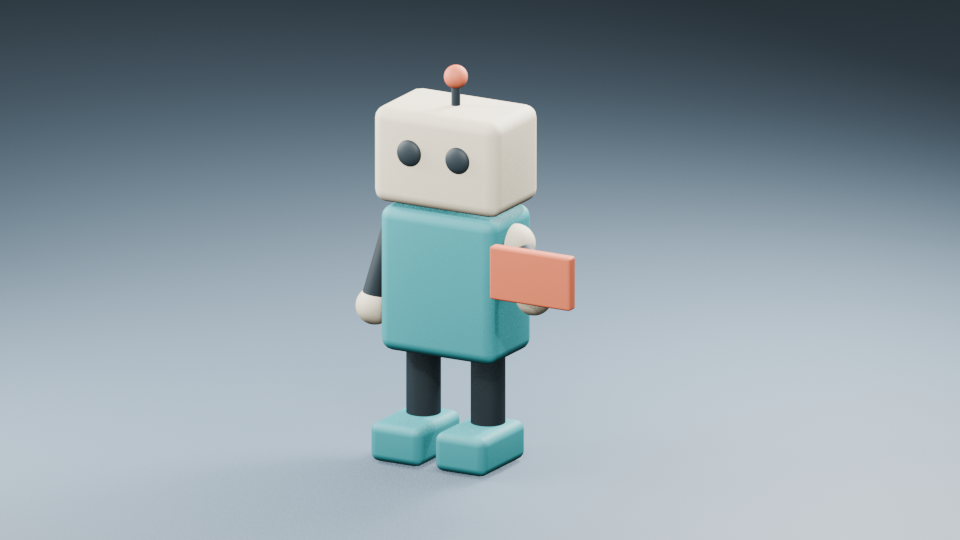
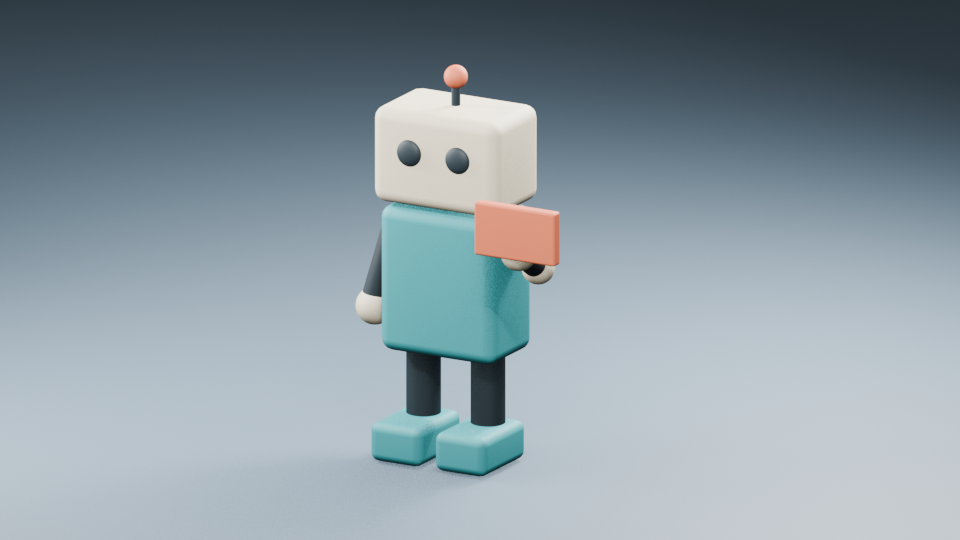
This workflow uses an original teal courier robot with a cream head, coral antenna tip and one coral envelope. The shot begins with the envelope low, shows a gentle lift and ends with a steady hold. The camera and feet stay fixed. You can use the downloadable first frame to try a compatible generator, or change the editable Blender scene to stage your own version.
For generation, open Clout Image & Video, select a supported video model and inspect the inputs and credit cost shown for that operation. This page is a workflow guide, not a free on-page AI rendering endpoint. The reference animation below was made with native geometry and keyframes; no AI video job was submitted.
Watch the original motion reference
Watch this clip and view its details
This silent reference is five seconds at 24 frames per second, with 120 rendered frames. It holds the starting pose, raises the envelope and holds the ending pose. It demonstrates the intended movement, not the ability of an AI model to reproduce it. Open the dedicated motion reference page for the clip and its provenance.
Use the original starting PNG as a possible input. The middle pose and held pose show the planned progression. They are review references, not an instruction to upload three images into a model that only accepts one.
The editable Blender scene contains the original character, materials, lighting, camera and keyed movement. The scoped source report records file hashes and measured media properties. You do not need Blender to use the PNG or watch the MP4.
Choose the kind of animation output you need
| Your production job | Route to investigate | First thing to verify |
|---|---|---|
| Make one still character perform a short action | Image-to-video generation | Starting-image input, supported settings and actual motion |
| Apply an approved movement to a different character | A reference-motion workflow | Source rights, character framing and supported reference type |
| Build an explainer with text and editable scenes | A scene-based animation editor | Which elements remain editable after generation |
| Require exact geometry, poses and frame timing | Native animation or a hybrid pipeline | Rig, keyframes, camera and final render |
These jobs can appear under the same search phrase while returning different deliverables. Powtoon's official animation page describes a prompt or script becoming editable scenes. Viggle's official animation page separates image or text generation from its motion-template and reference-video route. We reviewed the documented entry points, not their output quality, free entitlement or speed.
Morphic's video documentation likewise separates image-to-video, frames-to-video and reference-to-video. A first frame, an endpoint and a style reference are different inputs. Choose the task before collecting references, then check the controls actually available in your selected implementation.
Prepare a first frame that leaves room for motion
The courier source shows the full character, both feet, the moving hand and the envelope. There is space above and beside the prop for the lift. The background is quiet enough to make changes visible. Check these production details in your own image before spending on motion; an unclear hand grip or cropped head is already a problem in the source.
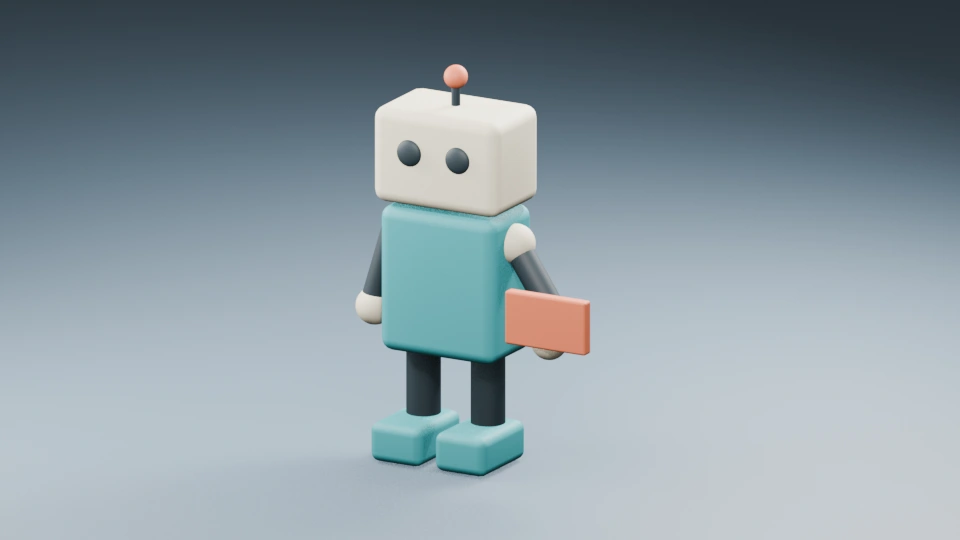
Do not treat a tight portrait, a full-body pose and a wide scene as interchangeable references. A face crop may be useful for identity work but omit the hand and prop needed by this action. If you need a vertical delivery, create and approve that composition deliberately. Cropping the landscape source can remove the antenna or feet you need to review.
Runway's current image-to-video guide assigns appearance and composition to the image and movement to the text. It recommends beginning with essential motion and notes that visual defects or implied movement in the source can complicate the result. These are implementation-specific instructions, not a guarantee across every model.
Keep your original image unchanged beside each take record. If you revise the hand, camera or character design, save a new source version. That lets you compare actual inputs instead of assuming the generator changed something that was already different in the reference.
Describe the action and its ending
One continuous medium-wide shot. The courier gently raises the envelope from its side to chest height, then holds it steadily. Both feet remain planted and the camera stays locked. The other arm rests at its side. The body, face, antenna and single envelope retain their appearance.
Download the original motion brief. It gives the shot a beginning, action and ending without asking for a handoff to an unseen character. It is a proposed prompt, not an executed AI request. Enter only the fields your chosen model supports; a prose instruction does not create an endpoint control or a separate identity lock.
Start with the essential lift and hold. If the result is unclear, check whether the source grip, available space or action wording is the likely obstacle. Preserve an accepted baseline before changing the shot. A new character, different camera and faster movement together can produce a different result without explaining which revision helped.
The authored reference has a one-second opening, a roughly two-second lift and a two-second ending. That timing belongs to its native keyframes. In a generative route, treat it as an editorial intention and measure what came back. Do not claim frame-accurate motion because a timestamp appeared in the prompt.
Run the image-to-animation workflow in Clout
- Open Image & Video and choose the Video mode.
- Select a model whose current controls accept your starting image.
- Add the approved courier PNG or your own permitted character image.
- Enter a short motion direction and choose the supported format and duration.
- Review the displayed credit cost before generating.
- Find the returned take in My generations, download it and review the complete file.
Clout's available reference types and settings depend on the selected model. The starting image is not a universal promise of exact identity through a complex movement. Do not paste a third-party API request into a creative prompt or assume that a model name means every upstream control is exposed in this studio.
Use an accepted take as evidence for your next production decision. If the movement works but the ending is too short, consider editing around the usable hold or testing a supported longer duration. If the envelope duplicates, reduce the action or revise the source grip before building a sequence around that take.
Review identity and contact through the whole clip
| Review item | In the courier exercise | Record a failure precisely |
|---|---|---|
| Identity | Two eyes, cream head, teal body and coral antenna tip | First time a feature changes or disappears |
| Prop count | One envelope throughout the shot | Time of duplication, disappearance or shape change |
| Hand contact | The hand carries the same envelope during the lift | First slip, intersection or detached prop |
| Ground contact | Both feet stay planted | Sliding, changing foot shape or drifting floor contact |
| Camera | One fixed view | Unintended pan, scale change or cut |
| Ending | A readable raised-envelope hold | Whether the last usable pose can support the next edit |
Watch once at normal speed to judge whether the action reads. Then inspect the beginning, moving hand and ending closely. A clean first frame does not establish that the middle works. Keep the returned file with its source, prompt, model settings and a specific reason for acceptance or rejection.
The blank animation review ledger leaves unobserved values empty. Record the credit cost shown by the studio and the usable result separately. A completed job can still be an unusable shot, so nominal cost per attempt is different from your cost per accepted take.
Turn the accepted shot into a short story
The courier lift can introduce a message, reveal an object or pause before a reaction shot. Decide what the next cut should communicate. If a second character must receive the envelope, plan that new contact and staging explicitly. The current reference ends with a hold and does not demonstrate a successful two-character handoff.
For story development, use the animation idea generator. It creates planning concepts and is separate from video rendering. Use the script-to-shots workflow for a scripted exchange and the multi-shot guide for coverage. A single successful movement is a useful baseline, not proof of automatic episode continuity.
If the job is a layered photo move, follow the parallax guide. If it begins with a drawing, use the sketch-to-video guide. For approved body-motion references, investigate the Wan Animate workflow. Keeping those production jobs separate makes the next step easier to choose.
For picture cleanup after motion review, use the video noise reduction guide with a controlled noise exercise based on this courier animation.
Finish for the actual delivery frame
Assemble the accepted animation with any titles, music or dialogue in an editor. The reference here is silent, so it establishes nothing about voice generation or lip sync. If your scene requires speaking, prepare that as a separate performance decision and verify the words in the returned audio.
Preview the final crop and replay the complete exported file on a phone. Keep the important hand, prop and face clear of captions and interface overlays. For an animation loop, plan the return to the starting pose; this lift-and-hold exercise is not a seamless loop. Continue in Clout Image & Video with a clear first frame, one action and an ending you can actually use.