What video noise reduction changes
Video noise reduction treats unwanted variation in the picture, such as visible speckles in a dark background. A useful pass makes the shot easier to watch while keeping the details and motion the scene needs. It cannot prove that a changing face, broken hand or invented object has been restored to the intended performance.
This guide focuses on the image. If the problem is hiss, wind or hum in the soundtrack, choose an audio cleanup workflow instead. A picture filter does not repair a noisy recording, and lowering music with audio ducking does not remove picture noise.
The original exercise below adds synthetic noise to our authored courier animation and processes that copy with FFmpeg HQDN3D. You can watch three synchronized panels, download the full-size files and inspect matching frames. This is a conventional filter demonstration, not an AI model output or a ranking of commercial denoisers.
Identify the defect before choosing a treatment
| What you observe | First production question | Keep separate |
|---|---|---|
| Fine changing speckles across a surface | Can noise be reduced while the actual texture stays readable | Intentional grain and surface detail |
| Whole-frame brightness rises and falls | Is the exposure varying across time | The deflicker workflow |
| Block boundaries around movement | Is a better source export available | Noise filtering and compression damage |
| A face or prop changes shape | Does the generated take need replacement | Continuity and identity review |
Play a representative section before freezing a frame. Some defects appear only during movement or in the ending hold. Label what you actually see and preserve the original file. If several problems occur together, begin with a short test that answers one question rather than stacking denoising, sharpening, interpolation and upscaling immediately.
For an AI drama, inspect both the speaking shot and the listener's reaction. A quiet background is useful, but the mouth, eyes, clothing seams and story prop carry the meaning. A smoother image is not an improvement if it makes the performance less readable.
Compare the original courier noise exercise
Watch this clip and view its details
The silent five-second reference has three labeled panels: the original authored animation, a copy with seeded synthetic noise and a filtered copy of that noisy export. Each panel shows the same envelope lift and ending hold. The comparison contains 120 frames at 24 fps.
Open the dedicated noise comparison page for the playback reference. The base animation was created from original Blender geometry and keyframes for the AI animation workflow guide. No camera, recorded person, AI denoiser or commercial plugin was used in this study.
Each comparison panel is scaled to 480 by 270, with a label band above it. That reduced view is useful for motion comparison but can hide fine noise and texture. Use the full-size sources below for a detail judgment. All three source clips are 960 by 540 and five seconds; the comparison itself is 1440 by 320.
Inspect a matching frame without losing the motion context
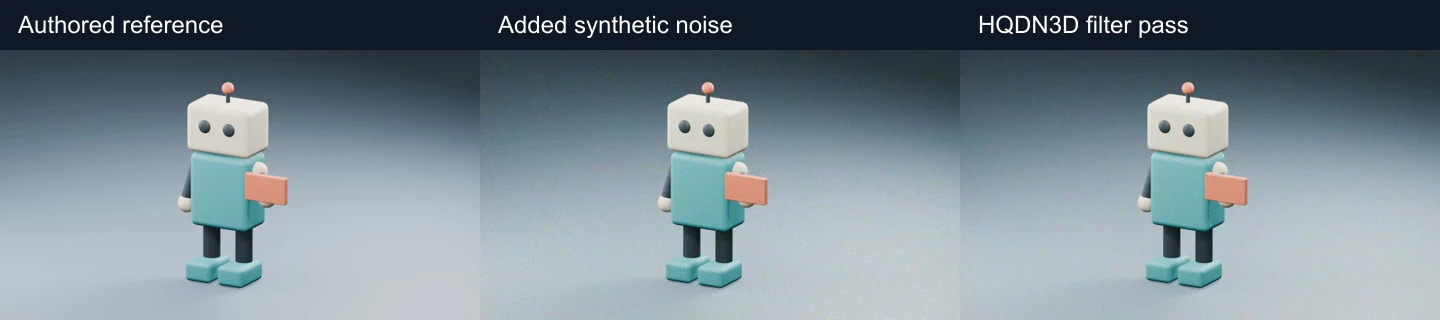
The matching frame uses zero-based frame index 48, at two seconds. Compare the reference PNG, noisy PNG and filtered PNG at the same display size.
Start with the broad background beside the robot, then inspect the head outline, eye edges and coral envelope. The visible synthetic speckling gives you a known added change. The clean authored reference helps you distinguish that change from details already present in the scene.
Return to playback after comparing the stills. A single matching frame does not establish stability throughout the lift. Look around the moving arm and envelope, then replay the ending hold. Record a specific observation rather than accepting the word denoised as a quality verdict.
Reproduce the conventional filter pass
The official FFmpeg filter documentation describes HQDN3D with spatial and temporal strengths for luma and chroma. The locally installed filter help confirms those four controls. This example sets each value explicitly so the processing request is visible.
ffmpeg -i denoise-courier-noisy.mp4 -vf "hqdn3d=4:3:6:4.5" -an -c:v libx264 -preset medium -crf 18 -pix_fmt yuv420p -movflags +faststart denoise-courier-filtered.mp4For this exercise the values are spatial luma 4, spatial chroma 3, temporal luma 6 and temporal chroma 4.5. They are example settings for this synthetic source, not a recommended preset for every low-light shot. The command removes audio with -an because the authored source is silent. Do not copy that audio choice into a speaking scene without deciding how its soundtrack should be preserved.
Download the noise and filter commands and the scoped study report. The report records source and output hashes, filter values, local FFmpeg version and measured container properties. Run experiments in a separate folder and retain your original input.
The noisy source uses seeded synthetic noise with strength 18 and temporal uniform flags. It is encoded as H264, then decoded, filtered and encoded again. The filtered result therefore includes another lossy encoding step. This chain is an exercise in reviewing a delivered file; it does not isolate the filter from every codec effect or simulate a calibrated camera sensor.
Choose spatial and temporal processing deliberately
A spatial treatment considers image information within a frame. A temporal treatment also uses information across time. That distinction matters around a moving hand, hair, a caption or a small prop: the scene can contain real changes that should remain visible.
Use a short representative section with both a hold and movement. Keep the crop, frame rate and export settings fixed for the first comparison. If you change the filter and enlarge the image at the same time, a difference in the result no longer answers only the noise-reduction question.
Inspect an actual edge rather than only a flat wall. If the result looks waxy, a seam disappears or the moving object leaves an unwanted trace, reduce the treatment or try a different route and compare again. A quieter background does not justify losing the detail that makes the shot usable.
Evaluate an AI video denoiser with the same acceptance test
An AI video denoiser is another processing route, but its name does not establish the best result for your scene. Give candidates the same permitted source and inspect the actual returned files. Keep model, mode, strength and export settings with the take rather than assuming the product defaults stayed unchanged.
For an editor-plugin route, Neat Video's official overview describes visible-noise filtering and integration with editing applications. That description establishes the kind of tool it is. This article does not present a hands-on comparison of that plugin or make a claim about its speed, current price or superiority.
For each route, review what matters to your footage: recognizable identity, fine texture, moving edges, gradients and a usable ending. Measure processing time only if you actually run the same source under documented conditions. A provider's marketing example and a locally processed synthetic exercise are different evidence.
Review the whole shot before accepting the export
| Area | Observe | Acceptance question |
|---|---|---|
| Flat background | Remaining speckling and uneven patches | Is it less distracting at delivery size |
| Face and wardrobe | Eyes, lips, seams and fine texture | Does the accepted appearance remain readable |
| Moving prop | Edges and trails throughout movement | Does the object stay coherent through the action |
| Final hold | Stability and detail after the movement | Can the ending support the next cut |
Download the blank noise-reduction review ledger. Keep the source hash, chosen process, settings and export name with specific observations. Leave acceptance blank until you have watched the delivered file.
Check the exported duration and frame dimensions, then play it in the delivery environment. The MP4 track inspector can help with a bounded container-header check. It does not measure preserved detail, perceived synchronization or whether the scene is compelling.
Finish an AI cinema scene with the accepted take
In a short drama, compare the treated shot with adjacent coverage. A heavily smoothed close-up can look inconsistent beside a textured wide shot. Keep a deliberate visual treatment across the sequence rather than applying the strongest filter independently to every clip.
Use the AI short drama workflow to plan the reveal and reaction. Keep frame interpolation, brightness deflicker and noise reduction as distinct decisions with their own before-and-after review.
Develop the cast and shot plan in Clout AI Cinema and explore supported operations in Image & Video. This page provides a downloadable processing exercise; it does not upload your video, run an online denoiser or establish an HQDN3D or Neat Video integration inside Clout.