What parallax animation changes
Parallax animation makes objects at different depths appear to move by different amounts as the viewpoint changes. A foreground branch travels farther across the picture than a distant hill. A simple zoom scales the entire image together; it does not create that relative movement. Start by deciding which elements belong near the viewer and which belong behind them.
For photo animation, a small layered move can make a still composition feel spatial without requiring a completely new scene. The difficult part is often the artwork hidden behind the subject. Moving a cutout exposes picture that was not visible in the original photo. Prepare that background before animating, or keep the travel small enough that it stays covered.
Compare the original layer study
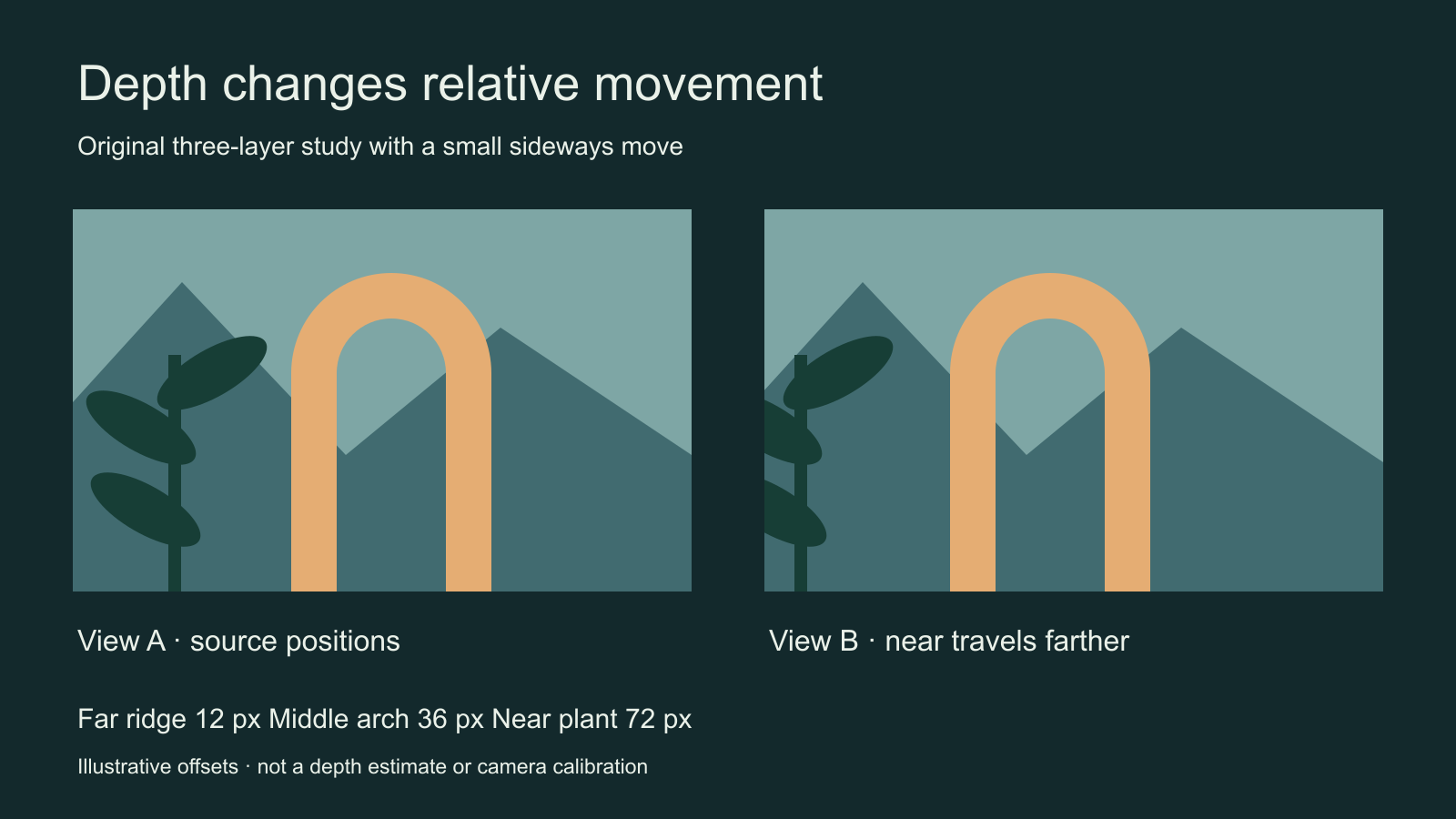
The study uses three invented layers: a distant ridge, a middle arch and a near plant. Between the two views they move by 12, 36 and 72 pixels respectively. These are illustrative offsets chosen to explain the relationship. They are not calibrated camera measurements or settings for a particular video model. Compare the plant against the arch, then the arch against the ridge.
How to create parallax animation from a photo
- Choose a source image with clear foreground and background separation
- Duplicate the original and preserve it as an untouched reference
- Separate the important planes into layers with clean edges
- Repair the background regions revealed by the proposed move
- Animate a small camera pan or coordinated layer offsets
- Review edges and crop at the beginning middle and ending
A portrait against a busy fence can require much more repair than a product against a simple wall. Fine hair, translucent glass and reflections complicate the boundary. Begin with an image whose geometry makes the effect easy to judge. The first accepted version should demonstrate depth clearly before you add particles, lighting changes or a second camera move.
Use layer depth deliberately
Adobe’s layer-depth documentation describes placing objects on layers at different depths and panning the camera. Near objects move faster across the view than distant ones. Use that relationship to establish a coherent scene rather than moving every cutout independently.
Name the layers by their role, such as near plant, product and back wall. Keep each layer large enough for the intended movement. A background that ends exactly at the visible crop may reveal an empty strip during a pan. Test the largest planned offset before spending time on detailed finishing. Save the layered source so the movement can be reduced without rebuilding the cutouts.
Brief AI photo animation without promising hidden geometry
A restrained lateral camera move across an original ceramic lamp on a workbench, with a nearby plant crossing the foreground and a distant studio wall behind it. Keep the lamp’s silhouette, surface pattern and position coherent. Show a small difference in foreground and background travel. One continuous shot, no orbit, no changing lamp design and no invented lettering.
This is an original untested prompt. A generative video system can invent unseen regions and can also change object shape. It does not necessarily separate the input into editable layers or obey numerical depth values. Compare the source image with actual frames rather than assuming the requested effect was produced. For exact brand artwork, controlled compositing may be the more suitable finishing step.
Use Clout Image and Video Studio for available source-image and image-to-video workflows, select supported settings and review the current quote. This guide does not establish a depth-map exporter, automatic layer extraction or a dedicated parallax control inside Clout. Source generation and layered finishing are separate decisions.
Check the edges that a still preview hides
| Check | Failure to look for | Useful revision |
|---|---|---|
| Near boundary | Halos or background attached to the cutout | Refine the edge against a contrasting background |
| Revealed background | Holes repeated textures or stretching | Repair the clean plate or shorten the move |
| Depth order | A distant layer passing in front of the subject | Correct stacking before adjusting timing |
| Final crop | The product or caption leaves the frame | Recompose for the actual delivery format |
Scrub the whole move, including the middle. Two clean endpoint images do not prove that an edge stays stable between them. Watch once at normal speed and once with attention on the strongest contrast boundary. Review a vertical crop independently; shrinking the wide composition may make the subject too small.
Keep parallax distinct from other camera effects
A dolly zoom combines camera movement with an opposing focal-length change to maintain subject size. A parallax move emphasizes relative displacement across depth. A cinemagraph isolates a moving area within a mostly still composition. Choose the effect that communicates the idea instead of adding all three to one brief.
Download the blank layer review sheet to record depth order, maximum travel, revealed regions and crop checks. For isolating a subject that moves through a video rather than a single photo, use the rotoscoping guide. A clean still cutout is only one frame of that larger problem.