

Define the miniature look before adding blur
A tilt-shift miniature effect makes an ordinary scene resemble a small model through selective sharpness and supporting visual cues. In post-production it is often an approximation made with a narrow sharp region and softer surroundings. That treatment is different from proving that the scene was filmed with a tilt-shift lens or from constructing an actual miniature set.
Adobe’s tilt-shift photography guide distinguishes lens tilt, which changes the focus plane, from lens shift, which changes framing within the lens’s image circle. The miniature look is one creative use. This guide focuses on the digital miniature treatment rather than architectural perspective correction or a lens-buying recommendation.
Inspect the original selective-blur study
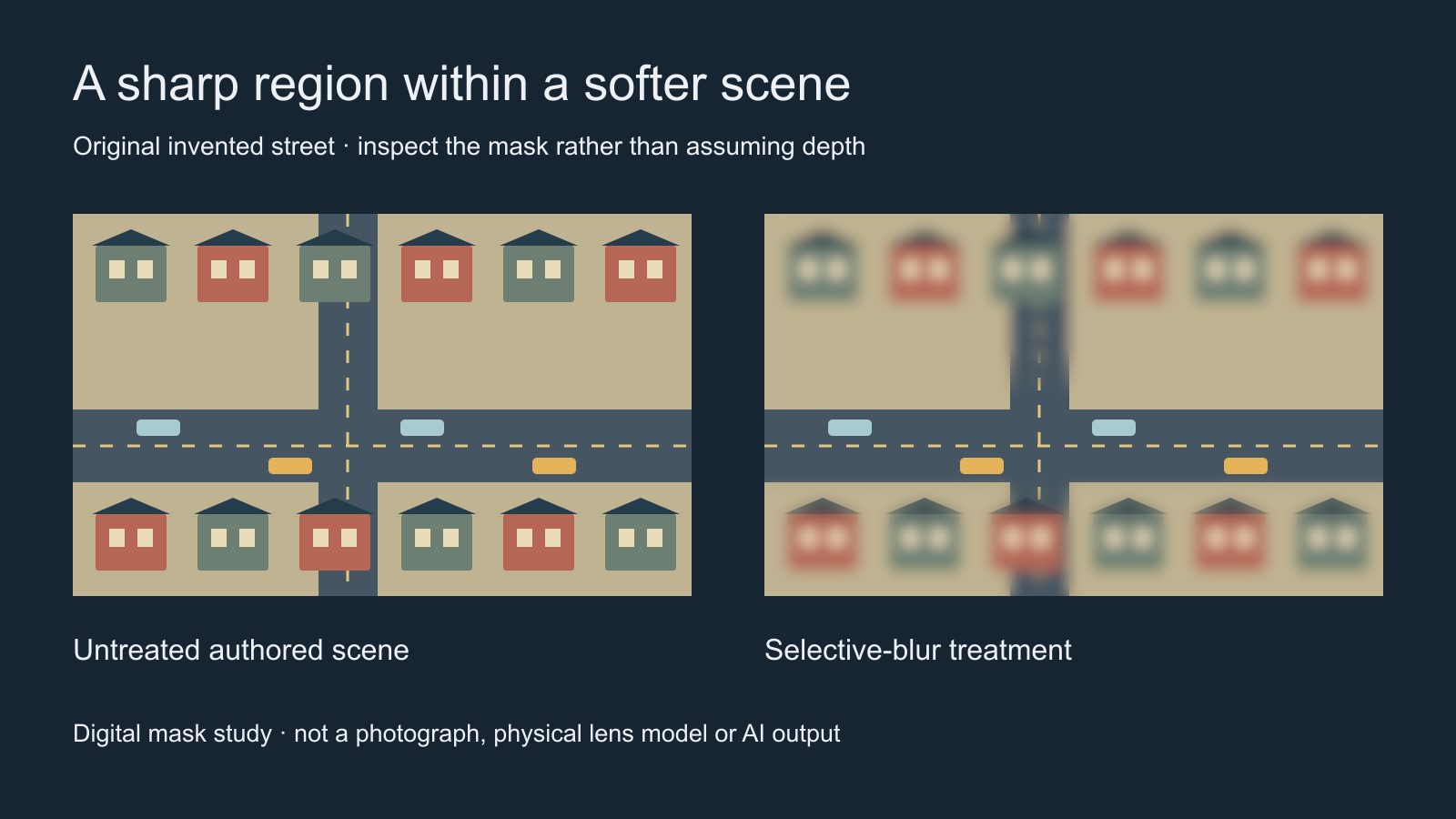
Both views use the same invented street. The treated view keeps a central strip readable while softening regions above and below it. The study illustrates mask placement; it does not simulate a real lens or establish a universal recipe. Notice which buildings cross the transition. An indiscriminate blur band can make a tall object sharp at its base and soft at its top for a reason unrelated to the scene’s actual depth.
Choose a source that can support the illusion
Start with an elevated view of a scene whose layout is easy to read: a street, rail yard or a small plaza. A clear central subject helps you choose the sharp region. A close eye-level portrait asks for a different treatment and can look like an accidental focus error when given the same horizontal mask. Keep the original source and work on a separate version.
Decide whether the scene should look like a model or merely have selective emphasis. If it is a real property or product demonstration, preserve important geometry and describe the treatment honestly. Do not present an invented miniature scene as evidence of a real location, completed construction or an actual product mechanism.
Build the treatment in a controlled edit
- Set the final framing before placing the sharp region
- Keep the intended subject inside that region
- Add a soft transition toward the more blurred outer areas
- Adjust blur strength while watching actual edges
- Review the whole shot if the source moves
- Open the final export in the intended layout
Adobe’s Premiere tutorial demonstrates a feathered masked blur treatment on footage. Use the principle of a gradual transition, then adapt the mask to your own shot. A static mask can drift away from the subject when the camera moves. Recheck the beginning, middle and ending instead of approving the first frame alone.
Test color and timing separately from blur. More saturation and faster playback can suggest a toy-like scene, but neither fixes a poorly placed sharp region. Keep a normal-speed version for comparison and avoid changing the pace of a demonstration when that would misrepresent what happened. Choose any retiming from the actual source and delivery requirements.
Brief an original AI miniature scene
An invented small harbor presented as a carefully built tabletop model, viewed from an elevated angle. One blue tugboat rests near a cream quay with tiny warehouse shapes behind it. Keep the central boat and quay readable with softer distant surroundings. Subtle restrained camera movement, consistent model materials, no real-world signage or invented letters.
This original untested prompt asks for an invented miniature world. It is a different starting point from editing real footage to look small. Review object scale, material consistency and the direction of movement in the actual output. If a boat grows relative to the quay or the tiny buildings become full-size architecture halfway through the clip, simplify and revise the shot.
Use Clout’s available image and video workflows for source creation, choosing supported settings and reviewing the quote. This guide does not establish a dedicated tilt-shift blur tool, editable depth map or physical lens control in Clout. You can generate a source scene and finish a controlled blur treatment in an appropriate editor.
Review the illusion at delivery size
| Check | Failure | Useful adjustment |
|---|---|---|
| Sharp region | The important subject is partly soft | Move or reshape the mask |
| Transition | A visible hard blur border | Refine feathering and reduce strength |
| Movement | The subject exits the sharp region | Track the treatment or shorten the move |
| Scale cues | Objects change relative size | Review the source and simplify generation |
View the final clip on a phone with its captions visible. Keep small but important details readable and check that the blur does not cover the only information the viewer needs. Save a clean version so the effect can be reduced for another crop. Use the blank miniature review sheet to record those checks.
For sharpness transferring between two subjects, use the rack focus guide and interactive lab. For scene layers moving at different rates, use the parallax guide. For a deliberately stepped handmade look, use the stop-motion style guide. Each treatment should have a clear visual job.


