

Choose the meaning of rotoscoping first
Rotoscoping has two closely related uses. In animation, an artist traces filmed movement to create drawn motion. In compositing, an editor isolates a moving subject with masks or a matte so it can be treated separately. Both follow source footage through time, but the deliverables differ. Decide whether you need a drawn animation, a clean subject separation or a stylized generated interpretation.
A video-to-video restyle may preserve some motion while changing the picture. That does not make it a verified roto matte or a frame-accurate trace. If the job needs transparent edges, an exact silhouette or editable masks, inspect the actual output format and the whole sequence before choosing the workflow.
Read the original matte study
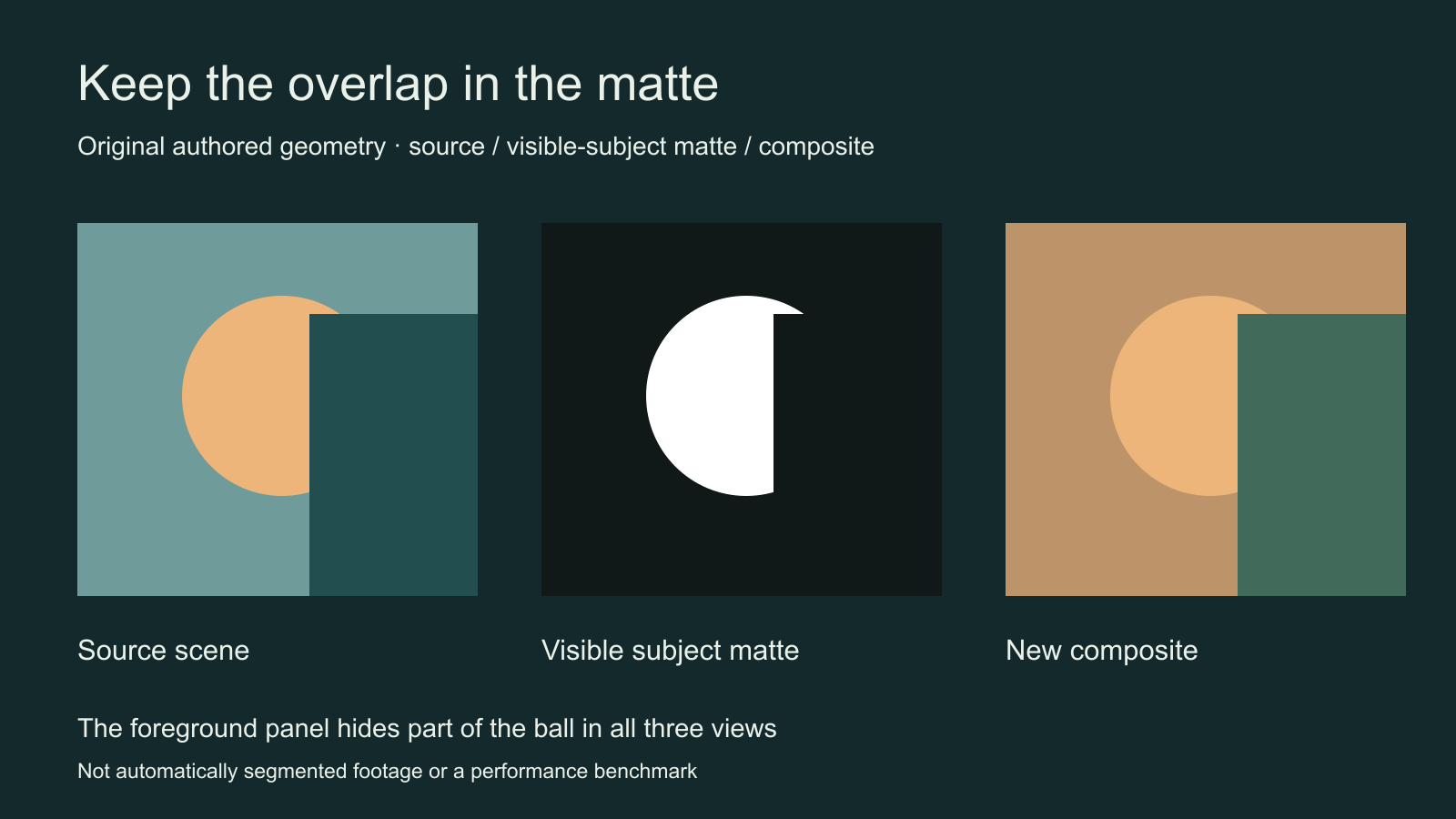
The study shows one invented ball partly hidden by a foreground panel. The visible subject region is retained in the matte; the covering panel is excluded. A matte that simply follows the full circle would incorrectly paint over the panel. This is why a clean frame before an overlap does not prove that the next frame is correct.
How to do rotoscoping for drawn animation
Adobe’s rotoscoping animation guide describes drawing over reference video, keeping the document proportions aligned with the footage and organizing the drawing layers. For a first exercise, use a short owned clip with a clear action and a simple background. Watch the complete action before deciding which shapes to trace.
- Preserve the original clip and note its frame rate and dimensions
- Choose the short action and its exact start and end
- Set up a matching reference timeline and separate drawing layers
- Trace the important poses with a consistent simplification style
- Review the intervening frames and refine changes in silhouette
- Play the complete animation at its intended speed
Keep the drawing language consistent. If the first hand is a simplified mitten, suddenly adding five detailed fingers in the next pose can cause a distracting style jump. Use the source to understand the movement while deciding which details belong in the finished design. A faithful motion reference does not require copying every texture or lighting change.
How to isolate a moving subject for compositing
For a composite, the goal is a stable separation rather than a new drawing. Choose a representative frame, mark the subject in the selected masking or segmentation tool and inspect how the selection behaves through the shot. Treat automatic propagation as a first result to review. Correct the boundary when an arm crosses the torso, an object enters or the subject passes behind something.
Adobe describes rotoscoping for cutting moving objects from video. The practical acceptance condition is the delivered edge over time. Review the matte on contrasting backgrounds, then in the actual composite. A halo that hides on gray can become obvious on a dark replacement background.
Check occlusion motion blur and fine detail
| Region | Typical problem | Review method |
|---|---|---|
| Occlusion | A hidden part incorrectly appears in front | Inspect frames entering and leaving the overlap |
| Hair or fine edges | Hard cutouts or unstable thin strands | Compare against light and dark backgrounds |
| Fast movement | Blur is removed or becomes a hard outline | Review the moving edge at normal speed |
| Similar colors | The subject merges into the background | Inspect weak-contrast regions individually |
Work through the entire selected shot. Do not approve only the easiest frame or only the first and last image. Review frame by frame near difficult overlaps and watch at normal speed for flicker. If the task is too large, shorten the shot or choose a source with a clearer boundary rather than calling an incomplete matte finished.
Plan an AI restyle as a separate deliverable
Restyle this owned short reference as a restrained ink-and-color illustration. Preserve the single subject’s recognizable silhouette, action order and screen direction. Keep the background simple and maintain the foreground overlap at the middle of the shot. No new characters, inserted cuts or extra objects.
This is an original untested creative brief, not a promise of exact tracing. A generated restyle may redraw hands, introduce texture flicker or reinterpret the overlap. Review motion, identity and geometry separately. If you need masks, alpha or an editable drawing project, request that actual deliverable from a tool that supports it and inspect the exported file.
Use Clout’s available image and video workflows to create source visuals and evaluate supported operations with their current quotes. This guide does not establish a Clout rotoscoping tool, automatic subject matte export or editable traced animation. For a restyle workflow comparison, read the Genjutsu restyle guide and check the selected service’s current capabilities.
Deliver the correct file and keep the reference
Write down whether the handoff requires a rendered clip, an alpha-bearing render, an image sequence, masks or the editable project. These are different deliverables. A video on a black background does not by itself prove transparency. Reopen the exported asset in its destination and inspect its frame size, timing and edges.
Keep the untouched source, the selected shot and the accepted project together. Use the blank shot review sheet to record overlap events, edge problems and final-file checks. For depth motion made from still-image layers, use the parallax animation guide; for invented intermediate frames, see the frame interpolation guide. Neither substitutes for verifying a roto sequence.


