

Start with the exact Qwen image-editing version
Qwen Image is a family name, not one universal editing configuration. If you are looking for Qwen Image Edit 2511, record that exact checkpoint or hosted model label before following a tutorial. A workflow written for another release may use a different pipeline, sampling schedule or input format. A familiar-looking interface does not establish which checkpoint is running behind it.
For an editing job, begin with the image you want to change and a short instruction describing the intended difference. For a new image, begin with a generation brief. Keep those jobs distinct when comparing outputs. Recreating a scene from text is not the same acceptance test as changing one property of an approved source.
Compare documented workflows rather than assuming interchangeability
| Named workflow | Official documentation describes | Practical consequence |
|---|---|---|
| Qwen Image Edit 2511 | An image-editing checkpoint using QwenImageEditPlusPipeline in its example | Use instructions matching that checkpoint and input contract |
| Qwen Image 2.1 Turbo | Generation and editing with QwenImage21Pipeline and a saved eight-step schedule | Do not copy a different checkpoint’s sampling recipe blindly |
| A hosted Qwen option | The provider’s current model label and exposed fields | Check the actual operation and version before submitting |
The official 2511 model card describes improvements over 2509, including consistency, and shows an edit using two source images. That is a documented example, not a guarantee that every host accepts the same inputs or that every output preserves identity.
The official Turbo card describes its eight-step schedule as saved with the checkpoint. It says changing num_inference_steps alone does not override that schedule. Treat version-specific documentation as authoritative for setup; fewer steps do not establish a universal time, price or quality advantage on your hardware.
Use a controlled first editing job
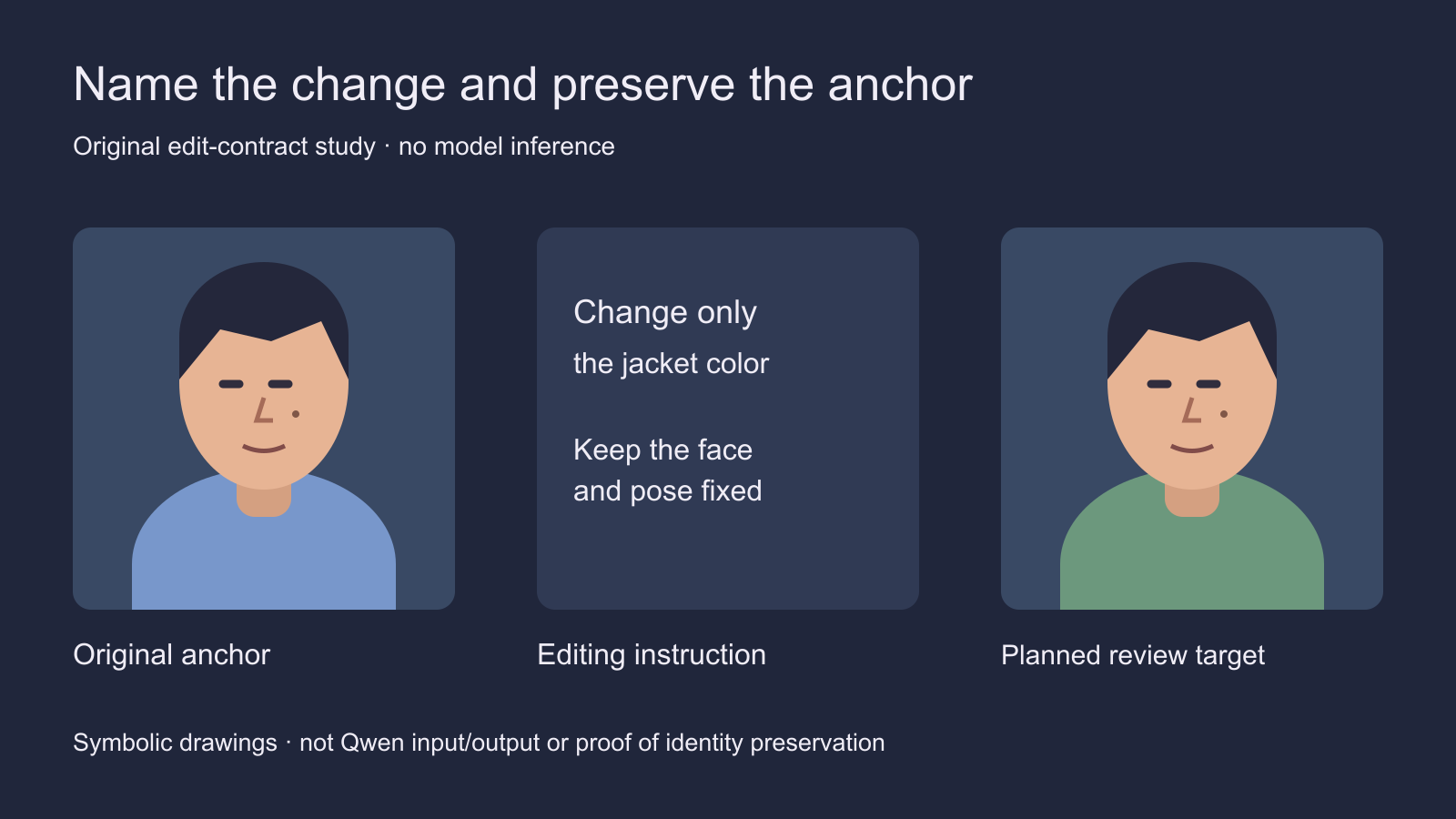
Choose a source with a clear subject and one intended change. Changing a wall color is easier to judge than changing the face angle, lighting, hairstyle and clothes together. Preserve the untouched input and write down the properties that should remain stable. An attractive new picture can still fail an editing task if it silently replaces the subject.
Use the supplied original portrait. Change only the visible jacket from blue to dark green. Keep the recognizable face, hairline, expression, pose, head angle, framing and background consistent with the source. Do not add accessories or alter the person’s facial structure.
This is an original untested brief. It describes an acceptance target rather than a guaranteed model control. Use a source you are permitted to edit and inspect the result. If the face changes, keep the original as the reference and troubleshoot before building another variation from the changed output.
Keep local setup separate from hosted access
For local use, follow the selected checkpoint’s current official environment and pipeline instructions. Record the checkpoint identifier, library version, precision, device and any added adapters. First establish that the documented minimal workflow runs before changing several settings at once. This guide does not provide a measured memory requirement or a tested installation for your computer.
For hosted use, inspect the selected operation, reference-image fields, output dimensions and current quote. A host may expose a subset of local controls or use different parameter names. Do not paste a local scheduler setting into a field with a similar name and assume it has the same meaning. Save the settings and source alongside the accepted result so you can review what actually ran.
Assign references a clear role
When the chosen workflow accepts several references, state what each is for. One image might anchor the person while another describes a garment. Conflicting portraits can make it difficult to tell which identity the output should follow. Start with the simplest reference set that expresses the job, then introduce an additional reference only when its role is necessary.
Changing the view is also different from changing a surface color. A new viewpoint exposes regions that the source does not show. The model must infer those details. Treat a convincing new angle as an interpretation to inspect, not proof of an unseen face, a real product dimension or an exact reconstruction.
Review and hand off the actual result
Compare the original and output at similar display sizes. Check the intended edit first, then inspect the face, hands, object boundaries, text and background for unwanted changes. Keep a small record of the setting you changed between attempts. A fixed seed can support a controlled comparison within a workflow, but it does not guarantee identical behavior after a model, adapter or environment changes.
Download the blank editing run sheet to record the version, input roles, request, settings and acceptance decision. If the failure is specifically the person’s face, use the Qwen face-consistency troubleshooting guide and its local brief builder.
Clout Image and Video Studio offers its available source-generation and editing workflows. This article does not establish native Qwen availability in Clout. Choose the actual listed model and supported operation rather than assuming a tutorial adds a new checkpoint. For reusable original creator identity, explore Clout’s AI influencer workflow and review accepted references before making more content.


