Choose the relationship before the effect
A match cut makes two moments feel connected. A circular cup opening can connect to a circular doorway. A hand closing a notebook can connect to another hand closing a case. A sustained sound can carry attention into a new scene. The common element should support the story rather than conceal a weak connection.
Adobe distinguishes graphic, action and audio match cuts. For a first AI-assisted edit, a graphic relationship is easy to inspect: choose one shape, decide where it sits and preserve its apparent size at the cut. Add movement after that simple connection reads clearly.
Watch an original direct match cut
Watch this clip and view its details
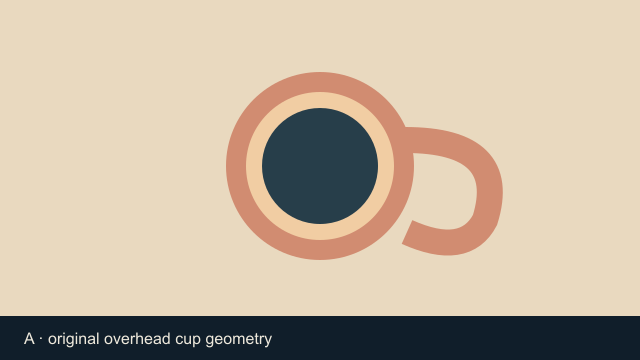
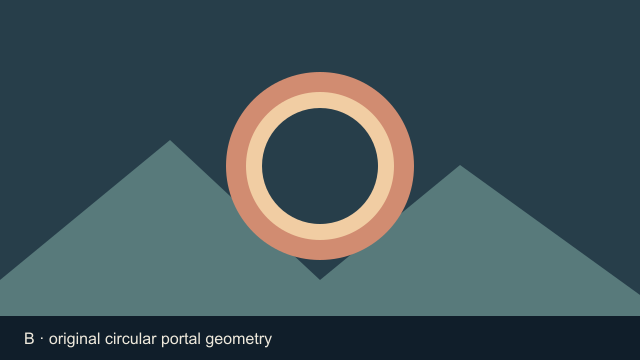
The included six-second example has 144 frames at 24 fps and no audio track. The first 72 frames show an overhead cup diagram. The next 72 show a circular portal diagram. Both central rings share a center at x 320 and y 166 in the 640 by 360 image, with the same outer radius of 94 pixels. The background changes at the cut while the shared shape remains aligned.
These are authored geometric scenes, not model-generated product shots. Download source A and source B to inspect the relationship directly. Their purpose is to isolate composition before trying a more complex scene.
Approve the outgoing and incoming frames
Use the last useful frame of the first accepted clip and the first useful frame of the next. Compare the shared subject at the final delivery crop. A shape that aligns in a horizontal source may shift when the edit is reframed vertically. Leave enough surrounding picture for the crop you intend to publish.
| Property | Match deliberately | Common failure |
|---|---|---|
| Position | Center or chosen anchor | The viewer must search for the second object |
| Size | Apparent width or height | The join feels like an accidental jump |
| Direction | Travel and rotation at the boundary | Movement reverses without a reason |
| Timing | The meaningful moment of the action | The gesture restarts after the cut |
Record these choices in the blank endpoint review sheet. It is a planning document, not an automatic alignment tool. Review an actual pair of clips before marking the join accepted.
Brief each generated shot separately
Shot A: overhead view of one original cobalt ceramic cup on a plain warm tabletop. End with its circular opening centered and occupying about one third of the image width. Keep the cup still and hold a clear final frame. Shot B: a new scene with one circular blue doorway, beginning with the opening at the same center and apparent width. Hold the opening before any camera movement. Generate and approve the shots separately, then make a direct cut in the editor.
This is an untested two-shot brief. Written framing requests are not pixel-accurate controls. If the selected workflow accepts source or endpoint images, use those actual controls and inspect the result. Otherwise treat each request as a composition to evaluate, then trim, crop or regenerate only the shot that misses the target.
Keep a match cut distinct from a morph
A morph changes one form into another over time. A direct match cut switches shots at a chosen instant and relies on their relationship. A dissolve briefly overlaps them. Each can be useful, but adding a generated bridge changes the edit and may introduce extra objects, warped geometry or a distracting intermediate scene.
The broader AI video transitions guide covers bridge planning across several effects. Use this page for matching endpoint composition and cutting. For an extended journey through nested scenes, use the AI infinite zoom guide; for a rapid directional blur, use the whip pan guide.
Finish in the actual editing timeline
Open the Clout image and video studio to create source visuals with an available workflow. Choose supported settings manually and inspect its current credit quote. This guide does not add a dedicated match-cut model, automatic endpoint alignment or an integrated timeline editor.
Assemble accepted clips in your editor and compare the direct cut with any alternative. Watch at normal speed before judging a paused boundary. Add sound only when it reinforces the connection, then check the final export and mobile crop. Save both clean source clips so the join can be revised without rebuilding the entire sequence.