

An Earth zoom transition gives a scene scale. It can introduce a journey, place a character in a wider world or close a story with a dramatic pullback. The direction matters: arriving from space creates anticipation, while retreating from a subject turns a small moment into a wider perspective.
This guide uses an original illustrated planet to plan a fictional transition. The artwork is not satellite imagery and its land shapes are not a geographic reference. Use the appropriate mapped imagery workflow when the place itself needs to be correct.
Download a stylized planet reference
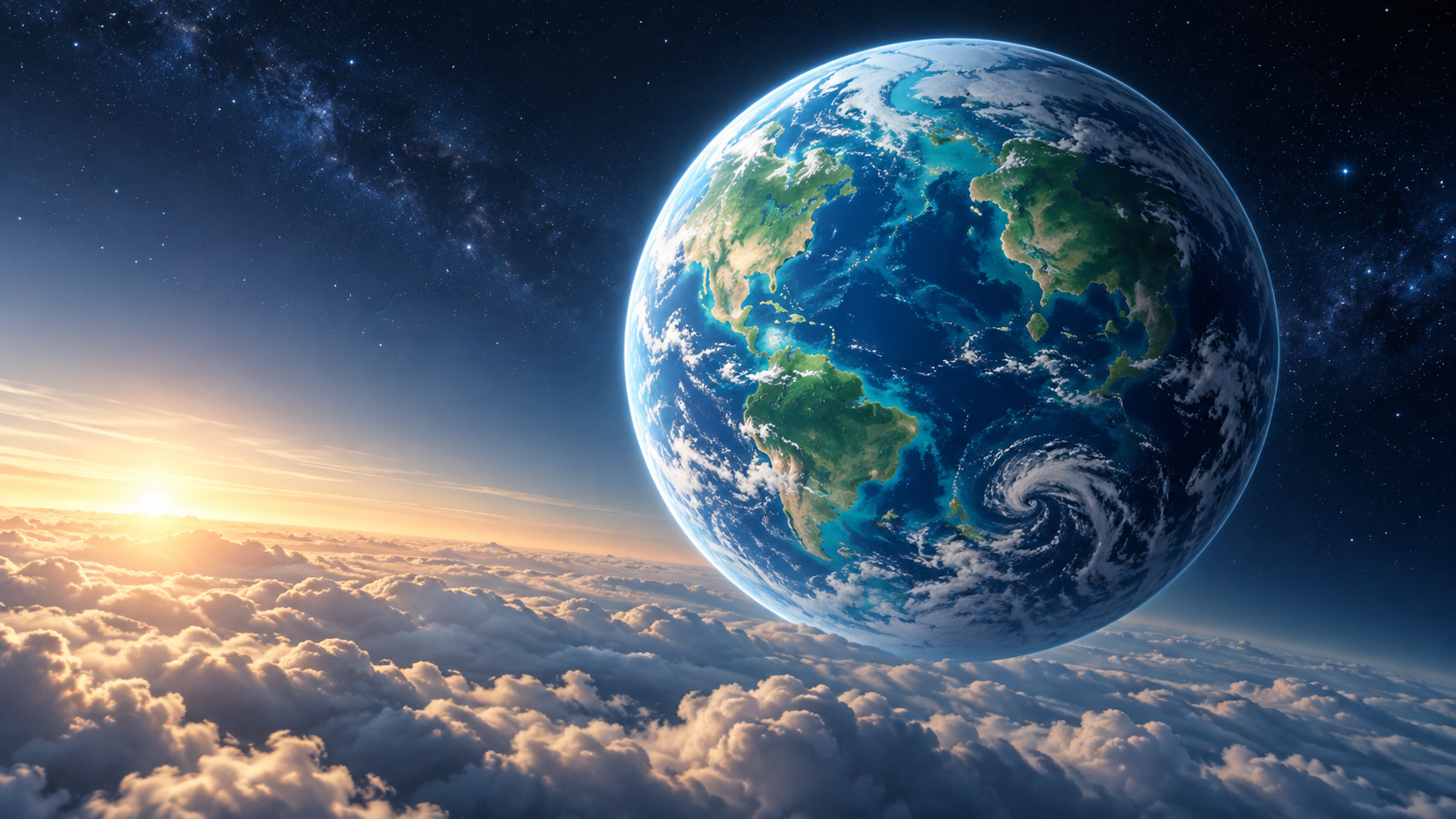
Original AI-generated world illustration with abstract land shapes. Suitable for a fictional visual brief, not navigation or a factual map.
Download stylized blue and teal planet above atmospheric cloudsKeep the full globe and atmospheric edge visible in the starting frame of an inward zoom. A wide composition gives you room to begin the approach without cropping the planet into an unrecognizable blue surface. Decide whether the ending is a real destination, a fictional environment or a character close-up before generating motion.
Choose a direction and an ending
| Direction | Opening | Ending | Story purpose |
|---|---|---|---|
| Zoom inward | Planet from space | A place or character | Introduce a destination |
| Zoom outward | A subject or scene | Planet-scale view | Reveal context and scale |
| Mapped approach | A verified geographic starting view | A specified location | Explain where something happens |
| Fictional transition | An artistic world | An invented scene | Connect imaginative story beats |
The keyword “zoom in on the earth” asks for an inward move, but the competitor preset ranked for it is labeled Earth Zoom Out. Its description is a pullback from a subject toward the planet. Do not assume that a zoom-out preset will deliver an inward approach simply because a search query led you there.
A three-shot plan for a fictional arrival
Use an orbital view as the first shot, a cloud or atmospheric approach as the second and the destination as the third. Match the light and color across all three. The middle shot is a bridge, so it should not introduce a completely different planet or sun direction. Keep the final destination readable long enough for the audience to understand where the transition landed.
Inward brief: Begin with the approved stylized blue-and-teal planet. Move steadily toward the bright atmospheric edge, pass through a restrained layer of clouds and resolve into an original fictional coastal town at dawn. Maintain a consistent warm light direction and stable forward camera motion. No map labels, no claimed real location and no sudden backward pull.
That brief describes a creative objective, not a guarantee that one generation will preserve the whole path. For more control, generate the orbital, atmospheric and destination shots separately and join accepted footage with a deliberate transition. A short cloud-covered cut can be cleaner than a broken continuous descent.
A separate brief for the outward reveal
Outward brief: Start with the approved adult creator on a fictional coastal lookout. Pull the camera away to reveal the town, coastline, cloud layer and a stylized blue planet. Preserve the creator and lookout during the opening, then use a smooth scale transition. Keep the same dawn lighting and finish on a stable full-globe composition.
Review the opening identity before evaluating the giant scale change. A changing face or duplicated railing can distract from the whole effect. Keep the movement direction consistent and avoid an unnecessary orbit halfway through the pullback. If the model invents a discontinuous landscape, separate the accepted close shot from the later world view instead of publishing a visibly broken path.
Use mapped animation when geography matters
Google Earth Studio is a browser-based animation tool using Google Earth's 3D and satellite imagery. Its Quick Start projects include Zoom-To for an approach from higher altitude toward a point, alongside other camera moves. This is a different workflow from prompting an AI model to invent an Earth-like image.
Choose your target location, establish the intended opening and ending camera views, and inspect the route before rendering. Decide the duration from the story's needs rather than accelerating through unreadable geography. If a specific building or landmark is important, review the actual visible imagery at the final scale; do not assume every location has equivalent detail.
Keep attribution visible in the finished edit. Google's Earth Studio attribution documentation explains that rendered frames credit Google Earth and applicable imagery providers. Choose a permitted placement that stays visible in the final crop, and check the applicable usage terms for your intended publication before treating mapped imagery as general campaign artwork.
Match the destination scene to the world view
For a fictional creator story, keep the dawn color, coastline direction and camera height coherent. A warm orbital sunrise cutting to a noon interior can feel like a time jump rather than a continuous arrival. If the time jump is intentional, make the edit clear instead of relying on the audience to interpret an accidental lighting change.
For a real-location explainer, keep the mapped segment and live or generated scene distinguishable. Add the actual location name in the editor after checking spelling and placement. Generated lettering inside the footage is a poor way to label a place. Do not use a fictional coastal image to imply a factual view of a destination you have never verified.
Check the transition on a phone
Watch for a planet changing shape, a coastline rotating unexpectedly and a destination arriving too quickly to recognize. Inspect the wide and vertical crops separately. A central path that works in landscape may hide the character or attribution on a phone. Recompose or create a separate version when necessary rather than stretching a single crop to fit every placement.
Finish with a brief stable shot so the viewer can absorb the destination or full-globe reveal. Export a high-quality master and compare the opening and closing frame with the plan. Save the references and accepted shots so future episodes can reuse the same visual world.
Create your story character in Clout and generate scenes around a recognizable identity. Use an Earth transition when it helps connect those scenes and gives the story a clear sense of scale.


