

For a separate reference-led image workflow and team-rate planning, see the Muse Image limits and API guide.
What Bria Fibo adds to an image workflow
Bria Fibo uses a structured scene description as part of image generation. Instead of keeping only a prose prompt and an image, the workflow can preserve a machine-readable description alongside the result. That creates a concrete artifact to review when planning a controlled revision.
The official VGL guide calls that representation Visual Generation Language. It describes receiving a structured prompt with an image, keeping the specification and seed, then refining a selected attribute. Treat reproducibility and preservation as documented capabilities to verify on the actual selected route, rather than as a quality benchmark performed by this article.
Separate Fibo 2 controls from a universal request recipe
The current generation reference documents Fibo 2 photographic styles and extended aspect ratios with restrictions. Not every input path can use every option. Its structured_prompt field is a JSON string, and 4MP requests require asynchronous response mode. Use the planner above to expose selected conflicts before preparing a complete request.
The endpoint covers different input combinations. Do not assume choosing a resolution or copying a provider’s model label selects the same backend route in every service. Record the actual endpoint, model route and settings used with the accepted output. This guide is about Bria’s documented generation workflow, not an interchangeable set of controls across all Fibo providers.
Try the option planner before spending on a generation
Start with the text-only default. Select 4MP and synchronous response to expose that conflict, then return to asynchronous mode. Try a photographic style with a reference input, or an extended ratio with a structured-prompt-and-text refinement. The planner updates its observations immediately and can show more than one conflict at a time.
The tool checks the visible selections only. It does not validate an entire VGL document, inspect a reference URL, check a saved style ID, authenticate an account or quote a charge. A result with no listed conflicts is a planning checkpoint, not proof that an actual request will succeed. Reset restores the initial selections.
Use the original radio scene to define what must stay fixed
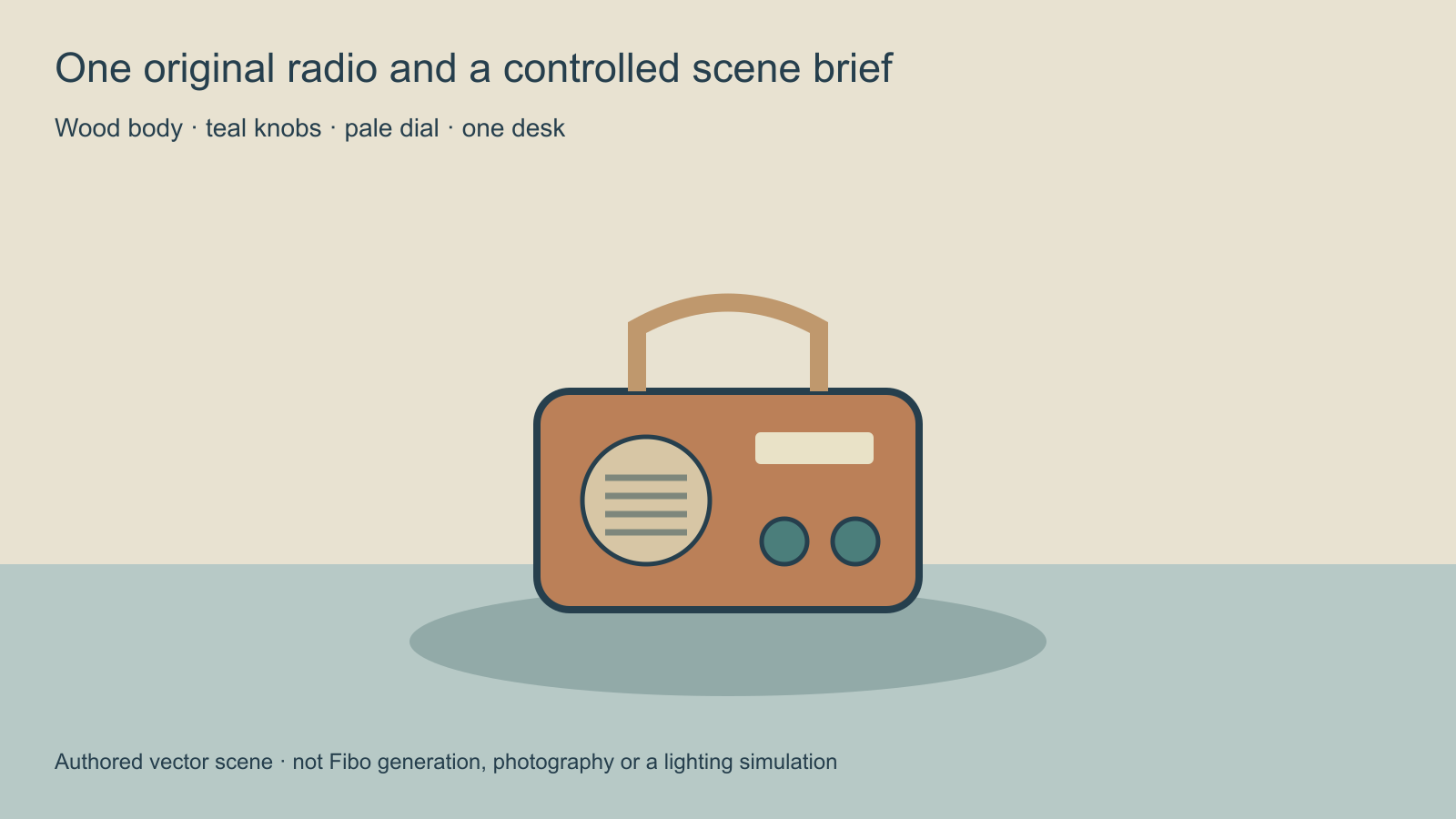
The worked brief uses one compact wooden radio, two teal knobs, a pale dial and a visible handle. It sits on a pale teal desk against a warm neutral wall. The first planned variation changes the light treatment while keeping the product and composition fixed.
This drawing makes the intended anchors easy to inspect. It is not evidence that a generation preserved them. For an actual run, use your permitted references and inspect the returned candidate. A cooler-looking result still fails the brief if the handle disappears or the two knobs become three.
Use a small experiment before asking for a broad campaign. Name the approved base, the one change and the defects that would reject the result. That keeps the review tied to an observable decision instead of a vague request for a more premium image.
Preserve the actual structured prompt with the accepted image
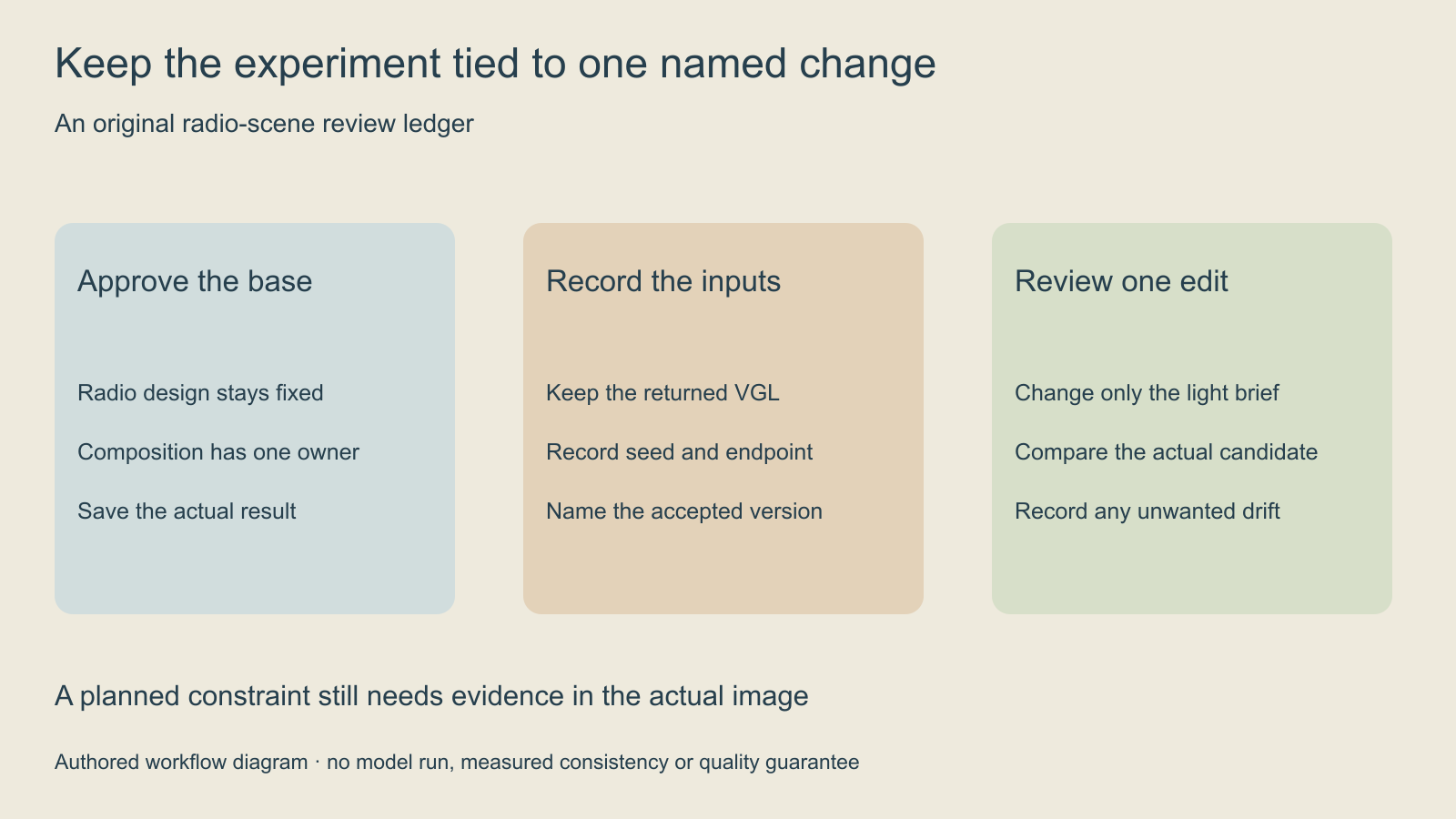
Keep the actual returned structured prompt and seed with the accepted image. Record the endpoint, model route, aspect ratio and resolution too. If a later result differs, those records help distinguish a deliberate change from an unnoticed difference in the request or provider.
Our radio-scene brief is a human planning worksheet. It is not a VGL document or an API payload. Do not rename a generic brief JSON and assume it satisfies the model’s structured schema. Start from the real returned representation or a schema-supported preparation workflow.
Save the untouched base specification before editing a working copy. Name the intended change in plain language as well as in the recorded field or instruction. That gives the reviewer something understandable to compare against the actual image, even when the complete machine-readable scene is large.
Make one edit and inspect the whole image
- Approve one base image and record its visible anchors.
- Store its actual structured prompt, seed and generation route.
- Name one intended change, such as the cooler light treatment.
- Choose a documented compatible input combination.
- Check the actual proposed operation and charge.
- Review the complete returned image for intended and unintended changes.
- Accept a named candidate or record the specific reason it fails.
For the radio, inspect the knob count and positions, handle, dial shape, wood finish and desk boundary. Then review the intended light change. Do not approve the experiment from the brightest crop while ignoring a redesigned corner of the product.
The blank review CSV keeps the base, changed field, selected mode, cost and observations together. It does not upload assets or enforce a budget. Include rejected attempts when comparing the cost of accepted outputs.
Choose generation and editing from the actual task
Developing a new scene and changing an existing image are different jobs. The VGL documentation distinguishes generation and structured-prompt preparation from image editing and structured instructions. Preserve that boundary when planning the handoff instead of assuming a generation request automatically behaves like a localized image editor.
If the identity reference is still unsettled, use the character-reference guide to establish it first. For a separate existing-image workflow, compare the Qwen Image Edit guide. These are workflow alternatives to evaluate, not a model-quality ranking established by this article.
Keep model claims separate from accepted production evidence
A structured description can improve the record of what was requested. It does not remove the need to inspect the actual result. A seed by itself is also an incomplete record when the model route, source representation or settings differ. Preserve the full accepted production context.
This article does not report a paid Fibo generation, repeated-seed benchmark, commercial-rights guarantee or comparison against other models. Review the current service terms and selected operation for your actual project. The original scene and diagrams here are authored teaching assets with their origin stated.
Carry the accepted image into the next creative stage
Once the product image is accepted, define what the next stage may change. For video, keep the intended subject, camera direction and required end composition clear. Use the camera-tracking guide when the task involves perspective in existing footage, and the SDR-to-HDR guide when the separate issue is final delivery.
Explore Clout Image and Video for its current creative tools. This guide does not establish Fibo model access, shared billing or a VGL integration in Clout. Choose each production stage by the actual output it needs to deliver and preserve the accepted master through the handoff.


