Start a Z Image Turbo prompt with a readable scene
Z-Image-Turbo is Tongyi-MAI’s distilled image generator. Use the official model card to identify the selected checkpoint and implementation. Then write the image you need: the subject, its distinguishing details, the composition, the setting and the light.
Begin with a visible relationship instead of a stack of quality adjectives. “A blue lantern on a clear wooden surface, with open space on the left” gives you a composition to inspect. “Beautiful, premium, cinematic, perfect” does not explain where the lantern belongs or whether the layout can hold a headline.
Use the original lantern layout study
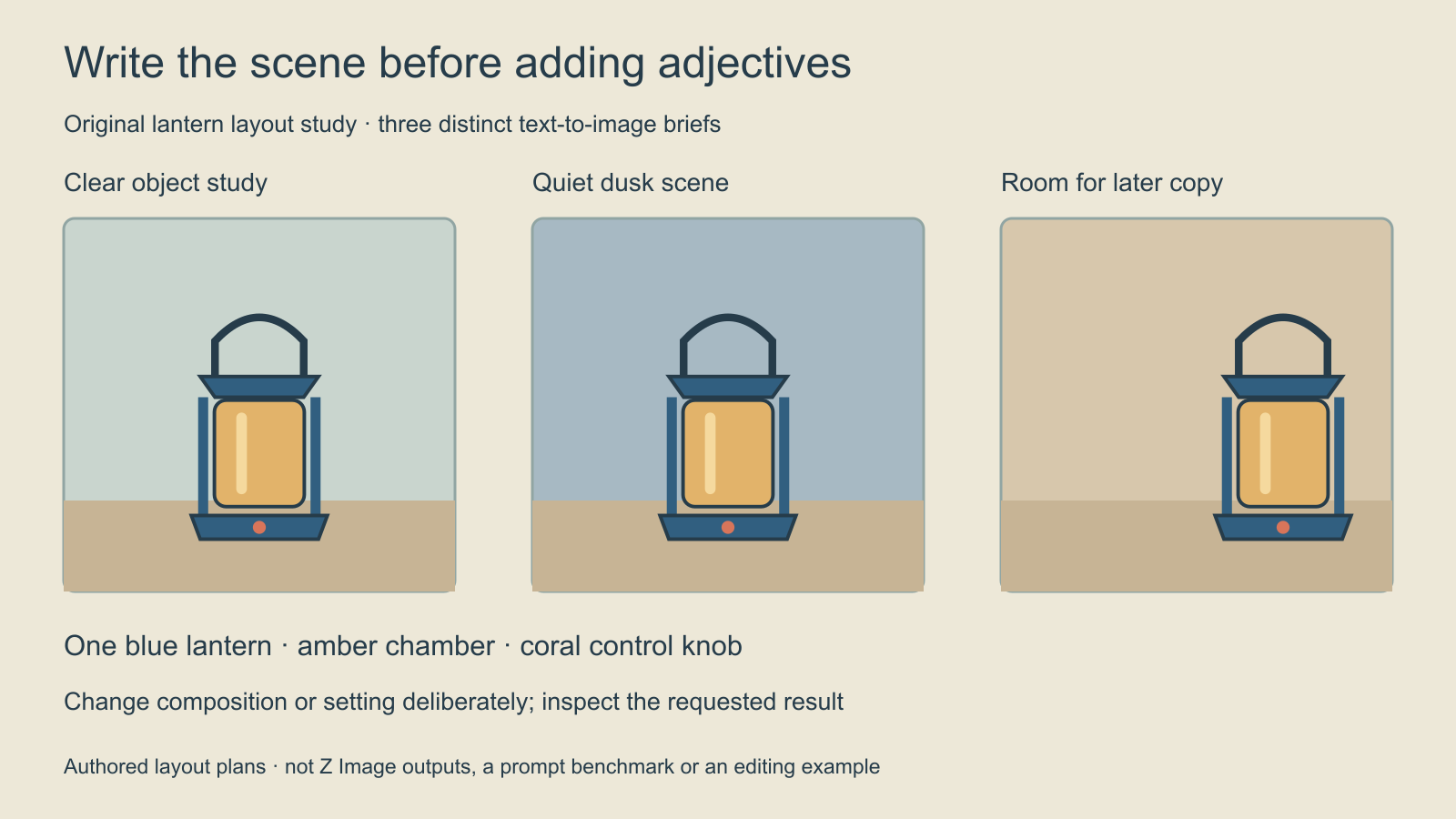
The example uses one invented blue lantern with an amber chamber and a coral control knob. The three panels plan different jobs: establish the object, place it in a quiet dusk scene and leave useful empty space for later copy. They are conventional authored illustrations, not generated examples.
Download the PNG lantern layout or SVG source as a visual planning aid. These text-to-image exercises describe a scene from words; they do not assume that the Turbo pipeline accepts an input image. Use an image reference only when the selected workflow explicitly supports it.
Prompt one for a clean object study
One original blue camping lantern stands upright on a pale wooden surface. It has a curved dark handle, a clear amber chamber, blue protective side rails and a small coral control knob on the base. Show the complete lantern in a centered front view against a simple muted green background. Soft side lighting, a readable contact shadow and no surrounding props or lettering.
The first exercise makes the object count and silhouette easy to evaluate. Check the complete handle, both side rails and the base before judging texture. If the output includes two lanterns or crops the handle, that is a concrete failure of the brief even if the materials are attractive.
Save the submitted prompt and actual settings with each candidate. If a host rewrites prompts, keep the rewritten version when available. Otherwise a later comparison can mistakenly attribute a new prop or crop to the checkpoint when the instruction changed upstream.
Prompt two for a quiet environmental scene
One blue camping lantern with an amber chamber and a coral base knob rests on a simple camp table at dusk. The complete lantern remains clearly visible in the foreground. A distant dark tree line and a soft blue sky establish the outdoor setting without competing with the subject. Gentle warm light stays around the lantern, with restrained reflections and a calm uncluttered composition.
This version changes the setting while retaining a short set of identifiers. It does not establish exact identity preservation across independent text-to-image outputs. If the same physical product must appear in every image, use approved artwork and a supported source-editing workflow, then compare the actual returned details.
Review the environment and object separately. A convincing dusk palette can still hide the control knob or merge the handle into the trees. Revise the composition or separation that failed rather than adding more unrelated style words.
Prompt three for a layout with copy space
Create a restrained campaign image of one blue lantern with an amber chamber and coral base knob, placed on the right side of a pale tabletop. Keep the complete handle and base visible. Leave the left half as a simple warm neutral background for a headline added later. Soft directional light, limited props and no generated lettering, logo or decorative border.
For a final ad, add exact wording in a controlled layout after accepting the image. Inspect the empty space at the intended crop and phone display size. A nominally clear half-frame is not useful if a bright flare or high-contrast edge makes the copy difficult to read.
Use the typography finishing guide when the final wording needs motion. Download the three editable practice prompts and adapt the object, delivery crop and required space. These are original untested briefs, not a promise of exact output.
Keep native Turbo settings separate from Base
The official Turbo example uses guidance_scale=0 and num_inference_steps=9, explaining that this produces eight DiT forwards. These are the documented native example settings, not universal values for every hosted interface. Base uses a different guidance workflow; read the Base workflow guide before transferring settings.
Do not assume a larger guidance number is an improvement. First identify what the selected implementation exposes and what it actually sends to the model. Keep sampling settings outside the prose prompt when the interface provides dedicated controls. A word such as “high guidance” in the subject description does not configure that control.
The model card’s Edit and Omni-Base download entries are marked “to be released” at this check. This guide therefore does not treat feature descriptions as proof of an available editing checkpoint. Check the actual release and input support before planning an edit around a similarly named model.
Review and record an accepted image
Use the blank prompt review CSV to record the exact prompt, checkpoint, canvas, settings and acceptance notes. Check object count, handle shape, chamber separation, crop and the requested scene. A new seed can explore another candidate, but it should not erase the reason the last image failed.
Explore Clout Image and Video Studio for its currently listed generation models. This guide does not add Z-Image-Turbo to Clout or establish a speed or quality comparison. For a different image family with separate editing inputs, read the Hunyuan Image guide and its source-image exercise.