Identify the Base checkpoint before using its settings
Searches for Z Image Base generally refer to the non-Turbo Tongyi-MAI/Z-Image checkpoint. Its official model card documents classifier-free guidance and negative prompting. Use the full checkpoint name in your run record so that a Base experiment is not confused with a Turbo run.
The practical question is which creative decision you are testing. A scene can fail because the prompt is ambiguous, the crop is unsuitable or the selected settings do not fit the implementation. Changing all of those together can produce a better-looking candidate while leaving you unable to explain what helped.
Read the documented Base ranges in context
The official Base card recommends guidance from 3 to 5 and 28 to 50 inference steps. Its native example uses guidance 4, 50 steps and cfg_normalization=False. Check the current repository instructions for the selected implementation; these values do not establish a universal host configuration or a tested setup on your computer.
| Field to record | Why it matters | Keep distinct |
|---|---|---|
| Checkpoint and revision | Identifies the actual weights | Base versus Turbo |
| Implementation and version | Defines supported inputs and behavior | Native pipeline versus a host interface |
| Canvas and seed | Makes a comparison interpretable | New layout versus new random candidate |
| Guidance and steps | Records the sampling decision | Settings versus prompt prose |
| Negative prompt | Records the unwanted content category | Exclusions versus the desired scene |
Keep your first experiment small enough to inspect. Use a fixed prompt and canvas, record one initial configuration and review its actual output. A supported setting range is not an acceptance guarantee, and choosing its maximum does not prove the result will be better for your composition.
Use one clear positive prompt
One original blue camping lantern stands on the right side of a pale wooden tabletop. Its curved handle, amber chamber, blue side rails and coral base knob are fully visible. Leave a quiet warm neutral area on the left for later campaign copy. Soft side light, a clear contact shadow and a simple background. Show the complete object with no lettering.
This original untested prompt establishes a specific delivery layout. It gives you checks that remain useful as settings change: one object, full handle and base, visible distinguishing details and usable empty space. It is not an exact-product reconstruction brief or evidence of identity consistency.
The authored lantern layout makes the subject details concrete for the reader. The native text-to-image request remains text-only. Do not assume a downloaded drawing is being used by a pipeline unless it is attached through an explicitly supported reference operation.
Use negative prompts to name an unwanted category
For this exercise, a short exclusion candidate might be additional lanterns, lettering, decorative border. Record it as a separate negative-prompt field when the selected Base workflow supports that field. Keep the positive scene coherent; exclusions should clarify a problem rather than contradict the entire subject.
First run the positive brief as an observed baseline. If the output adds lettering, test that single unwanted category with the other inputs held steady. If the real failure is a cropped handle, revise the positive framing request rather than treating every problem as an artifact that belongs in a long generic negative list.
A negative prompt is not a guaranteed filter. Read the actual image and record whether the unwanted category remains. Keep the rejected candidate available for comparison so the next attempt can be assessed against an observed result, not a remembered impression.
Compare one setting change at a time
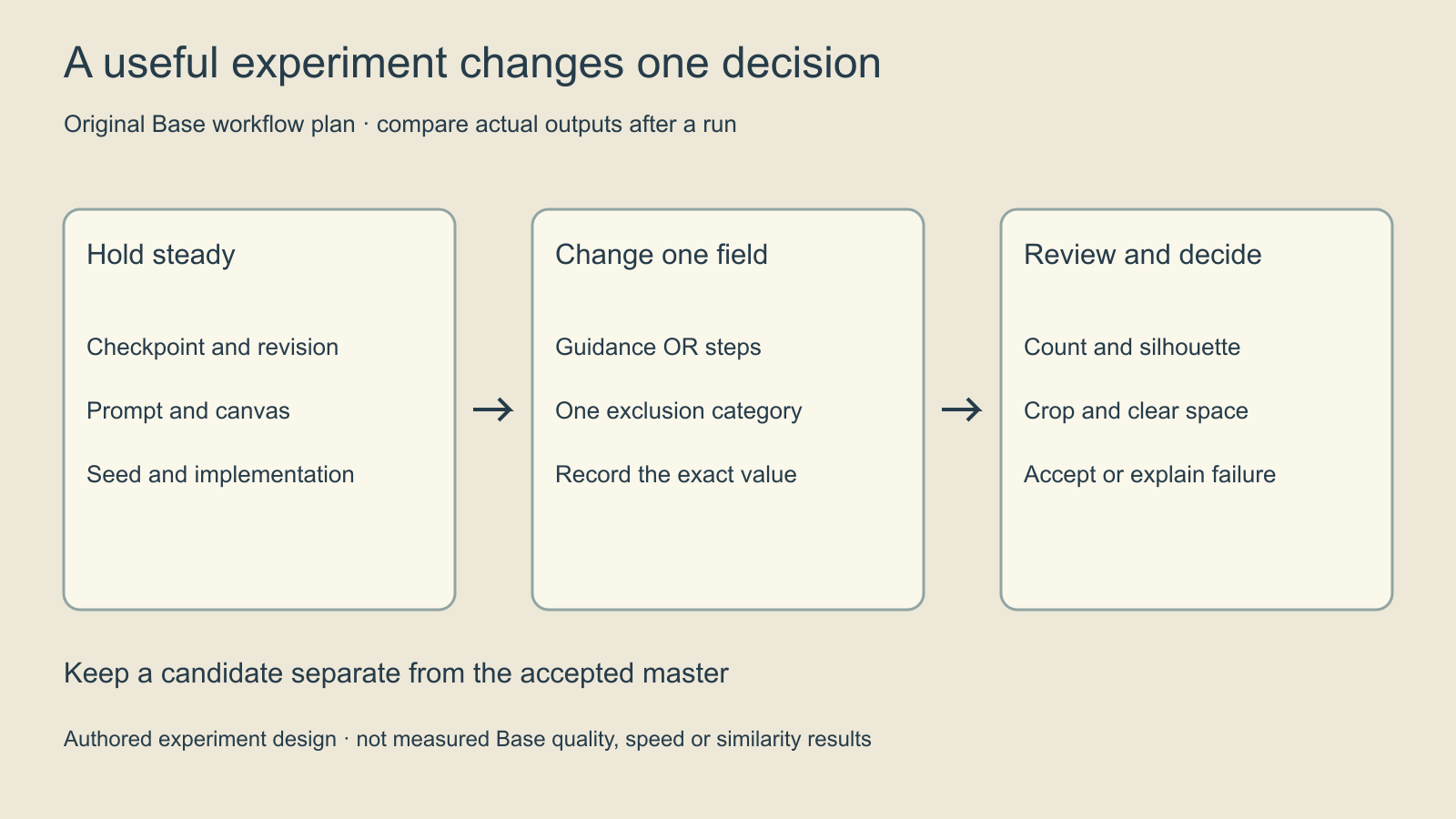
- Record the checkpoint, implementation, prompt, canvas and seed.
- Inspect one baseline output and name its specific failure.
- Choose one meaningful variable to change.
- Generate a candidate using the actual supported controls.
- Compare the requested improvement and any new regression separately.
- Accept a named version or write down why it failed.
For example, if the object count is correct but the handle is hard to read, test a clearer separation instruction before changing the whole scene. If you are investigating guidance, keep the prompt steady and record the exact guidance value. Do not change guidance, steps, seed, crop and negative prompt together and label the result a controlled comparison.
Keeping a seed fixed helps define an experiment within one setup. It does not promise identical outputs across different software versions, devices or implementations. Preserve the environment record when comparing saved files, and distinguish a changed setup from a changed creative brief.
Budget for useful candidates and preserve the master
Download the editable experiment plan and the blank Base review CSV. Record requested changes, actual settings, output filenames and acceptance decisions. Set an attempt allowance in the real workflow; a note in a text brief does not create a hard billing cap.
A larger step count can change compute work, but practical time also includes loading, queueing and inspection. This guide does not provide a measured runtime, a guaranteed GPU fit or a local installation. Consult current checkpoint documentation and the applicable license, and inspect a hosted service’s actual charge before running it.
Keep an accepted candidate separate from exploratory outputs. If the layout is approved but the next task needs exact lettering, complete that typography in a controlled finishing step. If the next request changes an existing image, choose a verified editing workflow rather than assuming Base generation is a source-image editor.
Choose the next workflow by its job
Use the Turbo prompt guide for three scene-writing exercises. Keep its native settings separate from this Base guide. For a model family with dedicated source-editing checkpoints, see the Qwen Image Edit guide. For exact copy after image acceptance, see the typography finishing guide.
Clout Image and Video Studio offers its currently listed workflows. This guide does not add Base to Clout or report a hands-on model comparison. The exercise helps you make the prompt, settings and review decision explicit before scaling a creative series.