

What camera tracking means in a video workflow
Camera tracking estimates how the camera moved through a scene so an added element can share the original perspective. A 3D solve is useful when a title, sign or object must appear attached to the photographed world. The phrase is also used for physical cameras that follow a subject; this guide covers post-production and AI-video planning.
Start with the deliverable. A caption following a face needs a different result from a virtual sign attached to a wall. A new generated video inspired by a reference needs another kind of review. Name the required output before choosing a tool.
Choose between a camera solve and a motion track
| Job | Result to request | Acceptance check |
|---|---|---|
| Attach a caption to a moving subject | Image-space position or transform data | Caption follows the intended feature |
| Place a virtual object in a moving shot | 3D camera and scene relationship | Object stays anchored through the move |
| Develop an AI video from references | A generated clip | Actual composition action and identity fit the brief |
| Plan a new shot before production | Editable camera blocking | Proposed view explains the action |
Adobe’s motion-tracking documentation describes matching image features across frames and applying the resulting movement to another layer or effect. Its feature region, search region and attachment point serve different roles. That image-space workflow is distinct from recovering a 3D camera.
For a shot that has not been filmed, use the previsualization guide to settle camera blocking. For an existing shot, preserve the source and work on a clearly named interval. A new camera plan does not recover the camera that photographed old footage.
See parallax with a reproducible known-camera example
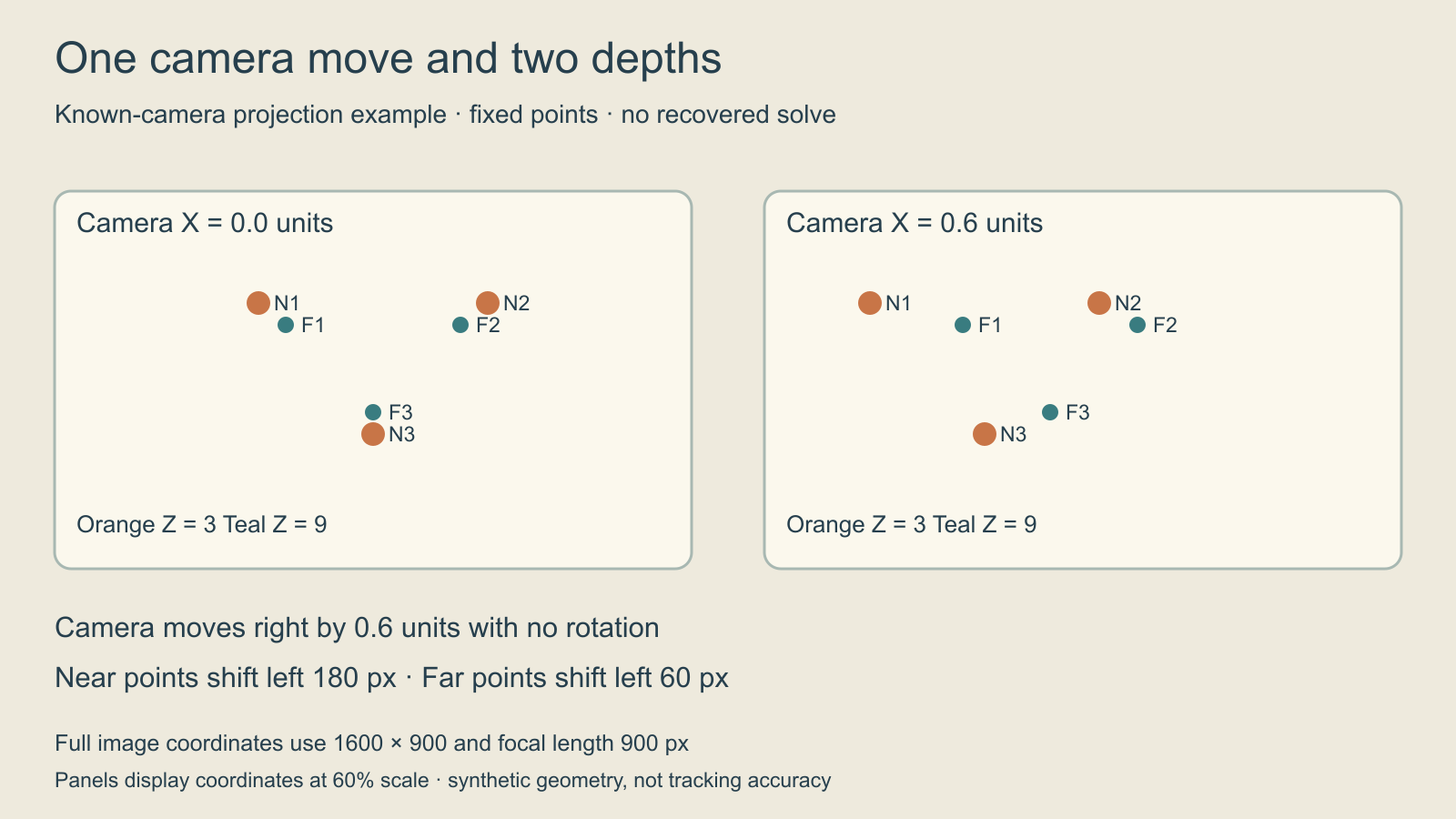
The original exercise uses six stationary points. Orange points are at depth Z = 3 units and teal points at Z = 9. The camera moves right from X = 0 to X = 0.6 with no rotation, zoom or lens distortion. The projection uses a 1600 × 900 image, a focal length of 900 pixels and principal point (800, 450).
For a point at world coordinates (X, Y, Z), the image coordinates are x = 800 + 900 × (X − cameraX) / Z and y = 450 − 900 × Y / Z. The example defines positive world Y upward. Near points move left by 180 pixels; far points move left by 60. These are full-image coordinate differences. The two diagram panels display those coordinates at 60 percent scale.
The known-camera coordinate CSV supplies all six points at camera positions 0, 0.3 and 0.6. Use it to check the calculation or explain why a single flat translation cannot describe both depths in this example. It is not a camera export, tracker input specification or measurement of an AI model.
This is a deliberately simple case. It contains no occlusion, changing focal length, rolling shutter, noisy features or independent subject movement. Those omissions make the geometry inspectable; they do not establish that a real clip will be easy to solve.
Prepare a shot that can answer the real question
- Choose one uninterrupted source interval and preserve its original version.
- Record resolution, frame rate and any processing already applied.
- Identify features belonging to the static scene and features belonging to moving subjects.
- State where the new element should sit and what should hide it.
- Run the selected analysis, then review a temporary overlay through the entire interval.
- Save the failed frames and change one relevant decision before comparing again.
Imagine adding a small shop sign to a brick wall while a cyclist passes in front. The wall is the intended anchor. Following the cyclist would answer a different motion question. A sign that stays near the correct screen position at the first frame may still slide later or appear in front of the cyclist when it should be behind.
Write down the actual defect: the lower-left corner drifts after the cyclist crosses, the sign changes apparent scale, or the foreground occlusion is missing. Those observations are more actionable than labeling the whole shot bad. The blank shot-review worksheet keeps source, solver, overlay and acceptance notes together.
Use the documented After Effects camera workflow
Adobe’s 3D Camera Tracker guide documents selecting footage and choosing Animation > Track Camera or Effect > Perspective > 3D Camera Tracker. After analysis and solving, scene points can position added content. It warns that moving objects can confuse the solve and describes deleting unwanted points.
The same guide defines Average Error as the pixel distance between source points and reprojected solved points. Use it alongside visual review rather than treating one number as proof that the composite works. Choose solve assumptions to fit the actual shot; a pure tripod pan and a translating camera describe different situations.
Keep the first inserted object simple and high contrast. A temporary rectangular sign exposes drift clearly before texture, lighting and motion blur make the composite harder to judge. Inspect contact, perspective, apparent scale and occlusion as separate questions. This guide documents the workflow; it does not report an executed After Effects solve.
Evaluate AI camera tracking by its actual output
The label AI camera tracking is not an output format. Before uploading, establish whether the service returns a video, image-space tracks, an editable scene or camera data your target application can read. If the task requires a 3D camera, inspect the documented export and open a small authorized test in the actual downstream application.
A generated clip may look like a camera move without supplying reusable calibration. Conversely, a usable camera solve can look visually plain because its job is geometry, not final rendering. Compare candidates against the same deliverable and record which part was actually tested.
For scene planning followed by generative refinement, the Autodesk Flow Studio guide explains its documented 3D Editor-to-Canvas handoff. Keep that route distinct from solving the camera in existing footage. Neither a reference image nor a written camera instruction is evidence that calibration was recovered.
Review the complete shot before the final look
| Observed failure | Question to investigate | Evidence to save |
|---|---|---|
| Overlay slides against the wall | Does the selected track describe the intended surface | First visible drift and worst interval |
| Overlay follows the passing subject | Were moving features used as scene anchors | Feature choice and the subject crossing |
| Numbers improve but placement still fails | Does the inserted geometry or anchor match the scene | Solver reading and full overlay playback |
| Generated clip changes the object | Was visual identity checked separately from camera style | Source reference and actual output frames |
Review at normal speed, then inspect the failed intervals. Compare beginning, middle and end without ignoring transitions between them. Keep the accepted source, tracking data, composite and final edit as named versions so a later color adjustment does not replace the geometry decision silently.
For the separate finishing decision, use the SDR-to-HDR delivery guide to inspect source interpretation, output profile and actual viewing results.
Carry the accepted camera brief into AI production
A useful generative brief names the subject, fixed scene anchors, intended camera direction, duration and end composition. Describe which decisions are locked and which may change. If the assignment is a new creative shot, evaluate the resulting video on those terms instead of claiming it is a calibrated reconstruction.
Explore Clout AI Cinema for its current production tools. This article does not establish a Clout camera-solving or calibrated-camera export feature. Use a dedicated solver when that data is the deliverable, and use the animatic guide when the unresolved decision is shot timing.


