What Autodesk Flow Studio does
Autodesk Flow Studio combines editable scene planning with AI-assisted refinement. Its 3D Editor and Canvas announcement describes building scenes with characters, environments, cameras and timelines, then refining images or video in a node-based workspace. This guide focuses on that connected workflow.
The useful starting question is what needs to stay controllable. If the camera path and object placement matter, preserve an editable scene and review its action before exploring the final look. If you only need a visual idea, a simpler image-led exercise may answer the question with fewer production decisions.
Choose the job for 3D Editor and Canvas
| Stage | Planning job | Review question |
|---|---|---|
| 3D Editor | Arrange and direct the scene | Does the layout and camera explain the action |
| Canvas | Develop and refine the visual result | Does the actual candidate preserve what matters |
| Final edit | Assemble accepted material | Do timing sound and captions work together |
Do not approve the whole production from one attractive still. A frame can establish the color treatment while leaving wheel motion or a camera transition unresolved. Record what each artifact demonstrates, then review the missing part in the actual clip. The previsualization guide covers the general camera-blocking decision.
Follow the documented scene-to-Canvas handoff
Autodesk’s October 6 getting-started tutorial begins in 3D Editor from Wonder Tools or Create New Project. It adds scene elements, a performance and a camera, reviews the timeline, then uses Send to Canvas. The camera-animation interval determines the clip sent onward; material outside it is ignored for that render.
The tutorial distinguishes Global and Relative camera behavior and shows a Freeform Camera with keyframes. Before sending, select the camera, resolution and frame rate. Its Canvas example uses a Generate Video node with Seedance 2.5 Reference, assigning separate roles to the rendered scene, environment image and character views. These are documented controls, not a paid-account workflow we executed.
Use the original courier-cart reference plan
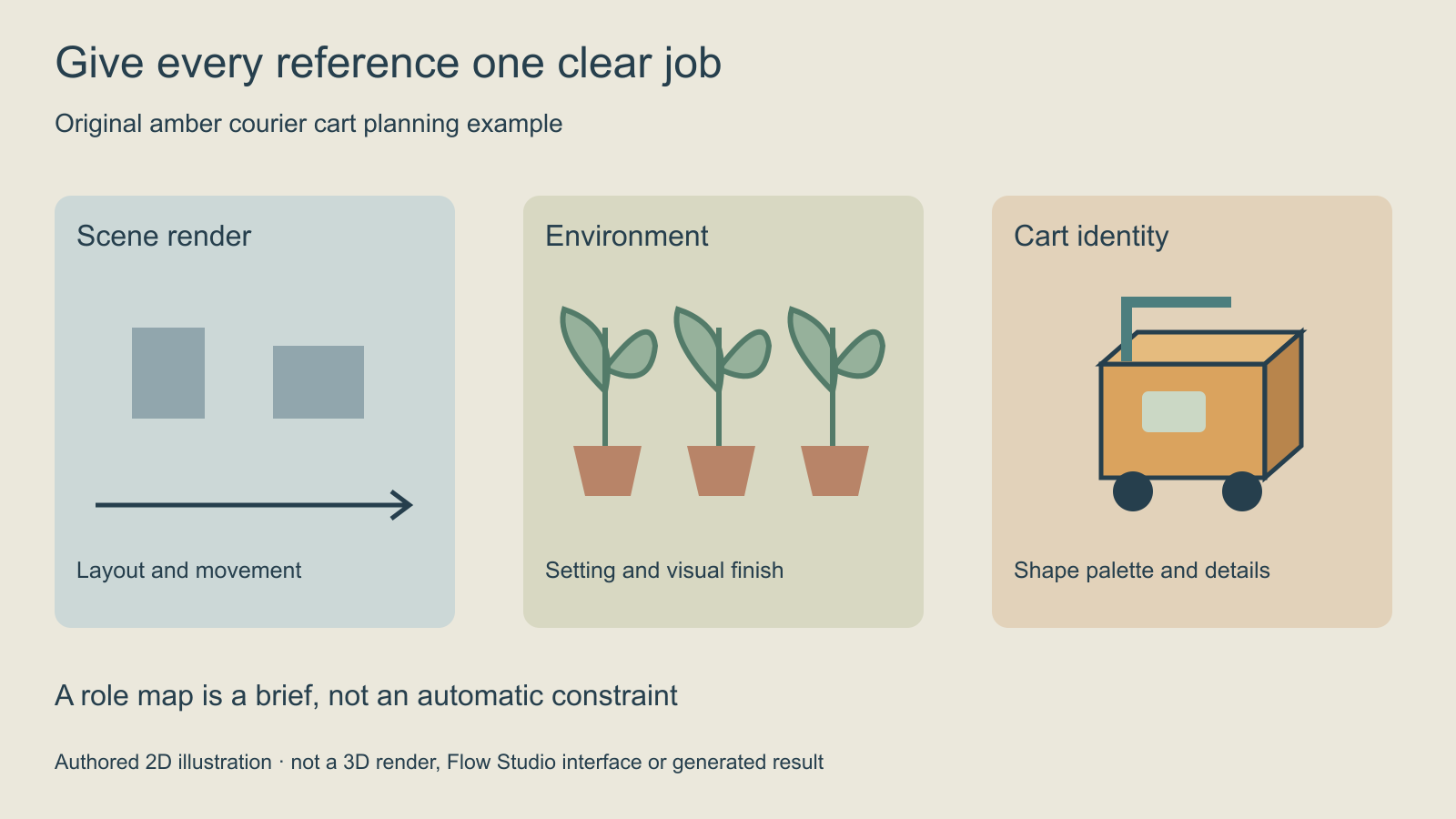
Our example is one stationary amber courier cart in an indoor plant-shop aisle, with a camera move from left to right. Its anchors are a teal handle, dark wheels and a pale green label. The environment should feel airy, with a clear crossing route. This is an original planning scenario; the drawings do not supply a rigged character, editable world or finished scene render.
The reference map separates three jobs. A scene render would establish composition and movement. An environment image would communicate the intended setting and finish. Cart views would establish its recognizable design. A reference should have a clear role before it is connected to a generation workflow.
Write down the actual input order
Reference identifiers depend on the selected node and the order used in the real workflow. Record which input represents the scene, which represents the plant shop and which represents the cart. Do not copy a tutorial’s numbered reference labels into a different connection order and assume they still point to the intended assets.
Use the scene reference for the camera move past the stationary cart and the composition. Use the environment reference for the plant-shop appearance. Use the cart views for its amber body, teal handle, dark wheels and pale green label. Keep the camera travel readable and the cart stationary and inspect the complete clip for identity or layout changes.
This is a plain-language planning brief to adapt to the real input identifiers, not an executed tool command. Keep constraints tied to visible evidence. If the important failure is a missing handle, name that defect before adding several unrelated style instructions to the next attempt.
Check the camera interval before rendering
In our hypothetical shot, the camera starts to the left of the cart, moves past its front and finishes to the right while the cart stays fixed. Make the accepted camera interval include the action you actually need. A scene can contain useful movement that never reaches the next stage if it lies outside the rendered interval.
Inspect both endpoints and the middle. The cart might be visible at the start and finish while disappearing behind a plant midway through. Record the observed interval and the reason it fails. Keep the scene master available so you can decide whether to change staging, camera placement or the planned cut.
Review the generated candidate against the scene
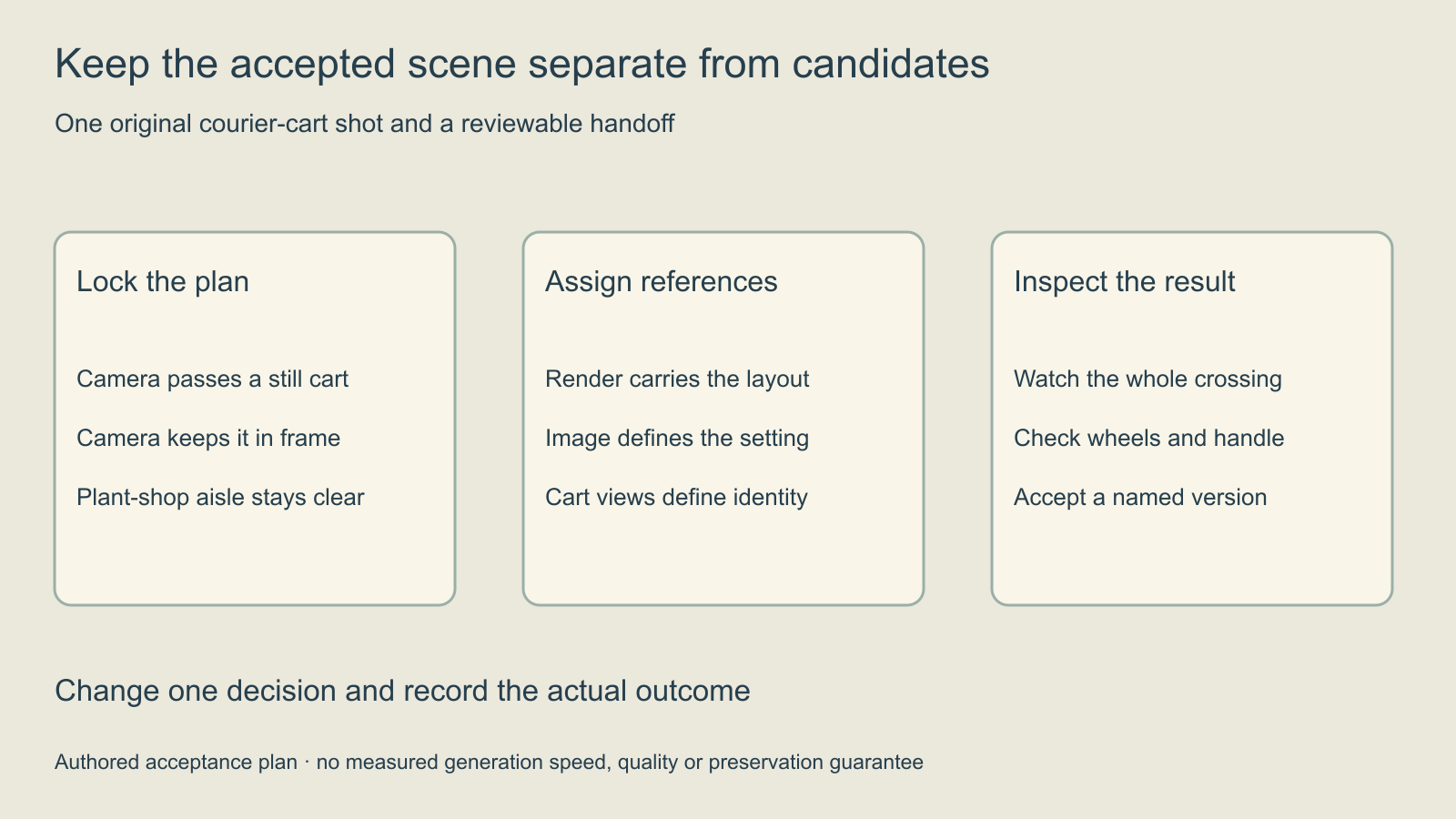
- Watch the complete output at normal speed.
- Check the camera travel and whether the stationary cart stays framed.
- Inspect the handle, wheels, body color and label area.
- Look for changing plant positions or an obstructed aisle.
- Record the actual defects and decide whether the candidate is accepted.
A scene reference supplies direction to evaluate. It does not prove that a generated clip will preserve every spatial relationship. Keep the source scene, generated candidates and accepted master separate. A later request for a warmer color treatment should not silently erase the camera decision already approved.
Use the editable shot brief and blank review CSV to record input roles, camera interval, actual charges and defects. These files are planning aids. They do not connect an account, upload assets or enforce a spending limit.
Free access credits and pricing checks
The official buying page confirms a Free tier through the plan comparison and says credits reset monthly. Review the current plan, generation limits, export treatment and billing interval before committing. A monthly equivalent for an annual plan is different from a month-to-month payment.
Budget from accepted outputs. Include failed attempts and the time spent inspecting or repairing them. Compare like deliverables: a single image and a completed scene package have different denominators. This guide does not quote an unverified checkout price or report an observed cost per accepted Flow Studio clip.
When the task is reconstructing the camera from existing footage, use the camera-tracking guide and its original known-camera parallax study. That requires different evidence from planning a new scene.
Keep the next step tied to the production job
Use the animatic guide when the next decision is editorial timing. Use the character reference-sheet guide when the identity still needs clear views. Explore Clout AI Cinema for its currently available production tools.
This is a documentation-led Flow Studio workflow guide published by Clout. It does not add Autodesk’s 3D Editor to Clout or establish shared model access, controls or billing. Choose the service from the production task and inspect the real result before scaling a sequence.