

What previsualization means for a small production
Previsualization, often shortened to previs or previz, explores a scene before final production. The practical question is how the subjects, camera and action fit together. Epic’s virtual-production explainer places previs within a wider planning process and describes using digital camera movement for blocking and review.
You do not need to begin with a polished world. Begin with one decision that could make the shot fail: a reveal hidden by a lid, a camera move that loses the subject, or a cut that makes positions confusing. Make a proxy that exposes that decision, then choose what the final production still needs to prove.
Separate the scene plan from the timing plan
| Planning artifact | Primary question | Useful output |
|---|---|---|
| Storyboard | Which views explain the story | Ordered compositions |
| Animatic | When the information arrives | A timed editorial sequence |
| Previs scene or blocking study | How action and camera relate in the scene | Reviewable layout and camera decisions |
These jobs can overlap. Keep their evidence separate instead of arguing over a label. A timed image sequence can establish pace while leaving lens choice unresolved. A 3D scene can show a camera path while leaving dialogue rhythm unresolved. Use the animatic timing guide for the original twelve-second box sequence.
Use one camera decision as the worked example
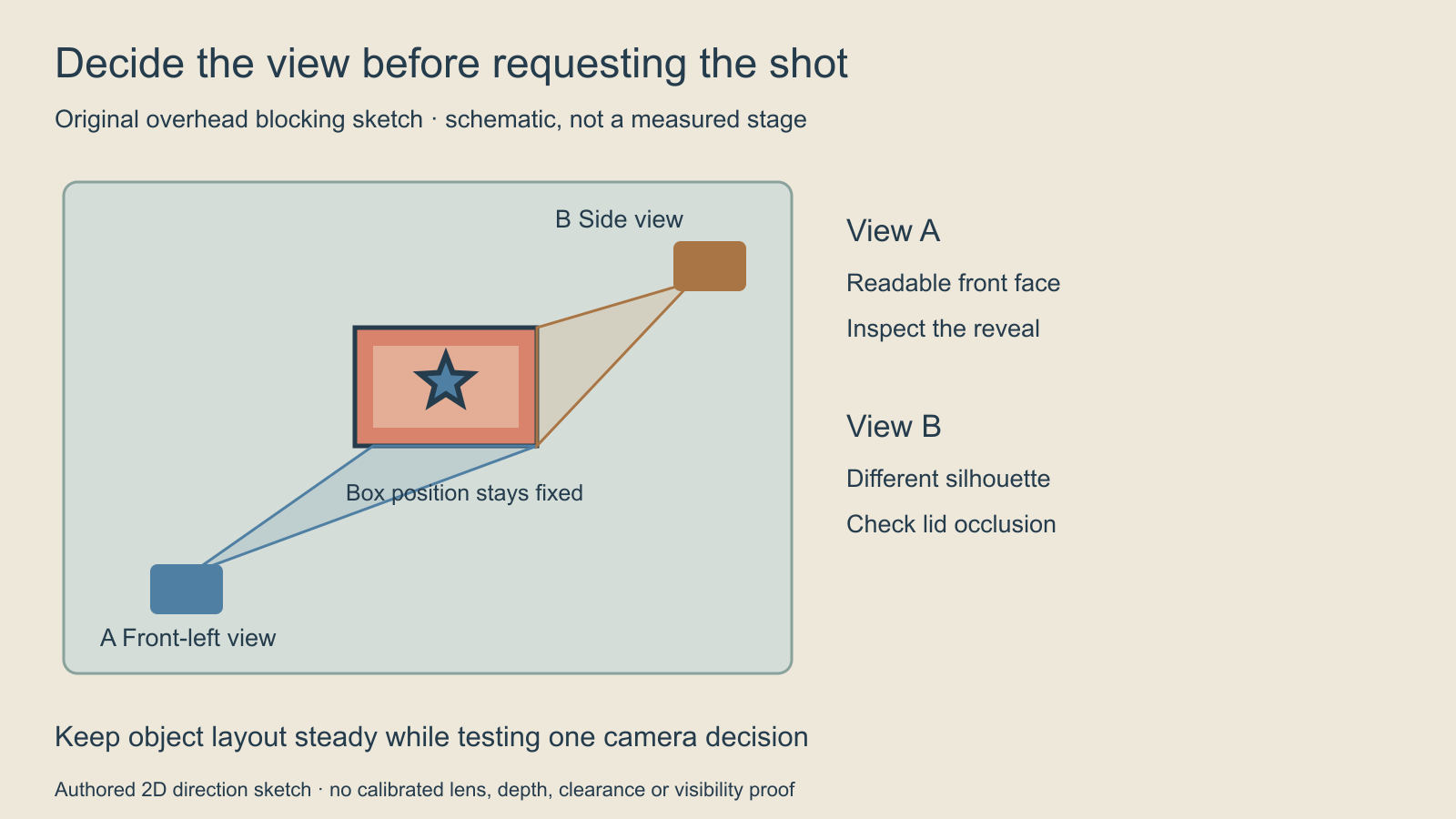
The scene contains a coral box, a back-hinged lid and a blue star. View A proposes a front-left composition; view B proposes a side composition. The story question is whether the viewer can read the reveal. Keep the box position and intended action steady while considering the camera change.
The overhead sketch communicates a proposed relationship. Its triangles are direction marks, not measured lens frusta. It does not calculate depth, sensor size, lid clearance, collision or the actual area visible to a camera. Recreate and inspect those relationships in your chosen scene tool or physical setup before relying on them.
Build the smallest scene that can answer the question
- State the visible event and the required final composition.
- Place simple stand-ins for the box, lid and star.
- Choose consistent units and record the actual object dimensions.
- Place one camera and define its target and lens or field of view.
- Preview the complete lid action and look for occlusion.
- Save the observed result before testing a different camera.
Use simple shapes while the layout is unsettled. Detailed materials can make a proposal attractive without fixing the hidden star. If the lid blocks the reveal, record when it happens. Then decide whether the action, camera placement or edit should change. Avoid silently moving all three and losing the reason the revised shot works.
Download the editable camera-test brief. Fill in the real positions, dimensions, camera settings and acceptance decision. This is a text worksheet, not a scene file, camera solver or command that configures another service.
For the branded scene-to-refinement workflow, see the Autodesk Flow Studio guide with its original reference-role map and handoff worksheet.
Choose previsualization software by the required control
| Need | Control to verify | Review before committing |
|---|---|---|
| Object placement | Editable scene layout and scale | Fixed anchors remain in place |
| Camera comparison | Independent camera positions and framing | The intended reveal remains visible |
| Moving shot | Camera keyframes and timeline playback | The whole path works between endpoints |
| AI refinement | Supported scene or reference inputs | Actual output preserves the needed relationship |
As a current documented example, Autodesk’s August 2026 Flow Studio announcement describes editable 3D scenes, Global and Relative Cameras, camera keyframes and timeline review, followed by node-based refinement in Canvas. That describes a workflow to evaluate; we did not run a paid-account test or compare render quality here.
A software name alone does not establish that the current plan includes the feature you need. Inspect the actual account, supported inputs and job cost before running. Keep a scene with editable layout when the task requires spatial control; a beautiful standalone image does not provide that same editable evidence.
Inspect the whole camera path and not just two frames
A clear start and finish can hide a poor middle. Play through the move and inspect whether the box leaves the frame, the lid covers the star, or the camera crosses an unintended object. Save the failed interval as a note rather than treating the accepted ending as proof that the whole shot works.
Separate a camera move from a subject move. For the first comparison, keep the box still and change the proposed camera. If you later animate the box as well, name that as a new test. The storyboard guide can help decide which new view is necessary when the action needs another explanation.
Hand off the scene decision to an AI video brief
Describe the accepted spatial relationship in plain language: where the box begins, which face is visible, what the lid does, where the star should appear and how the camera behaves. Preserve reference images or scene exports only in formats that the selected workflow actually accepts. A diagram in this article is not automatically a supported control signal.
Use one requested action per test when possible. If the actual render changes the hinge direction or hides the star, keep the output and name the failure. A prompt is an instruction to evaluate, not proof that physical layout will remain fixed. Do not replace the scene master with a generated candidate before checking the required relationships.
Keep the handoff reviewable
Save the selected camera, scene version, start and end references, intended action, timing notes and actual output location together. Record which decisions are locked and which are still provisional. A later request to change the color of the box should not quietly become a request to redesign the camera move.
Explore Clout AI Cinema for its current scene-production tools, and use the Content Factory guide for a separate faceless-episode workflow. This planning exercise does not add Flow Studio to Clout or establish shared controls. Choose the production path from the job you need to complete, then judge the actual result against the accepted scene brief.


