A campaign may need a photographic hero, a set of editable icons and a repeatable illustration style. Those are different deliverables. Searching for Recraft V4 is a useful starting point, but choosing the right variant matters more than putting every campaign asset through one default setting.
This independent guide connects the documented model family to three practical jobs. The downloadable lantern icons and layout board are original code-authored practice assets, not Recraft generations. Use them to rehearse export checks or replace them with the assets from your own accepted run.
Compare Recraft versions before choosing a model
Recraft's V4 documentation lists raster, Pro, Vector and Pro Vector versions. Its V4.1 documentation adds Utility and Flash variants alongside raster and vector options. Select the exact version before comparing outputs, timing or price.
The Styles documentation describes one to ten reference images and separate style-control choices. Its current Studio instructions use the combined Recraft V4.1 selector. That is a different workflow from assuming every older V4 control is still present.
| Deliverable | Variant to investigate | Acceptance question |
|---|---|---|
| Campaign photography or an editorial concept | Raster generation | Does the composition communicate the campaign idea |
| A calm front-facing product concept | Utility | Are the object and framing useful for the layout |
| Scalable icons or graphic shapes | Vector | Can you select recolor and resize the actual geometry |
| Several images using one visual language | Styles | Do palette rendering and texture remain coherent across the set |
| A larger final raster file | Pro | Are the native dimensions sufficient for the destination |
Write a brief for the asset rather than the model
Our fictional outdoor brand needs a lantern icon, an illustrated campsite and a photographic product direction. The shared campaign language is a deep teal body, a warm amber light and restrained terracotta accents. Those choices are the art direction. They do not require the same rendering method in every asset.
Create a flat vector lantern icon for an outdoor campaign. A deep teal rounded body, a simple terracotta handle and one amber circular light. Center the icon with generous empty space on an ivory square. Use clean closed shapes, three solid colors and no text, shadows, gradients or embedded photographs. Keep the silhouette readable at a small display size.
That is an original untested generation brief. If you require editable geometry, choose the vector operation and inspect the resulting SVG. Typing “vector” into a raster prompt does not establish that the download contains paths rather than pixels.
An editorial product concept of an unbranded teal camping lantern on a pale stone ledge at dusk. One warm amber light, a terracotta handle and a quiet slate-blue background. Medium close-up, clear product silhouette, restrained texture, enough space on the left for a headline added separately. No people and no text.
This second brief is for a raster concept. For an actual retail item, supply accurate source photography through a supported editing workflow and compare construction, proportions and labels. A convincing invented lantern is useful for concepting; it is not evidence of a real product's details.
Use style references without confusing style and identity
Style references describe how the image is rendered: color relationships, line weight, material treatment or texture. A character reference describes who appears. A product reference describes the actual item. Name those roles separately when the selected operation supports them.
Build a small coherent style pack. One approved illustration can define the palette and treatment. Add another reference only if it answers a missing question. A glossy studio photograph, a rough ink sketch and a flat icon do not supply one unambiguous style unless your brief explains their separate jobs.
For a set, write the same style sentence in every brief and vary only the subject or composition. Compare the complete set on one board before approving it. If a later image drifts, record the specific difference rather than describing every image as “on brand.”
Download an editable practice icon set
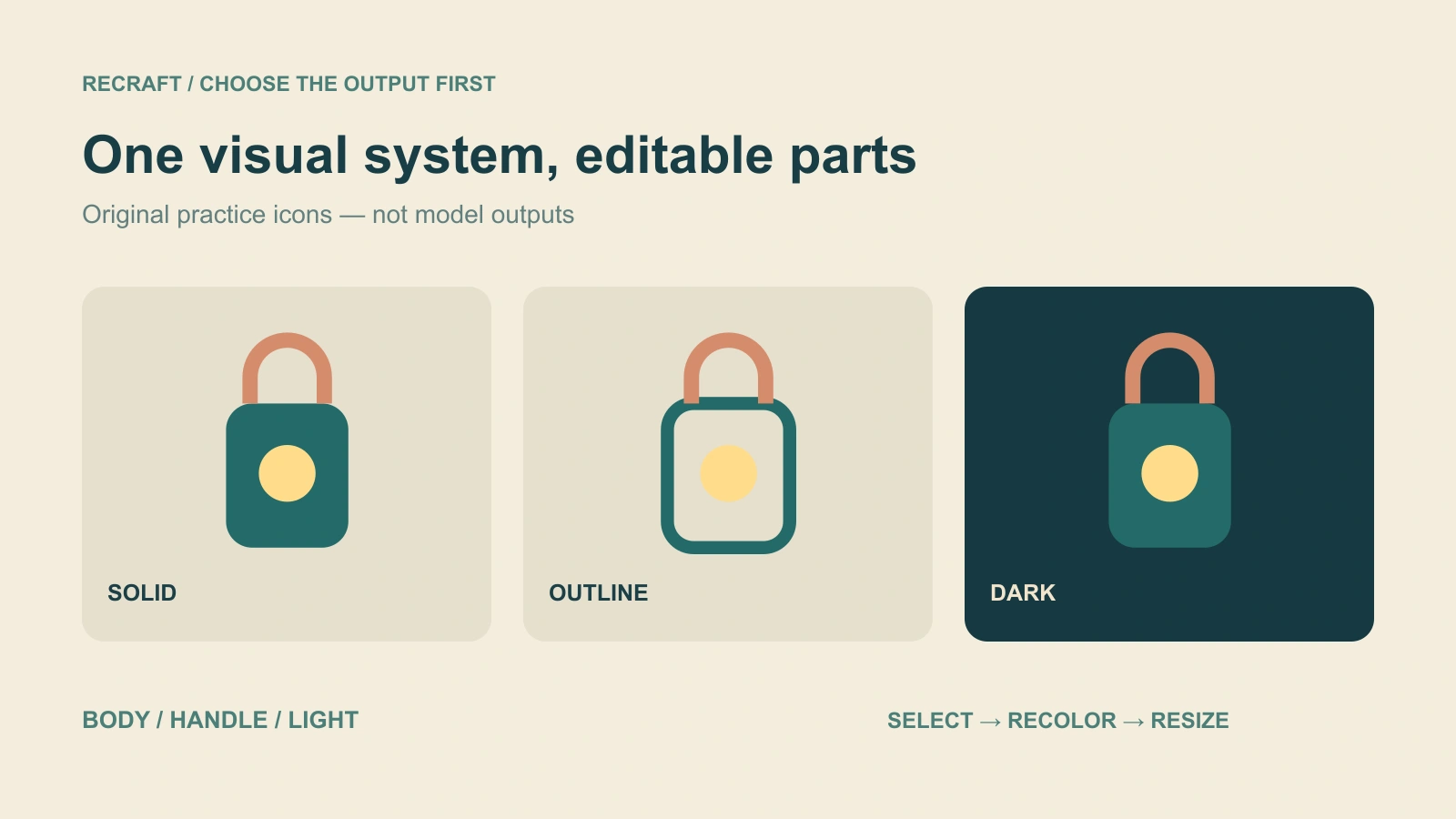
- Download the solid lantern SVG
- Download the outline lantern SVG
- Download the dark-background lantern SVG
Open the files in a vector editor. Select the body, handle and light separately, change their colors and compare the icon at a small size. Each file contains original geometric shapes. These are independent practice files, not a reconstructed provider result or a promise that any generated export will have the same structure.
Use the AI SVG guide and local export inspector to read the file's geometry and image references. Follow the raster export checker guide when you need to inspect pixel dimensions instead.
Check pricing and availability for the exact variant
The current API pricing page separates models and operations. A Studio subscription, an API charge and a third-party provider's credits are different billing contexts. Confirm the selected variant, count and output settings before generating a set.
Record actual charges and the number of accepted assets. If a campaign needs six icons but only four pass review, six paid attempts have not delivered the campaign. Include revisions and finishing work when comparing production choices. Avoid transferring an older article's V4 price or latency claim to V4.1 or Styles.
Bring the visual system into a creator campaign
Once the icon, palette and image treatment are approved, use that visual system in the rest of the campaign: creator reference photos, product scene briefs, captions and the video shot list. Keep a single accepted pack so later assets have a concrete starting point.
Explore Clout Marketing Studio for its own creator and campaign workflows. Clout is separate from Recraft; this guide does not claim native Recraft generation or SVG export inside Clout. For a photographic revision, compare the image editing guide. For motion built around accepted frames, continue with the FLUX 3 Video guide.