A Nano Banana Pro upscaler search usually starts with an image you already like, but need at a larger size. Before asking for more detail, decide whether the job permits new visual interpretation. A larger campaign concept and an exact product-label enlargement have different acceptance requirements.
This guide focuses on that export decision. For the full model lineup, reference planning and a source-to-color-edit exercise, use our Nano Banana prompting guide. Here, the free checker reads your files locally and helps you keep measurements separate from a visual approval.
Choose generation, enlargement or restoration
| Your situation | Useful next step | Inspect before approving |
|---|---|---|
| An accepted concept needs a larger deliverable | Try a larger reference-led generation or edit | Composition, identity and material changes |
| The original master exists | Download or export that master first | Actual pixel dimensions and crop |
| Every printed word and seam must remain exact | Use a controlled enlargement or finishing workflow | Lettering, geometry and unintended reconstruction |
| A damaged photo needs restoration | Test a dedicated restoration operation | Invented features and changes to the original subject |
Google's documentation describes Nano Banana as image generation and editing, with high-resolution output options across supported models. Higgsfield's Pro gallery advertises 4K generation. Neither a large output preset nor the word “upscale” establishes that every input detail will be reconstructed faithfully.
Start with the best available source. If you downloaded a small preview while a larger master exists, exporting the master avoids trying to recreate information you already have. Keep that file unchanged beside any generated revision.
Set up Nano Banana Pro in Higgsfield
 Open the Higgsfield Nano Banana Pro image composer. Our signed-out October 17 inspection showed Nano Banana Pro in the model control, a References button, an aspect-ratio menu and Quality choices of 1K, 2K and 4K. The 4K choice carried a Premium label. This was a control inspection, not a generated export.
- Confirm the selected model instead of relying on the page banner
- Attach the accepted source through References
- Match the intended frame shape and choose the available larger Quality option
- Write a restrained preservation brief and review the displayed charge
- Generate one test, download the file and compare it with the source
Use the real quality control rather than only writing “4K” in the prompt. Your interface and account determine the available output settings. A reference request still needs review: a convincing new surface can look sharper while becoming less accurate.
Write an enlargement brief with a clear boundary
Use the attached image as the source. Produce a larger version of the same scene while preserving the camera framing, object proportions, colors, readable text and background arrangement. Keep existing material detail natural. Do not add decorative texture, new objects or invented lettering. If a small detail is unreadable, do not replace it with a different design.
This is an original creative brief, not an API request or a guarantee of preservation. Select the output size in the interface. For an implementation, use the provider's documented request fields rather than treating this paragraph as a resolution parameter.
For a product photograph, identify the details that must survive: the label wording, logo shape, seam placement, surface finish and silhouette. For a portrait, inspect the eyes, mouth, skin texture and hairline. Rejection criteria are more useful than asking for an increasingly long list of quality adjectives.
Read the exported pixels instead of the filename
A file called “4K-final.png” can contain any dimensions. Read its decoded width and height. The frame shape also matters: a square export and a widescreen export have different pixel counts even when a service places both under a similar quality label.
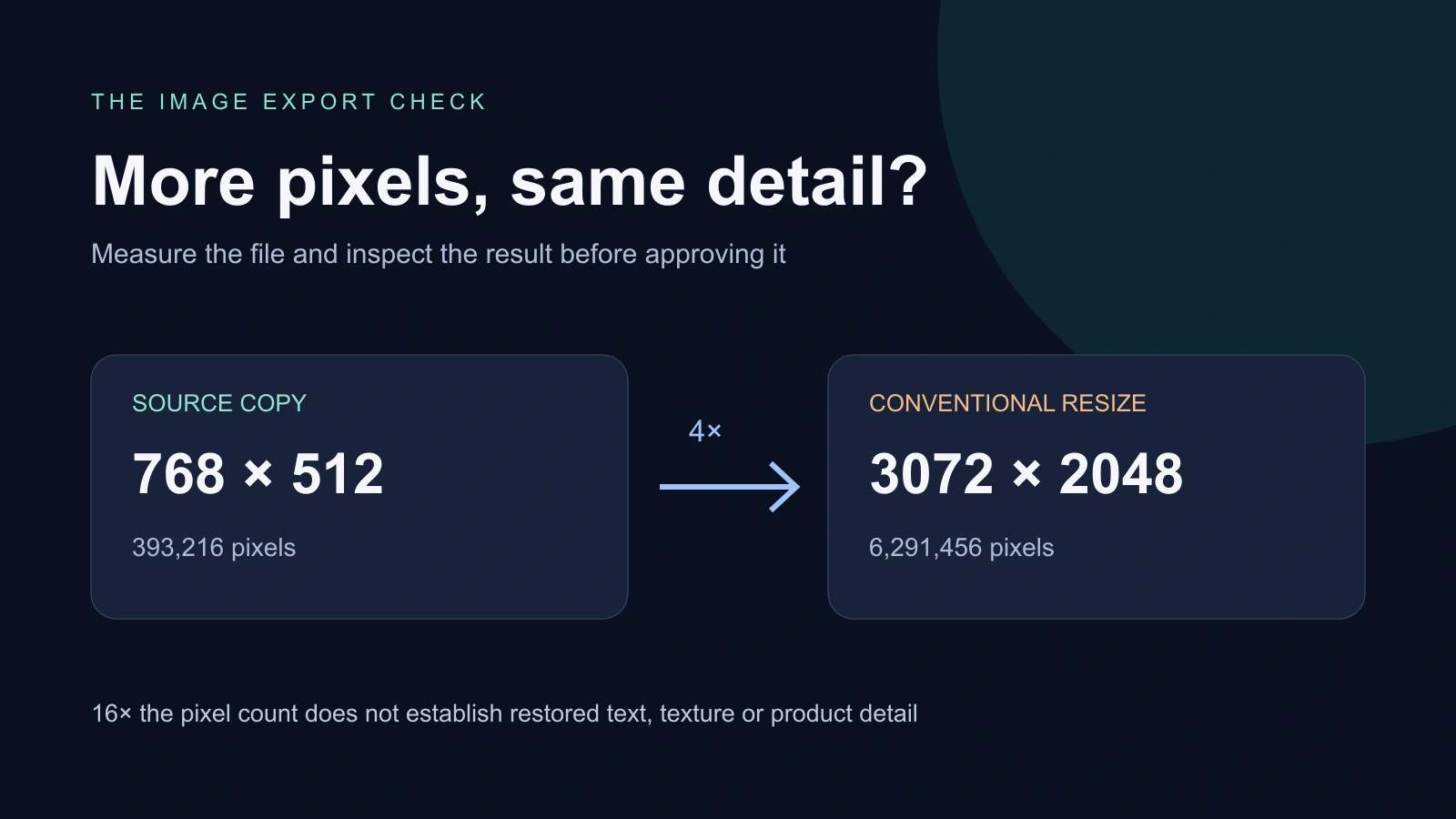
For scale arithmetic, doubling each edge produces four times the pixels. Increasing both edges by four produces sixteen times the pixels. Those are size measurements. They do not establish sharper real detail, correct text or a better resemblance to the source.
The checker above accepts PNG, JPEG and WebP still images up to 25 MB and 25 megapixels each. It reads their raster headers before decoding, reports browser-displayed dimensions and compares both axes. It does not audit color profiles, EXIF metadata or a provider's model setting.
Inspect the original resolution-field example
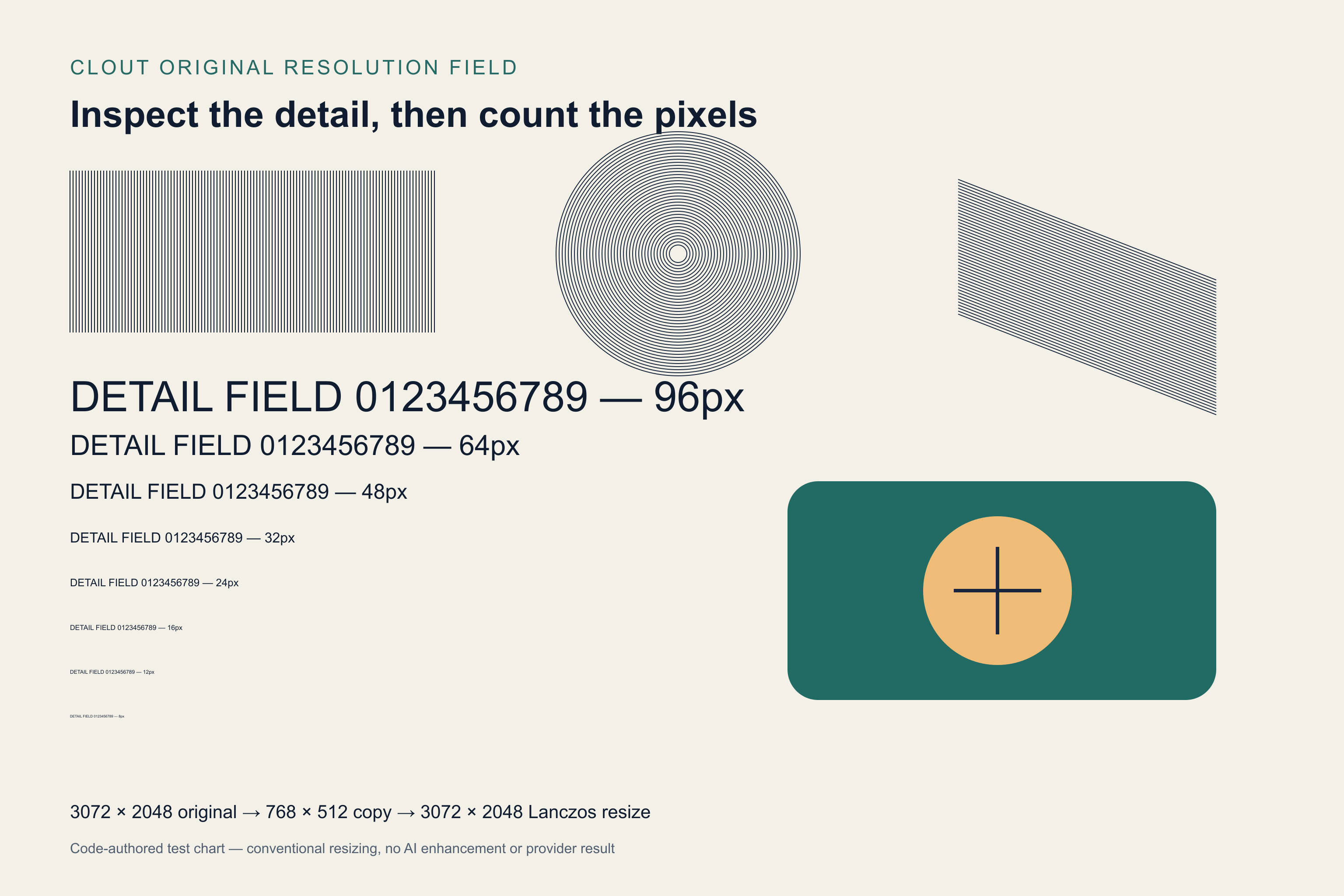
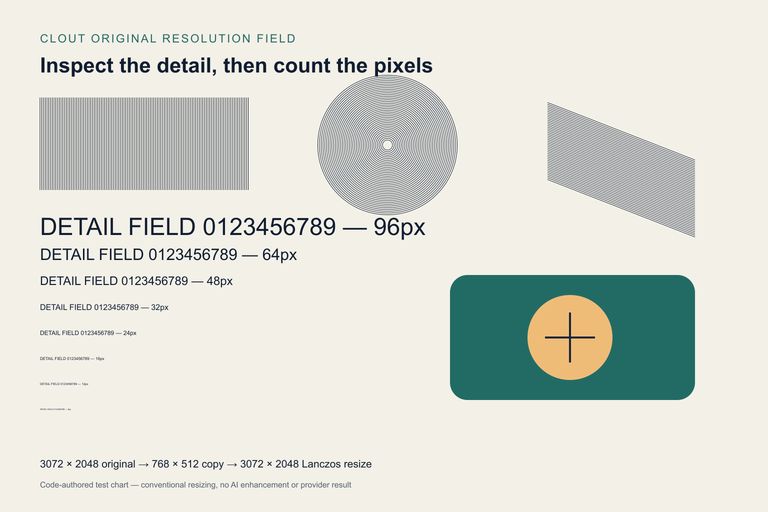
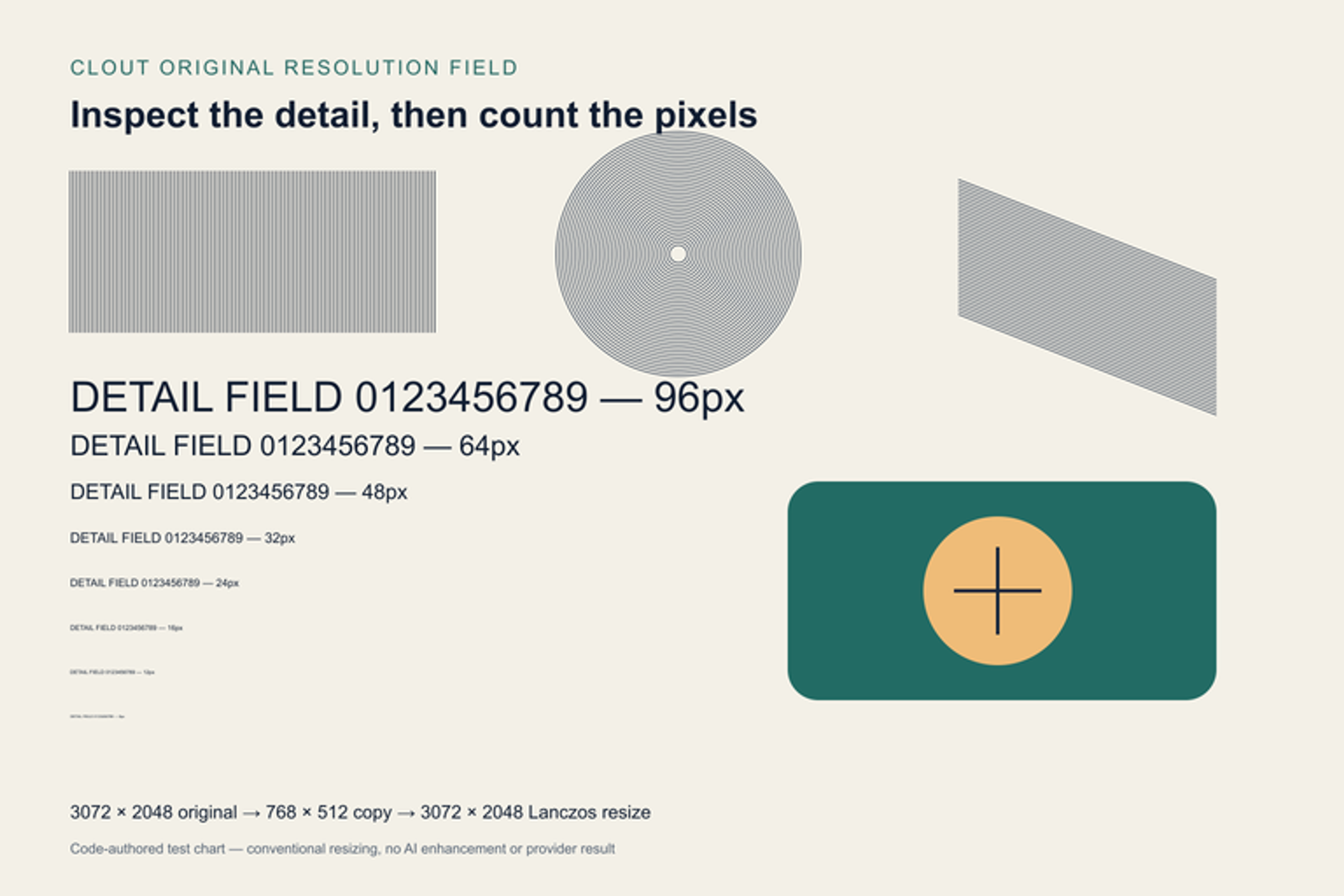
We authored a 3072 by 2048 chart in SVG, rasterized it, reduced a copy to 768 by 512 and enlarged that reduced copy back to 3072 by 2048 with the conventional Lanczos filter. No image model was involved. The native chart is the reference; the enlarged small copy is the demonstration export.
Use Download chart pack in the checker for the complete sample bundle. Choose Load resolution example in the checker. It reports 4.00× width, 4.00× height and 16.00× pixel count with an unchanged aspect ratio. Switch to native pixels and pan the pictures. Fine lettering and line patterns lost in the small copy do not become the original detail simply because the file is large again.
Download the native chart, the small copy and the conventionally enlarged copy. The Download the complete resolution exercise includes the editable SVG, Node renderer, exact sample files, blank review sheet and a file manifest. The chart tests a review process; it is not a Nano Banana quality or restoration benchmark.
Review actual detail at the delivery size
Use fit view to check the whole composition, then native view for edges, lettering and texture. In native view each decoded image pixel occupies a CSS pixel, so the two files can show different amounts of the scene inside the same viewport. Pan them manually. The checker does not align two different photos or declare them equivalent.
| Review area | A reason to reject or revise |
|---|---|
| Lettering and symbols | The export substitutes a word, number or brand mark |
| Product geometry | A seam, opening, handle or edge changes shape |
| Texture | Invented grain or over-sharpened edges replace the original material |
| Face and hair | Features look plausible but no longer match the approved person |
| Composition | The larger export crops or stretches important parts of the source |
Keep the downloaded result rather than evaluating only an in-app preview. Inspect it at the size and crop that will actually be published. A good-looking full-screen view can hide a wrong word on packaging; a magnified defect may be irrelevant to a small background image. Let the delivery brief decide.
Record your observations and decision in the checker and download its review JSON. “Accepted for my brief” is your manual decision. The tool does not fill in a quality score, certify product accuracy or send your image bytes to a rendering service.
Compare cost per accepted image
Record the chosen model, quality option and displayed quote before each test. Include rejected attempts when comparing the cost of an accepted export. A smaller usable source may be preferable to a larger revision that needs extensive repair.
The local checker is free to use and does not generate or enhance images. That does not make Nano Banana Pro generation free. Verify the current provider allowance and quote in your account, especially when a resolution choice is marked Premium.
Keep still-image work separate from video enhancement
Approve the still before taking it into motion. If you already have a video, use our Higgsfield video-upscale comparison guide for temporal review. A sharp individual image does not prove that a processed video stays stable from frame to frame.
For new creator and product scenes in Clout, explore Image and Video. It is a separate workspace with its own supported models, account and credits. This article does not claim the local checker runs Nano Banana Pro.