Higgsfield inpaint searches often lead to older brush-based tutorials. The useful first step is to find the current editor, then decide exactly what should change. A color edit to one pocket and replacing an entire bag are different jobs, even when both begin with the same photograph.
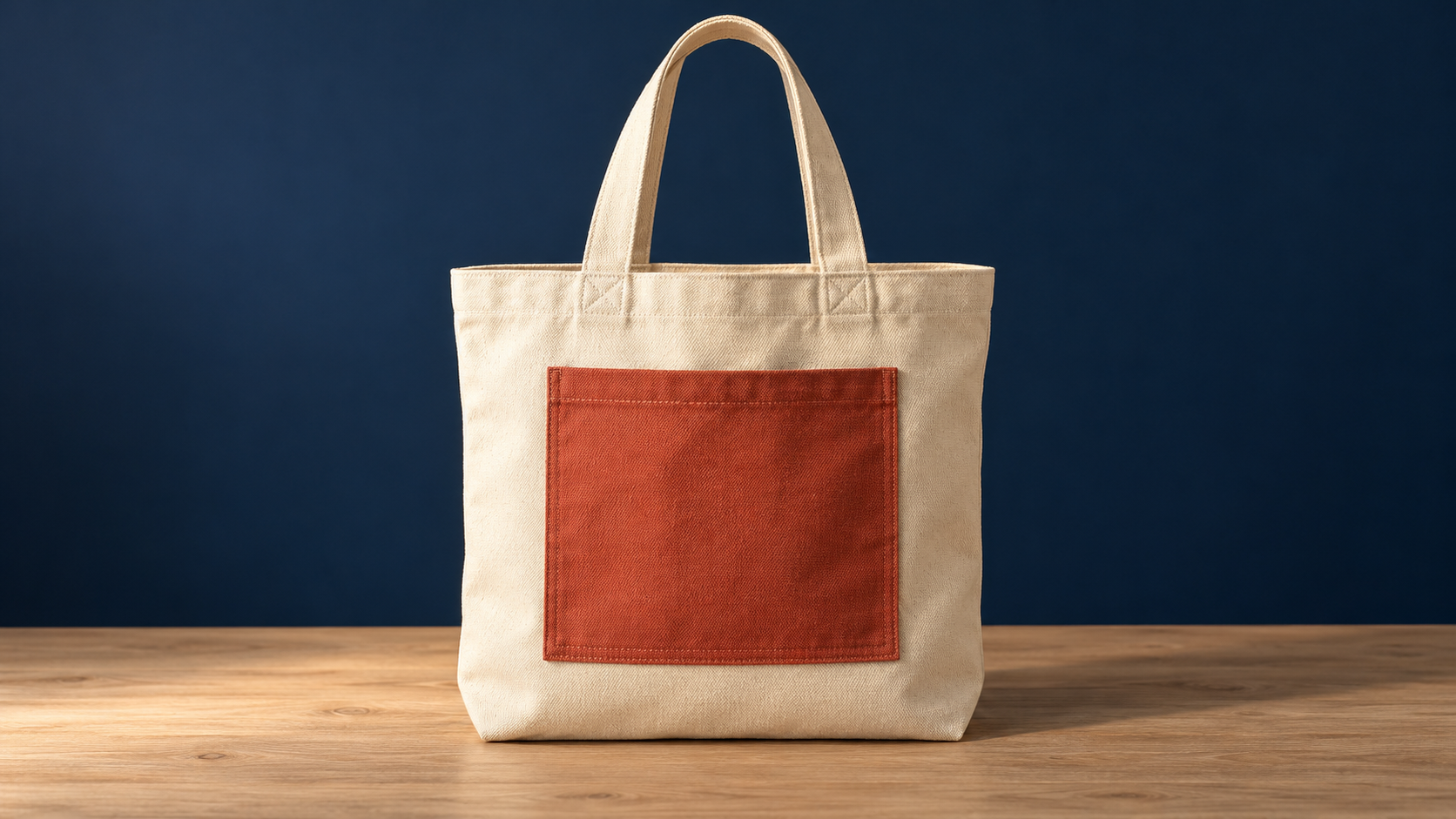
This guide uses an original cream tote with a terracotta pocket. The proposed task is to change the pocket's color while keeping its shape, stitching, the cream body, handles, table and light. The image is a practice source. No edited result or perfect preservation is claimed.
Where to find Higgsfield inpainting now
 Open the official image-editing page and follow Edit it now. In our October 17 inspection, that link opened an edit route with a Nano Banana Pro Inpaint query and redirected into Higgsfield Layers. The public entry displayed Upload Media and a project area.
The landing page describes uploading, brushing an area and writing an instruction. The older official Nano Banana Pro Inpaint article also describes a paint-to-edit approach. We did not upload an image, inspect later controls or run a generation. The route's query string alone does not prove which model or operation will be selected after upload.
- Keep the unedited full-resolution source.
- Open the official entry and use Upload Media with an authorized image.
- Inspect the available editing operation and model in the actual project.
- If a selection tool is available, mark the intended region and review its boundary.
- Write one specific change plus the details that should remain.
- Check the displayed charge, generate a short test and inspect the exported image.
If an older tutorial's buttons are absent, follow the current interface instead of assuming the editor is broken. For loading, queue or credit issues, use the separate Higgsfield troubleshooting guide.
Choose inpainting or a broader edit
| Goal | Starting operation | Main risk |
|---|---|---|
| Change one pocket color | Selected image edit | Color spills onto the bag or stitching changes |
| Remove a small table distraction | Local reconstruction | The filled texture or shadow looks wrong |
| Replace the whole setting | Background edit | Perspective and lighting no longer match |
| Rebuild the whole composition | Image-to-image or a new source | Identity and unrelated details may change |
| Repair existing moving footage | Video inpainting | A still repair does not carry through time |
A selection limits the requested region; it is not proof that every other pixel will remain unchanged. Compare the exported file with the original, especially around the mask boundary and any product detail that matters.
Use the free local image mask tool
The tool above begins with our practice source. You can also choose a PNG or JPEG from your device. Move and resize the rectangle using Left, Top, Width and Height in decoded image pixels. The highlighted overlay identifies the region that will be white in the exported mask.
Download both the normalized source and mask. Both use the same decoded width, height and orientation. The source is a new PNG rasterized by your browser, not the original compressed file or a claim of bit-for-bit preservation. The mask is opaque white inside the rectangle and opaque black outside, with hard edges and no feathering.
The tool accepts files under 10 MiB, no more than 4096 pixels on either edge and no more than 16 megapixels. It rejects oversized images rather than silently resizing them. Selected files are decoded and exported locally; there is no upload or image-editing API call.
This is a rectangular preparation tool. It does not identify objects, trace fabric, generate a fill or produce a soft selection. A pocket can have a slanted edge that needs a shaped brush in the actual editor. Use the rectangle as a controlled practice region, then refine the real selection around the material you intend to edit.
Check the target tool's mask convention
Mask formats are workflow-specific. The Comfy FLUX Tools Erase page, for example, describes a same-size mask with white for removal and black for keeping the source. That documents one convention, not universal compatibility or a tested integration with our export.
Some tools use a painted selection or an alpha channel instead of a separate black-and-white PNG. Confirm the required convention, image orientation, dimensions and any resizing before using a mask. We have not verified importing this PNG into Higgsfield. If its current editor offers only an on-canvas selection, recreate and inspect that selection there.
Practice a one-variable pocket edit
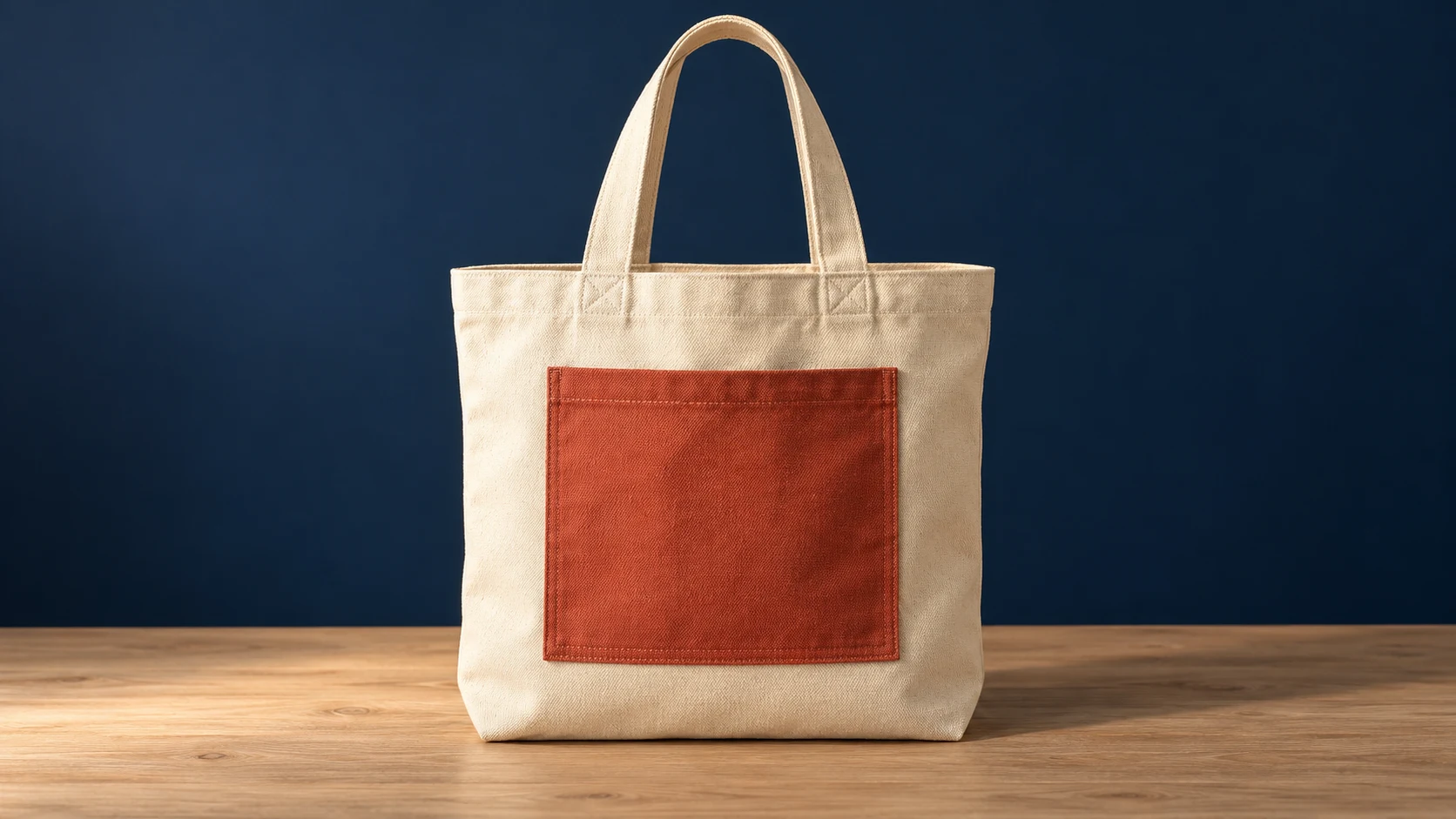
Download the original tote image
Change only the terracotta front pocket to a muted cobalt-blue fabric. Preserve the pocket shape, seam placement, stitching, woven texture, cream tote body, handles, table, background, camera angle and existing light. Do not add writing, logos, extra pockets or accessories.
This is an untested proposed brief. The rectangle starts around the central pocket with a little context, but you should inspect the actual boundary. A larger region gives the model more area to reconstruct and can change cream fabric outside the pocket. A very tight region may miss edge pixels or leave a colored fringe. Compare the two failure modes before adjusting the mask.
Do not change color, shape, material, handles and setting in the first test. Once the color edit passes, save that accepted source and treat another change as a separate version. For broader reference-based edits, see the Nano Banana guide and source-edit exercise.
Review the boundary and retained details
| Checkpoint | What to compare |
|---|---|
| Pocket edge | No terracotta fringe or blue spill into cream fabric |
| Stitching | Seams remain coherent rather than becoming painted lines |
| Material | Fabric texture remains plausible under the same light |
| Handles and tote body | Shape, folds and proportions match the intended source |
| Table and shadow | No invented objects or displaced contact shadow |
| Output file | Correct dimensions, crop and orientation |
Begin with the whole image, then inspect the pocket at equal display scale. A convincing thumbnail can conceal a changed seam or a blurred fabric edge. Keep the original alongside every result. An unchanged background claim should be tested against the actual files, not inferred from a prompt.
Fix a failed inpainting attempt
If nothing changes, verify that the correct region and operation are active and that the instruction names a visible difference. If too much changes, reduce the number of requested edits and review the selection. If a halo remains, inspect mask alignment and the color transition. If the shape is wrong, return to the source and simplify the task rather than upscaling a bad repair.
For a pixel mask prepared outside the editor, compare the normalized source and mask dimensions first. EXIF rotation, cropping or automatic resizing can misalign a mask that looked correct in another viewer. Exporting a matched pair helps remove that ambiguity, but it cannot prevent the target application from applying its own preprocessing.
Keep image repair separate from video repair
Editing a still and animating it creates a new take. It does not repair every frame of existing footage. For a cable or object that moves across a shot, use the AI video inpainting guide and mask tracking study. For swapping a prop in an existing performance, compare the Genjutsu Object Swap workflow.
Create an original character and visual references in Clout, then review each edit against an accepted source. Account and credit requirements belong to the actual generation operation; this free mask tool performs preparation only.