Grok vs Nano Banana is a useful comparison when you know what image you need. A new concept, a product-color revision and a recurring character are different jobs. The model that produces your favorite first draft may not be the one that preserves the accepted details through the next edit.
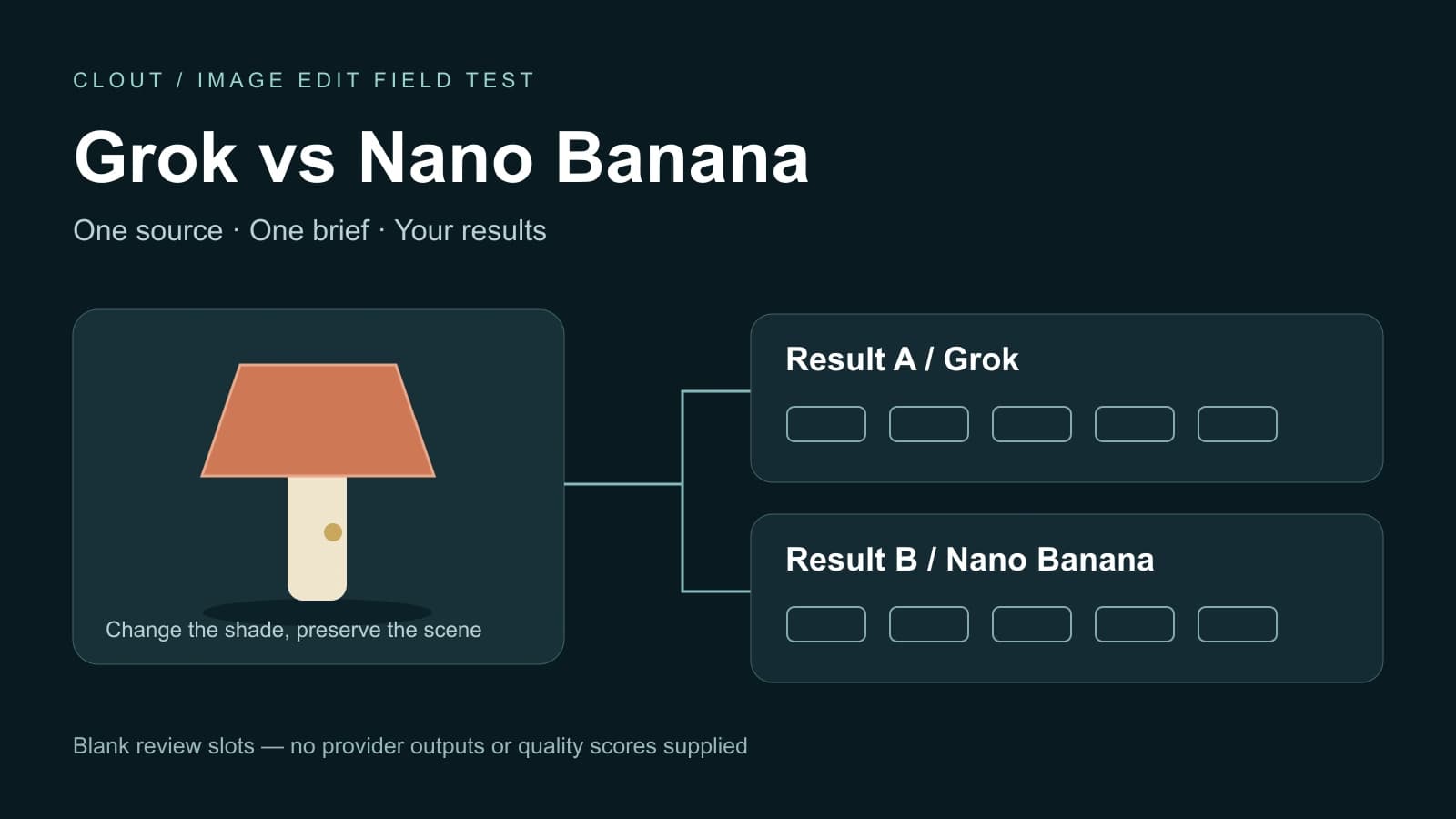
This comparison focuses on still images. For animation, read the separate Grok Imagine video guide. For Nano Banana's full reference workflow and larger exports, use our Nano Banana guide and export checker. The scorecard above lets you evaluate your own results; it is not a prefilled provider ranking.
Need a brief first? Use the free Grok prompt generator for chat, images, edits and video.
Choose the actual models before comparing
| Decision | Grok Imagine | Nano Banana |
|---|---|---|
| Current image-edit route in the cited docs | grok-imagine-image-2.0 | Nano Banana 2.1: gemini-nano-banana-2.1; Nano Banana Pro: gemini-3-pro-image |
| Reference inputs | xAI documents up to five source images for a multi-image edit | Google documents up to fourteen image references for Nano Banana 2.1 |
| What to record | Model, operation, quality, aspect ratio and interface | Model, image size, aspect ratio, reference set and interface |
| What a feature list cannot establish | Whether the result preserves your product and passes your brief | Whether the result preserves your product and passes your brief |
xAI's multi-image editing documentation uses grok-imagine-image-2.0, accepts up to five source images and lets you refer to them by order. It says the first input supplies the default aspect ratio unless you set one explicitly. That makes input order part of your test setup.
Google's Nano Banana model page identifies gemini-nano-banana-2.1 as the efficient image-generation and conversational-editing route, with 1K, 2K and 4K outputs and up to fourteen references. Nano Banana Pro is a separate model. These are documented capabilities, not evidence that one wins every editing task.
What changes when you use Higgsfield
Higgsfield is an interface and service where selected models are offered, not another name for the model itself. Its October 6 changelog added Nano Banana 2.1 and described the available output sizes. Verify the selected model, exposed controls, reference limit and displayed credit charge in your account before starting.
Do not assume every direct API field appears in a third-party composer. Likewise, a Grok subscription, Google API balance and Higgsfield credits are separate purchase routes. Compare the interfaces you will actually use, and keep their settings with each result. A screenshot labeled only “Grok” beside one labeled “Nano Banana” omits important evidence.
A Grok model name can change the comparison
xAI's image-quality migration notice schedules the retirement of the grok-imagine-image-quality API slug for November 2, 2026. The notice says it will redirect to grok-imagine-image-2.0 at low quality. As of this October 17 check, that switch is still scheduled, not completed.
The same notice says auto currently uses low quality for generation and medium for editing. Record the actual operation and selected quality instead of assuming an omitted setting means the same thing in both tests. Recheck the notice if you run the comparison later; a saved prompt alone does not freeze the serving model.
Run the same lamp edit in both services
Start with this original source: a terracotta lamp with an ivory base and brass switch, a cobalt sketchbook on the left and an ivory cup on the right. It was generated independently with the built-in image tool for a Clout exercise. It is neither a Grok output nor a Nano Banana output.

Download the original lamp source. You can also open the image and save it through your browser. Start a fresh edit with the same source in each service; do not use one provider's edited output as the other's input.
Change only the terracotta-orange ceramic lamp shade to muted sage green. Preserve its silhouette, rim thickness, glaze texture and highlights. Keep the ivory base, brass switch, cobalt sketchbook, ivory cup, oak table, camera, crop, background pottery, shadows and lighting unchanged. The lamp remains off. No new objects, text or people.
The prompt intentionally separates the requested change from protected details. A pleasant sage lamp is insufficient if the switch disappears or the camera moves. Keep the original visible while reviewing, and inspect both the whole composition and the small features in the actual downloaded file.
Use a fair first pass and a separate revision pass
- Record the model, interface, quality, requested size and aspect ratio for each service.
- Use the same source file and color-edit prompt. Request one output at a time and log every attempt.
- Download the results, retain their original dimensions and review them at the same display size.
- Score the five requirements independently before revealing any preference based on brand or style.
- Keep a separate revision pass if a result needs repair. Record its new prompt, cost and outcome rather than replacing the first result silently.
A matched first pass answers “what happened with the same brief?” A revision pass answers “how much work did it take to get an acceptable asset?” Both can matter, but they are different comparisons. If the interfaces cannot use identical dimensions or settings, document that limitation rather than calling the test controlled.
Interpret the scorecard without inventing a winner
The manual scorecard uses five equal requirements. Enter zero when a requirement fails, one when it needs revision and two when it meets the brief. Unreviewed fields stay empty and no total appears until all five requirements for that result are reviewed. You can download an incomplete review without turning blanks into zeroes.
The total is your review, not an automated quality measure. A result with more points can still be unusable if it fails a mandatory requirement. For example, a product campaign that requires an unchanged switch should reject a missing switch even if the image has attractive lighting. Decide those mandatory rules before seeing the outputs.
For a stronger comparison, repeat on additional owned sources: a portrait, a labeled package and a multi-object scene. Use consented or fictional subjects and assets you may upload. Do not generalize from one color edit to all typography, faces, logos or complex compositions.
Compare cost per accepted image
Keep actual charges and accepted outputs in the same currency and account context. Divide total generation and revision spend by the number of images you would publish. Count failed creative attempts even when the service produced a technically completed file. Record finishing time separately if manual retouching matters to your workflow.
Do not compare one service's credit count directly with another's dollar price, or assume that a subscription includes every model or API operation. Check the current quote in the interface you chose. This guide did not purchase a render or measure latency, so it does not claim either service is universally cheaper or faster.
Which should you choose for your next project
Choose based on the bottleneck your test exposed. If the main problem is preserving small product details, prioritize accepted edits and repair effort. If you need many references, start by checking whether the actual route accepts your set. If the next step is video, approve the still first and evaluate the video model separately.
For a recurring creator and coordinated scenes, Clout's AI influencer workspace is another workflow to evaluate. Clout publishes this guide and is a separate service; the test source and manual scorecard are available without buying generation. This is not a claim that Clout proxies either provider or that its gallery proves a comparison result.