A Grok prompt generator should help you make a specific request, rather than add a wall of cinematic adjectives to every task. A newsletter subject line, product photograph, targeted color edit and moving scene need different instructions. Start with the output you actually want.
This free builder supports all four workflows. Each mode keeps its own draft while you switch, so a chat task does not become part of your image prompt. You can copy the text or download a JSON planning brief. Neither action submits a job, connects an account or spends generation credits.
Choose the right kind of Grok prompt
| Mode | Use it for | What you must supply |
|---|---|---|
| Chat | Writing, explanation, planning or analysis | A task, useful context and the expected answer format |
| Image | A new visual from a written description | A subject, scene and composition |
| Image edit | A specific change to an existing image | The change, a source description and what must remain unchanged |
| Video | A short observable event | A starting scene, action, camera and ending |
The selected mode changes the fields and checklist. It does not change a model inside Grok. Select the correct generation or editing operation in the service where you will run the prompt. If you are comparing image models, the Grok vs Nano Banana guide provides a shared source and manual review scorecard.
How to use the generator
- Choose the mode that matches your task.
- Replace the fictional example with your own facts, subject or scene.
- Read the assembled prompt and remove instructions you do not need.
- Copy it, or download the brief to retain the separate settings checklist.
- Choose the actual model, attach any required source and confirm settings in your generation interface.
- Review the response or full exported asset against your request before publishing.
Clear current mode removes only that mode's fields; Restore example restores its starting example. Drafts remain in the current page session and are not saved across reloads. The tool formats text locally. Normal site analytics still apply, so use placeholder customer data and keep credentials or private material out of the form.
For chat, define the answer before choosing the tone
A chat prompt works better as a task with enough context to judge the response. “Write something catchy” leaves the audience, product facts and acceptable output unclear. Give the model a concrete assignment and specify what would make an answer unusable.
Draft three newsletter subject lines for a beginner pottery workshop. The audience is first-time adult learners. The class is on Saturday and includes all materials. Keep each subject under 45 characters, use a warm direct tone and do not invent discounts or remaining places. Return a table with the subject line and its intended angle. Flag missing information instead of making it up.
This is original example copy, not a measured successful Grok result. Check the length and factual claims in the returned answer yourself. A request to cite sources does not activate search, prove the model browsed or make a citation real. Open the cited source and confirm that it supports the claim.
For developers, text generation uses a different integration from image and video generation. Consult the official text generation documentation for the current request format. The downloadable brief on this page is a human planning document, not an API payload.
For images, make the composition inspectable
The official xAI image prompting guide distinguishes generating an image from editing one and separates prompt content from output controls. Our practical template asks you to name the visible subject, its surroundings, framing and light.
One cobalt ceramic watering can on a terracotta shelf inside a small greenhouse, with two fern pots behind it. Eye-level medium close-up with the whole can visible and empty space on the left. Soft morning window light and a tactile editorial product-photo treatment. No lettering, extra handles or people.
Countable details make review easier: one can and two pots give you something specific to inspect. Empty space on the left describes a composition requirement. If you need to place a heading there later, check the actual crop instead of assuming the model reserved enough room.
Set the aspect ratio, resolution and available quality control in the actual interface. Typing “4K” into the scene description does not select a supported export size. For checking a downloaded image's dimensions, use the local image export checker; dimensions alone do not prove visual quality.
For image edits, lead with the change and protect the rest
An edit is a different job from recreating a picture from its description. Describe the change first, attach the source in the editing service, and identify details that should stay. The source description field here is a planning aid, not an upload.
Change only the lamp shade color to sage green. Preserve the lamp shape, ivory base, brass switch, camera angle, crop, oak table, cobalt book and ivory cup. Do not add objects or lettering or move the lamp.
You can use the original lamp source image from our reference-edit exercise to try this brief. It is a shared fictional source, not a Grok output. The instruction is not evidence that every pixel outside the shade will remain unchanged: compare the result with the source and inspect material, shadows, object shape and framing.
The form requires both a requested change and a source description before exporting an edit prompt. It cannot check whether you attached the right file in another service. Confirm that separately before submitting.
For video, describe one event with a clear ending
A short scene is easier to evaluate when the subject and camera have separate instructions. Start with what is visible, name the action, decide whether the camera moves and specify where the scene should finish. Remove competing cuts and transformations from your first test.
A yellow folded paper boat rests on a teal puddle beside a terracotta curb. In one continuous shot it drifts slowly to the right. Keep a locked medium-wide frame. End with the boat fully visible near the right side. Preserve its folded silhouette, yellow paper, curb and illustrated style. Quiet water ambience if supported, no speech, cuts or new objects.
The original paper-boat illustration is available as a reference if your selected image-to-video route accepts it. It is not a frame from a generated video. Use the Grok Imagine video guide for a more focused walkthrough.
The official video generation documentation separates prompt-driven generation from source-image workflows and lists duration, aspect ratio and resolution as output configuration. Choose those controls where you run the job. Available limits depend on the exact model and operation; this builder does not certify account access, pricing or output support.
Keep the prompt and settings checklist separate
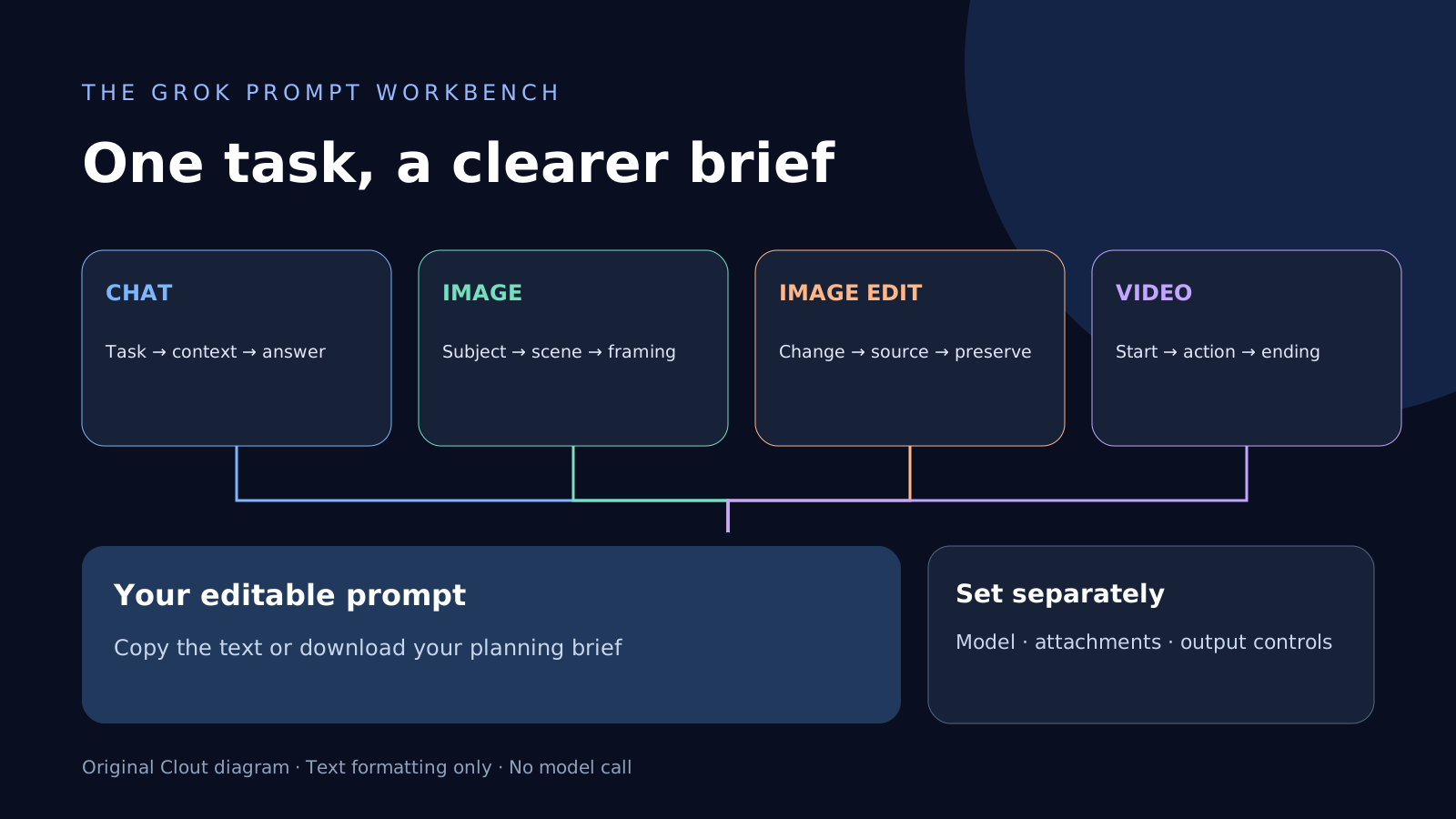
The downloaded JSON contains the selected mode, composed prompt, settings checklist and source link. It is useful for retaining a brief alongside your observations. It contains no credentials and is not ready to POST to an endpoint. Do not interpret its labels as supported API parameter names.
A prompt can request quiet ambience, but the service must support and enable the relevant audio option. A source description can explain what should change, but the actual source still needs to be attached. A request for current facts still requires checking evidence. Keep those distinctions visible in your workflow.
Improve the next attempt using the actual failure
| Observed issue | What to check next |
|---|---|
| Chat invents workshop details | Remove unsupported facts and ask it to mark missing information |
| Image places the product outside the crop | Simplify the composition and confirm the selected aspect ratio |
| Edit changes the lamp base | Confirm the source, narrow the change and name the base in preservation instructions |
| Video adds a cut or loses the boat | Reduce the action and clarify the camera and final position |
| Export has the wrong size or length | Check the selected controls and actual downloaded file, not just the prompt |
Change one major variable at a time and save the earlier prompt with the result. This helps you understand whether a clearer brief fixed the problem. The generator does not predict success, grade a result or remove the need to review generated content.
Clout publishes this independent guide. For a recurring creator or coordinated production, you can also evaluate Clout's AI influencer workspace and AI Cinema, with separate accounts and generation credits. This free prompt formatter does not provide access to Grok or imply an affiliation with xAI.