Focus peaking highlights edges on a camera display to help you judge manual focus. It is useful when the subject is difficult to assess on a small screen, but the colored marks still need interpretation. A textured background can attract more markings than the subject you actually want to photograph.
This guide explains what focus peaking does, how to combine it with deliberate inspection, and how an original contrast chart exposes a common misunderstanding. The free local tool lets you inspect an image with a declared edge operator. It is an educational comparison rather than a copy of a camera’s peaking algorithm.
Reviewing motion as well as still detail? Use the video stuttering guide and free frame timing lab to separate media cadence from playback observations.
What is focus peaking
Peaking adds visible emphasis to image boundaries so you can see where the display is finding sharp-looking structure. It assists your focusing decision; it does not itself turn the focus ring or recover detail from a blurred file. Keep the intended subject in mind while judging the markings.
The Sony ILCE-7M3 help guide describes peaking for Manual Focus and Direct Manual Focus. It provides display, level and color settings, and notes that the effect varies with the subject and lens because the camera recognizes sharp areas as in focus. That is a useful reason to inspect the actual subject rather than equating a busy overlay with a successful image.
Controls differ across cameras. An instruction for one named model is not proof that another model has the feature or the same menu. Check the manufacturer’s manual for your exact body, focusing mode and display arrangement before using a menu recipe.
Use peaking as part of a manual focus workflow
- Choose the subject detail that must be readable, such as an eye, product marking or small foreground object.
- Enable the supported manual focusing mode and peaking display for your camera.
- Select a visible overlay color and a practical sensitivity setting.
- Move focus deliberately while watching the chosen subject rather than the largest cluster of marks.
- Use magnification when available to inspect that detail more closely.
- Capture a test image and review the saved result at an appropriate size.
Keep the composition, subject and light stable while learning what the display is telling you. If several things change at once, it becomes harder to tell whether the difference came from focusing, subject movement, framing or a changed contrast pattern. For a product shot, inspect the lettering or edge that the final placement actually needs.
Canon’s XF105/XF100 support guidance describes peaking and magnification as aids that can be used together on those camcorders. Use that as a model-specific example of complementary checks, then verify the equivalent capabilities on your own equipment.
Compare focus peaking and magnification
| Check | Useful role | What to inspect next |
|---|---|---|
| Peaking display | Locates boundaries emphasized by the camera | Whether the marks fall on the intended subject detail |
| Magnified view | Shows a smaller region at a larger display size | Whether that region contains the detail you need |
| Saved test image | Records the actual captured result | The delivered crop and important detail without relying only on a live overlay |
| Local edge exercise | Makes a declared contrast calculation inspectable | The source pixels and the limits of the chosen operator |
These checks answer different questions. Peaking can guide attention, magnification can make a small detail easier to examine, and a saved image lets you assess the result you actually produced. None should be replaced by an unexplained overall count of colored pixels.
Inspect the original sharp and blurred edge study
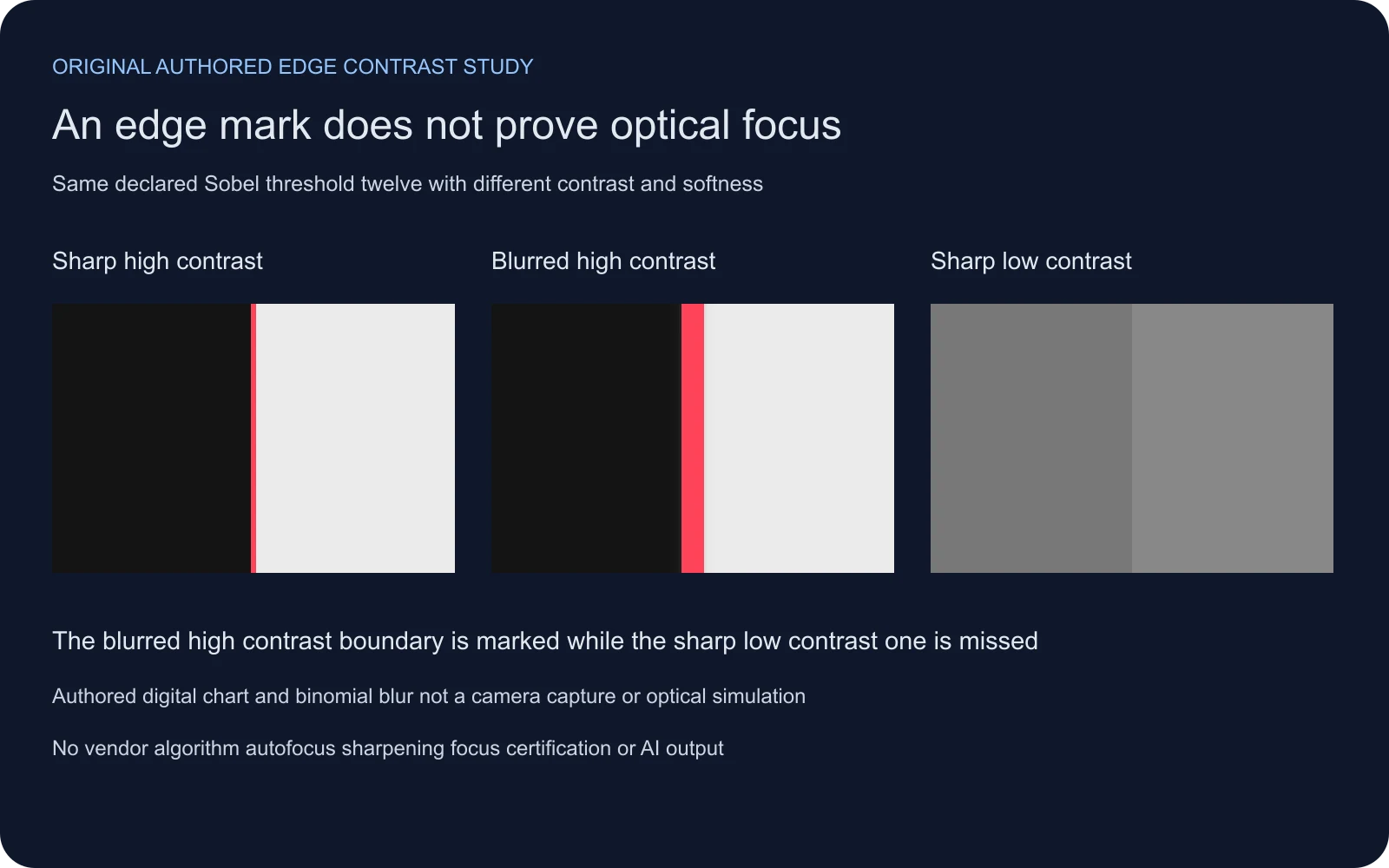
The chart contains three regions. The first has a sharp high-contrast step. The second starts with the same step and applies eight passes of a declared digital blur. The third has a sharp boundary with much lower contrast. The source is authored grayscale geometry, not a photographed lens test or a generated image.
At threshold twelve, our interior review regions contain 480 marked pixels for the sharp high-contrast step, 1,920 for the blurred high-contrast step, and zero for the sharp low-contrast step. Raising the threshold to forty removes the blurred region’s interior marks while the low-contrast region remains unmarked. Those counts refer to the explicitly bounded regions, not every boundary in the complete chart.
The example is not a ranking of which picture is optically focused. It demonstrates that an edge operator can respond to a strong blurred transition while missing a weaker sharp one. A larger marked area therefore cannot be used as a general focus-quality score.
Download the original source chart, threshold twelve overlay, threshold forty overlay and regional count record. Compare the source and markings together.
Try the free local edge contrast lab
- Load the original chart or choose a local PNG, JPEG or WebP image.
- Compare Low threshold and High threshold before adjusting the slider.
- Choose a six-digit hex overlay color that remains visible against the source.
- Inspect the important region instead of treating total markings as a quality verdict.
- Download the overlay, binary mask, recipe and working-source PNG if you need to reproduce the result.
The source aspect ratio stays intact and its longest side is reduced to at most 1,200 pixels. Transparency is flattened on white. The tool converts browser-decoded RGB bytes into a weighted grayscale raster and applies a Sobel edge calculation. Its recipe describes the normalization, threshold and unmarked outer border.
The threshold values here belong to this operator. They are not camera menu levels and should not be copied as equivalent vendor settings. The output is an opaque diagnostic PNG. An exported overlay is visibly part of that image, unlike a separate live display aid.
Uploads remain on your device. The working-source export records the resized decoded input used in the calculation. Keep it with the recipe when comparing pixels because another decoder, resizing method or color treatment can change the input samples.
Understand why more marks can be misleading
Strong texture can dominate an overlay even when it is not the detail that matters to the picture. A wall, patterned jacket or bright background edge can create an impressive-looking display while the subject’s eye still needs inspection. Decide what success means before changing sensitivity.
Likewise, a smooth surface or low-contrast boundary may produce few marks. That alone does not establish that the subject is incorrectly focused. Our third authored region remains sharply defined in the source even though the chosen threshold ignores it.
Changing sensitivity changes which transitions are emphasized. It does not add missing detail. If the source is already blurred, the local exercise cannot reconstruct it or infer the correct lens position. For a changing frame, distinguish framing behavior from detail by using the lens breathing guide alongside your saved image review.
Review original and AI generated images deliberately
When creating an original subject in Clout Image and Video, keep the intended detail in the brief. A product marking must be correct, an eye must belong to the intended face, and a hand must make sense in the action. An edge overlay can direct attention to contrast but cannot establish any of those semantic facts.
Generated texture can be strongly outlined and still be invented or inconsistent. Inspect the image normally and at a useful detail scale. Keep the accepted source and the final crop together. For a two-color poster, the duotone workflow explains how thresholding can deliberately remove intermediate detail even when the source remains intact.
For video, watch the entire saved export. Check whether important detail changes, whether strong edges flicker, and whether sharpening-like outlines appear around moving subjects. Use the compression artifacts comparison when the delivery encode may be changing the appearance. A single still frame or a large edge count cannot establish stability across the clip.
Keep the evidence with the review
Save the original image, the region that matters, the working source and the settings used for inspection. Record what you actually observed: a readable product label, an unclear eye, a moving edge or a particular artifact. That is more actionable than an unsupported claim that an image passed a universal sharpness score.
The original review brief, declared helper, asset builder and asset hashes make the exercise inspectable. Its threshold twelve mask and normalized edge-strength image expose the calculation without claiming to reproduce a camera’s proprietary behavior.