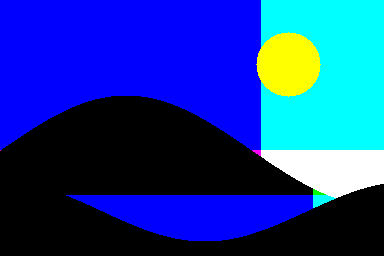
Posterize an image when you want smooth tones to become deliberate flat steps. It is useful for a graphic portrait, a landscape poster, a thumbnail background or an art direction reference. Start with a readable source, reduce the tones, and inspect the face or product before choosing the most dramatic setting.
The free tool above works locally with your image. It offers RGB and grayscale modes, measured color counts and downloadable PNGs with a recipe. It does not generate new objects or replace your original file.
How to posterize an image online
- Load the original landscape example or choose a PNG, JPEG or WebP image.
- Start with four levels in RGB color mode and compare the source with the result.
- Try two levels for a stronger graphic treatment or eight for more detail.
- Switch to grayscale if you want a tonal study rather than independently reduced color channels.
- Inspect the subject at the intended viewing size and download the result and recipe together.
Uploads stay in this browser. Images are decoded and flattened on white, with the longest working side capped at 1200 pixels. The PNG download contains the working resolution rather than an untouched full resolution original. Keep your own original if you need a larger print or a different transparency treatment.
What does posterize mean
Posterization replaces a range of nearby values with fewer representative values. Areas that previously changed gradually can become broad shapes separated by visible boundaries. Intentional posterization uses those boundaries as a design choice. Accidental banding in a smooth gradient is a different finishing problem.
Adobe’s special color effects documentation describes the Posterize adjustment for reducing tonal levels. Our tool implements its own declared byte calculation. We have not established identical output to Photoshop, and the example images were not processed in Photoshop.
Two RGB levels do not mean two total colors
In RGB mode, the level count applies independently to red, green and blue. Two choices for each channel allow up to eight combinations. Four choices allow up to sixty four. Those are upper bounds: your image may not contain every combination. The tool counts the actual distinct RGB colors in the working source and output.
In grayscale mode, the same output value is placed in all three channels. Two grayscale levels therefore allow at most two colors. Switching modes can change both the palette and which details remain distinguishable. Choose based on the intended image rather than comparing the level numbers alone.
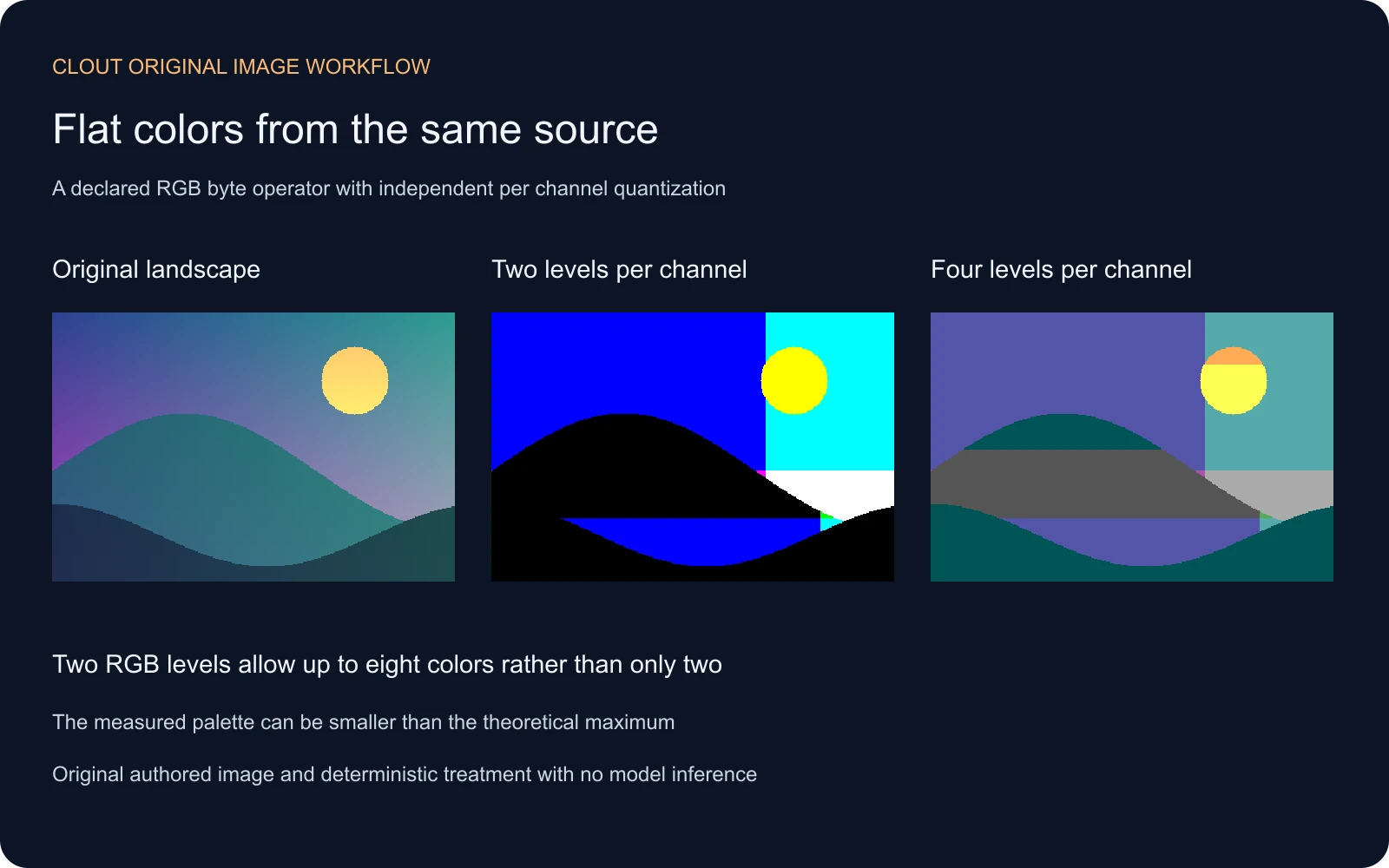
Inspect the original landscape study
Our original 384 by 256 landscape has a warm sun, a gradient sky and two mountain bands. The unchanged source feeds every treatment. At low levels, the sky splits into broad regions and some mountain colors merge. Adding levels preserves more variation but also makes the result less graphic.
Download the original source PNG, two level RGB result, four level RGB result, four level grayscale result and measured study report. The calculation helper and asset builder make the declared exercise inspectable.
Choose levels for portraits products and thumbnails
| Use case | Start here | Review before exporting |
|---|---|---|
| A graphic portrait | Four to eight RGB levels | Eyes lips and face boundaries stay readable |
| A dramatic landscape poster | Two to four RGB levels | Foreground and background remain distinguishable |
| A monochrome story card | Four grayscale levels | Important silhouettes survive at phone size |
| A product campaign | Eight RGB levels then compare lower settings | Product markings and advertised color remain accurate enough for the intended use |
These are starting points for review, not universal presets. A face with soft lighting and a product with a reflective edge respond differently. Compare the full composition, then inspect critical features. If a label disappears, preserve the product separately or choose a less destructive treatment.
Posterize versus threshold duotone and pixel sorting
A grayscale two level result is a black and white threshold under this calculation. A duotone treatment maps tones to a chosen pair of colors and may retain continuous intermediate blends. Pixel sorting rearranges existing pixels along selected runs. Posterization instead changes their channel values while keeping their positions.
If your goal is a smooth photographic gradient, use the color banding guide before applying a stronger effect. Adding a stylized quantization pass is not a repair for an unwanted banding problem.
Use posterized references in an AI image workflow
A posterized image can help communicate broad tonal grouping for a scene or campaign. Keep it alongside the accepted original reference and name which feature should carry over: a warm sky, three readable depth bands or a bold silhouette. Do not assume a generation will preserve every boundary or a product label merely because the reference does.
For new source imagery, try Clout Image and Video. For a product layout, use Marketing Studio and retain an accurate product reference. Apply the finish after inspecting the returned source. A deterministic color treatment cannot fix a changed product shape or inconsistent character.
How the local calculation works
For each byte, the tool rounds to the nearest of the selected evenly spaced levels including zero and 255, with half values rounded up. Grayscale first uses red, green and blue byte weights 2126, 7152 and 722 divided by 10000, rounded half up. This is a declared byte operation, not a linear light or print color management pipeline.
Each control change starts again from the working source. Exporting a JPEG later can introduce new colors through compression, and resizing after the effect can introduce blended edge colors. Keep the supplied PNG if you need to retain the measured palette. Review the final uploaded or printed version separately from the working preview.