


Color banding is a stepped transition where you expected a smooth gradient. To reduce it, find the earliest stage that contains the steps, preserve precision while editing, and inspect the actual delivery file. A higher bit-depth label by itself does not establish a smooth picture.
The free lab above reads a PNG header locally and creates a controlled grayscale ramp. Our original experiment follows the same ramp through sixteen-bit quantization, eight-bit rounding, fixed noise and a later sixteen-bit upconversion. The saved samples make the loss of precision inspectable without relying on how one browser or screen happens to display them.
Find the first file that contains the bands
For a creator video, product image or cinematic background, keep three checkpoints: the strongest source, the edited master and the final export. Compare the same flat background region at the same size. If the source already contains hard tonal boundaries, a new export cannot recover the exact missing shades. If the master looks smooth and the delivery file does not, investigate the delivery settings before generating a replacement scene.
| Where you see the problem | Useful next comparison | What that comparison can establish |
|---|---|---|
| Original source and every export | Inspect the strongest available source in another suitable viewer | Whether the visible steps predate the current edit |
| Only after a strong grade | Disable the grade on the same frame | Whether the adjustment exposes coarse source steps or introduces rounding |
| Only in one export | Compare the saved master and a second export with documented settings | Which delivery route changes the gradient |
| Only in a platform preview | Compare the downloaded delivered file and local master | Whether the preview differs from the submitted source |
| Only on one display | View the same untouched file on another setup | Whether the observation depends on the viewing chain |
A screenshot captures another processed image, not the original pixel history. Keep the actual file and settings with your observation. Do not diagnose a panel defect from a compressed screenshot, or claim that a web gradient certifies a monitor’s effective precision.
Separate working precision from export precision
Bit depth describes the available encoded values per sample. The PNG specification defines bit depth together with color type. In an indexed PNG, the depth describes palette indices, so an eight-bit palette image is not the same representation as an eight-bit-per-channel RGB image.
Adobe’s color-depth tutorial demonstrates how higher working precision can preserve smoother gradients through adjustments. That is a reason to retain precision before rounding. It does not mean an already quantized source gains its original samples when placed in a higher-depth container.
Record the working mode and output format separately. For video, retain the codec, pixel format, resolution, color tags and encoding settings with the file. Two files with the same extension can have different representations. A ten-bit delivery path can preserve more available precision when the upstream material supports it, but a conversion label alone does not prove that it did.
Use the PNG header reader without overreading its result
- Select a PNG in Inspect a PNG header.
- Read the encoded dimensions, bit depth and color model.
- Keep the original file for a separate pixel and profile inspection.
- Compare the result with your editor’s intended export.
The reader checks the signature, IHDR length, IHDR checksum and supported header fields. It reads only the first thirty-three bytes and does not decompress the image. A passing header is not a full integrity check, profile audit, count of meaningful shades or visual diagnosis. A truncated file containing a valid header can still pass this limited inspection.
The lab does not upload the file or automatically repair it. A malformed header replaces the previous header result with an error. For a non-PNG image or a video, use a suitable metadata reader rather than interpreting a renamed extension as a new format.
Inspect the original narrow gradient experiment
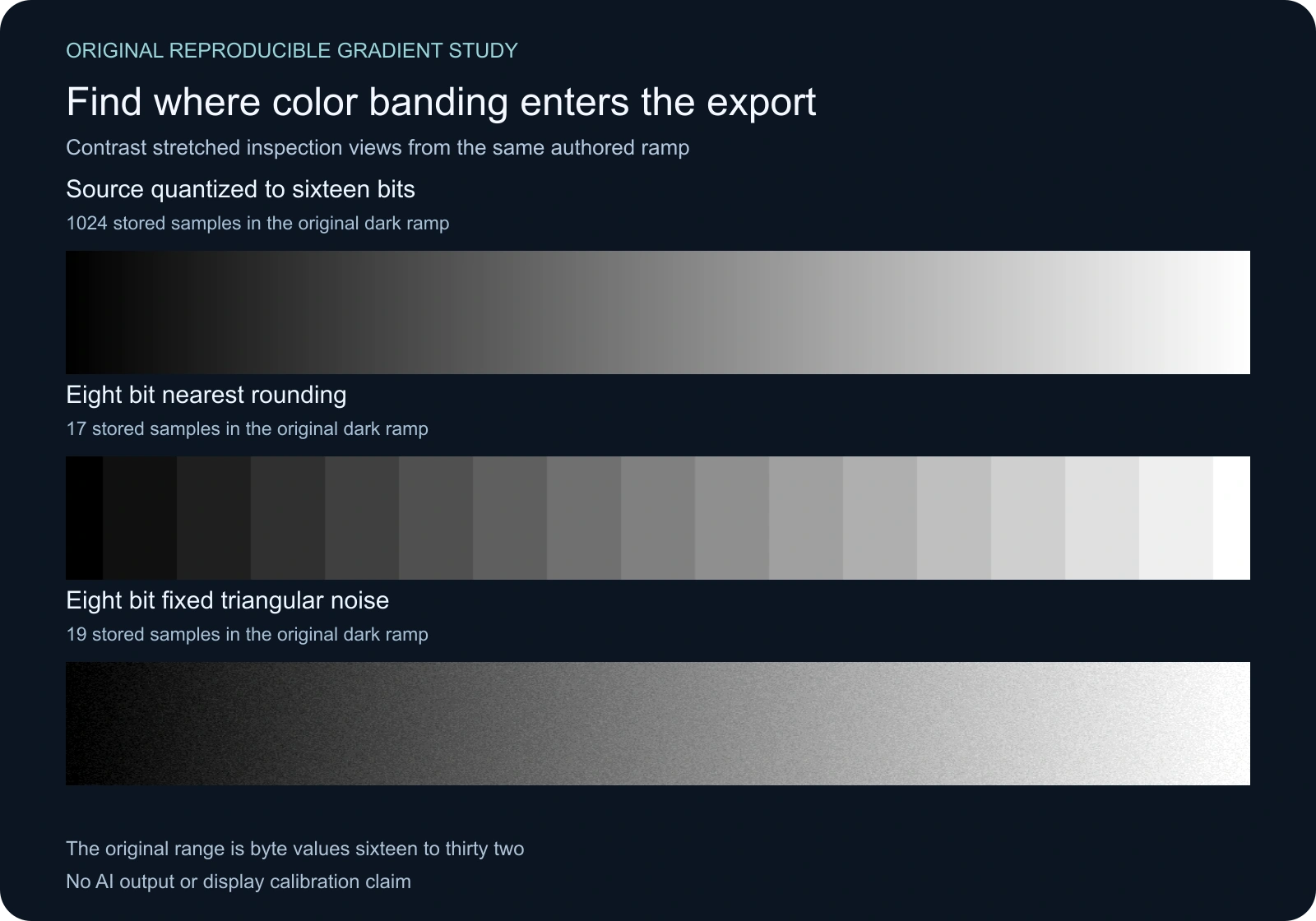
We authored a horizontal ramp from byte-normalized value sixteen to thirty-two across 1,024 columns and 160 rows. Every row has the same target values. The source is deliberately narrow and dark, so ordinary eight-bit rounding has only seventeen directly stored levels available across it. Sixteen-bit quantization stores 1,024 distinct samples in this particular raster.
The comparison artwork stretches the original sixteen-to-thirty-two range onto zero to 255 and clips outside it. This makes the boundaries and noise easier to inspect. The displayed contrast is not the original dark image and is not a claim about what every screen will show. Use the original lossless PNGs for exact samples.
| Saved fixture | Encoded depth | Distinct stored samples | Mean absolute error in byte units |
|---|---|---|---|
| Source quantized to sixteen bits | 16 | 1024 | 0.000972 |
| Nearest rounding | 8 | 17 | 0.249756 |
| Fixed triangular noise before rounding | 8 | 19 | 0.405502 |
| Nearest result later stored in sixteen bits | 16 | 17 | 0.249756 |
Download the sixteen-bit source PNG, eight-bit nearest PNG, fixed-noise PNG and later sixteen-bit upconversion. The measured CSV and measurement record preserve the results.
Why noise changes the pattern rather than restoring the source
The noise mode adds the difference between two fixed pseudorandom uniform draws before rounding. Its range is less than one byte unit in either direction. Seed seventeen makes the experiment repeatable. The noise can select values just outside the original endpoints, which explains why this fixture contains nineteen stored values instead of seventeen.
That larger count is not recovered source information. Its mean absolute sample error is higher than the nearest-rounding baseline. The spatial pattern trades clean boundaries for texture; whether that texture is acceptable depends on the image, scale and final delivery. Inspect faces, product lettering and dark gradients independently before applying a global finishing treatment.
For a deliberate graphic effect with a small grayscale palette, use our image dithering converter. That tool owns the Bayer and Floyd–Steinberg conversion workflow. This page instead follows precision loss and export diagnosis in a nearly continuous gradient.
Why a sixteen bit conversion can still contain seventeen shades
The upconversion fixture starts with the already rounded eight-bit raster and multiplies each stored value by 257. It is genuinely stored as a sixteen-bit PNG, yet still has seventeen distinct samples. The container has more representational capacity while the image has retained its earlier quantization.
Return to an earlier higher-precision source when one exists. When it does not, a smoothing or debanding treatment estimates a different transition. Compare that estimate with important edges and keep the untouched source. Do not describe an inferred transition as an exact recovery of the original gradient.
For texture loss and other delivery changes, compare the original files in our compression artifacts experiment.
Keep the final video encode in the experiment
Test a short representative region through the complete delivery route. Include a smooth background, a detailed edge and motion if the real scene moves. Compare the returned file rather than trusting an editor preview. Keep resolution, crop and viewing scale fixed so the result can be interpreted.
The official FFmpeg gradfun documentation specifically describes a playback debanding filter and warns that lossy compression can remove its dithering and bring bands back. Do not turn a playback recommendation into a universal pre-encode repair command. This study does not benchmark video codecs or claim that HEVC always avoids banding better than AVC.
For AI-generated cinema, inspect the earliest returned file from the chosen workflow before grading and export. A flat generated sky may already contain steps. In Clout Cinema, define the scene and review the actual returned clip; in Image and Video, preserve the accepted still. The local lab here neither configures those models nor repairs their output.
Reproduce the samples and keep a review record
Change the lab’s byte endpoints and compare all three modes with the same settings. Use whole endpoints from zero to 255 with the end above the start. The seed changes the fixed-noise realization. Download the PNG, JSON report and sample-count CSV after selecting the desired mode. The preview depends on browser decoding and display behavior; the report counts the authored stored samples.
The original helper, asset builder, independent Python verifier and reproduction instructions make the fixture inspectable. The verifier checks PNG chunks, saved samples, noise generation, counts and the upconversion. The asset manifest records hashes.
For your own export, record the source filename, affected region, first problematic stage, settings change and result in the final file. A useful conclusion names that stage and the visible tradeoff. More stored bits, more noise or a smoother preview alone is not a complete production decision.





