

Video stuttering is an interruption or unevenness in motion that you notice during playback. Start by locating the problem: does the saved file repeat the same hitch on different players, does only the editing preview struggle, or does the problem appear only after an upload? Those observations lead to different fixes.
This guide focuses on creator exports and AI video review. Work through the checks in order, keep an unchanged source, and compare one intervention at a time. The free timestamp tool measures gaps in supplied data. It cannot repair a video, inspect your computer or decide whether a generated character moved correctly.
Why is my video stuttering
A visible hitch can originate in the footage, the edit, the encoded delivery, or the playback environment. A sequence can also have evenly spaced frames while showing uneven motion inside those frames. Diagnose the layer before spending credits on another generation or converting every clip to a different frame rate.
| What you observe | Next useful check | What to preserve |
|---|---|---|
| Only the editor preview struggles | Compare a short exported section in another player and evaluate the editor proxy or preview settings | The original source and export settings |
| The saved file hitches at the same moment on multiple players | Inspect adjacent frames around that moment and the media timestamp sequence | A timestamped observation and the unchanged file |
| Only the published version looks uneven | Compare the local export with the processed upload at the intended playback quality | The delivered file and platform processing state |
| The AI subject jumps despite regular timestamps | Review shape identity contact and camera continuity across frames | The accepted reference and exact generation attempt |
| A live stream pauses while the saved media looks smooth | Separate receipt timing from media presentation and playback observations | Clock basis and collection method |
Check a short section before changing the whole project
- Identify one visible hitch and note the file, player, approximate time and playback quality.
- Save an unchanged copy and export a short section surrounding the problem.
- Play the local section in a second player or device and compare the same moment.
- Step through neighboring frames to check repeated imagery, a sudden position jump or an inconsistent generated object.
- Inspect timestamps if the cadence remains uncertain, keeping their units and origin attached.
- Change one setting or replace one shot, then compare again against the original observation.
Do not use a thumbnail or a single high quality frame as the acceptance test. A camera move, walking cycle or product interaction needs a continuous review. If the problem cannot be reproduced, record the conditions that changed instead of declaring the footage fixed.
Frame rate and frame pacing answer different questions
An average count over an interval can conceal pauses and bursts. In our authored example, both sequences have nine timestamps and eight intervals over 320 milliseconds. Both therefore report 25 observed intervals per second. The steady sequence has eight gaps of 40 milliseconds. The burst sequence has six gaps of five milliseconds and two gaps of 145 milliseconds.
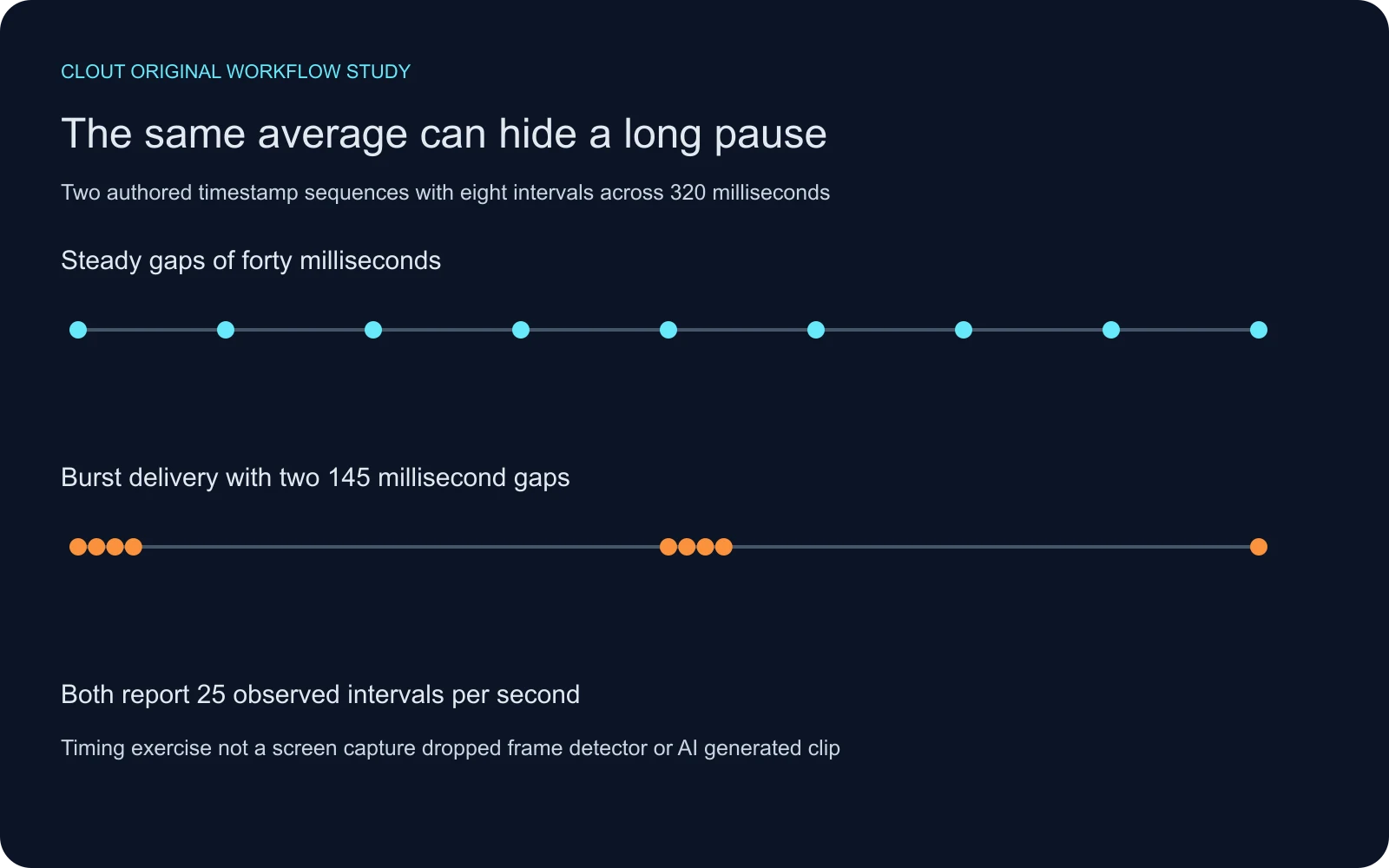
The example isolates timing arithmetic. It does not establish how a particular display would present either sequence. An encoded frame rate, a source presentation timeline, a network receive log and a physical display measurement are separate observations. Keep those names in your notes so a clean result in one does not conceal an unmeasured problem in another.
Use the free frame timing lab
Choose the steady or burst example in the timing lab, then compare the mean, median, P95 and largest gap. Paste your own single column CSV with the header timestamp_ms. Select media presentation for file timestamps or receive callback for delivery observations. The tool retains zero length intervals and rejects decreasing timestamps.
The observed rate is the number of intervals divided by their elapsed time. The final frame duration is not supplied, so this is not a certified codec frame rate or video duration. P95 uses nearest rank. The long gap indicator counts intervals strictly greater than twice the median; when the median is zero, that threshold is undefined. There is no universal pass mark.
Download the steady fixture, burst fixture, study calculations and declared calculation helper. Your pasted data is processed locally. The tool does not upload footage, decode a video or infer why a gap occurred.
Extract media timestamps with ffprobe
The official ffprobe documentation describes selecting streams, showing frames and choosing machine readable output. With an installed ffprobe, run this against a local file you can inspect. It selects the first video stream and asks for frame timestamps in seconds.
ffprobe -v error -select_streams v:0 -show_frames -show_entries frame=best_effort_timestamp_time -of json input.mp4 > frames.jsonOur small local converter rebases those timestamps to the first frame and converts seconds to milliseconds. Save it alongside the JSON and run uv run python ffprobe-to-timing.py frames.json > timing.csv. Paste the resulting CSV into the lab with media presentation selected. The converter rejects missing, nonfinite, decreasing or oversized data instead of silently skipping frames.
We executed this extraction on the synthetic source used in the StreamEval exercise: it produced 400 timestamps from zero to 15960 milliseconds with 40 millisecond intervals. That verifies this extraction example, not the cadence of an unrelated file. A variable frame rate source may legitimately have varying presentation intervals. Inspect the workflow and content before treating every variation as a defect.
Choose a fix that matches the observed layer
If only the editing preview struggles, evaluate a lower preview resolution or proxy workflow in your editor and compare the exported test. If the saved file has a repeatable hitch, inspect the source, timeline and export around that moment before replacing material. Keep the intended delivery rate explicit when mixing clips rather than repeatedly converting them without a reference.
If the source itself contains discontinuous generated motion, a timing conversion may leave that discontinuity intact. Revisit the shot direction, reference and accepted take. For an AI drama scene, compare the actor’s position, prop contact and screen direction. For a product video, inspect the object silhouette and demonstration through the action. These are content checks beyond timestamp arithmetic.
For a processed upload, wait until the intended playback version is available and compare it with the same local export. Record the player and quality setting. Avoid attributing a platform specific playback issue to the model merely because the source was generated.
Keep browser callbacks separate from screen timing
MDN documents requestVideoFrameCallback and distinguishes media time, submission for composition and expected display time. A callback or expected time is not a measurement of light from a physical screen. Our CSV analyzer makes no such measurement.
The StreamEval workflow guide includes a real CPU mock receipt log, where a completed session and acknowledged instructions still do not establish a successful visible edit. Use that example when evaluating interactive video systems or building a review process for live controls.
Finish the shot and retain the comparison
Keep the original file, changed file, export settings and a short note about the observed hitch. Review the complete accepted output at normal speed and inspect its important transitions. Use the frame interpolation guide for a separate motion synthesis decision and the multi-shot workflow for scene continuity.
When you need new source material, create a focused shot in Clout Image and Video or plan connected coverage in AI Cinema. Judge the saved result against your story and timing brief. The lab helps inspect the timeline evidence; your final acceptance still requires watching the actual video.


