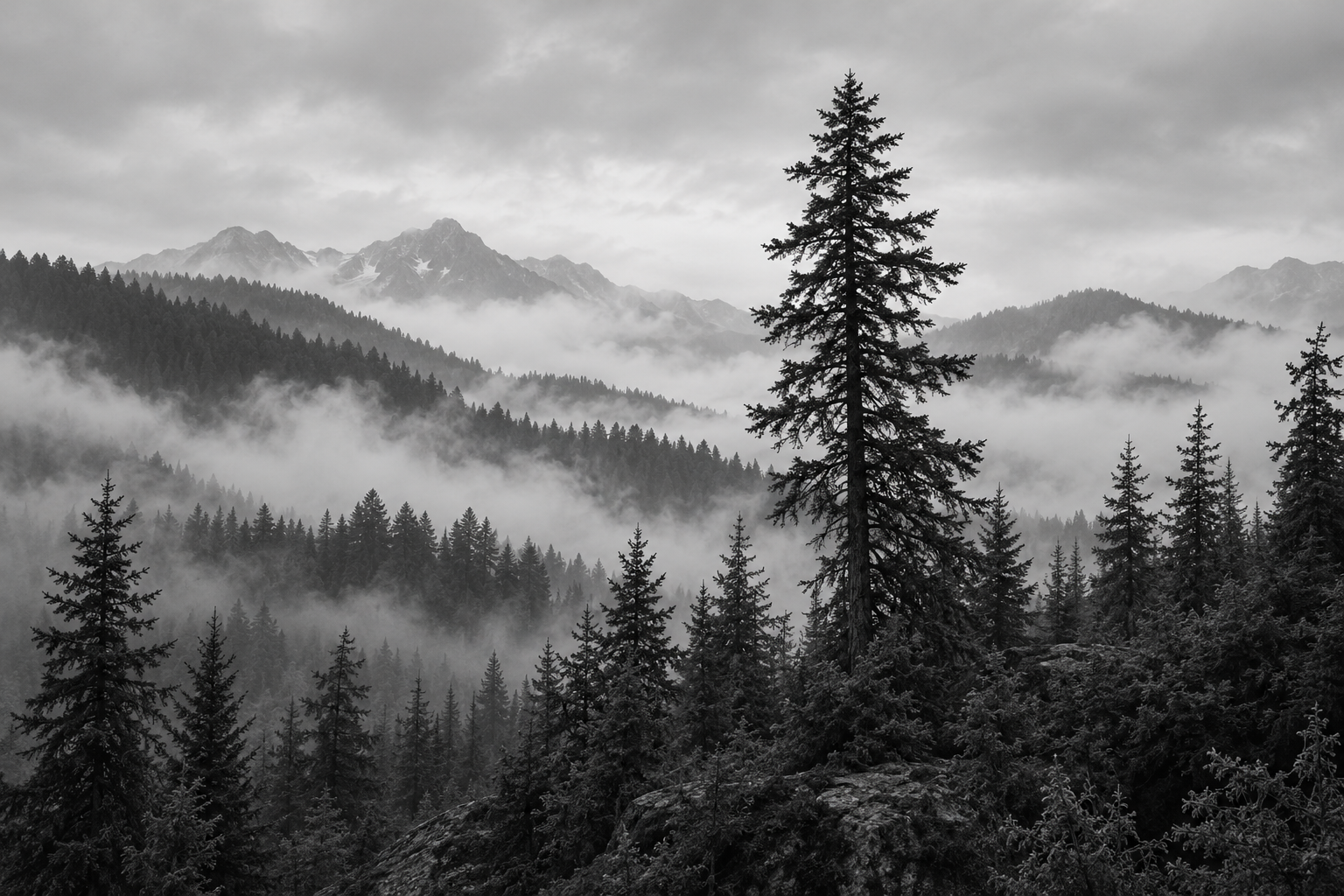
Double exposure photography combines two exposures into a single picture. A portrait filled with a forest is the familiar example, but the strongest result connects the two subjects: a musician and a city at night, a runner and a mountain route, or an original character and the place their story takes them.
You can create the effect in a camera that supports multiple exposures or construct a digital blend from separate images. This guide covers both decisions, then gives you two original AI-generated source images and a free local blending tool. Use them to see why changing the blend mode can matter more than adding another elaborate prompt.
Choose camera capture or a digital double exposure effect
With film, double exposure places two exposures on the same frame. Digital cameras can offer their own multiple-exposure settings. The Adobe photography overview distinguishes those capture approaches from assembling separate images in editing software. The digital route gives you independent source files that can be repositioned and revised.
Camera controls are model specific. For example, the Nikon D850 manual documents a multiple-exposure mode and selectable overlay behavior. Check your own camera manual before following a menu recipe. A setting available on one camera is not a universal instruction, and our browser tool does not simulate a camera sensor or film response.
Choose capture when the process itself is part of your photography practice. Choose a layered digital workflow when you need a precise portrait silhouette, several campaign variations or a result you can revise after a client changes the second image. Keep the two originals either way.
Select two images with different visual jobs
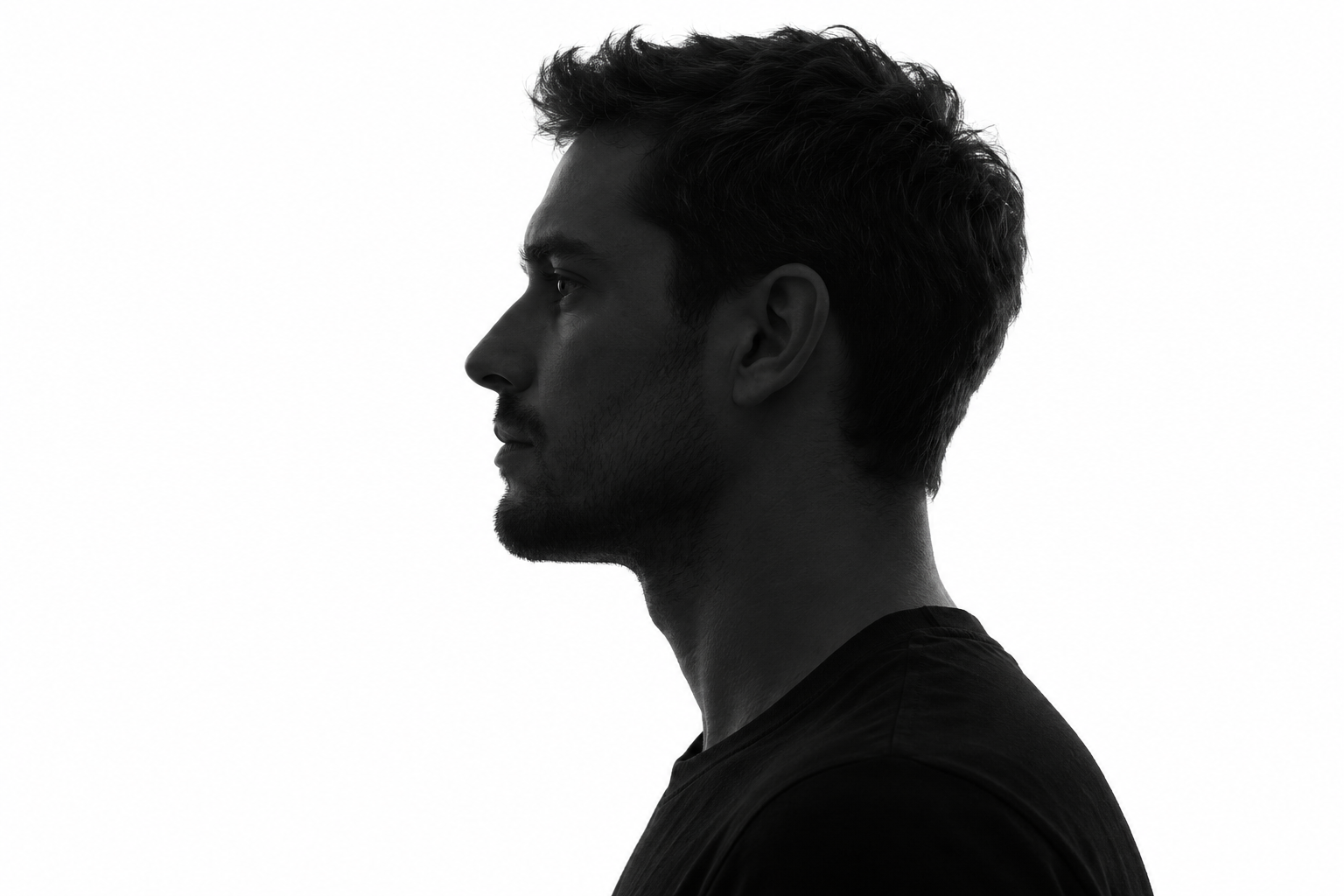
The first image should establish a readable subject. A side profile against a clean bright background is a useful starting point because the outline remains recognizable after texture appears inside it. Give the nose, chin and hair enough space. An extremely tight crop can leave no room for a second subject or headline.
The second image supplies place, memory or visual texture. Pick a scene with a few large structures that remain legible inside the silhouette. A horizon, a single tree or one city tower usually has a clearer role than dozens of equally bright objects. Decide which feature should align with the head before worrying about fine detail.
| Pairing | Useful connection | First visual check |
|---|---|---|
| Portrait and forest | A character connected to a place | The main tree fits inside the head without crossing the eye awkwardly |
| Runner and mountain | A route or future goal | The body remains readable at thumbnail size |
| Musician and night city | A performance location or atmosphere | Bright windows do not erase the face |
| Original character and story setting | A poster for a short drama | The character remains identifiable before any animation |
Use images you own or are permitted to adapt. The example portrait and forest here are newly generated with OpenAI image generation. They are source illustrations for this editing lesson, not photographs from a real portrait session or outputs from a Clout model.
Compare the same sources with three blend modes
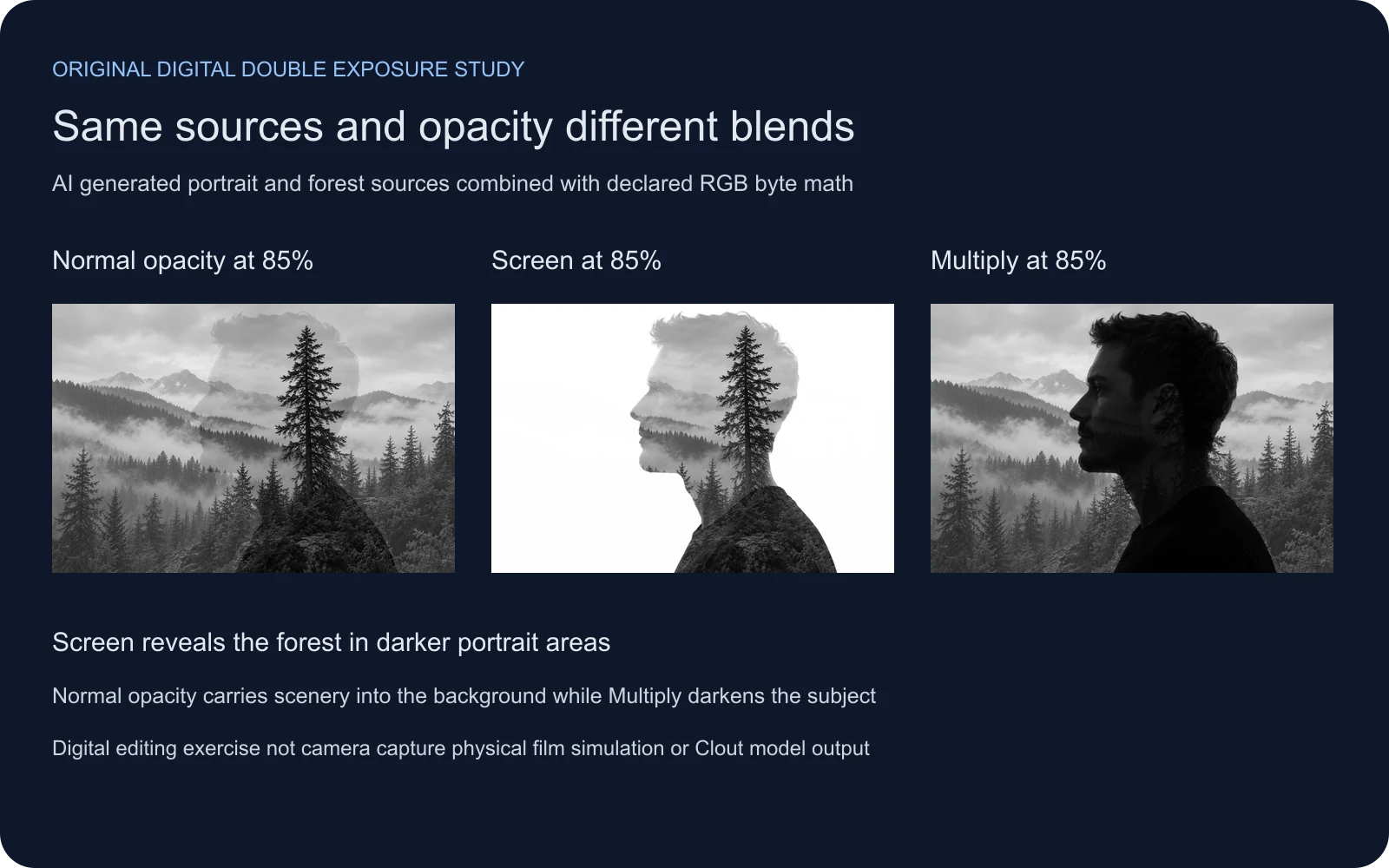
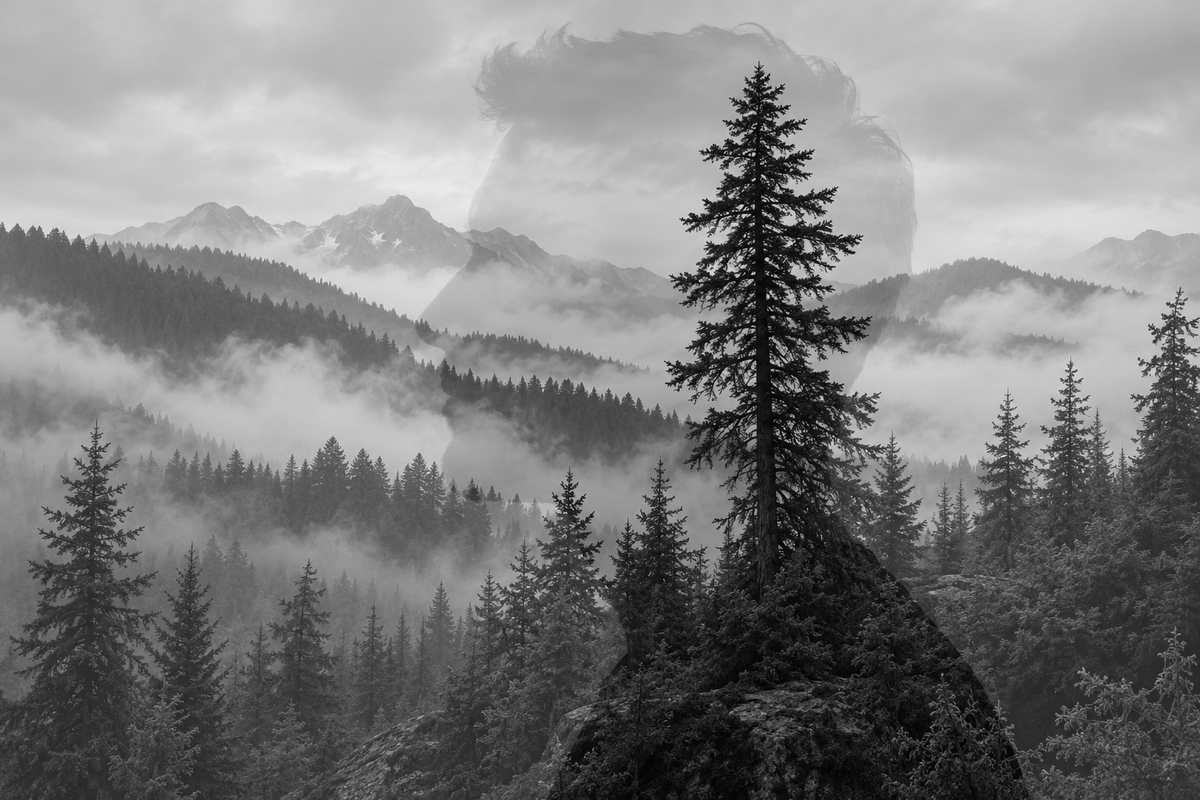
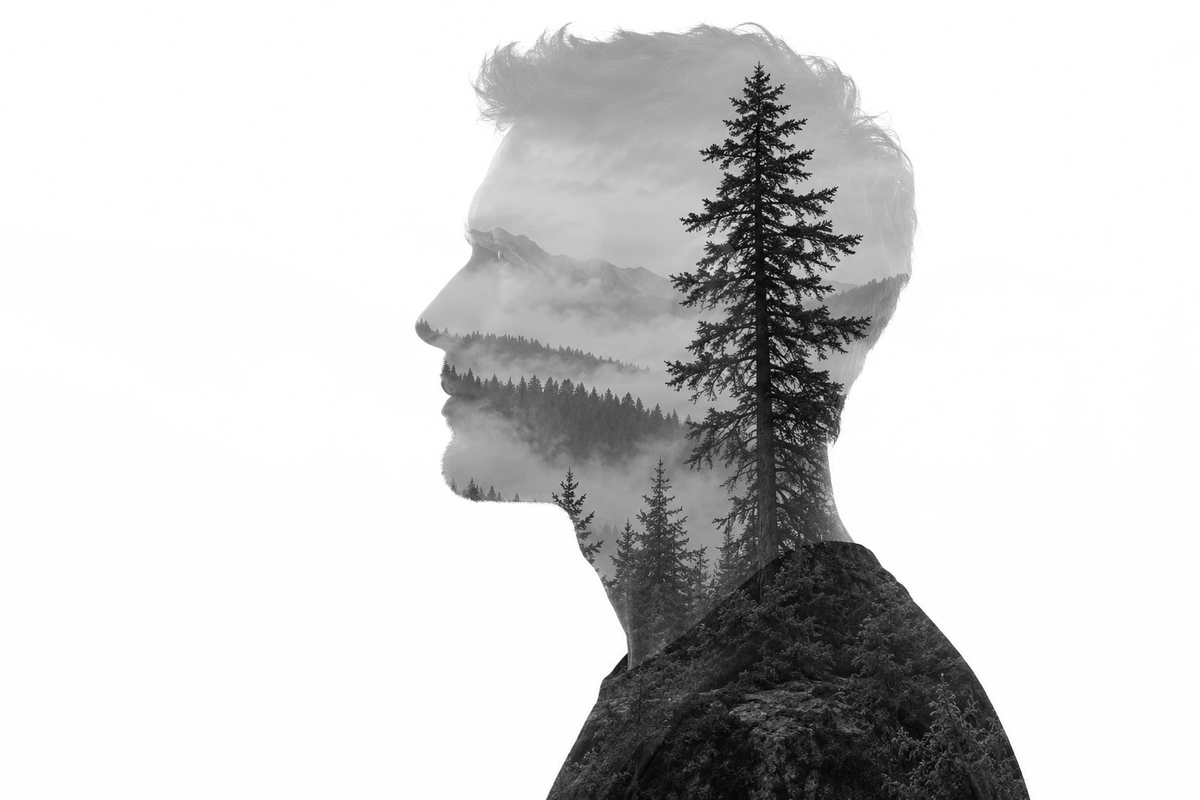
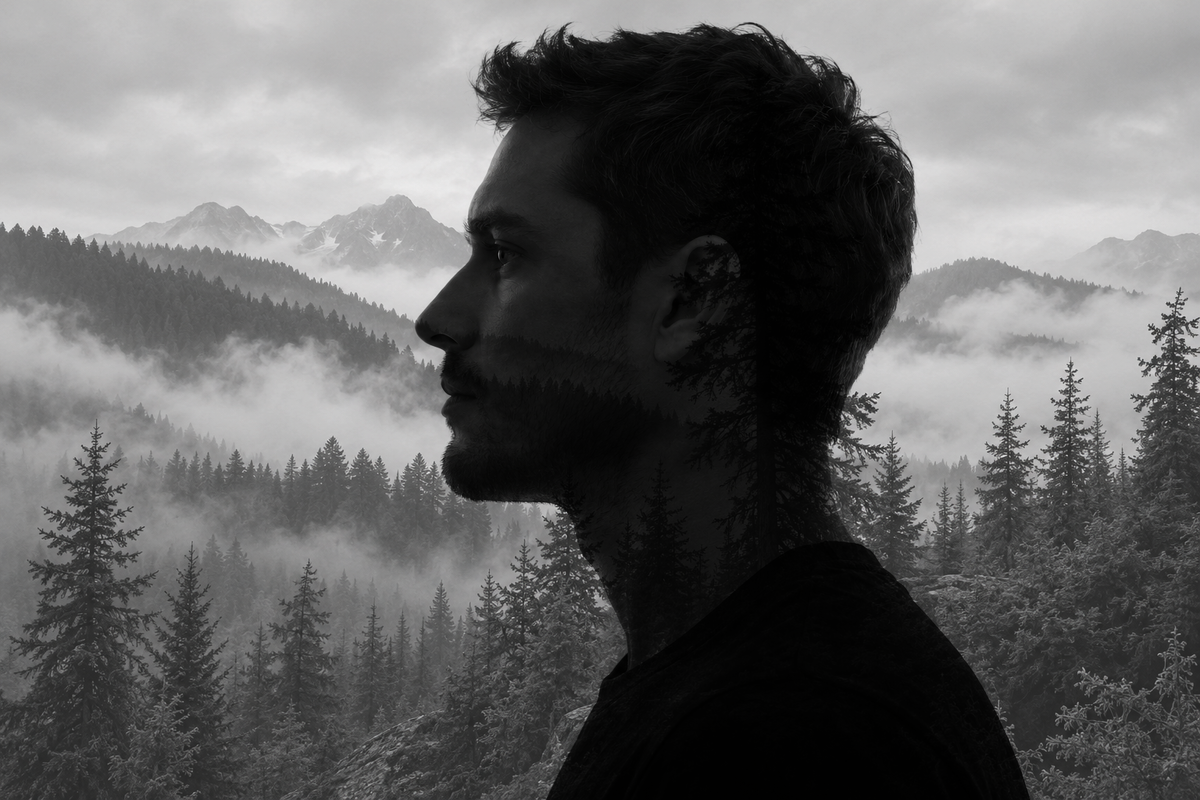
Our saved comparison holds the sources and texture opacity at 85 percent. Normal opacity carries the forest into the white surroundings. Screen reveals the forest through the darker portrait while retaining bright surroundings. Multiply makes already dark parts of the portrait darker, so much of the forest detail becomes hard to read there.
Adobe’s blend-mode definitions describe Screen through the inverse colors and Multiply through the product of the colors. In our byte-space exercise, Screen leaves a white base pixel white and reveals the texture over a black base pixel. That simple boundary explains the silhouette effect without treating Screen as an automatic subject-selection model.
Inspect the saved normal blend, Screen blend and Multiply blend. These use the declared helper and Sharp resizing. The browser can decode and resize the same sources slightly differently; the saved comparison is not a promise of pixel-identical results in every editor.
Make a double exposure image in the free local tool
- Select Load original example or choose a base portrait and a second image.
- Start with Screen for a dark subject on a bright background.
- Reduce texture opacity until the facial structure and second image can both be understood.
- Compare Normal opacity and Multiply using the same inputs before deciding which direction works.
- Download the opaque PNG and its recipe when the displayed result fits the brief.
The base image establishes the output aspect ratio. Its longest side is reduced to at most 1,200 pixels. The second image is center cropped to cover that canvas without stretching, so a landmark near its edge may be cut off. Prepare a better crop in your editor if the important feature lands outside the subject. This tool does not provide a repositioning or painted-mask control.
Uploads stay on your device. The tool accepts PNG, JPEG and WebP images under eight MB with sides from sixteen to 4,096 pixels. It flattens transparency on white, blends decoded RGB bytes and exports an opaque PNG. Keep your originals for full-resolution finishing, color management and layered editing; the downloaded recipe records the displayed blend rather than a native Photoshop document.
Fix a washed out portrait or a muddy result
If the face disappears under Screen, first reduce opacity. Then inspect the source portrait: a bright face gives Screen little room to show additional structure. A darker, simpler portrait can create a stronger starting point. Preserve the facial feature you want to retain rather than globally increasing contrast until the hair and clothing become featureless.
If Multiply produces an almost black subject, the mode is reinforcing darkness in both sources. Try Screen or change the source tones before judging the idea itself. A blend mode is a mathematical choice, not a quality ranking. Different input tones can make the same mode useful for another design.
If the background becomes busy under normal opacity, use a subject mask in an editor for deliberate isolation. Screen only preserves sufficiently bright base areas; it does not know which pixels belong to a person. A gray wall, shadow or background texture can remain visible. Check the image compositing guide when the job needs independently controlled layers rather than one flattened blend.
Create source images with a focused AI brief
Generate the sources separately when you need control over their relationship. For the portrait, specify a clear profile, clean bright surroundings, a dark subject and enough empty space. For the texture, specify the landmark, its position, tonal range and surrounding detail. Do not ask both generations to solve the entire final poster.
Start in Clout Image and Video with an original subject and a concrete image brief. Review the available workflow and the file it returns. Keep the selected image with its prompt and source references, then prepare a second source that complements it. The local blend lab is a separate editing step and does not invoke a Clout generation model.
Download the generated portrait source, generated forest source and original source and motion brief. Use the brief as a starting point and change the subject and setting to fit your own story.
Turn the approved still into a restrained video idea
Approve the still before adding movement. A useful first attempt keeps the portrait locked while mist or light moves gently inside the second scene. Asking for a turning head, a camera orbit and a moving landscape at once can change the silhouette that made the composition readable.
For example: preserve the side profile and bright background; allow slow mist drift through the forest; keep the tree position and facial outline stable. This is creative direction, not a claim that every video model exposes separate controls for those regions. Use an image-reference workflow only when the selected operation supports it, and inspect what actually changes.
Watch the complete saved clip. Compare the opening and closing profile, look for trees escaping into the background, and inspect the nose and hair at transitions. Keep unsuccessful attempts in the review record. For a larger narrative, use the AI short drama workflow and multi-shot planning guide to establish continuity before extending the effect across several shots.
To apply a consistent two color campaign palette after blending, use the duotone Photoshop workflow and local RGB mapping tool.
Keep the recipe and sources with the finished artwork
Save both originals, the chosen crop, mode, opacity and finished export. Add lettering in an editor so the wording stays editable. Review the result at its delivery size: a forest that looks detailed at full resolution may become an unreadable patch inside a small social thumbnail.
The source record, blend helper, asset builder and asset hashes document this example. Its value is a visible comparison and a reusable creative process. The effect still depends on thoughtful image selection, placement and finishing.