Image compositing combines independently prepared visual elements into one picture. For a reusable creator or product campaign, the job is larger than producing a convincing flattened image: preserve the pieces, their order, opacity and alignment so the next revision can be made deliberately. The combined picture is a composite image; the separate assets make its later revisions possible.
The free tool above compares an ordered full-canvas PNG stack with a target. Use our original geometric poster or choose your own files locally. It produces an opaque recomposed PNG on white, a numeric comparison and an order CSV. It does not generate missing backgrounds, extract hidden layers or certify the usability of a design document.
For a portrait and scenery blend, use the double exposure photography guide and local blend lab to compare Screen Multiply and normal opacity before preparing reusable layers.
For saved object coordinates before layer preparation use the WeVisOne VL workflow and coordinate inspector.
Choose the elements the next edit will need
Start with the revision you expect. If the creator will move, keep the creator separate from the background. If the product needs a new label, retain the product artwork and editable lettering. If a translucent promotional seal overlaps the product, preserve that opacity independently rather than baking it into the product image.
| Production need | Useful independent element | First review |
|---|---|---|
| Move an original subject | A subject raster with transparent surroundings | Inspect edge coverage and the area revealed behind it |
| Replace campaign wording | The native text or original editable object | Check wording layout and the source font separately |
| Adjust an overlapping graphic | A separate opacity-bearing graphic | Inspect overlap and layer order |
| Compare a reconstructed stack | The ordered layers plus a separate target | Recompose and review differences without adding the target as a layer |
An image file can preserve transparency without preserving a full editor document. PNG pixels do not contain native font objects, adjustment layers or the original editing history. Keep the source project when you need those capabilities. For separation from a flat image, use the AI layer extraction workflow and distinguish newly reconstructed assets from recovered originals.
Keep full canvas size and order explicit
This lab expects every layer and target to share the same dimensions. Each file occupies the same full canvas, with transparent pixels around smaller elements. A tight subject crop and a larger background do not specify where the subject should be placed; the lab blocks that mismatch instead of inventing an alignment.
The list runs from back to front. The first file sits behind later files. Use Backward and Forward to change an element’s position, then inspect the recomposition. Those buttons change order rather than moving the subject’s coordinates. For a spatial move, edit the raster placement in the source application first and export the aligned full canvas again.
The W3C compositing reference describes source-over as a way to combine an element with its backdrop. In this lab, each new layer contributes its RGB bytes according to opacity and leaves the remaining backdrop contribution visible. Our implementation calculates in byte space on white and rounds at the final output; it is not a linear-light or color-managed renderer.
Compare the original poster experiment
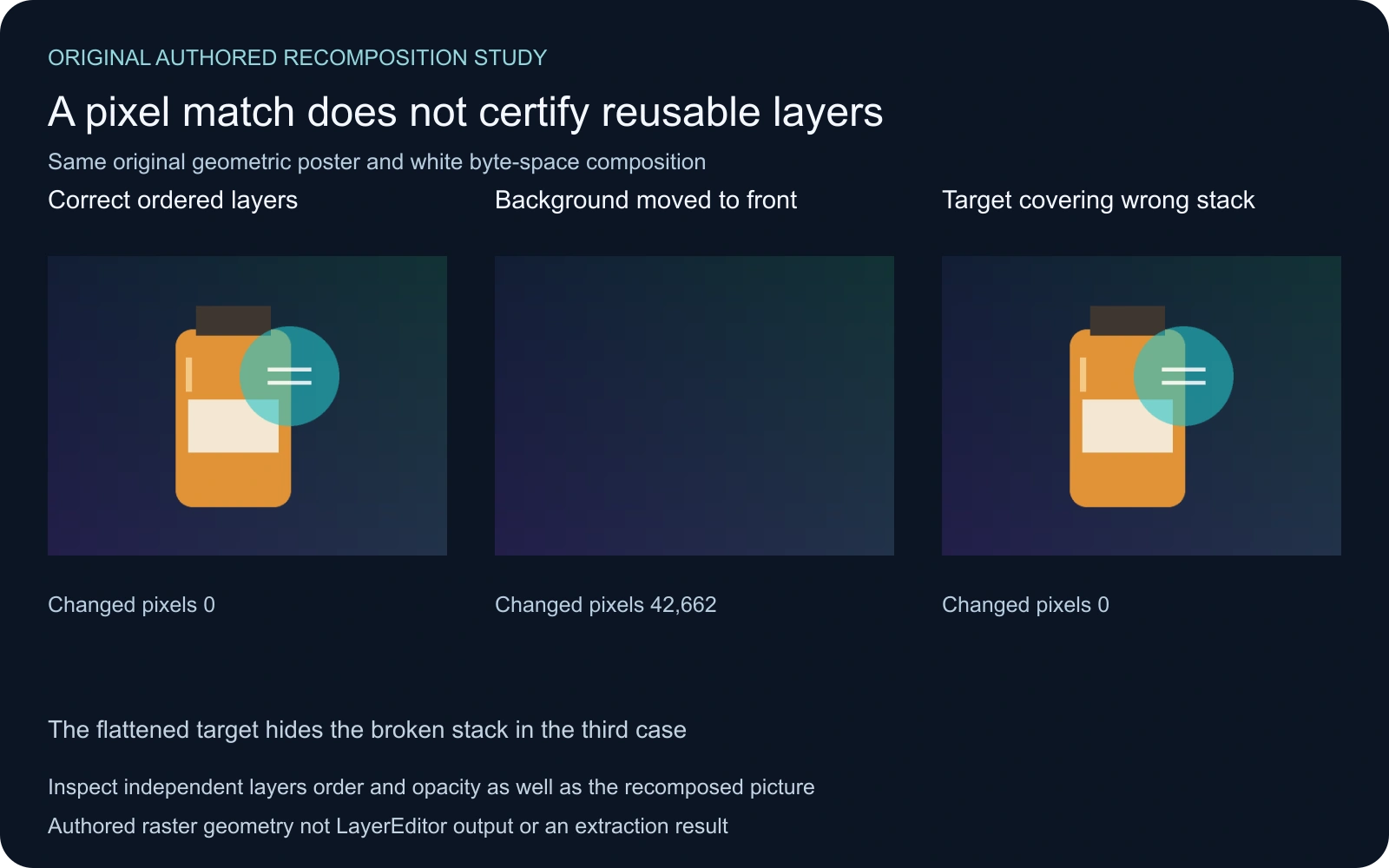
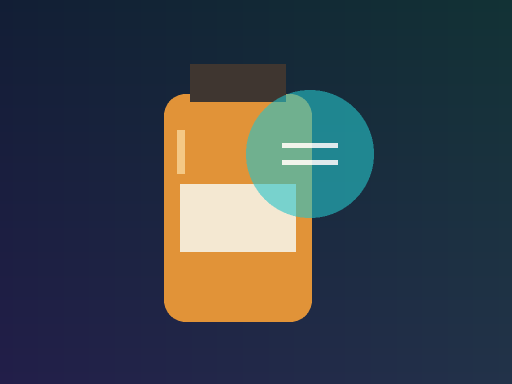
The original poster has three 512 by 384 layers: a dark background, an amber bottle shape and a partly transparent cyan seal. The Direct target is a separate flattened reference. The correct order places the background first, the product second and the seal last.
Moving the opaque background to the front hides the other two components and changes 42,662 pixels relative to the target. Appending the flattened target over that wrong stack hides the mistake and gives a zero difference again. That final match does not make the underlying stack correctly organized.
| Saved case | Layer count | Changed pixels | Mean absolute RGB byte error |
|---|---|---|---|
| Correct ordered layers | 3 | 0 | 0 |
| Background moved to front | 3 | 42662 | 23.045473 |
| Flattened target covers wrong stack | 4 | 0 | 0 |
Download the original layered poster pack. It contains three input PNGs, a separate target, an order record and a readme. Inspect the correct recomposition, wrong-order result and target-masked result with their numeric comparison.
Use the local PNG comparison tool
- Select one to six PNG layers with sides from sixteen to 1,024 pixels, keeping each file under eight MB.
- Choose a separate target PNG with the same dimensions.
- Read the back-to-front list and reorder it deliberately.
- Inspect the recomposed image and the numeric difference.
- Download the current composite PNG, review JSON and order CSV.
Selecting a new stack clears the previous target, so the tool asks you to choose the reference for that stack. Invalid files or dimensions block export. Downloads are enabled only after the current composition has a matching encoded preview, preventing a previous result from being exported during an input change.
Files remain on your device. PNGs are decoded through the browser into RGBA bytes. Decoding, color handling and alpha conversion can change values from their original encoded representation, so the lab does not claim high-bit-depth preservation or exact original-file reconstruction. Its exported PNG is opaque because the comparison uses a white backdrop.
Review opacity independently from the finished picture
Inspect each component on contrasting backgrounds in a suitable editor. Look for clipped edges, unwanted color around partial opacity, holes and duplicated content. A finished dark composition can hide an edge defect that becomes obvious after moving the subject onto a light scene.
The PNG specification describes unassociated color samples with alpha. Internal application buffers can still use other representations. If a fringe appears, use the dedicated premultiplied alpha guide to separate an association problem from an inaccurate silhouette or a baked-in matte.
Our original PNGs contain authored geometry, not a person or product cut out by a model. They make order and partial opacity easy to inspect. They do not demonstrate that an extraction tool preserves hair, transparent glass or unknown content hidden behind a foreground subject.
Interpret a pixel difference at the right scope
The lab compares corresponding output RGB bytes after compositing both the stack and any transparent target on white. A changed pixel differs in at least one RGB channel. Mean absolute byte error averages the absolute channel differences. Neither value measures whether a slogan is correct, a product shape is faithful or a subject looks believable.
The target-cover example is a useful failure test: a zero difference can coexist with a badly organized stack. Inspect the isolated components and try the intended edit before accepting the pack. For a reusable campaign, changing the seal opacity or moving the product is stronger evidence of independent control than a flattened preview alone.
Use differences to locate a problem, then inspect it. If the wrong source file or dimensions are used, a large numeric difference has a simple explanation. If a browser decode produces small boundary changes, check the original samples and destination application before treating those values as a creative failure.
Build an original campaign around a reviewed source
Approve the subject and composition in Clout Image and Video before preparing separate campaign elements. Keep the strongest accepted source with its brief. Creating an image and producing an editable layer package are distinct production steps; inspect the files returned by the selected workflow.
For research into joint editing and layered outputs, read the LayerEditor workflow guide. It explains the boundary between the paper’s proposed outputs and this original review exercise. The local tool does not call LayerEditor or configure a Clout generation backend.
Reproduce the saved pixels
The original helper authors the example layers and performs the declared composition. The asset builder writes the PNGs and illustrations. An independent Python verifier checks PNG chunk checksums, decodes the saved files and recomputes every output pixel using the stated order.
Read the pixel validation record, reproduction instructions and asset hashes. These establish the authored example’s numeric behavior rather than certifying another editor’s renderer, a model result or an unknown document’s structure.