A duotone in Photoshop can mean two different jobs: preparing an image with named inks and curves in native Duotone mode, or making an RGB image with a two-color visual style. Choose the job before changing the file mode. A digital poster draft and a print handoff need different deliverables.
This guide explains the desktop workflow, the common grayscale prerequisite, and a free local RGB tool. The original comparison uses one generated portrait so you can inspect what changes when the same two endpoint colors are applied as a continuous gradient or a hard threshold.
For a finishing effect that rearranges existing colors, try the pixel sorting guide and free local pixel sorter.
Choose native Duotone mode or an RGB effect
| Job | Useful route | Keep with the result |
|---|---|---|
| Native ink based artwork | Photoshop desktop Duotone mode | Ink names curves source file and the printer’s requested handoff |
| A digital poster or thumbnail | An RGB color mapping effect | Original image palette mapping settings and RGB export |
| A deliberately hard graphic | A threshold followed by two endpoint colors | The threshold decision and a check of lost facial detail |
Native Duotone mode describes ink behavior over a grayscale image. An RGB gradient-mapped image describes the colors of displayed pixels. Similar-looking previews do not establish that the files contain the same channels, separations or print instructions. Agree on the destination before sending a flattened PNG as a finished production file.
Make a duotone in Photoshop desktop
The current Adobe conversion instructions start with an eight-bit grayscale image. Preserve an original copy before discarding color information.
- Prepare an eight-bit grayscale copy of the source.
- Choose Image → Mode → Duotone.
- Choose the required ink count from Type and select the ink colors.
- Name the inks and inspect the resulting preview.
- Adjust ink curves to control how tones contribute to the result.
For curve and separation work, follow Adobe’s editing instructions. Its workflow includes saved settings and viewing individual inks through Multichannel conversion. Keep a native editable copy before changing modes for a downstream handoff. We checked the published instructions rather than running Photoshop for this article.
Check grayscale and bit depth when Duotone is unavailable
If Duotone is greyed out, inspect the document’s current mode and bit depth first. The documented desktop route begins with eight-bit grayscale. An RGB file or another bit depth is not that starting condition. Keep the original color file and perform the conversion on a separate working copy.
Also distinguish the desktop product from another application or edition. A tutorial showing a desktop menu is not proof that the same control exists in a browser editor. When a menu or dialog differs, use the current documentation for the product you are actually using rather than repeatedly following a mismatched screenshot.
If your only goal is a digital two-color look, consider an RGB route before converting the entire document. Adobe’s adjustment-layer guide lists Gradient Map as a way to map tones to gradient colors. Keep the adjustment editable while selecting your palette and preserve text as a separate object.
Inspect the same portrait with a gradient and a threshold
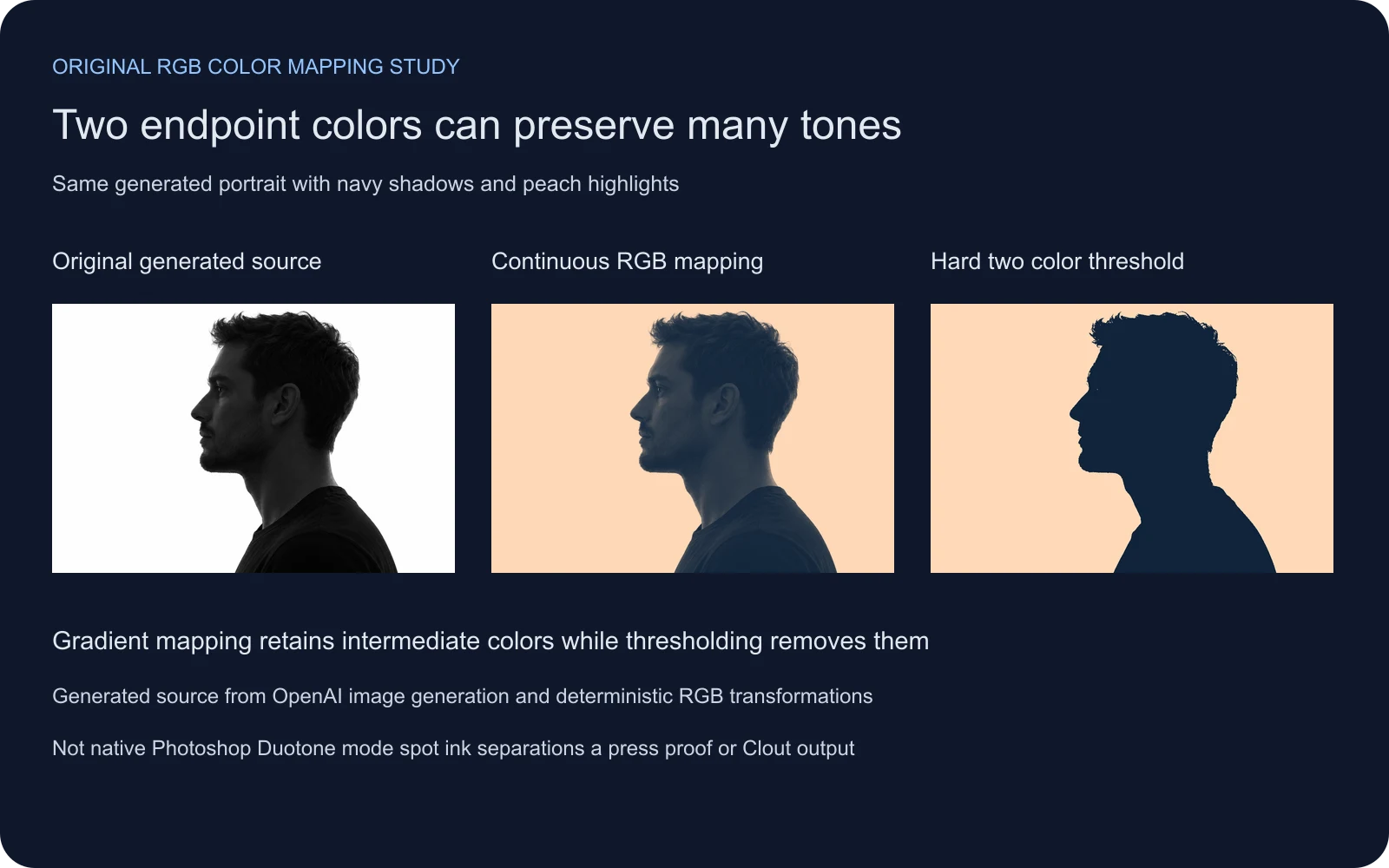
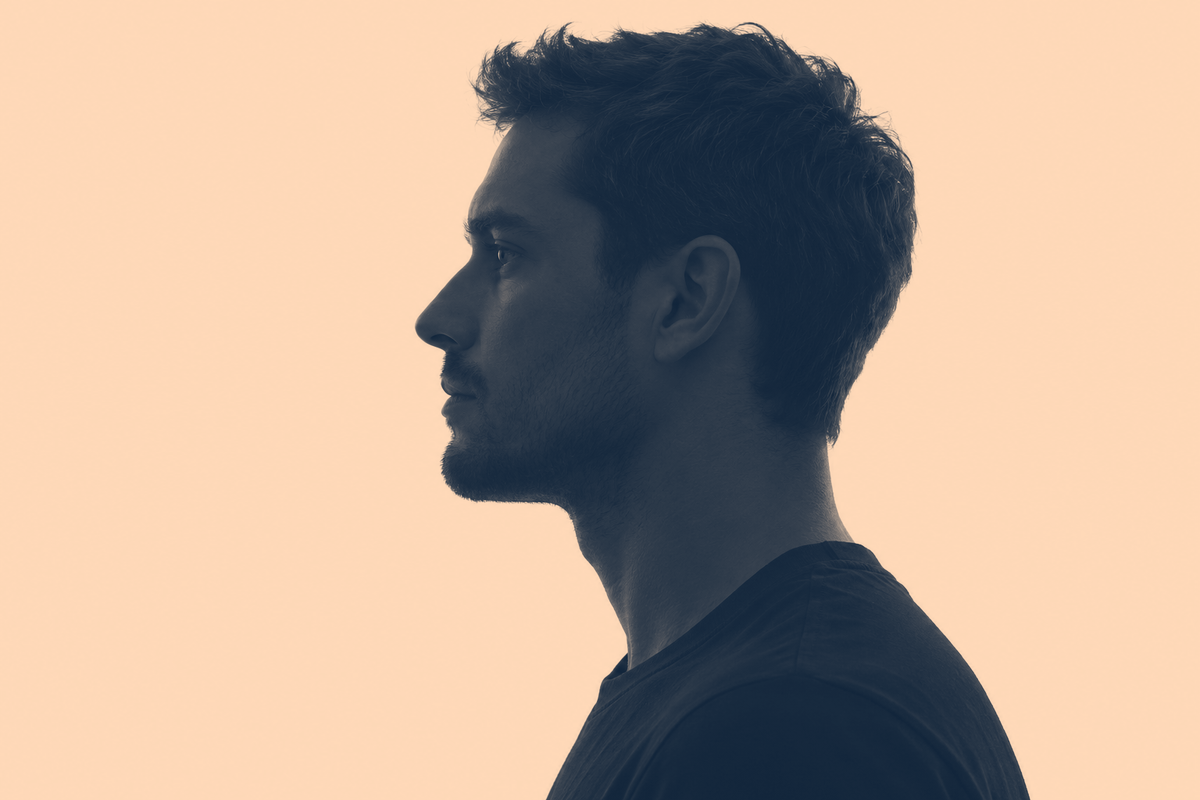
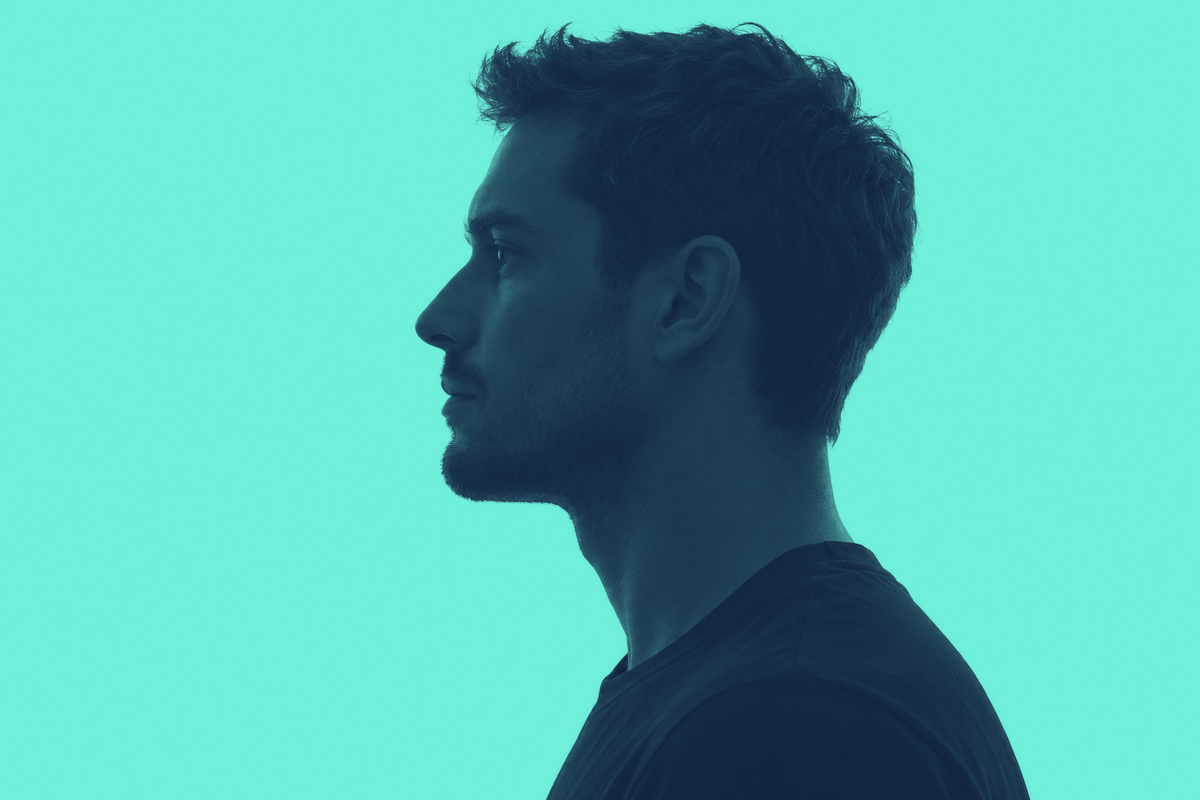
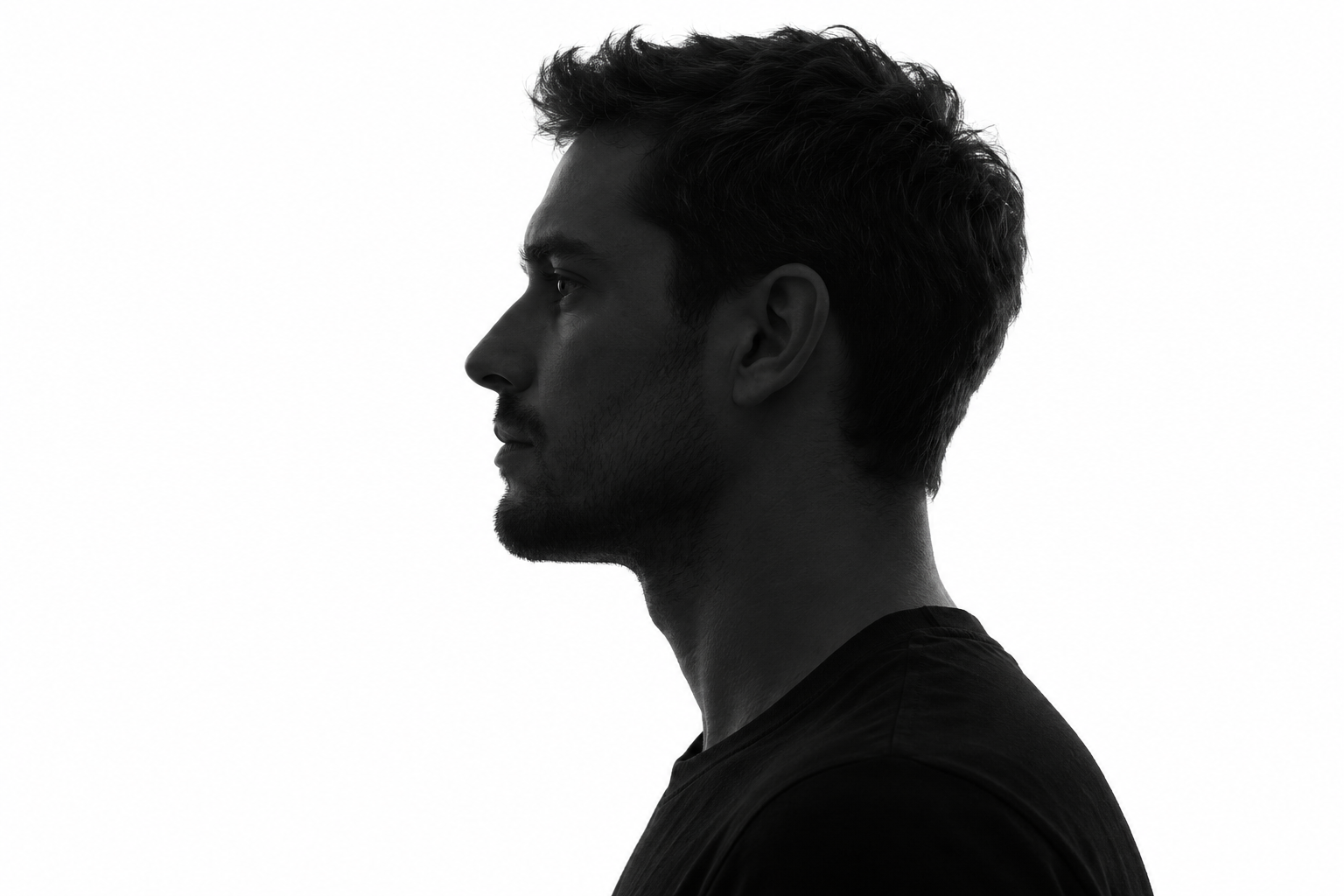
The original portrait contains a clear outline, hair texture and facial midtones. Our warm palette maps dark tones toward navy and bright tones toward peach. Continuous mapping retains variations across the face. Hard threshold mapping assigns every pixel to one endpoint or the other, producing a simpler silhouette while losing much of the texture.
The saved 1,200 by 800 warm gradient contains 522 distinct RGB colors. The saved threshold version contains two. Those counts describe these exact saved images under our declared mapping, not a universal color count for Photoshop or a measure of print quality. Two selected endpoints do not force every intermediate pixel to equal one endpoint.
Download the warm gradient example, hard threshold example and teal gradient example. Compare the face at full size and as a thumbnail before deciding which visual language fits your poster.
Try the free local RGB duotone tool
- Load the original portrait or choose a local PNG, JPEG or WebP image.
- Select Warm portrait, Teal poster or Berry poster as a starting palette.
- Enter six-digit hex colors to customize shadows and highlights.
- Compare Continuous gradient with Hard two color threshold.
- For the hard version, adjust Threshold and inspect which facial structures disappear.
- Download the current PNG, color recipe and working source if you want to reproduce the mapping.
The tool preserves the source aspect ratio and reduces its longest side to at most 1,200 pixels. It flattens transparency on white and works on browser-decoded RGB bytes. Tone is calculated from explicit channel weights, then mapped between the selected endpoints with final integer rounding. This is not linear-light luminance, a native ink curve or a color-managed press simulation.
The working-source download records the resized browser input used for the result. The recipe records colors, dimensions, mapping and threshold when applicable. A different decoder or resampling method can produce different source samples, so keep that working source when comparing exact pixels. Local uploads remain on your device.
For a separate edge contrast exercise, read the focus peaking guide and original sharp versus blurred boundary study before treating colored markings as proof of usable detail.
Keep facial detail and palette roles readable
Choose colors with different brightness roles as well as different hues. Two endpoints that look different in a swatch can still compress a face into a narrow tonal range. Inspect the eye, nose, mouth and hair against the intended background. If the portrait is difficult to recognize before lettering, a headline will not restore the missing structure.
Swap colors to see how their roles change. Reversing the palette can create a striking negative-like effect, but the same dark areas may stop reading as shadows. Choose that direction deliberately rather than treating it as a correction for a poorly prepared source.
For a hard graphic, adjust the threshold around the features that matter. A small change can merge an eye into the hair or remove a thin highlight. If you need a specific local correction, finish with an editable mask in your design application; one global threshold cannot make an independent decision for each part of the face.
Build a consistent AI portrait campaign
Start with an original character image in Clout Image and Video or build a recurring subject through AI Influencer. Review the portrait before applying a campaign palette. Look for a readable silhouette and enough tonal separation in the areas your layout will emphasize.
Use the same palette across a series, but inspect each image separately. Changing the lighting or crop can make one face much darker even when the endpoint colors remain identical. Keep the source, selected palette and accepted export together. The original campaign brief supplies a starting review process without claiming that a model generated the finished layout.
For a supported image-reference video workflow, request one restrained movement and review the complete exported clip for palette drift, facial changes and unstable dark regions. The still effect is not a guarantee of consistent video color. For a portrait combined with scenery, use the separate double exposure workflow; blending two images is a different operation from mapping one image’s tones.
Prepare the right final handoff
For digital delivery, check the final dimensions, crop, lettering and contrast in the actual placement. Keep the high-resolution original and editable project rather than treating the local preview export as a master file. For print, ask the printer for the required ink names, file format, proof and separations before preparing the final document.
Our RGB export contains no native spot-ink channels. A screen preview cannot establish the appearance of physical inks on a particular paper. Keep those production decisions separate from the useful question this tool answers: which palette and tonal treatment make your image readable?
The saved study record, mapping helper, asset builder and asset hashes document the original exercise. Its source is our previously published generated portrait, reused with its provenance intact. For separating editable picture elements, continue with the image compositing guide.