A prompt that says “cel shaded” does not specify where a shadow boundary should fall or whether it should remain stable during movement. For an anime-inspired prop, character reference or stylized product shot, separate the surface design from the rule that turns light into a few readable tones. This guide makes that rule inspectable in a native Blender project.
To keep the viewing rule consistent, compare the measured isometric and perspective cameras before locking the surface style.
What cel shading changes
Cel shading, often discussed alongside toon shading, uses visibly separated tone regions to describe form. A toon shader can also include outlines, texture, rim lighting and other treatments. Hard bands are the specific decision studied here; an outline is not required for the material to have stepped lighting.
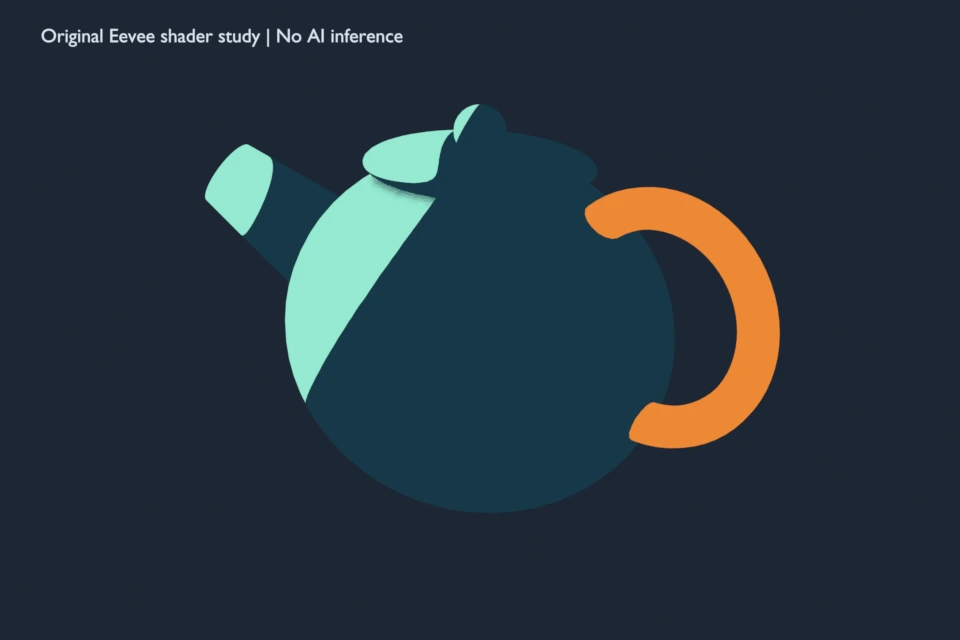
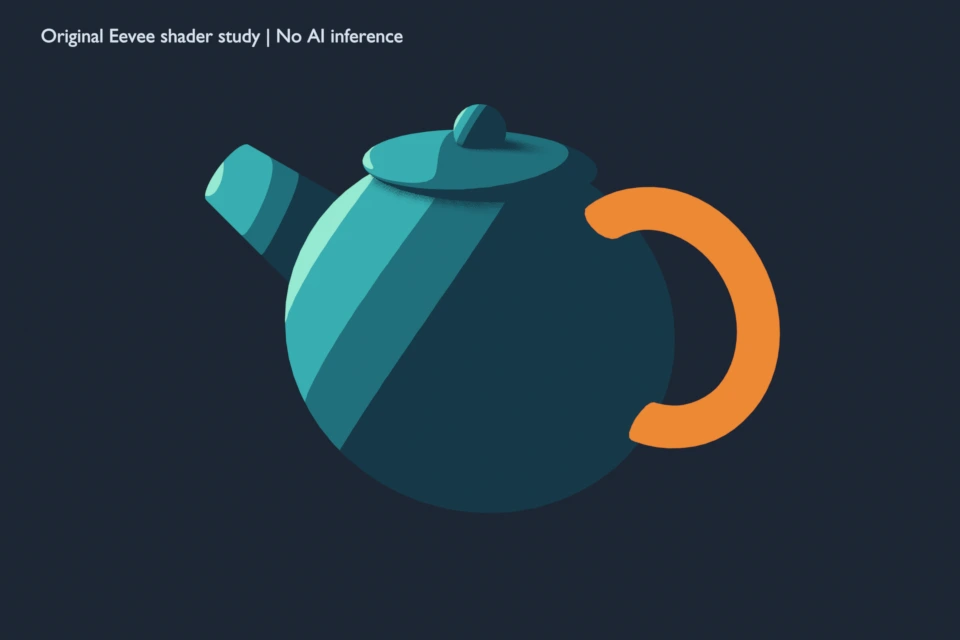
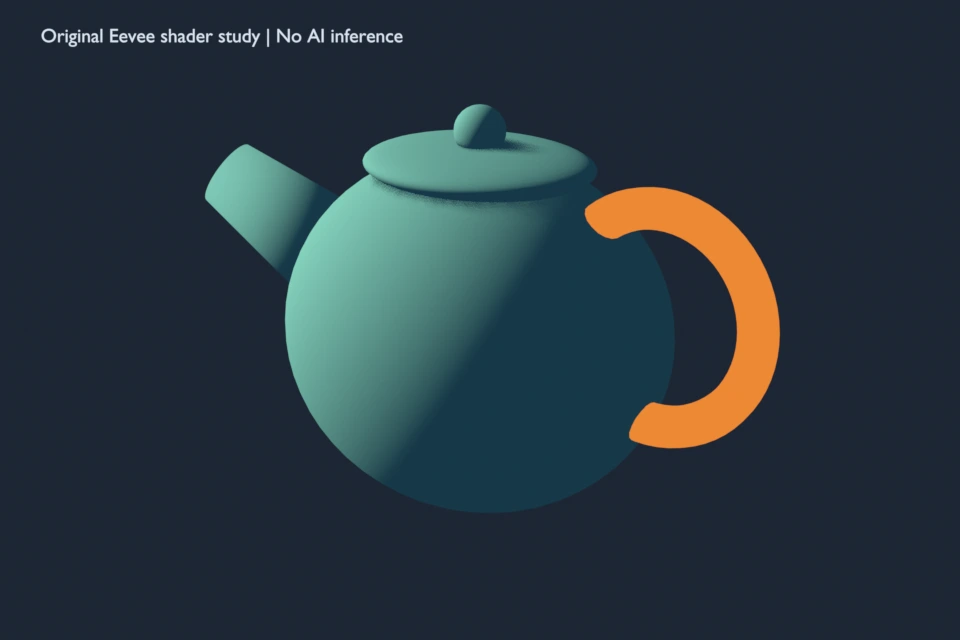
Compare the same shape under the same light before changing its model or camera. Otherwise a new silhouette, exposure or viewing direction can appear to improve a shader even though the material decision has not been isolated. Our original kettle-shaped prop stays fixed while its shading ramp changes.
Compare two bands four bands and a smooth reference
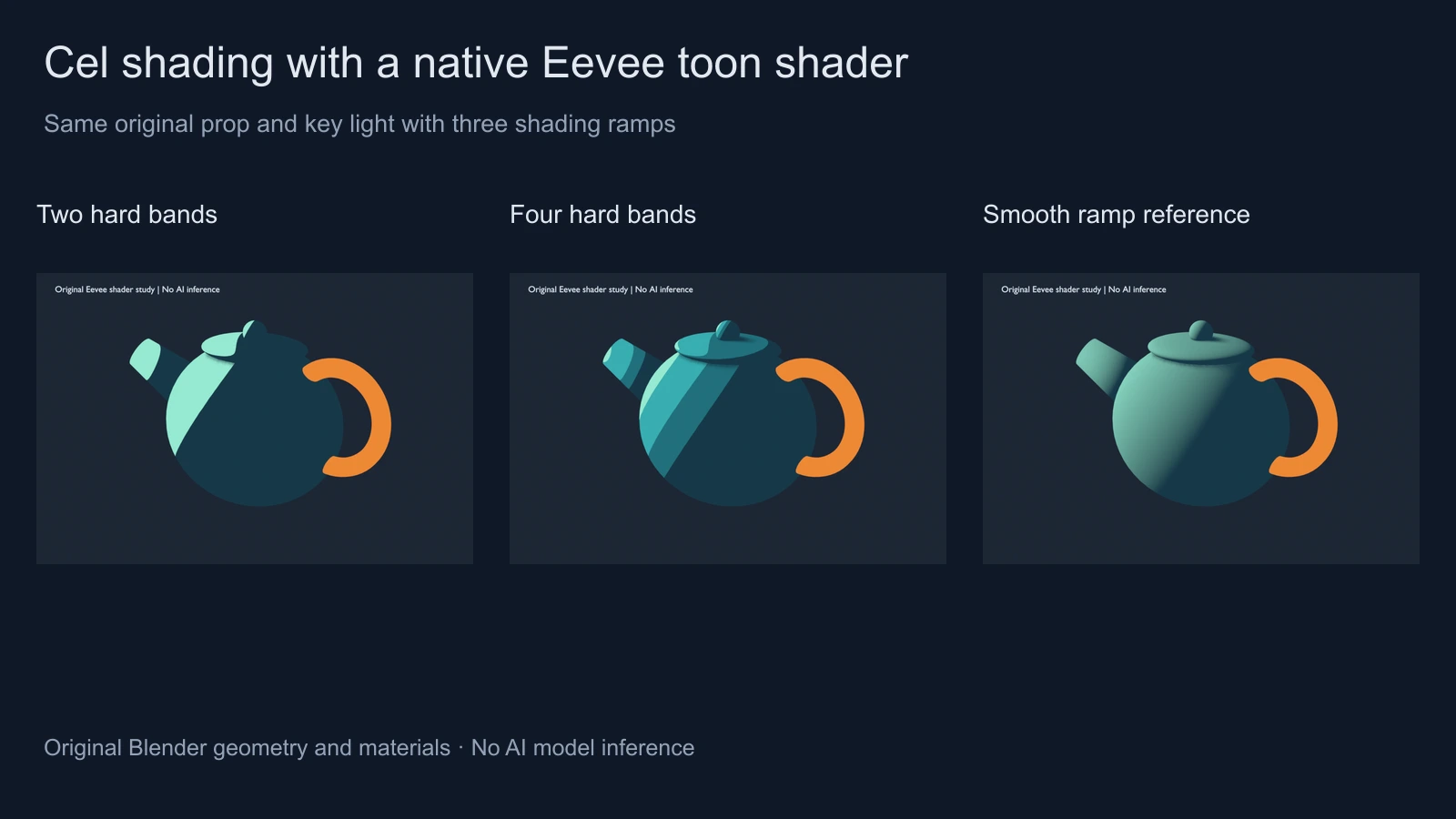
Open the two-band render, four-band render and smooth-ramp reference. The first two use Constant interpolation. The smooth reference uses Linear interpolation between its dark and light colors. It is a comparison of ramp behavior, not a photorealistic material benchmark.
The body, spout, lid and knob use the selected ramp material. The orange handle and dark backdrop use fixed emission colors. This keeps those regions readable but means the handle is not evidence of the toon material responding to light. No texture image, downloaded character or model-generated output is used.
Build the Blender Eevee toon shader
The official Shader to RGB documentation describes using BSDF output as color for non-photorealistic shading and identifies the node as Eevee-only. The Color Ramp documentation explains mapping an input value to colors. Our project uses that mapping to make discrete light regions.
- Choose Eevee as the render engine and create a node material on the intended mesh. Keep a simple camera and one known key light while testing.
- Add a Diffuse BSDF with white color and zero roughness, then connect its shader output to Shader to RGB.
- Connect the Color output to the Color Ramp Factor. Choose Constant interpolation for the hard-band version.
- Connect the ramp Color to an Emission shader, then connect that shader to the Material Output Surface. This avoids adding another diffuse-lighting stage after the ramp.
- Start with two colors and one transition. Move the transition while inspecting a curved part of the prop, then add intermediate colors only when they improve the required view.
- Test a second light direction before approving the material. Save the project and inspect a rendered sequence as well as the still.
The supplied two-band material places its transition at 0.42. The four-band material has stops at 0, 0.20, 0.42 and 0.67. These are factor positions in this material, not exposure values or universal thresholds for every scene. The material record lists the actual floating-point stop positions and linear RGBA colors.
Keep the render engine and color settings with the look
The native study uses Blender 5 Eevee, Standard view transform, zero exposure adjustment, gamma one and a dark world with one animated Sun. The light energy is 2.5. Changing the lighting or display transform can alter which bands appear and how their colors are displayed, even when the ramp nodes have not changed.
Shader to RGB does not preserve a physically based pipeline. Blender documents limitations involving downstream effects and render passes. Do not transfer this exact material to Cycles and assume it behaves identically. If a destination renderer needs a different toon implementation, rebuild and test its actual material there.
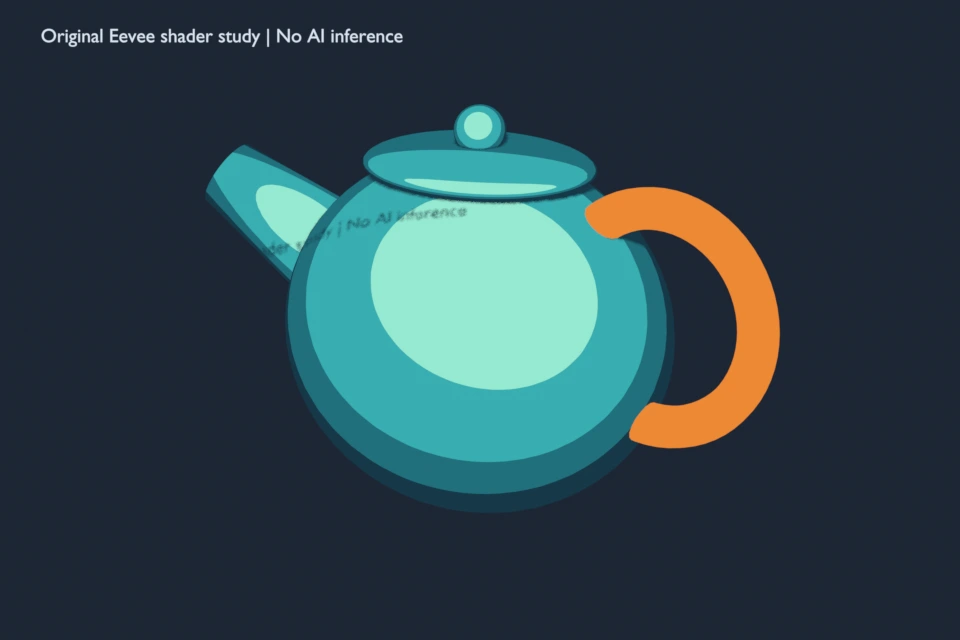
Small irregularities near a contact or moving boundary can come from sampling and shadows. Inspect the saved frames at delivery size before treating every variation as an artistic outline. A still that looks clean does not establish that all frames will be equally stable.
Watch the bands under a moving light
Watch this clip and view its details
The two-second native clip contains 24 frames at 12 fps. The original prop and camera remain fixed while the key Sun changes its authored Y rotation from minus 55 to plus 55 degrees. The four-band material remains selected. Compare the final-light still with the initial four-band render.
This tests the chosen material under a known light change. It does not demonstrate AI video generation, character identity preservation, physically measured lighting or an automatically produced outline. The exported clip keeps its native-study label visible.
Download and inspect the actual shader project
Download the free Blender toon-shader study and original reproduction script. The project includes all three named materials, with the four-band material assigned to the main prop meshes. Select another material in a copy to compare it under the saved camera.
The script requires Blender and a new output directory. It creates the geometry, materials, still comparisons and PNG animation frames without external images. The FFmpeg encoding note records the separate step that makes the silent MP4. Keep the native project when you need to inspect the nodes rather than relying on a flattened preview.
Use the study in an AI image or video workflow
For a generated concept, describe observable properties: a limited palette, two or four clear lighting regions, a readable silhouette and a fixed light direction. If the selected model supports an authorized image reference, test the approved reference through that workflow. A Blender shader file is not automatically an accepted input to an image or video generator.
Original unbranded kettle-shaped prop with a teal body and orange loop handle. Use a simple dark background and clearly separated teal shadow and light regions. Keep the silhouette and handle attachment readable. Use one fixed key-light direction and avoid text, logos and extra surface detail.
This is an original, untested visual brief. Use Clout Image and Video for a supported concept workflow, then inspect the actual returned image or saved clip. For an opening sequence, the AI anime-opening guide handles shot planning; the shader study here handles one specific surface decision.
For drawn print-style shading after the image is approved, try the separate halftone pattern generator. For color stored directly on a mesh, inspect the vertex-painting study. These techniques solve different representation problems and can be evaluated independently.