For a separate surface intensity control, use the specular map creator and shader comparison after deciding which material input should receive the mask.
A normal map creator turns a height image into surface directions that a material can use to change its shading. Start with an image whose bright and dark regions intentionally describe higher and lower areas. Choose the target normal convention, adjust strength, then inspect the result under changing light before using it in a final scene.
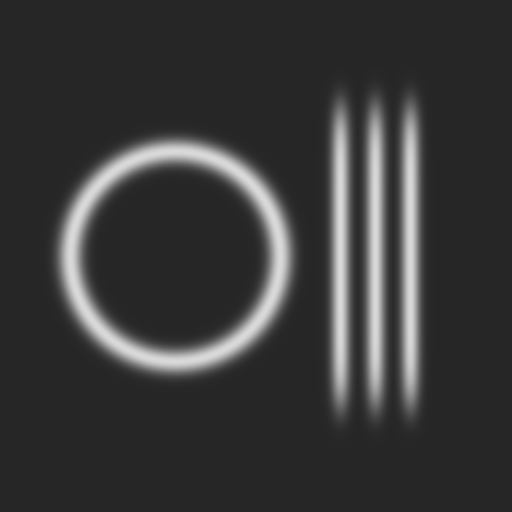
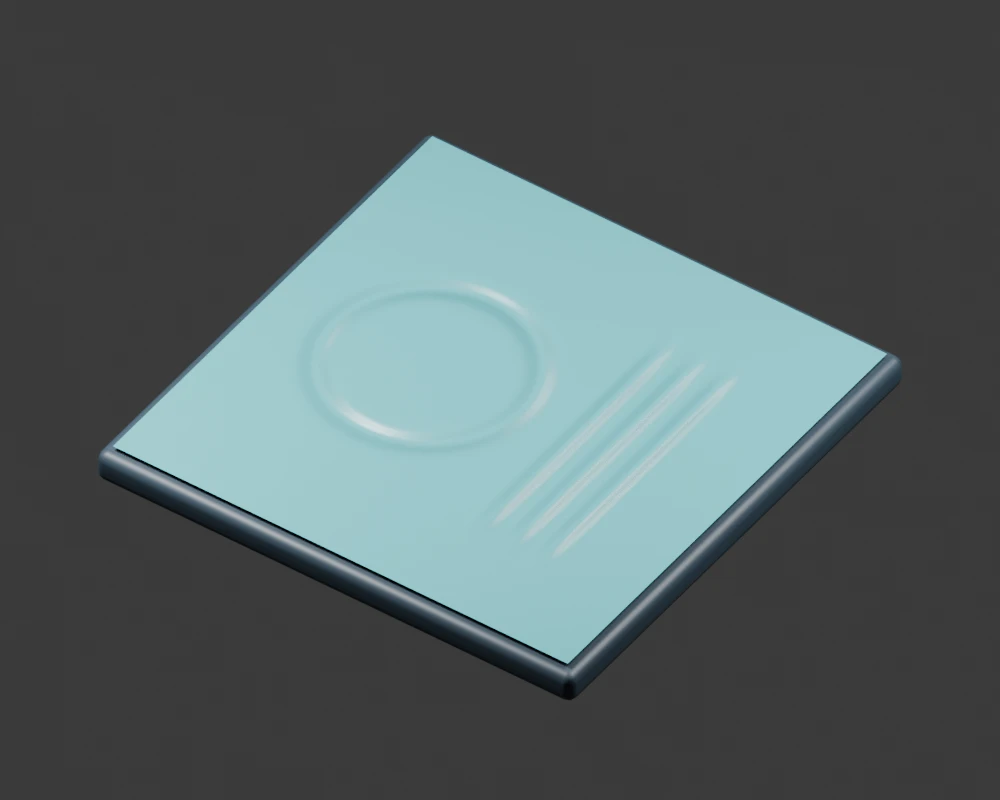
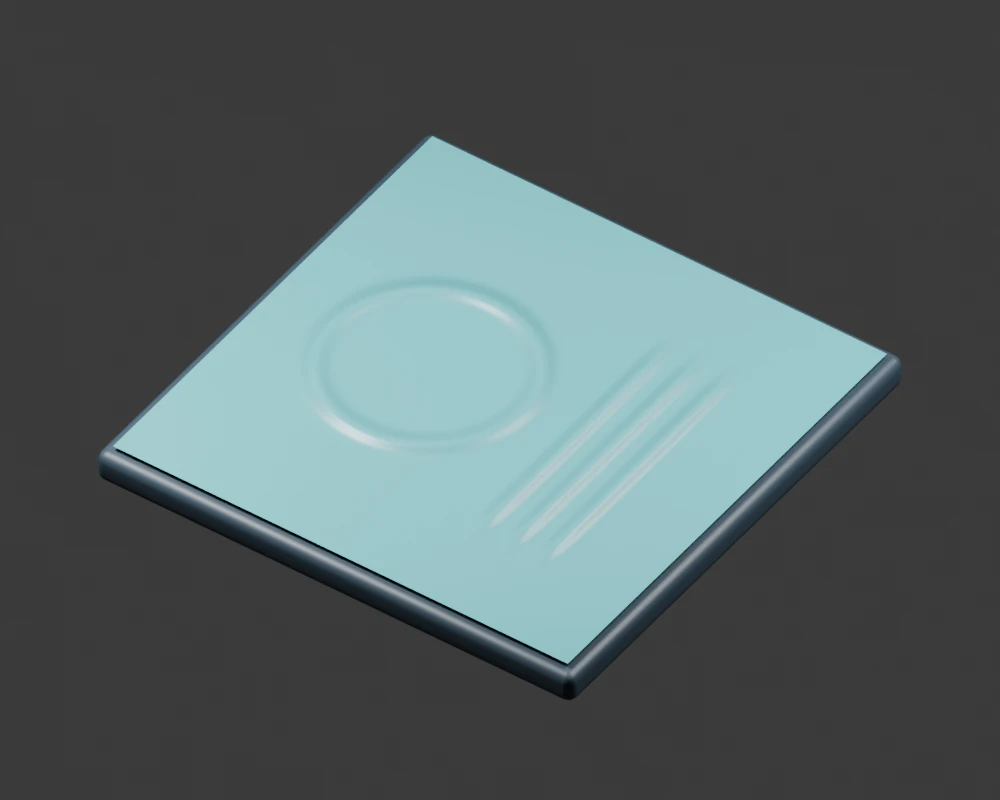
The free tool above runs the conversion in your browser. It exports a normal PNG and a JSON settings record. Upload a PNG, JPEG or WebP up to 16 MB, with decoded dimensions from 16 to 2048 pixels per side and no more than four million pixels. The starting image is our original procedural ring and three ridges, so you can compare the conversion with a known design before supplying your own.
Create a normal map from a height image
- Choose an intended height image. For this tool, brighter decoded luminance represents a higher value.
- Choose OpenGL positive Y or DirectX negative Y to match the receiving material.
- Adjust Normal strength while watching for overly sharp transitions and noisy edges.
- Download the normal PNG and its settings JSON together.
- Apply the PNG as normal data in your rendering application and inspect it with a simple light and material.
The default strength is 12. That value is a unitless multiplier in this converter, not a measurement in millimeters and not a universal setting for another application. Strength zero produces a flat normal field. The strength on a receiving Normal Map node is a separate operation; our Blender comparison uses node strength one for the mapped cases.
Compare the same panel before and after normal mapping
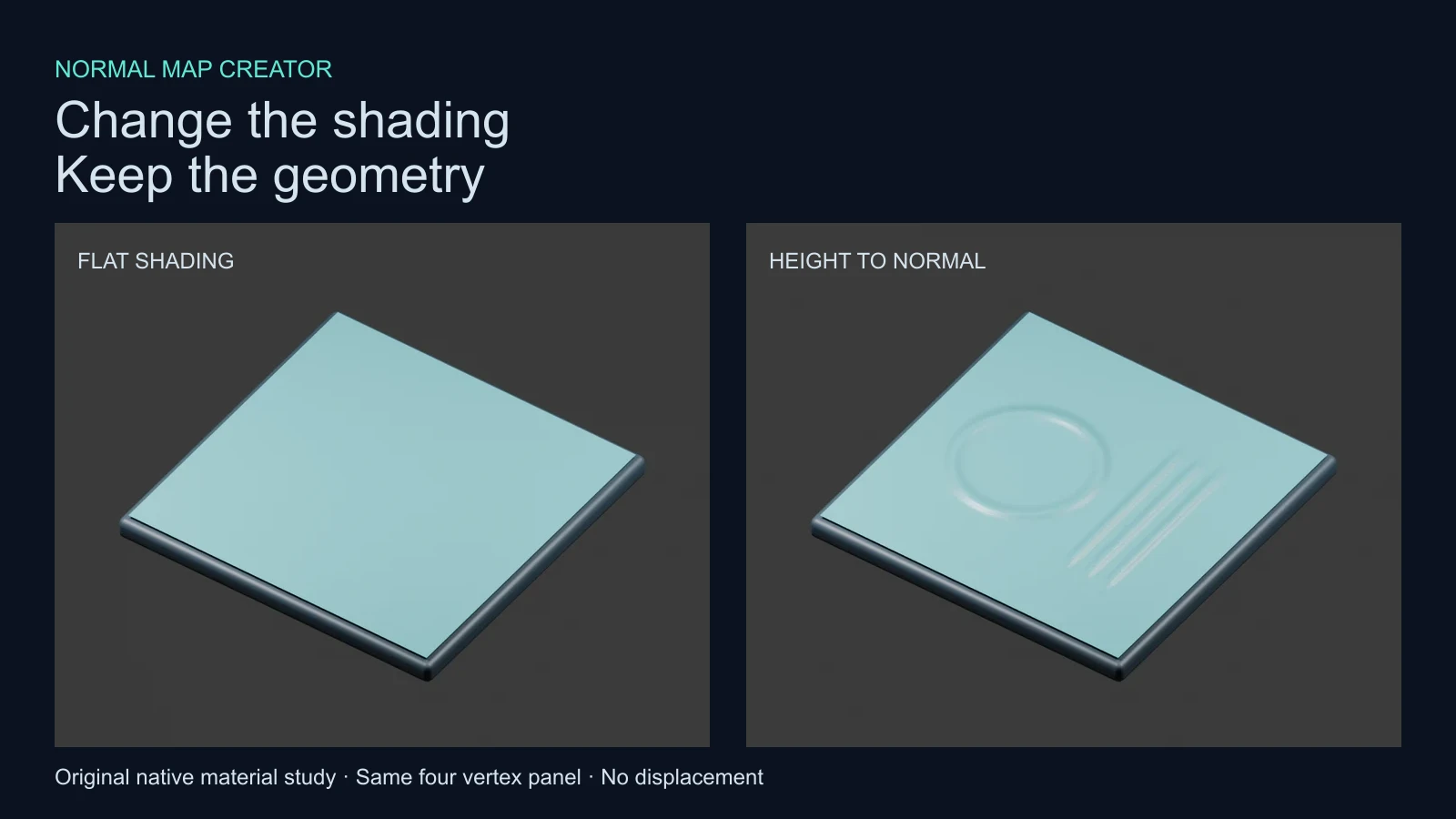
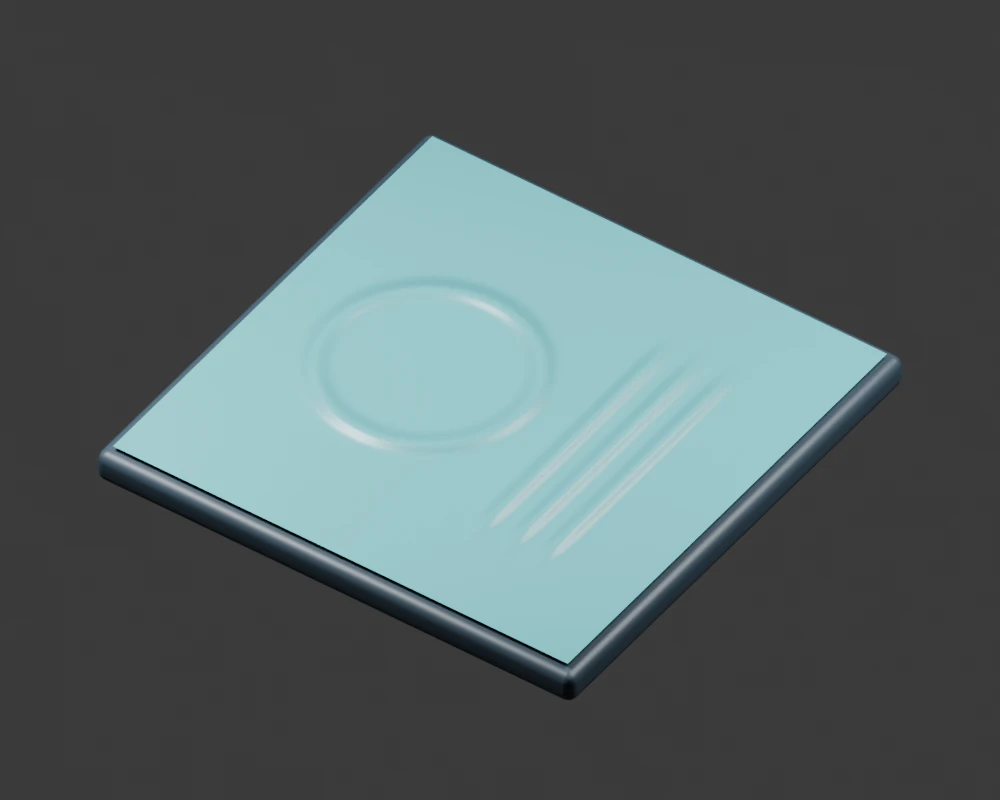
We built a four-vertex teal panel and rendered it with and without the normal map. The ring and ridges appear through shading on the mapped panel. They do not add vertices, change the outer silhouette or create actual cutouts. The support block below is a separate object with a bevel; the study panel itself has no modifiers.
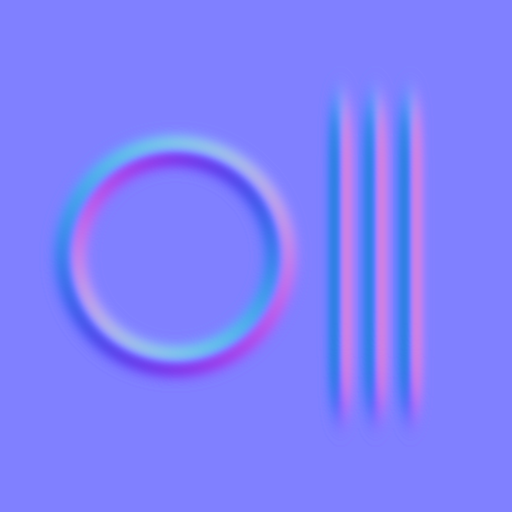
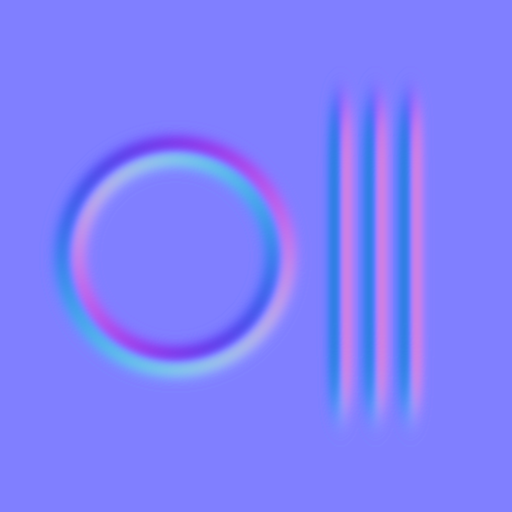
Download the 512 by 512 height image, OpenGL normal PNG, DirectX normal PNG and default conversion record. These are original authored test assets, not AI texture outputs or a recovered scan.
Choose OpenGL or DirectX by the receiving material
The two conventions differ in the green channel orientation. This creator makes its DirectX green bytes equal to 255 minus the OpenGL green bytes while leaving red, blue and alpha unchanged. A pixel value of 128 therefore becomes 127 in that channel. This exact byte complement is useful when checking an exported pair.
Adobe’s convention explanation describes the green-channel difference. Do not assume a purple-looking image is automatically the right convention. Check the target material or importer, and avoid flipping the green channel twice.
| Saved image | Blender node convention | What the study tests |
|---|---|---|
| OpenGL | OpenGL | Matched interpretation |
| DirectX | OpenGL | Deliberately mismatched Y interpretation |
| DirectX | DirectX | Matched interpretation after the convention switch |
Inspect the full matched OpenGL render, mismatched DirectX render and matched DirectX render. The two matched renders differ by at most one decoded RGB byte in our saved images. That small numerical comparison applies to this controlled scene, not to arbitrary engine imports or every normal-map pipeline.
Connect the normal PNG in Blender
The Blender Normal Map documentation specifies Non-Color image data and matching UV coordinates for tangent mapping. In our setup, Image Texture Color feeds Normal Map Color, then Normal Map Normal feeds Principled BSDF Normal. The node uses Tangent space and the panel’s UV map.
Set the image color space to Non-Color, select the intended convention and start with node strength one. Keep the base material simple while testing. A busy color texture, strong metallic reflections and multiple lights can hide the difference you are trying to diagnose. Rotate a test light and inspect both sides of the ring before adding the rest of the scene treatment.
The downloadable native Blender project includes packed normal images. The render record lists image color space, convention, node strength, panel vertex count and camera matrix for all four renders. We reopened the saved project and checked the packed image, UV layer, Tangent space, Non-Color interpretation and unchanged panel geometry.
Why a color photograph may produce the wrong relief
A dark stripe on a photographed object may be paint, a shadow, a reflection or an actual groove. Luminance alone cannot distinguish those explanations. This converter will treat the stripe as a lower height value anyway. If that is not the intended material structure, edit a deliberate grayscale height image first.
The helper computes weighted luminance from the decoded RGB bytes, blends transparent areas toward mid height and estimates local slopes with a Sobel kernel divided by eight. It clamps samples at the border, normalizes the resulting direction and writes eight-bit RGB with opaque alpha. It does not undo lighting, linearize a physical height measurement or infer hidden surfaces. The public conversion source exposes those assumptions.
Transparency has a specific consequence: a cutout boundary can become a slope toward mid height. Check that boundary before applying the map to an asset. If the material requires a separate opacity mask, retain it separately; the exported normal PNG is opaque data. JPEG compression and painted noise can also turn into unwanted small slopes. A clean PNG height image is often easier to reason about.
Normal maps versus bump and displacement maps
| Representation | Useful for | Inspect carefully |
|---|---|---|
| Grayscale height | A scalar description of intended surface height | Whether values mean geometry or merely image brightness |
| Tangent normal RGB | Surface direction detail in a material | Convention data color space UVs and shading |
| Displaced geometry | Surface position changes in a supported setup | Mesh density scale bounds and silhouette |
Use our displacement map guide when the edge of the object needs to move. Use the UV unwrapping guide when the design stretches across a seam or an unexpected face. A strong normal map cannot repair a mismatched UV layout.
Use AI imagery as a starting design with an explicit height pass
For a fictional product casing, first approve the visible design and material direction. You can explore original imagery in Clout Image and Video, then create a separate grayscale interpretation of the relief you actually want. Keep color markings and illumination out of that height pass unless they are deliberately part of the surface shape.
For repeating materials, inspect the tileable texture workflow before making normals. This tool clamps its border samples and does not wrap them, so a visually tileable height image still needs a seam check after conversion. Test the normal on a repeated material and inspect the join in both light directions.
Save the color reference, intended height image, normal convention, strength record and accepted material preview as separate artifacts. When animating a product scene, inspect the result through the actual camera movement. A convincing still can hide a seam or a reversed highlight that becomes clear during motion.
Reproduce the conversion and native comparison
The input builder creates the original height image and both normal PNGs with Bun and Sharp. The Blender scene builder renders the fixed comparison, and the asset builder creates the article artwork and companion files. Supply fresh output directories.
An independent NumPy Sobel implementation matched every pixel in both published 512 by 512 normal maps. Read the comparison record and asset hashes. This checks the arithmetic and saved study, not the physical accuracy of an arbitrary uploaded image.