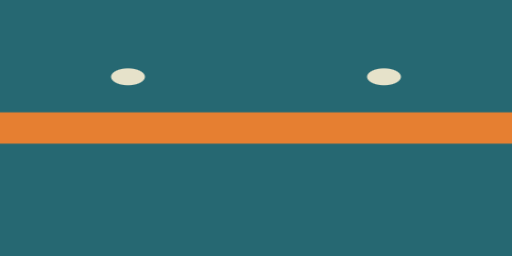
A stripe or logo can look correct in a flat image and stretch when wrapped around a prop. Texture painting connects image editing to the surface on which that image is used. The practical question is not only what you paint, but which image receives the change and how the model maps it.
What texture painting changes
Painting a base-color image changes the material's color input. It does not automatically create relief, roughness or physical surface structure. Our study changes only a color image: a plain teal prop gains an orange band and cream markings while its mesh and UV coordinates remain fixed.
The Blender Texture Paint introduction describes painting through a mesh's UVs in the 3D Viewport or editing the image in the Image Editor. It also explains that edited images need an explicit save. Keep the native project and its actual image files together.
Inspect the original native paint study
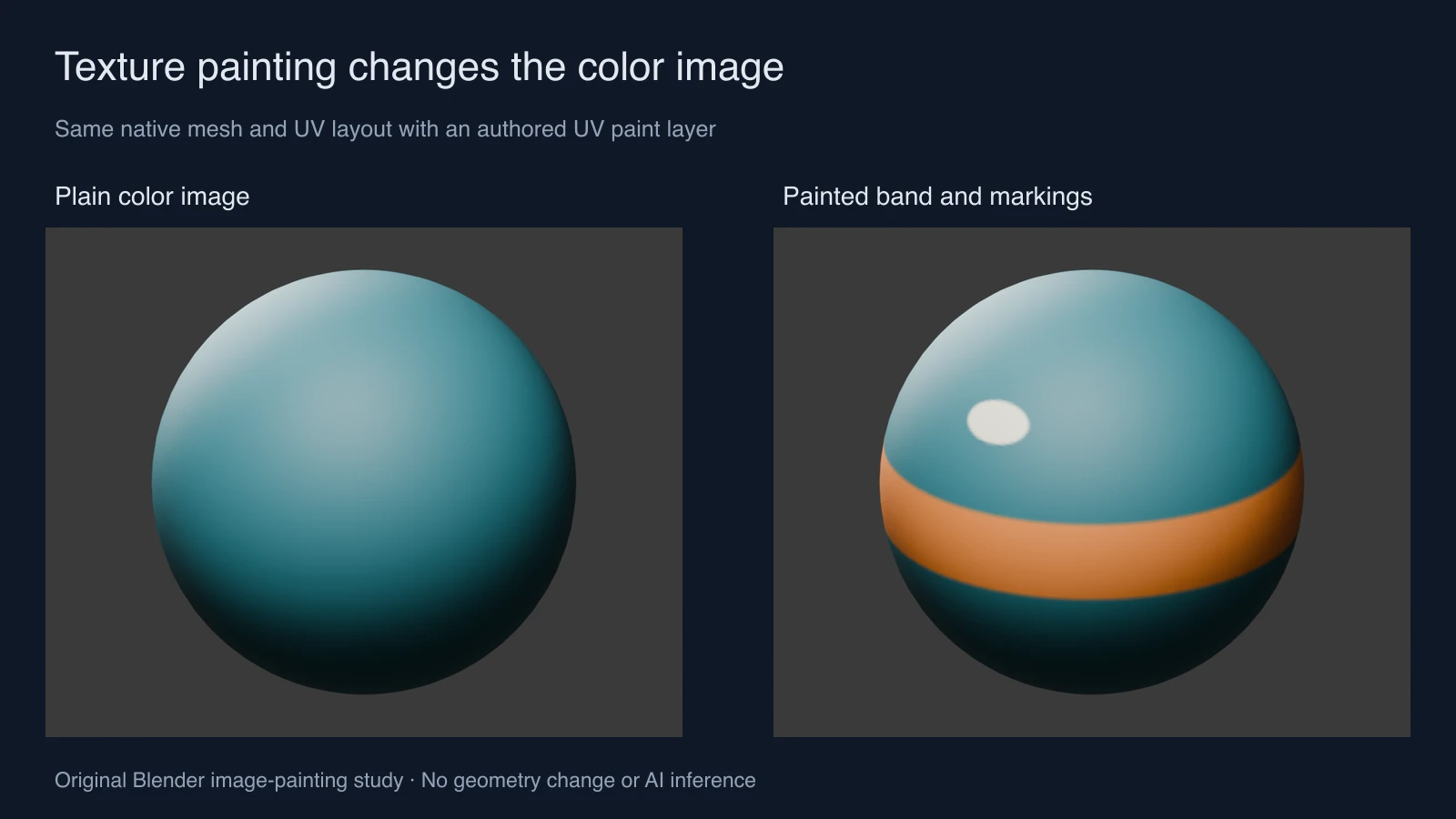
Both projects use a UV sphere with 1,986 vertices, the same camera and studio lights, and a UV-driven image connected to the material's Base Color input. The source image is 512 by 256 pixels. The painted version adds a band around V 0.5 and two small markings around V 0.7.
The paint is authored numerically into the image by the downloadable script. It is not a recording of viewport brush strokes or an AI-generated material. This makes the change reproducible while preserving a clear distinction between our controlled demonstration and a freehand painting session.
The measurement file records vertex, UV and source-image hashes. The native projects retain matching vertex and UV data while their image hashes differ. The image is packed into each project so the example does not depend on an external temporary texture path.
Download the native projects and color images
Open the plain-image Blender project and painted-image Blender project. Compare the plain color image and authored painted image in an image editor. The recipe and measurements describe the band and markings.
Run the original Blender reproduction script with a new output directory to create both variants. These projects were produced in Blender 5 using Eevee. They demonstrate an image-to-material pipeline, not a captured interactive brush workflow or a recovered real-world surface.
Set up a paint session around one visible change
- Approve the object and UV layout first. Use the UV checker study to diagnose stretching before decorating the model.
- Identify the actual image connected to the intended material input. Name it clearly so you do not paint a hidden image or a different material slot.
- Save a copy of the source and choose one small visible change, such as a colored band. Inspect it in the flat image and on the model.
- Use the native Texture Paint workspace or Image Editor according to your application. Keep the active object, material and image visible while testing the first mark.
- Save the edited image explicitly, save the project, and reopen the intended files to check that the change persists.
- Review the material from several angles at the delivery distance. Check seams, stretching, filtering and whether the mark is actually readable.
Diagnose the result before repainting everything
| Symptom | First inspection | Controlled test |
|---|---|---|
| Nothing changes on the object | Active image, material and shader connection | Make one obvious mark in a known image region |
| A round mark stretches | UV distortion and surface curvature | Inspect a checker at the same location |
| A line breaks at a seam | Island placement and border coverage | Inspect both sides in the image and on the model |
| The paint disappears after reopening | Saved image path and project packaging | Reopen the image separately before starting another session |
Our rectangular UV image wraps a sphere. A circular mark in UV coordinates does not have a universal physical diameter on that curved surface. The equatorial band is easier to inspect as a continuous wrap than a tiny stamp near the pole. Choose a test that exposes the problem you are trying to solve.
For color stored on the mesh instead of a separate image, inspect the native vertex-painting comparison.
Keep color, bump and displacement decisions separate
The orange band in this example does not raise the surface. If the design needs an embossed ridge, inspect the displacement-versus-bump study and choose the appropriate native material or geometry technique. A shaded ridge painted into a color image will still carry that painted lighting when the scene light moves.
For a repeated surface, use the tileable texture inspector. A seamless flat image does not fix distorted UVs, and good UVs do not repair a discontinuity inside the source texture. Test those requirements separately using the saved assets.
Bring an AI concept into a native asset workflow
Use Clout Image and Video to explore an approved color scheme or surface direction. Treat the accepted result as a visual reference. It does not by itself supply the UV layout, calibrated material maps or a native Blender paint session.
For a recurring prop in AI Cinema, keep a reference showing the band's position and the mark's appearance. If exact placement is essential across native renders, preserve the native asset and its saved texture rather than expecting every new generated shot to recreate the same pixels.