For silhouette storytelling with a real light and screen, use the shadow puppet guide and size planner.
An isometric illustration can make a product system, workspace or sequence of steps readable without the size changes of a perspective camera. The useful part is the consistent spatial rule, not simply a small 3D scene viewed from above. Build one clear arrangement, keep parallel directions aligned and decide what each visible object communicates.
Create an isometric SVG diagram
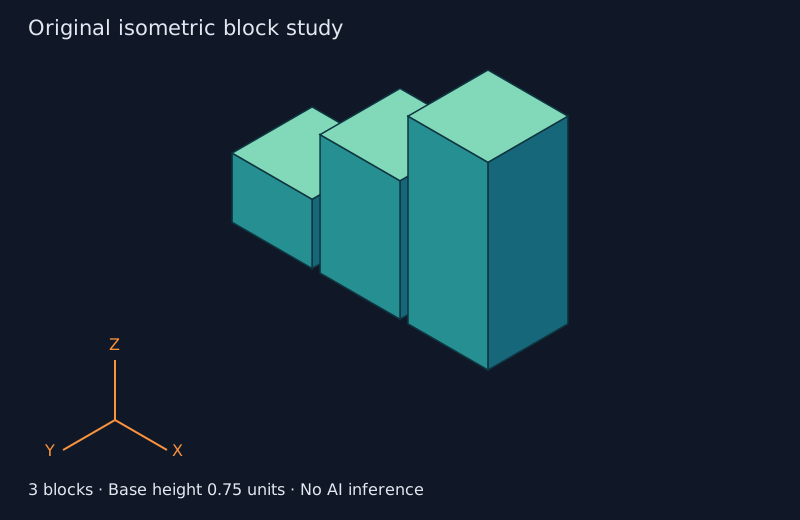
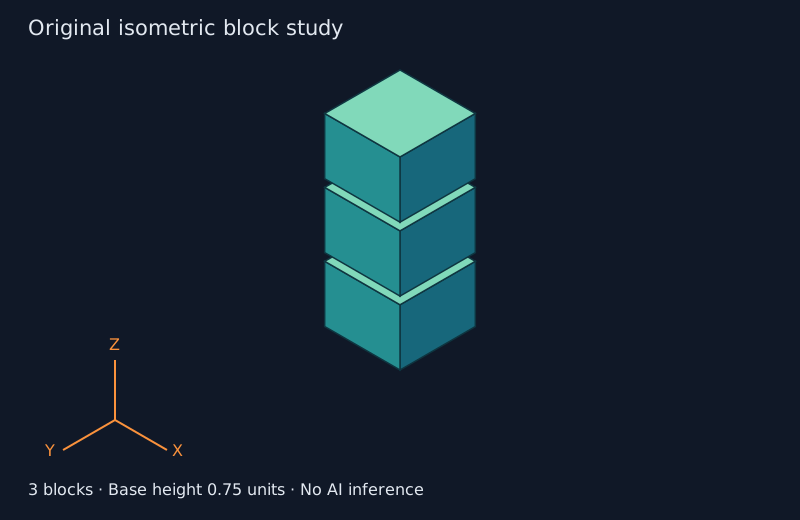
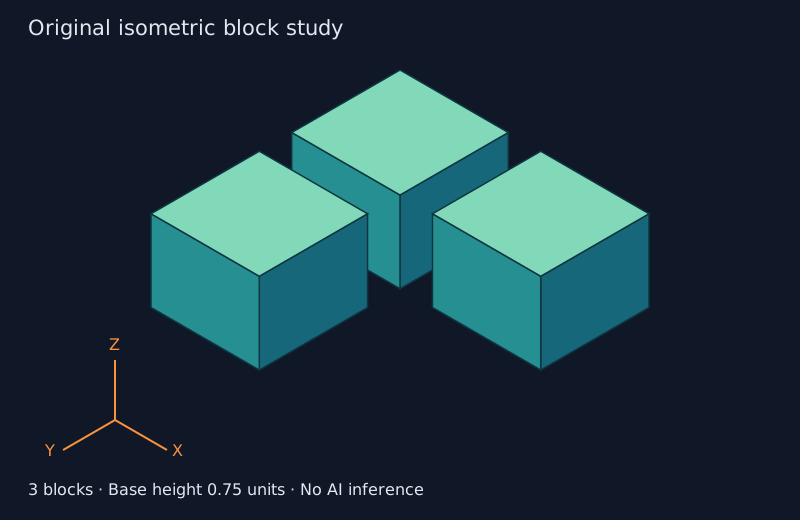
- Choose Steps, Tower with gaps or Grid in the free block lab. These are original cuboid arrangements rather than generated pictures.
- Set one to six blocks and a base height. In Steps, each successive block is taller; Tower separates blocks vertically with a small authored gap.
- Show the unit axes while inspecting the arrangement. All three axes use the same projected unit length even though they point in different screen directions.
- Download the SVG for editable vector faces or save the JSON to record the exact layout, block dimensions and projection basis.
- Open the export in the destination application and inspect its geometry, colors and readability at the final size.
The preview fits the current diagram to its canvas. Raising a block can therefore make the whole arrangement appear smaller in the preview; that is a framing adjustment, not a change from orthographic to perspective. The SVG has an 800 by 520 viewBox and the JSON belongs to this diagram lab. It is not a Blender project or a request body for an AI model.
What makes the view isometric
An isometric projection gives equal foreshortening to the principal axes. In this vector exercise, the two ground directions are drawn at 30 degrees to the horizontal, and the vertical direction remains vertical. Three unit moves project to equal lengths. Orthographic projection alone is not enough: a different camera elevation can preserve parallel lines while giving the vertical axis a different scale.
Blender's camera documentation distinguishes orthographic and perspective rendering. The IBM isometric design guide shows why a shared grid and aligned volumes help a spatial illustration stay coherent. Our diagrams and desk geometry are original and do not reproduce IBM's illustration assets.
Compare three native cameras on the same scene
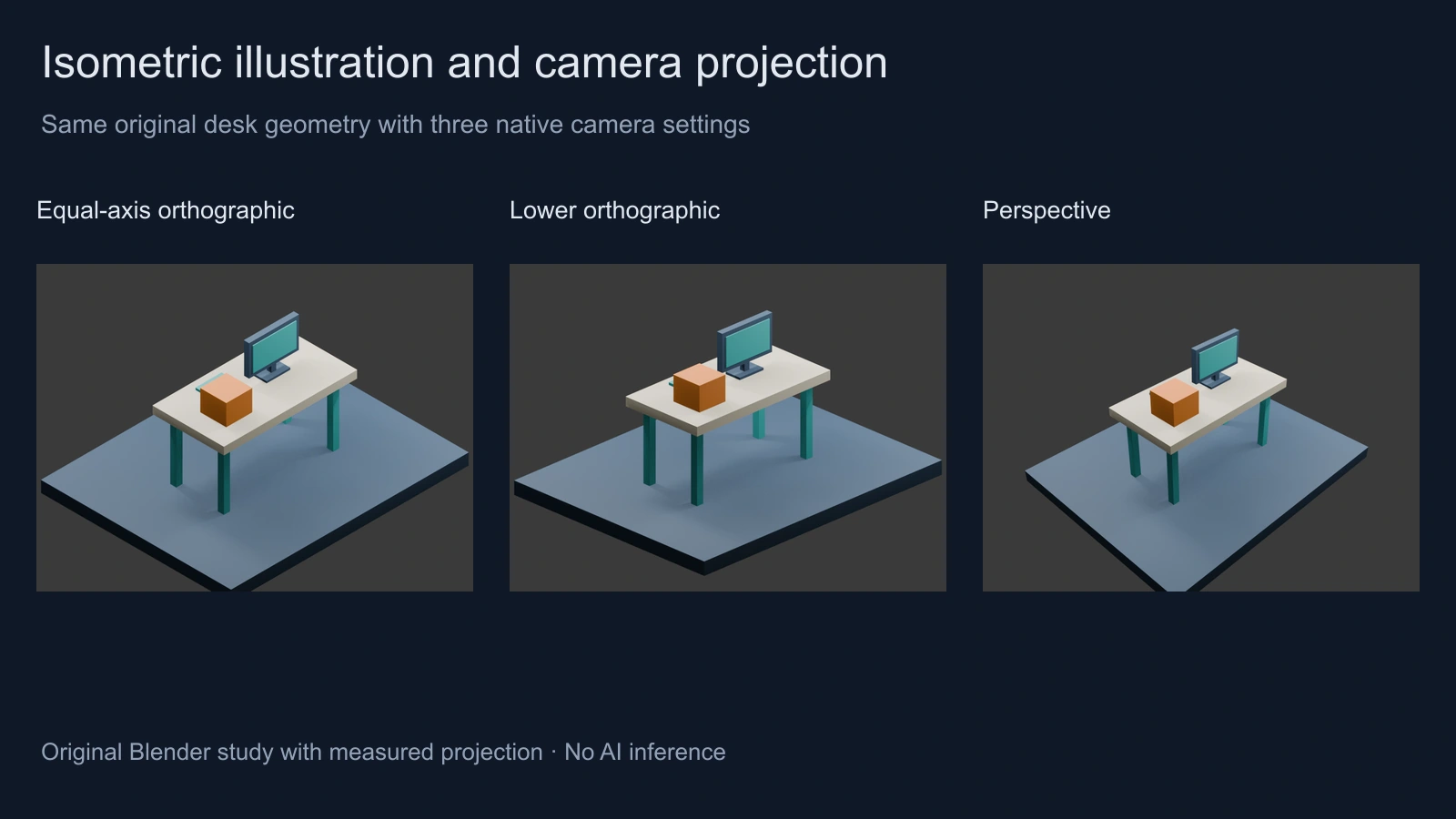
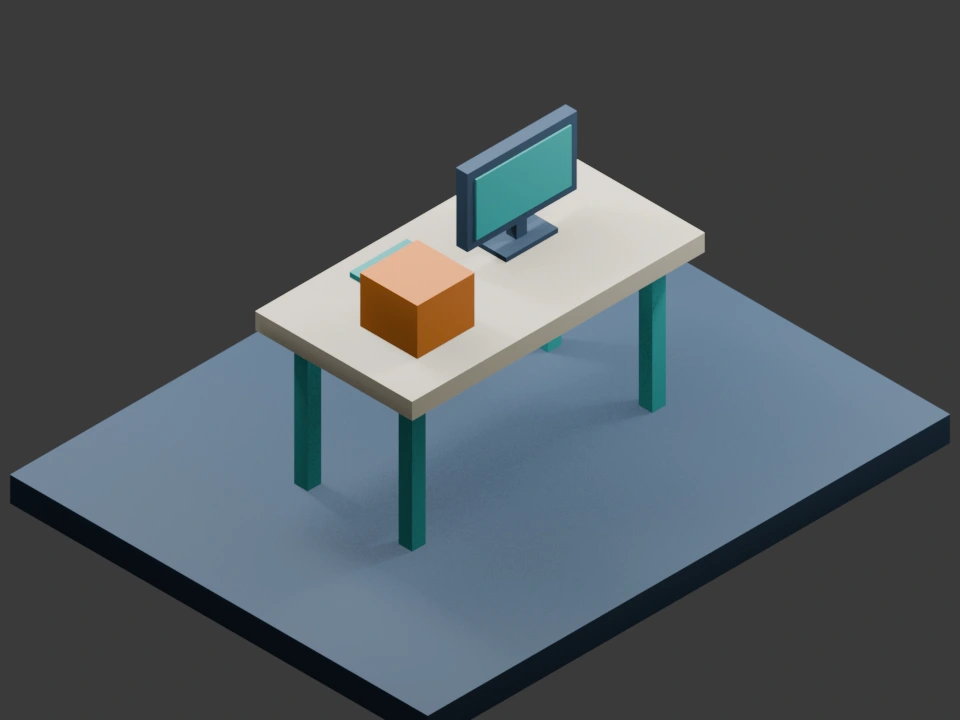
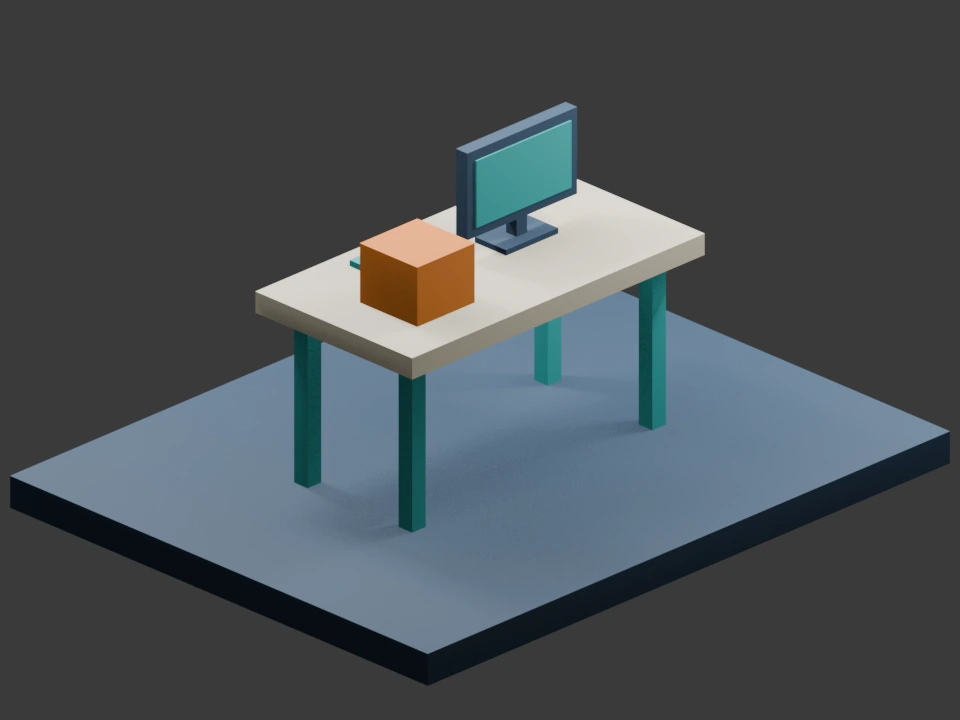
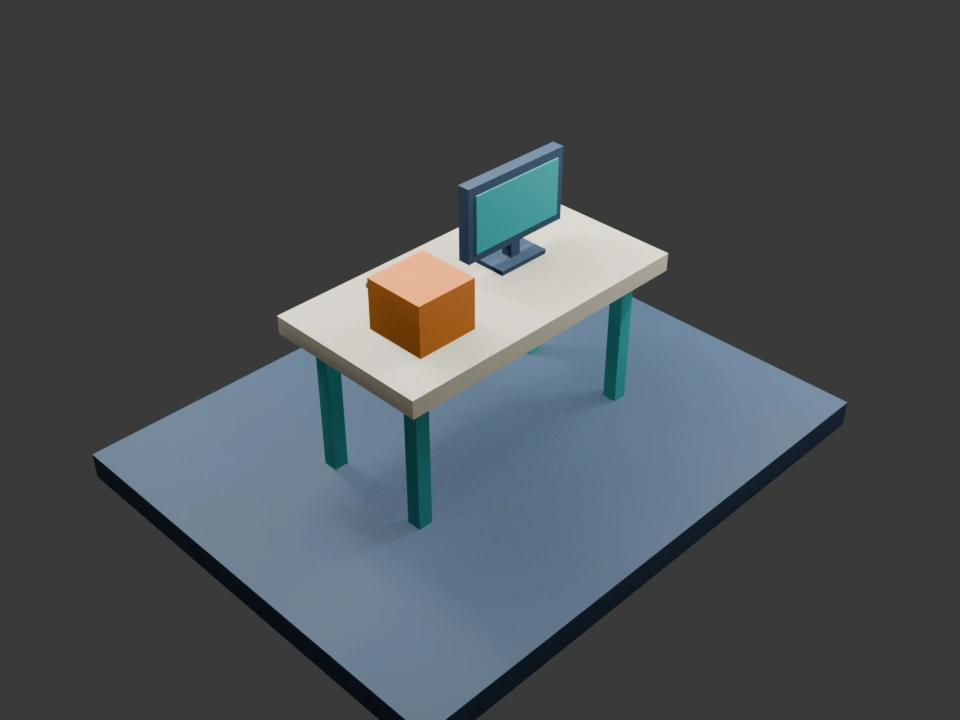
The scene contains a desk, display, notebook and orange product block. Open the isometric render, lower orthographic render and perspective render. These are native Eevee renders, not generated-image comparisons.
The equal-axis camera points toward the scene center from equal X, Y and Z offsets. Its elevation is approximately 35.264 degrees above the ground plane. The lower camera keeps equal horizontal offsets but reduces its height. The perspective camera uses the equal-offset viewing direction with a perspective lens. Camera settings, target coordinates and projected endpoints are saved in the measurements.
| Native view | Projected unit axes | Two parallel half-unit X segments |
|---|---|---|
| Equal-axis orthographic | About 120.59 pixels each | About 60.30 pixels each |
| Lower orthographic | X and Y about 113.53 pixels and Z about 133.59 | About 56.77 pixels each |
| Perspective | About 106.48 pixels each at the selected center | About 44.83 pixels farther away and 61.55 nearer |
The perspective result is an important distinction. Symmetry can make three unit axes equal at one selected point without making the complete view isometric. The same-length parallel segments at different positions change apparent size in perspective. Inspect both properties rather than judging the whole projection from one attractive cube.
Download the native project and measurements
The original Blender camera project contains all three named cameras. The active camera is isometric. Switch the active camera in a copy and render again to inspect the other views. The projection measurements record native camera types, coordinates and pixel lengths.
The original reproduction script creates the geometry and cameras in Blender 5 Eevee and writes the three comparison renders into a new output directory. It needs no external images or model weights. This is separate from the browser's vector block lab; the two exercises illustrate the same projection principle without sharing a native file format.
Plan the message before adding more objects
For a product diagram, give each block or object a specific role. A staircase can represent a sequence, a separated tower can expose layers, and a grid can compare parallel units. Do not let a spatial metaphor imply a measured quantity unless the geometry actually encodes that quantity.
For example, three equal platform blocks can represent three available workflow routes. If one is twice as tall, viewers may infer that it has twice the capacity or importance. Use height deliberately, explain the mapping and add final labels in your design application when exact typography matters.
Keep the hero subject clear and leave space for the real message. In the native desk study, the orange block is a deliberate contrast accent. It is an authored prop rather than a product claim. Use your approved product references for a real campaign and inspect the visible surfaces before publishing.
Use a controlled brief for an AI concept
Original unbranded desktop workspace seen from a consistent elevated orthographic direction. Keep parallel desk edges aligned, use a limited teal and cream palette, and place one orange product block clearly on the desk. Keep the scene uncluttered with room for a separate headline. Avoid text, logos and extra objects.
This is an original untested concept brief. A model may produce an isometric-looking image while bending edges or changing scale. Use Clout Image and Video for a supported image workflow or Marketing Studio for a product concept, then review the actual returned image. A prompt alone does not prove equal-axis projection.
Check long edges, repeated objects and contact with the ground. If the deliverable requires editable geometry or exact projection, keep the vector or native source as the authoritative asset. Treat a generated image as a visual concept until its required geometry has been inspected.
Save the diagram decisions with the export
Download the static steps SVG, tower SVG and grid SVG or inspect their example scene plan. The original vector projection source records the basis and drawing rules.
For the surface treatment, use the cel-shading study. For layered flat elements viewed through a moving camera, the depth-card study addresses a different question. Keep composition, projection, surface appearance and animation as separate decisions you can test.