%22%20stroke%3D%22%23172235%22%20stroke-width%3D%221%22%3ECLOUT%3C%2Ftext%3E%3C%2Fsvg%3E)

Chrome text is a lettering treatment that suggests polished metal through bright edges, dark bands and sharp changes in value. Use it for a short title, music cover, game announcement or motion poster. The free generator above creates that graphic style directly in your browser and exports a transparent PNG or editable SVG.
Make chrome text with a transparent background
- Enter a short word or title. The tool cleans whitespace and keeps up to 24 Unicode characters. Empty input becomes CLOUT.
- Choose Silver for a neutral metallic palette, Ice blue for a cool treatment or Warm metal for a warmer highlight.
- Set Offset depth from zero to twelve. Zero produces one face; higher values add darker copies behind it to suggest thickness.
- Leave Transparent background selected for an overlay, or turn it off to include the dark rectangular background in the file.
- Download PNG for a finished raster layer or SVG for scalable text and gradient editing. Inspect the actual file in your destination editor.
PNG exports are 1200 by 500 pixels. SVG uses the same viewBox and keeps the text live. The browser uses Arial Black, Arial or a system sans-serif fallback. An editor with different installed fonts can change the letter shapes. This tool does not bundle a font, convert lettering to paths or generate a finished logo identity.
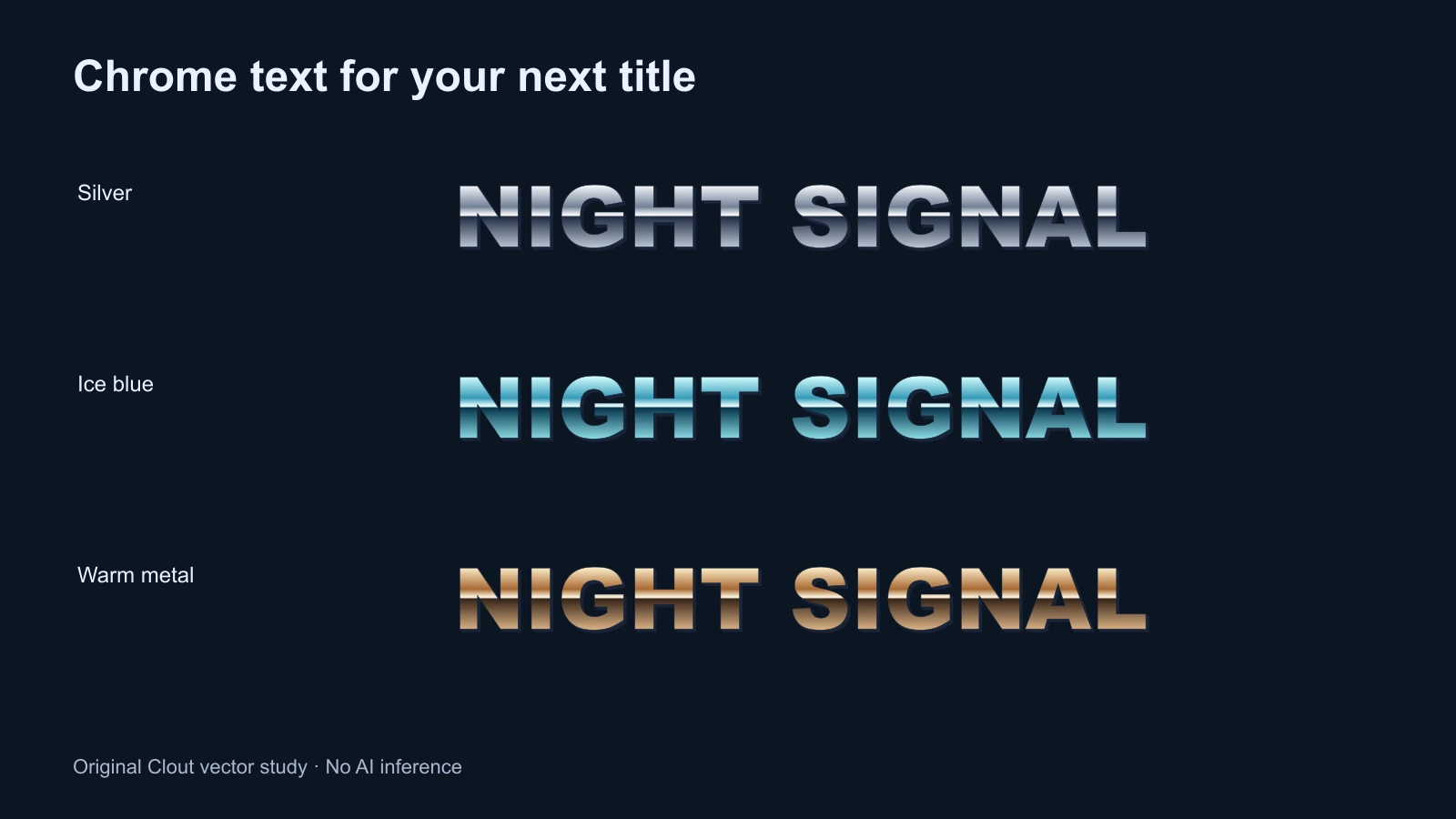
How the chrome lettering effect works
The face uses five vertical gradient stops. A bright region changes quickly into a dark band around the middle, then returns toward a lighter lower edge. That contrast suggests an environment reflected in metal. It is a graphic construction: the bright stripe does not move when you change a camera or light because there is no three-dimensional scene.
Each depth step is another text copy shifted one pixel right and down. With an offset of twelve there are twelve dark copies and one gradient face. The darkest outline separates the letters from a busy background. Increasing depth changes this graphic stack rather than adding a bevel to a mesh.
The MDN SVG gradient documentation explains the underlying gradient definitions and stop positions. Our treatment, palettes and text layout are original. Download the silver SVG example to inspect the actual text nodes and gradient.
Choose PNG or SVG for the job
| Format | Use it for | Check before delivery |
|---|---|---|
| Transparent PNG | Video titles and image overlays | 1200 by 500 pixel size and clean edges at the intended scale |
| SVG with live text | Vector layouts and palette revisions | Font substitution and SVG support in the receiving editor |
| PNG with dark background | A standalone title card | Whether the rectangular canvas belongs in the final composition |
A transparent export still has the full rectangular canvas. Transparency removes the background color; it does not crop the image to the letters. Place the PNG as an overlay and scale the layer proportionally. Enlarging a PNG beyond its original resolution can soften edges. Retain the SVG when you need to revise wording or make a larger raster export in another application.
Build a readable chrome title for a short video
Try a fictional original title, NIGHT SIGNAL, over a dark blue background. Keep the title to two words, choose the silver palette and begin with a modest offset. Use a plain smaller subtitle such as “An original short” below it. Let the title carry the visual treatment while the supporting copy stays readable.
Keep the lettering inside the final crop. A wide title card may need two separate text layers for a vertical video rather than squeezing all the letters into one narrow line. The generator fits its word to a bounded width; long phrases become condensed. Shortening the phrase generally preserves a stronger silhouette than forcing a paragraph into decorative lettering.
Import the export into your editor and try a simple fade or a restrained scale change. Keep enough time for a viewer to read the title at normal playback speed. Avoid making several other elements flash across the lettering at the same moment. Review at phone size and on a light background as well as a dark one; the shadow and thin edges can behave differently.
Combine the title with an AI image or cinema workflow
Keep exact lettering separate from image generation. Prepare a background or scene in Clout Image and Video, inspect the returned image, then place the exported title in the edit. For connected shots, plan the scene in AI Cinema before choosing where the title appears. The local chrome tool does not call an AI model or spend generation credits.
An original starting direction for a background is: “An empty midnight radio room, one small amber indicator light, deep blue surfaces, clear negative space in the upper half, no lettering or logos.” Adapt that untested direction to the supported inputs of the selected model. Keep the title as a separate verified layer rather than assuming the model will reproduce spelling.
For a surface that changes into flowing metal, use the separate melted chrome effect workflow. That is a material-transformation intent. For a flat printable texture, the halftone generator offers a different graphic treatment. Choose the visual treatment that makes the title or story clearer.
Inspect the original lettering and geometry source or asset builder to reproduce the examples. Run the builder with Bun and Sharp installed, keep the two files together and choose a new output directory.
Fix common chrome text problems
| Problem | Likely cause | Useful revision |
|---|---|---|
| Letters look compressed | Too much text in the fitted width | Shorten the title or use separate lines in your editor |
| SVG letters change shape | Different font fallback | Use the browser PNG or inspect fonts in the destination application |
| Text disappears over an image | Similar values behind the face | Add a quiet background region and reduce competing detail |
| Metal does not react to a moving light | The asset is a fixed gradient | Use a native 3D text and material workflow if reflections must change |
Save the source SVG alongside the final raster file. Check spelling, crop, transparency and readability in the actual exported video or image. A good-looking browser preview is the starting point; the delivered composition is what viewers see.