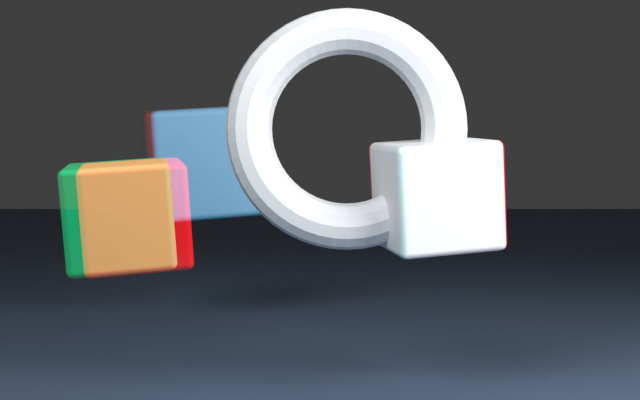
Anaglyph 3D stores two eye views in different color channels so red/cyan glasses can separate them. To make a red-cyan anaglyph here, supply a matched left and right image, keep red from the left view and green plus blue from the right view, then export the combined PNG. Wear the red filter over the left eye and cyan over the right eye for the default mapping.
The free local anaglyph maker above starts with our original two-camera Blender scene. You can replace both images with your own PNG, JPEG or WebP pair. Files stay in your browser. The tool combines decoded image channels; it does not estimate depth, generate a second viewpoint or align a mismatched stereo pair.
What anaglyph 3D red cyan means
A stereo pair records a scene from two horizontally separated viewpoints. Corresponding features land at different horizontal positions according to their depth and the camera setup. An anaglyph encodes those views into one color image. With the matching filters, each eye receives a different part of that image and may perceive the disparity as depth.
For our direct color method, the output red channel comes from the left image. The green and blue channels come from the right image, forming cyan. ImageMagick’s official compositing reference describes its stereo operation in the same channel-selection terms, using source and destination terminology. Always check which input an application calls source, destination, left or right.
The visible red and cyan outlines are the two encoded views. A colored fringe alone does not prove that a pair contains correct depth. Two displaced copies of one flat photograph can create an overall offset, but they do not recover the different occlusions and perspective changes of a real second viewpoint.
Make an anaglyph from two images
- Prepare a left and right view of the same scene with matching framing, orientation and decoded pixel dimensions.
- Choose Left image and Right image above. Both files must be PNG, JPEG or WebP, at most 16 MB each, with sides from 16 to 2048 pixels and no more than four million pixels per image.
- Inspect the combined preview. The default reads red from left and green plus blue from right.
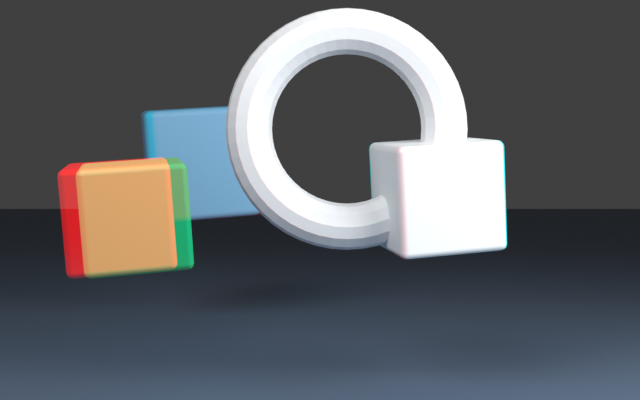
- Use Swap eye sources only to compare the opposite assignment. It reverses the inputs used for red and cyan without moving, resizing or aligning either image.
- Download the lossless PNG, JSON settings and channel-summary CSV. Keep the original stereo pair with the export.
The tool requires identical dimensions. It rejects a different width or height instead of silently stretching one view. Matching dimensions are necessary but not sufficient: two unrelated images, different camera rolls or a moving subject can still produce an unsuitable pair.
If an upload fails, downloads remain blocked until a valid source replaces it. A previous successful result cannot be exported as though it belonged to a newly rejected file. Each preview and settings record belong to the current pair and eye assignment.
Inspect an original two camera scene
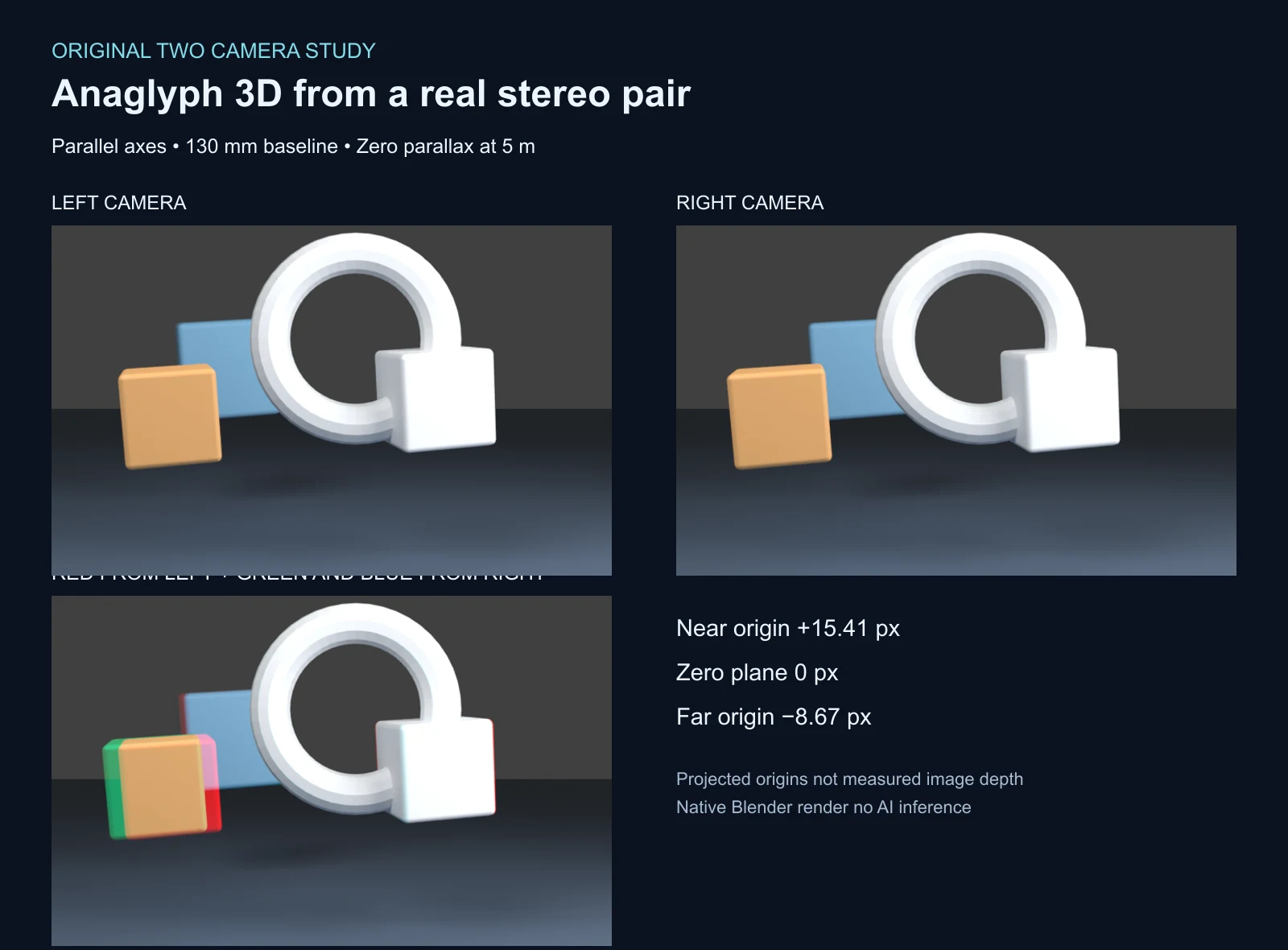
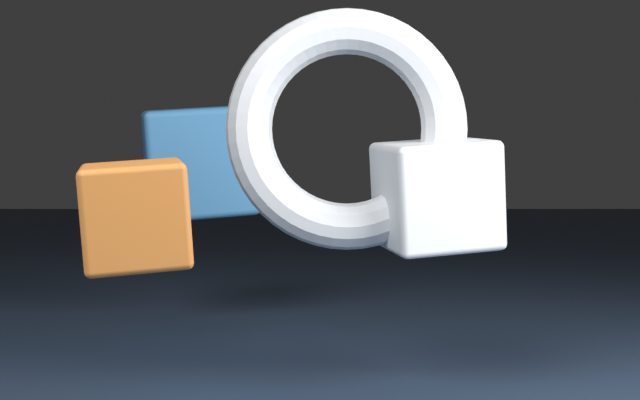
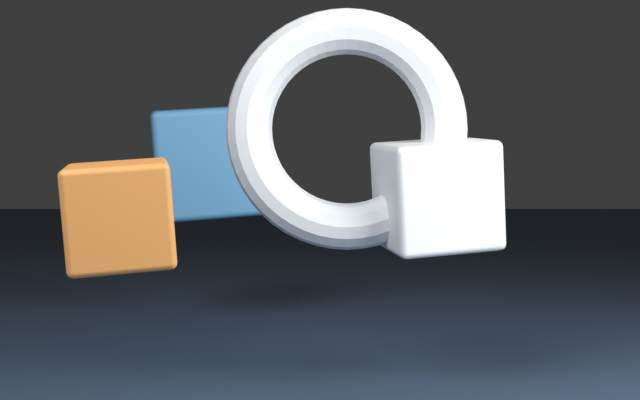
The original scene contains three floating cubes and a ring. We rendered it with two parallel camera axes, a 130 mm baseline, a 50 mm lens and a 36 mm horizontal sensor width. Opposing lens shifts place the zero-parallax plane five meters from the cameras. Both renders are 640 by 400 pixels. The downloadable project preserves the geometry, lights and camera settings.
These are native Blender renders, not AI-generated images or frames recovered from a photograph. The deliberately different object depths make a useful test: a single global horizontal shift cannot account for all three projected origins.
| Object origin | Depth from camera plane | Left minus right horizontal position | Interpretation in this setup |
|---|---|---|---|
| Near cube | 3 m | About +15.41 px | Closer than the zero-parallax plane |
| Zero plane cube | 5 m | About 0 px | At the selected zero-parallax depth |
| Far cube | 8 m | About −8.67 px | Farther than the zero-parallax plane |
These values come from projecting object origins through Blender’s camera matrices. They are not image-matched depth estimates, surface-wide disparity bounds or a viewing-comfort certification. The zero-plane cube has depth across its surface, so a zero-disparity origin does not imply every point on that cube has zero disparity.
Download the left render, right render, default anaglyph and swapped-eye comparison. Use the lossless PNGs for channel inspection. The WEBP illustrations are viewing aids and can alter exact pixel values through compression.
Choose a real stereo pair
| Input | What it contains | What to check before combining |
|---|---|---|
| Two virtual-camera renders | Two views of the same modeled scene | Baseline lens shifts projection framing and matching render settings |
| Two photographs of a static scene | Two captures from separated positions | Exposure focus roll vertical alignment and movement between captures |
| Two independent generated images | Potentially different geometry and content | Identity occlusions object edges text and whether they are a coherent stereo pair |
| One image duplicated and shifted | The same view at an offset | No recovered second-view geometry or newly revealed surfaces |
The Blender stereoscopy manual explains the relationship between the stereo camera pair, interocular separation and convergence plane. Our downloadable scene uses explicit separate cameras and opposing lens shifts so the setup can be inspected directly rather than inferred from a flattened image.
Do not use toe-in rotation as an unexplained substitute for the documented setup. Rotating cameras toward a point changes projection relationships. A photograph pair can also require rectification before channel combination. This page’s maker does not perform rectification, lens correction or automatic feature matching.
Understand eye swapping and reversed depth
Swap eye sources places red from the right input and cyan from the left input. In the saved example, the projected horizontal disparity signs reverse. This is useful for diagnosing input order, but it is not a universal repair. A pair with vertical misalignment, different framing or inconsistent content remains mismatched after swapping.
For the default output, use red-left and cyan-right glasses. If your glasses or viewing application use another convention, check the whole chain before judging depth. A reversed pair can make the intended near/far ordering appear wrong. Keep the settings JSON beside the PNG so the channel assignment is explicit.
Handle color transparency and ghosting
Direct color anaglyphs sacrifice independent full-color information for the two eyes. Strong red or cyan objects and unequal brightness can look different through the filters. Ghosting can also depend on the display, glasses and image content. This tool does not simulate your glasses or certify the resulting depth experience.
Each input’s alpha is composited onto white before selecting channels. The calculation uses decoded byte values and integer rounding. Fully transparent pixels become white; partially transparent pixels blend toward white. The output is opaque. This is an explicit browser byte-space convention, not a calibrated linear-light or spectral filtering model.
Compare the left transparency fixture, right fixture and combined opaque result. This maker uses direct color-channel selection, not a grayscale method or a Dubois color-correction matrix. Keep those methods separate when comparing results from other editors.
Use anaglyph in an AI image workflow
A useful sequence is concept, coherent stereo source, channel combination and final display review. Use Clout Image and Video to explore an original visual concept through a supported image workflow. A generated concept image is not automatically a stereo pair. Build or capture the second view through a workflow that actually preserves scene geometry, then inspect both sources before using this maker.
For a cinema project, decide the scene and framing first in Clout Cinema. This still-image tool does not turn a video into stereo, generate camera-conditioned frames or integrate a Blender project into a generation model. It handles a specific finishing step once a valid image pair exists.
For a separate graphic treatment after approving an image, try the image dithering converter. It reduces an image to a patterned grayscale palette; it solves a different problem from stereo encoding.
For another repeated-pattern workflow inspect the moire pattern explorer and its separate sampling example.
For a different single viewpoint size illusion use the forced perspective photography planner and its native camera reveal.
Reproduce the original study
Download the original Blender project, native scene builder, camera record and projected origin CSV. The scene builder checks the projected disparity against the stated pinhole expression before rendering the two views.
The local channel helper and asset builder reproduce the default, swapped and transparency outputs. An independent pixel verifier compares every saved output channel with a separately expressed combination. Read the validation record, default settings, channel summary and reproduction instructions. The asset manifest records the published file hashes.