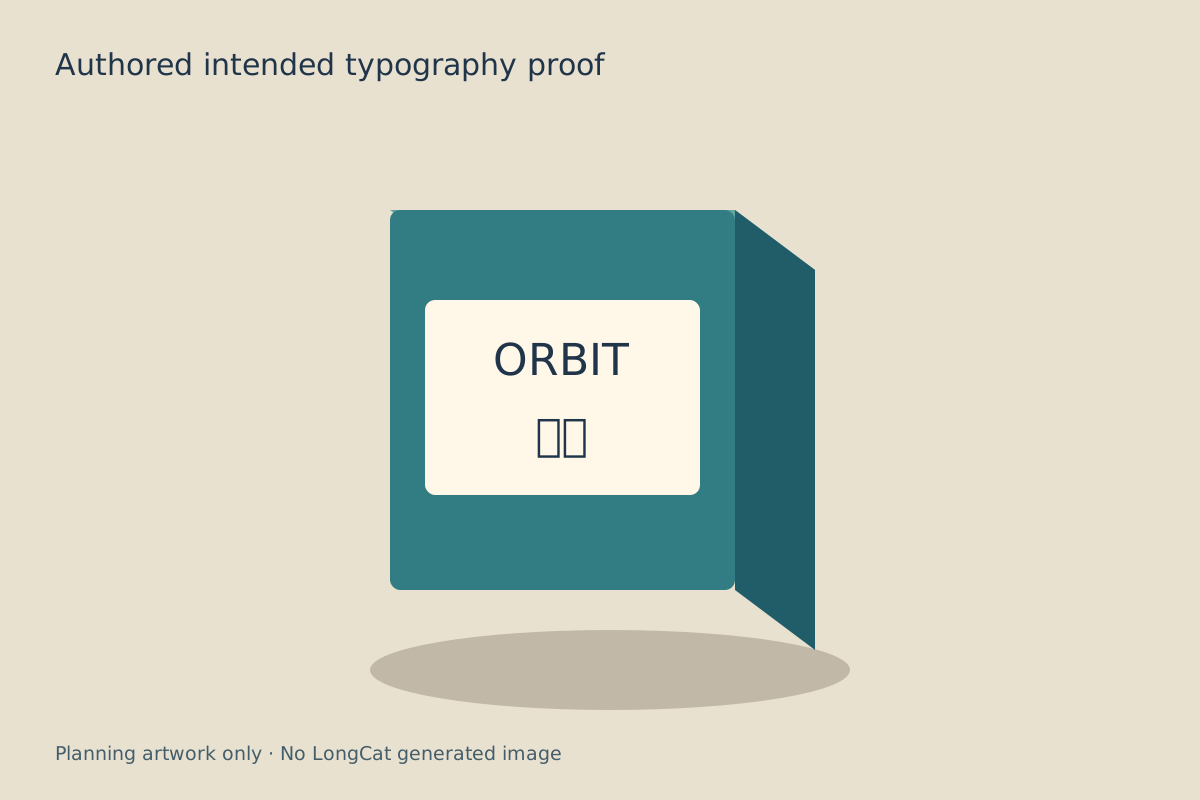
LongCat Image Edit is an image-editing model in Meituan’s LongCat Image family. For a product label edit, start with an approved source image, specify the literal text in quotation marks, and compare the saved result against a character-by-character acceptance sheet. Use the free tool above to prepare two label lines without silently rewriting their content.
This guide uses an original teal package with a blank cream label and the intended lines ORBIT and 清晨. The target illustration is manually typeset planning artwork. It is not a LongCat output, model benchmark or evidence that the model reproduced the lettering. No checkpoint was loaded or inference performed for this study.
Prepare a bilingual label edit
- Choose a source you own or can edit. Save an untouched copy with the product silhouette, label area and lighting you want to retain.
- Enter First label line and Second label line in the tool. Confirm spelling, capitalization and the exact Chinese characters with the person approving the copy.
- Read the browser typesetting preview. It confirms your entered strings, not the typography a model will generate.
- Download the prompt TXT, review JSON and character CSV. Keep them beside the source image and the actual generation settings.
- Run the edit through your chosen supported implementation and inspect the returned file. Reject changed characters or product geometry even when the overall image looks attractive.
The default review contains seven Unicode code points: five letters in ORBIT and two characters in 清晨. Its character sheet records 清 as U+6E05 and 晨 as U+6668. These are literal identity checks rather than a translation service, font guarantee or model token count.
Separate the blank reference from the intended text
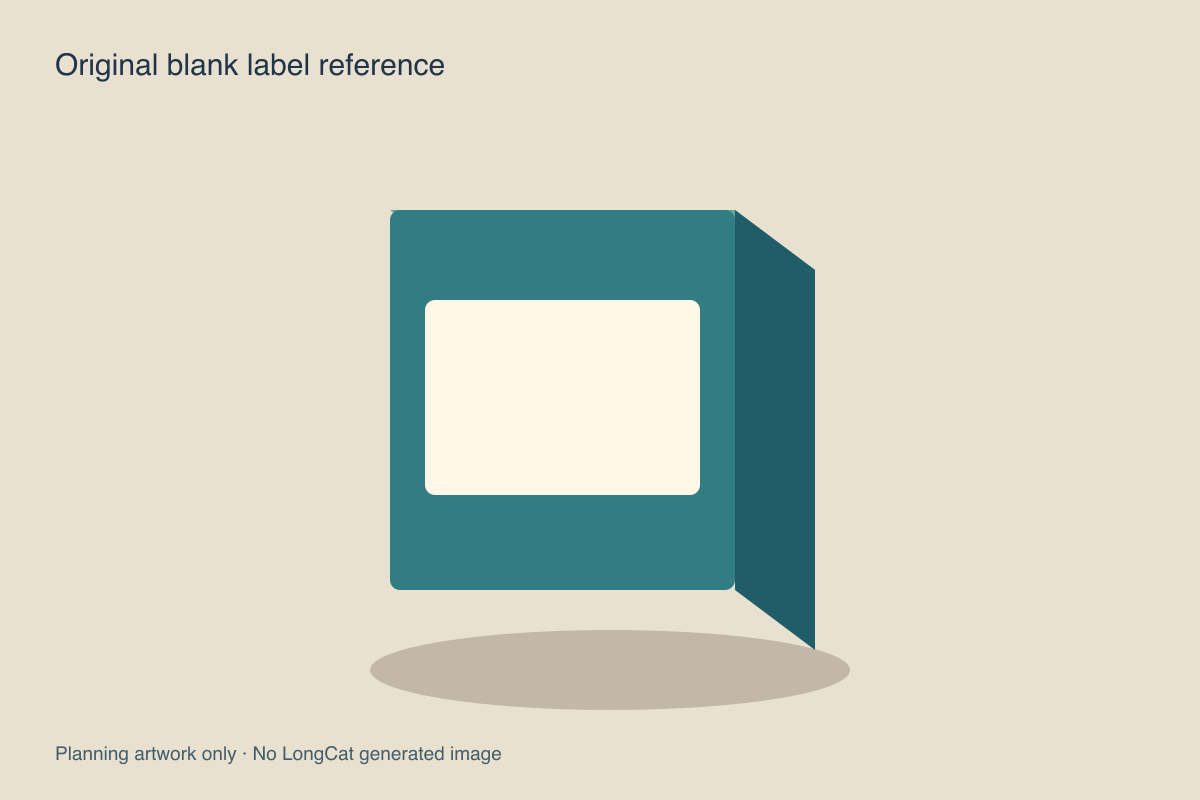
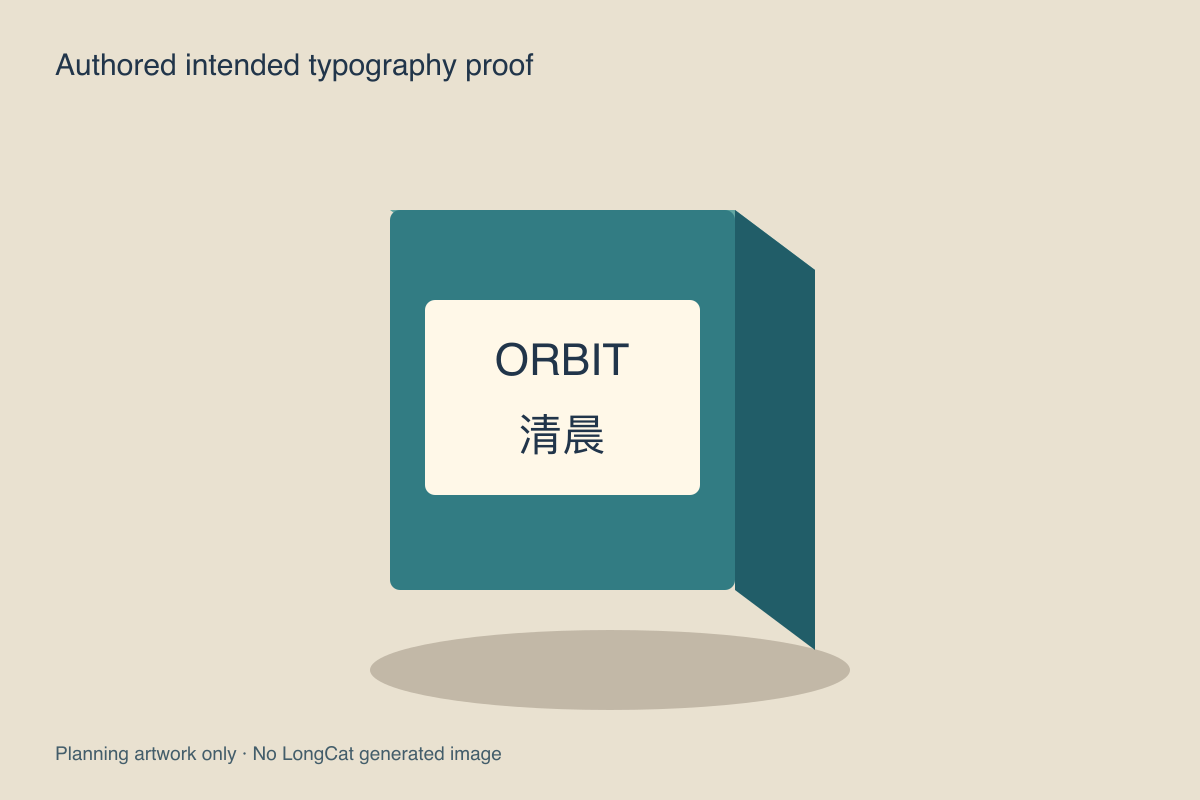
Download the blank PNG reference, intended text PNG and editable target SVG. Use the blank image as the editing source and the text proof as the acceptance reference. Do not pass off the manually typeset target as a successful model edit.
This narrow task isolates a useful production question: can the returned image retain the package while adding the approved label text? Adding a new scene, changing the box material and replacing the label in the same pilot would make failures harder to diagnose.
Why quotation marks matter for LongCat text
The official LongCat README recommends enclosing intended rendered text in quotation marks to activate its specialized text handling. The pinned Diffusers editing pipeline makes the boundary more concrete: its quote splitter identifies matched segments, and the encoding path processes those matched segments one Python character at a time, including the quotation delimiters.
Character-by-character tokenizer calls do not establish a one-character-to-one-token relationship. A character can produce multiple token IDs. Our tool reports Unicode code points for the expected label only; it does not run the model tokenizer, count full prompt tokens or predict visual accuracy.
The tool selects an available straight or curly quote pair that does not already occur inside the literal string. If a line contains every supported delimiter type, it stops with an error rather than silently changing your copy. Each line must be nonempty, single-line and no longer than 80 Unicode code points. That is this preparation tool’s limit, not a claimed LongCat input limit.
Use the supplied prompt as a controlled first attempt
Change only the package label text The first line must read "ORBIT" and the second line must read "清晨" Keep the box shape cream label teal body lighting and camera unchanged Do not add other text
The default prompt TXT, review JSON and character CSV preserve this original preparation exercise. Adapt the preservation instruction if your source has different materials or composition. These are review resources, not a guarantee that an edit will preserve every detail.
If the returned label is wrong, record the actual mismatch: missing letter, incorrect character, extra text, changed line order or poor placement. Keep the same approved text while testing one change to the instruction or supported settings. Replacing a failed output with manually typed text is a valid finishing decision, but record it as manual finishing.
Choose Image Edit or Image Edit Turbo explicitly
| Route | Published example | What to record |
|---|---|---|
| LongCat Image Edit | Standard editing example uses 50 inference steps and guidance 4.5 | Exact checkpoint revision, implementation and settings |
| LongCat Image Edit Turbo | Distilled editing example uses 8 steps and guidance 1 | Turbo checkpoint and its own recipe rather than assumed interchangeability |
| LongCat Image | Text-to-image route | Whether you are generating a new image rather than editing an existing source |
The standard and Turbo examples are documented in the pinned repository and the official Edit model card and Turbo model card. Their step counts are source recipes, not our measured latency or quality comparison. Fewer steps alone do not prove which route will produce an accepted label at lower total cost.
Check the actual environment and complete model dependencies before running a local job. Published CPU-offload memory notes are upstream examples rather than a measured minimum for your machine. This article does not claim a fresh release, viral adoption, or that Clout hosts these checkpoints.
Approve the text and product separately
| Review | Pass condition for this exercise |
|---|---|
| Literal identity | ORBIT and 清晨 match the approved strings with no substitutions |
| Layout | Two intended lines remain on the cream label with readable spacing |
| Product preservation | Front face, side face, box outline and label shape stay consistent with the source |
| Scene preservation | Lighting, view and background remain appropriate to the approved edit |
| Delivery | The saved export remains readable at the actual campaign crop and display size |
Inspect at a useful zoom and at the intended delivery size. Ask a fluent reviewer to approve Chinese copy when it will be published. OCR can be a supporting check, but a recognized string does not prove that every visible glyph is correct or that the product remained unchanged.
Keep the source, exact prompt, variant, revision, seed when exposed, settings, raw returned image and finishing record. Track actual attempts and accepted deliverables. When none passes, record zero accepted files and the spend rather than calculating a cost per accepted file with a zero denominator.
Turn the accepted image into a wider campaign
Once a single label edit passes, plan a second background or crop while retaining the accepted product reference. Use the HiDream reference preparation guide to understand a different model’s geometry rules, or the light painting planner for a controlled product composition. Preparation rules belong to the implementation you actually use.
Explore supported original imagery in Clout Image and Video or develop product variations in Marketing Studio. For a moving shot, the gimbal lock axis lab helps diagnose native camera rotation before producing references. The label tool itself makes no generation request and does not upload an image.
For a distinct model preparation path, compare the Mage Flow Edit input geometry map.
Inspect the source audit and reproduce the resources
The source audit records eight small official documents with their revisions and SHA256 hashes. The read-only auditor can recheck them with its baseline option without downloading weights. Review the actual component licenses before deployment; the repository publishes an Apache license.
The literal preparation source preserves entered text and builds the prompt and CSV. The asset builder recreates the original package vectors, typeset target and review files with Bun and Sharp. Its companion native directory is needed for the batch’s separate gimbal assets. Source inspection and literal tests establish preparation behavior; only inspecting a real generated output can establish whether an image edit succeeded.