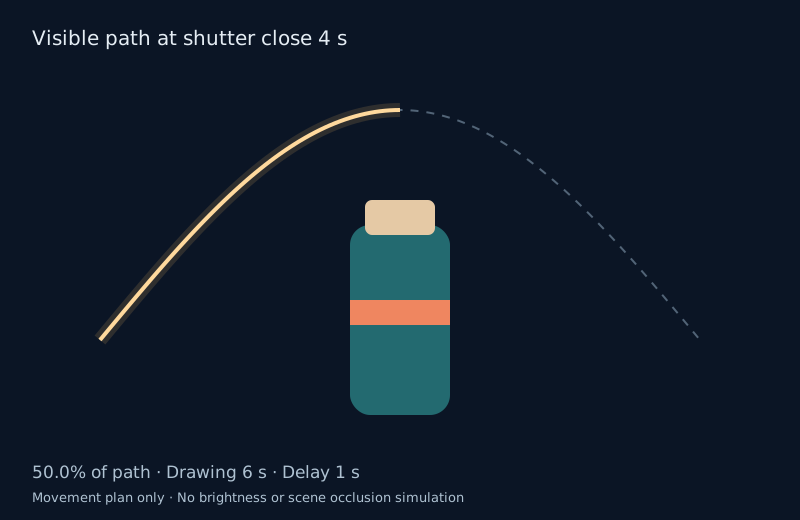
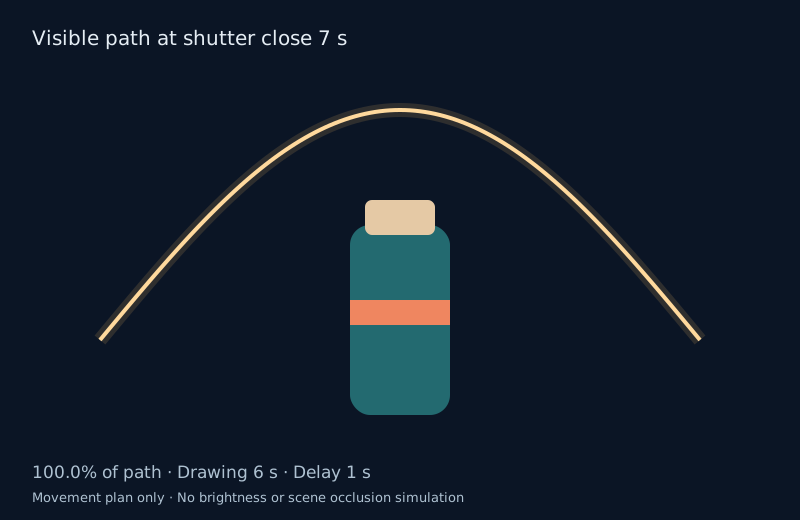
A light painting photo can show a line drawn by a moving light, a subject revealed by a moving beam, or both. Decide which image you want before choosing a shutter time. A glowing line behind a product and a flashlight sweeping over its surface are different lighting actions.
This guide uses an original teal bottle and a simple arch as a repeatable planning exercise. You can download the movement plan, adapt it to a permitted capture location, or use the composition as a clearly described direction for an AI image. The examples are original vector plans and native Blender staging references, not photographed exposures or model outputs.
For frame based exposure timing use the shutter speed and shutter angle calculator.
Make the first light painting plan
- Choose one stationary subject and one light movement. Start with a tabletop object rather than a complicated scene.
- Set Drawing time to the time you need to complete the movement. Add the delay between opening the shutter and beginning the path.
- Make Shutter time long enough for the intended action. Compare a partial path with a complete one before capturing anything.
- Download the SVG as a visual reference and the CSV or JSON as a timed movement ledger. These image coordinates are planning units, not measured distances in a room.
- Rehearse at your actual scale, take a test exposure and inspect the saved photograph. Adjust the plan to the capture rather than assuming the illustration predicts brightness.
The default drawing takes six seconds and begins after a one-second delay. A four-second shutter window therefore records only the first three seconds of movement: half of the prescribed path. Extending the shutter to seven seconds makes room for the whole action. The tool includes 121 samples from the start through the endpoint.
Compare a partial path with a complete path
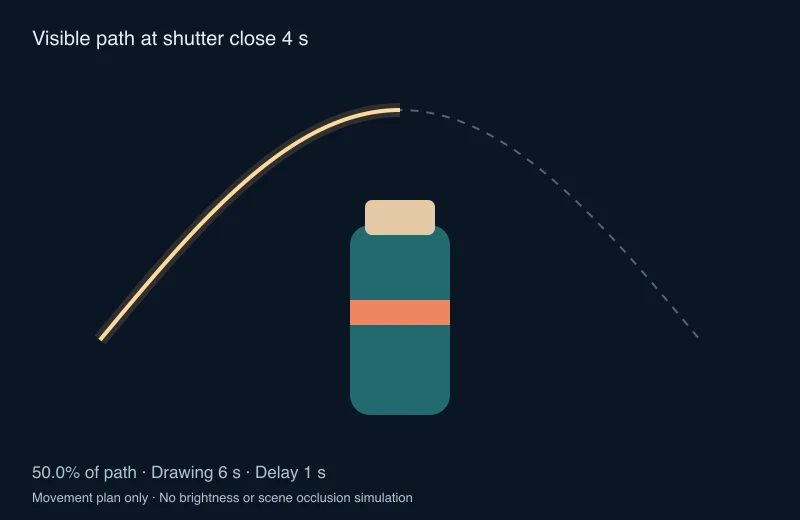
The dashed line shows the full planned route. The solid line stops where the light would be when the shutter closes under the stated timing. It is a timing diagram: it does not calculate aperture, ISO, source power, sensor response, surface reflection, depth or whether an object hides the light.
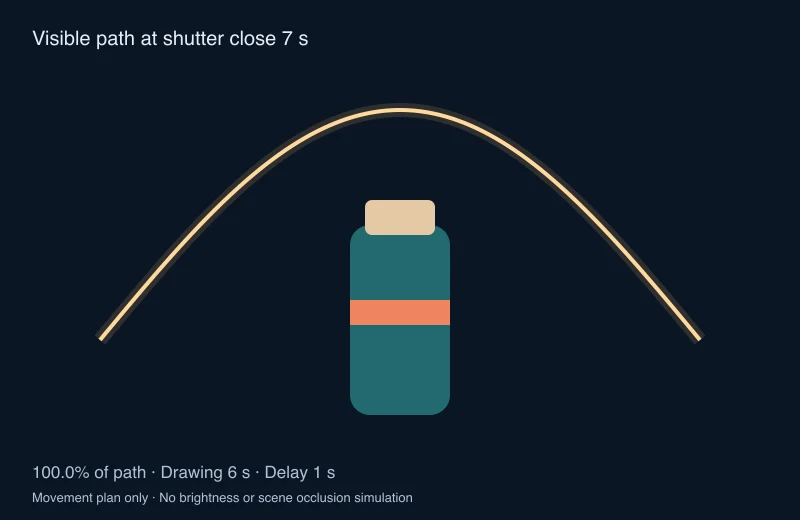
Download the partial SVG, complete SVG, complete timed CSV and complete review JSON. Their geometry is authored for this exercise. The full ledger includes samples outside the shutter window so you can see which part of a rehearsal would be omitted.
Choose camera settings from a test exposure
Use a steady support, a controlled light source and a location where you can work without moving the camera. Adobe’s light painting introduction explains the relationship between a moving light and an open shutter. Its equipment discussion includes a tripod and remote trigger.
For subject illumination, Nikon’s Dave Black tutorial recommends starting with a small subject and flashlight. His example starting point is 30 seconds, f/8 and ISO 400, with exposure reviewed on the camera. That is a photographer’s starting guideline rather than a setting required by our six-second movement exercise.
| What you observe | What to test next |
|---|---|
| The path stops early | Rehearse faster or allow more shutter time including the starting delay |
| A white trail loses color and detail | Reduce the light reaching the camera and compare another exposure |
| The subject remains too dark | Review how the beam reaches the subject instead of only drawing toward the lens |
| The background becomes distracting | Compare ambient light and shutter time while preserving the intended movement |
| The entire scene shifts | Stabilize the camera and use a release method that avoids bumping it |
Keep notes on the actual lens, aperture, ISO, exposure time, light and movement. Change one variable for the next test when possible. A long exposure can reveal ambient illumination that looked insignificant while setting up.
Stage a product without confusing the trail with illumination
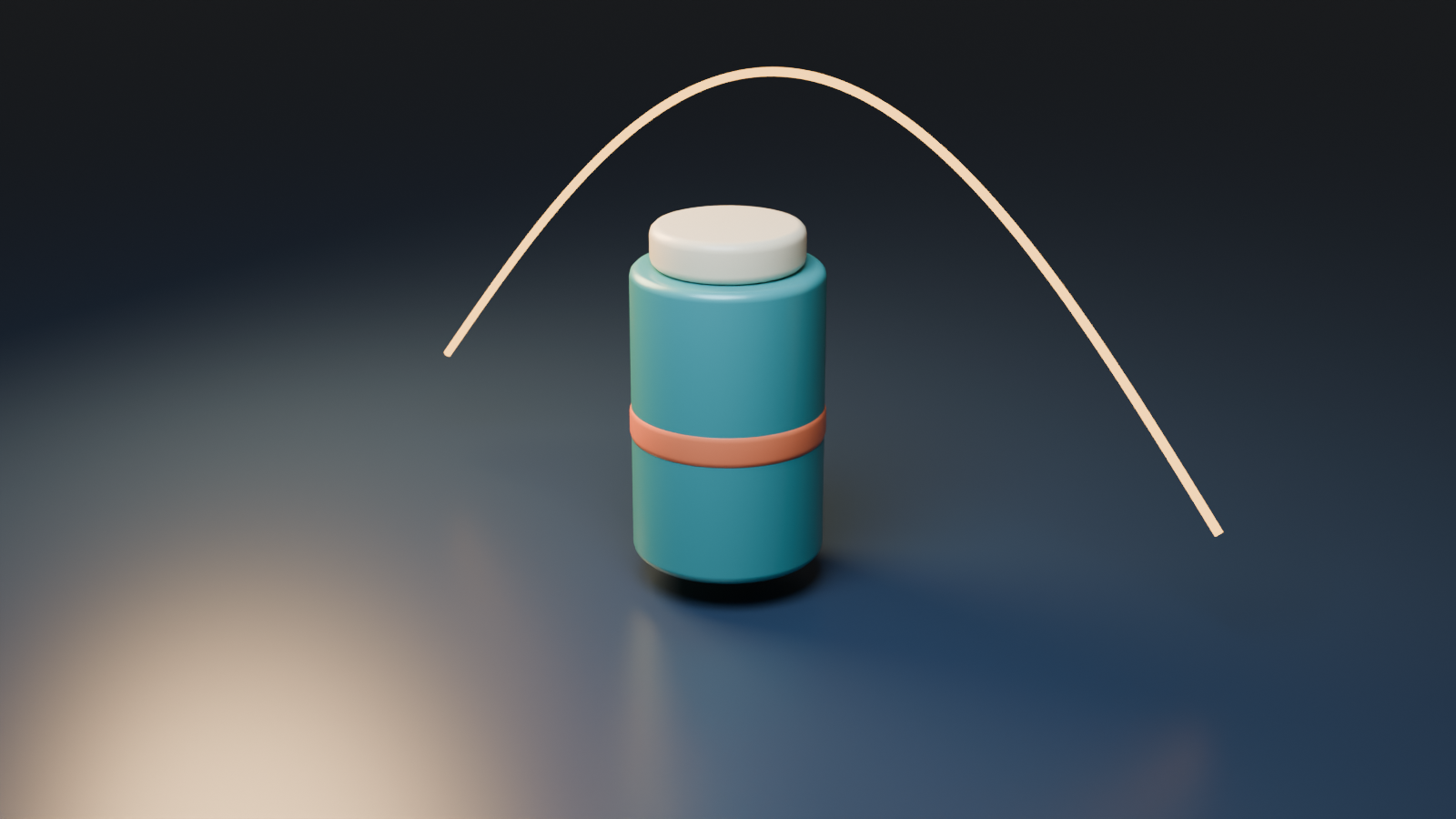
Our native scene separates three useful decisions: the bottle stays still, the arch sits behind it, and separate area lights reveal the product. The modeled curve is a composition reference. It does not establish what a handheld source would expose or how a real camera would respond.
For an actual product photograph, first capture a clean reference of the product. Check its cap, band, silhouette and surface detail. Then plan where the light travels in front of or behind it. A bright route that crosses the label or hides the subject can weaken an otherwise attractive effect.
Use a simple continuous LED or flashlight for a first pilot. Keep the route clear of the product and camera support, and rehearse with room lighting before working in the dark. This exercise needs no sparks, flame or other special effects.
Direct an AI light painting image with an observable brief
For an AI image, describe the intended visual result and the product details that must remain consistent. An illustrative direction for this original reference is:
Keep the teal cylindrical bottle, cream cap and single coral band from the approved reference. Place one warm arch of light behind the bottle against a dark blue studio background. Preserve the complete cap and base, a stable tabletop contact shadow and an uncluttered product silhouette. Do not add lettering or extra products.
This is an untested creative direction, not a generated example. Inspect the returned image for changed geometry, extra bands, altered materials and a trail crossing the wrong part of the product. Add final verified product text during editing when precise lettering matters.
Explore supported original imagery in Clout Image and Video or develop a campaign in Marketing Studio. For a downloaded model route, the HiDream O1 reference preparation guide explains why an uploaded reference can change dimensions before generation. The path planner itself does not generate an image with AI.
For a native camera move around the product, inspect the gimbal lock axis lab before making camera references.
Reproduce the original planning resources
The timing and geometry source and asset builder reproduce the vector diagrams and ledgers with Bun and Sharp. Use a new output directory and the completed native study directory. The Blender builder creates both original staging projects and renders. Its native record states the image sizes and camera matrix.
Open the luminous arch staging project to inspect its native geometry. It was rendered in Blender 5.2 LTS Release Candidate with Cycles. This is a reproducible composition study rather than a claim that a physical light-painting shoot was performed.
For related capture decisions, compare the volumetric lighting guide. Use the same distinction throughout: a movement plan, an original native render, a photograph and a generated image each prove different things.