Use a 3D prop when the camera needs more than one view
A drama scene may need a recognizable desk lamp in a wide shot and an insert of its switch. Image-to-3D can supply a candidate asset for that process, but a complete workflow includes reference preparation, the exact graph, export and a destination-application review. Keep the intended camera path in the brief so that you judge the surfaces the audience will actually see.
Microsoft's official TRELLIS 2 repository describes an image-to-3D model with PBR material output and links its model files. Its inference example separates mesh generation from GLB export. A completed generation step therefore does not by itself prove that you saved a usable file. We did not run the model or measure its speed, memory use or reconstruction quality.
Start with the current native ComfyUI template
Comfy Org announced native TRELLIS 2 and Pixal3D integration on August 31, 2026. Check the current core workflow before installing a third-party wrapper from an older tutorial. Preserve a working environment and read the version notes before changing it.
The official ComfyUI tutorial names the template Pixal3D & TRELLIS.2: Image to Model. It documents a LoadImage input, a Boolean named Switch to Trellis2 and Preview3DAdvanced. Set that Boolean to true to select TRELLIS 2; the combined graph otherwise defaults to Pixal3D. Follow its model notes: both diffusion checkpoint files are required for the combined template even though the switch chooses the branch.
- Open the official template in a compatible ComfyUI version.
- Review the documented model destinations and required files before queuing.
- Load the approved single-object image and select the TRELLIS branch.
- Save the graph and relevant settings with that exact input.
- Inspect the preview, locate the actual saved export and reopen it in the destination application.
The documented categories include diffusion models, VAEs, vision encoding and background removal. The tutorial points to output under ComfyUI/output/3d/ComfyUI/. Inspect your actual saved path rather than assuming a preview has already written the final file. Missing core nodes may require a newer ComfyUI release; check the tutorial's version guidance before adding unrelated custom-node packages.
The official template JSON is a concrete source to inspect. We checked the documentation and graph source, but did not execute that graph or download its model files. Use the ComfyUI workflow guide for broader environment and graph-recording decisions.
Prepare one image that explains the object
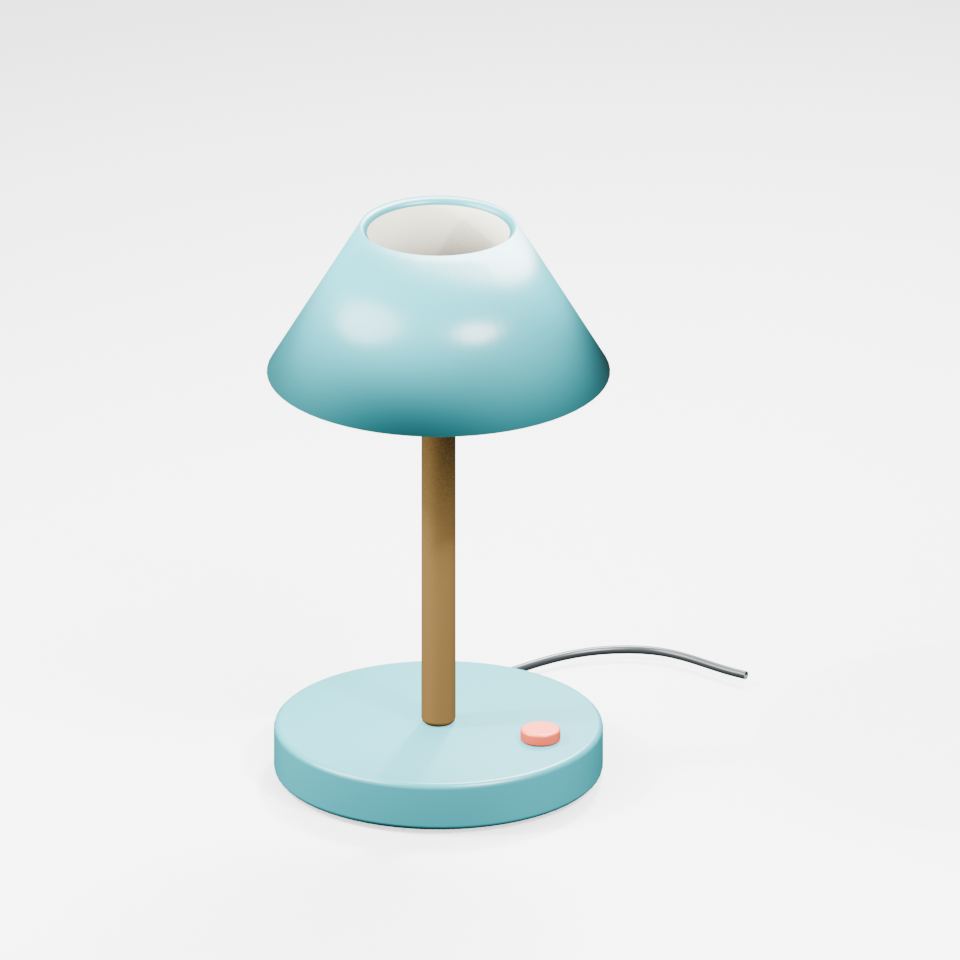
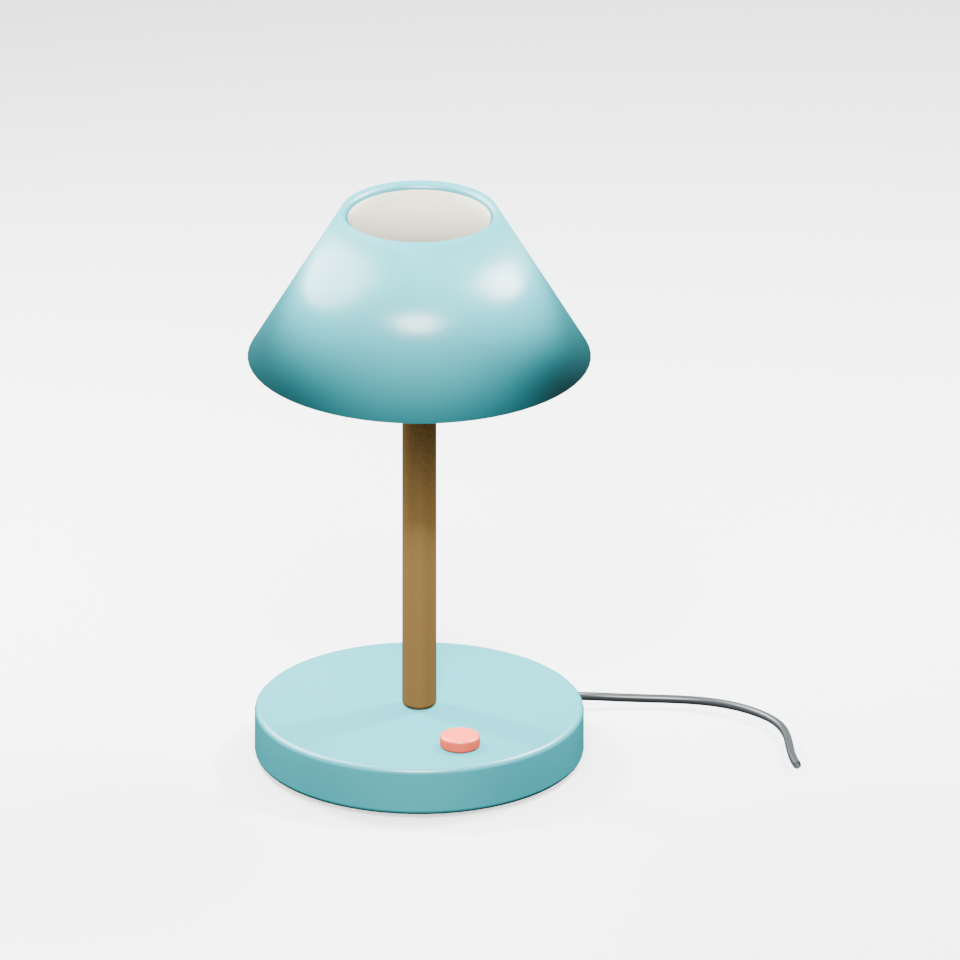
Start with a single isolated prop and a view that shows its main structure. The original lamp's three-quarter view exposes its shade opening and switch without hiding the base. Preserve enough margin for the cable. A tightly cropped image can remove a part that the next production shot needs, even when the resulting object initially looks cleaner.
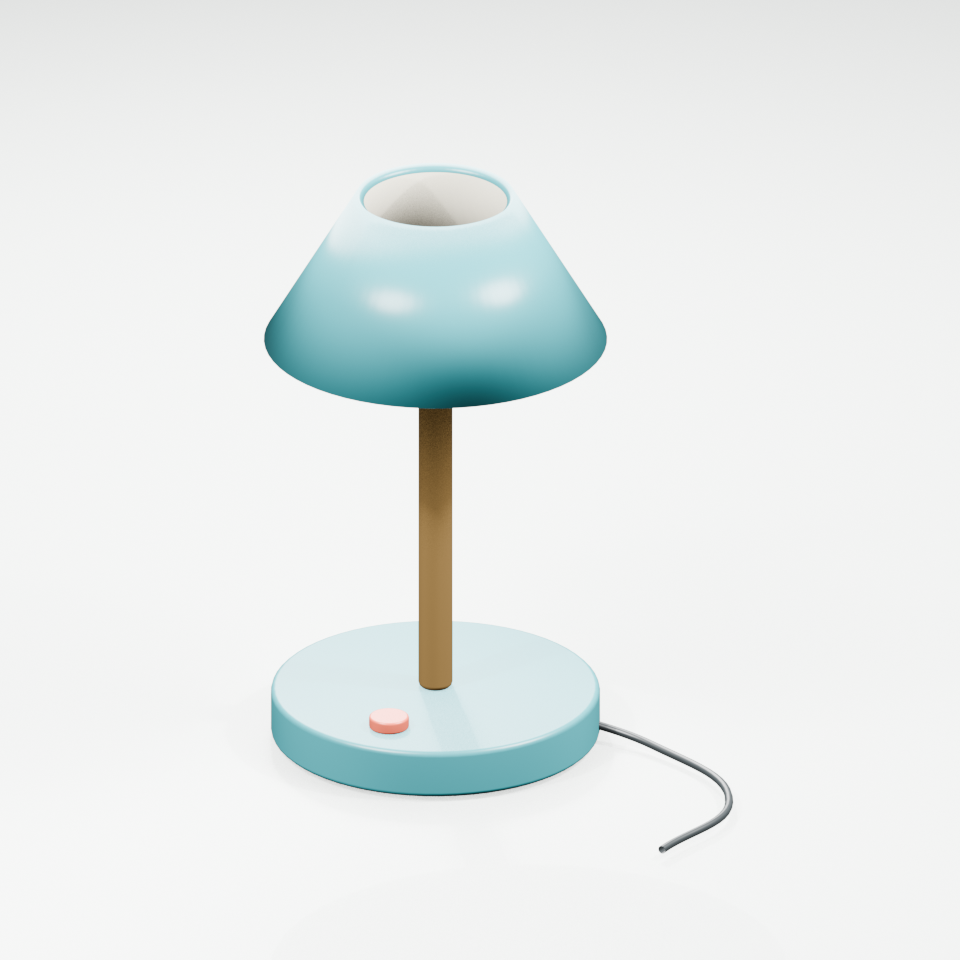
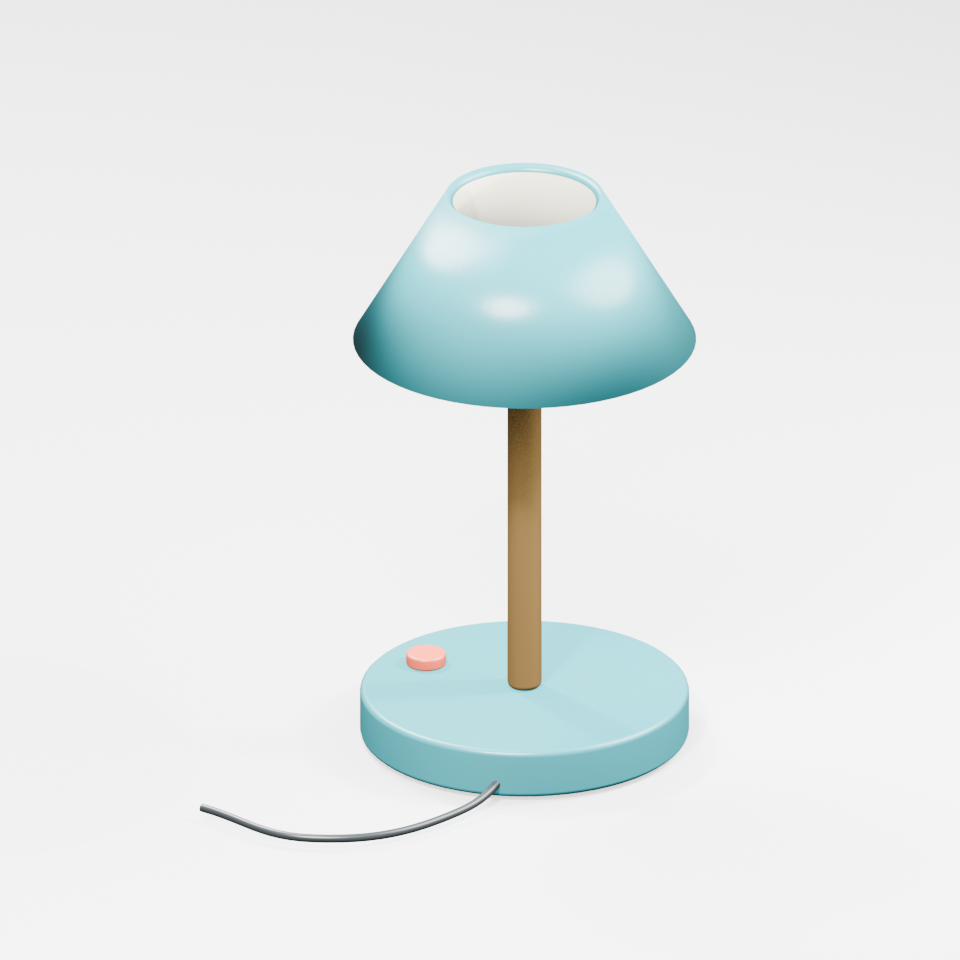
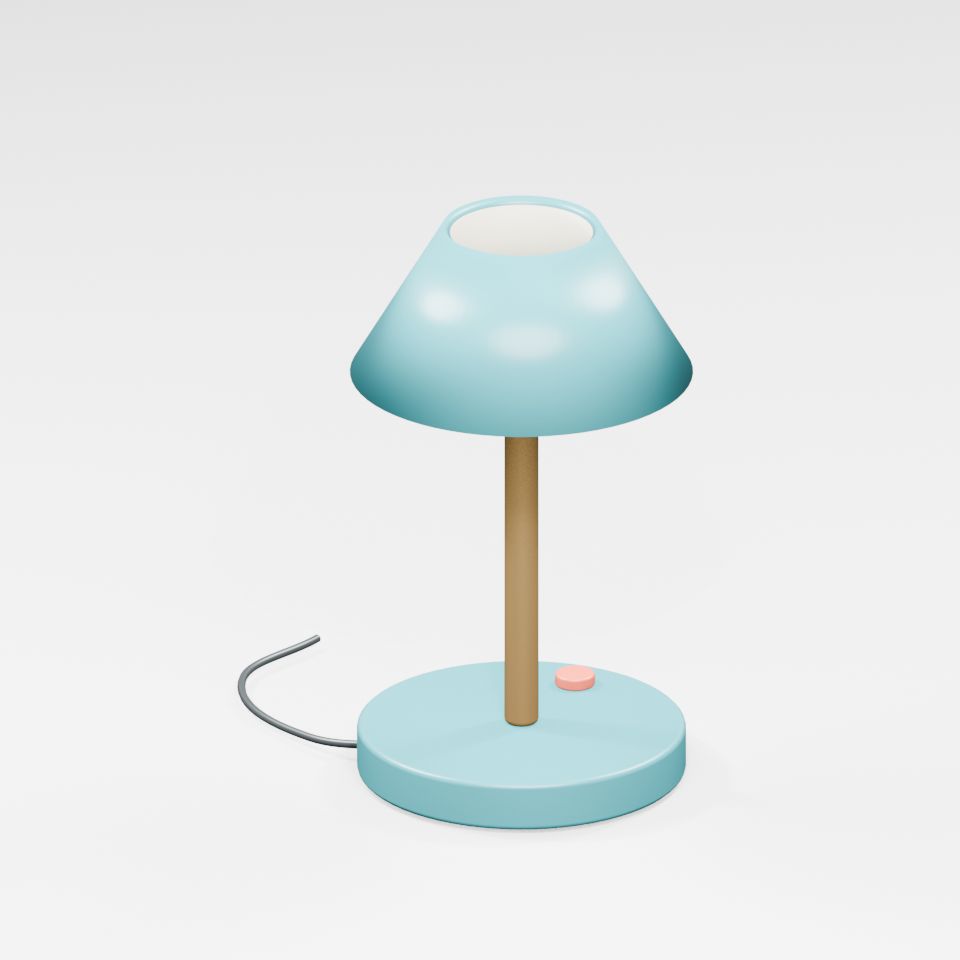
Keep the original and any background-removed or cropped input separately. Inspect the cutout at thin stems, cable edges and the inside of the shade. If preprocessing removes part of the cable, record that before blaming the reconstruction. Treat the four matching reference views below as human review evidence for this known object, not as four inputs to a documented single-image graph.
Save a candidate before changing the workflow
Record the ComfyUI version, template revision, model files, selected branch and changed controls. Save one complete first return with its source. Then decide what failed: silhouette, a missing part, surface appearance or export. Changing the input crop, model branch and processing settings together can produce a different object without explaining the result.
For the lamp, inspect whether the shade is hollow, the stem remains connected and the coral switch is distinct from the base. Check the cable from behind as well as from the source view. The input image cannot directly show every hidden surface; inspect what the model actually supplied. A pleasing front view does not answer whether a camera orbit will expose a malformed underside.
Inspect the original desk lamp reference
Our original lamp has a teal base and hollow shade, brass stem, coral switch and dark cable. It was modeled and rendered in Blender, not generated by Hunyuan or TRELLIS. It gives this exercise a known object to inspect before interpreting an unfamiliar generated asset. Use the original scene brief to plan a suspense insert: a hand reaches toward the switch while the lamp remains recognizable across neighboring shots.
Watch this clip and view its details
The silent four-second clip is a camera orbit around the same authored geometry. It contains 96 frames at 24 fps. Open its watch page or save the orbit reference. The known model is useful for practicing an asset handoff; it is not evidence of a model's reconstruction quality.
Download a consistent reference set
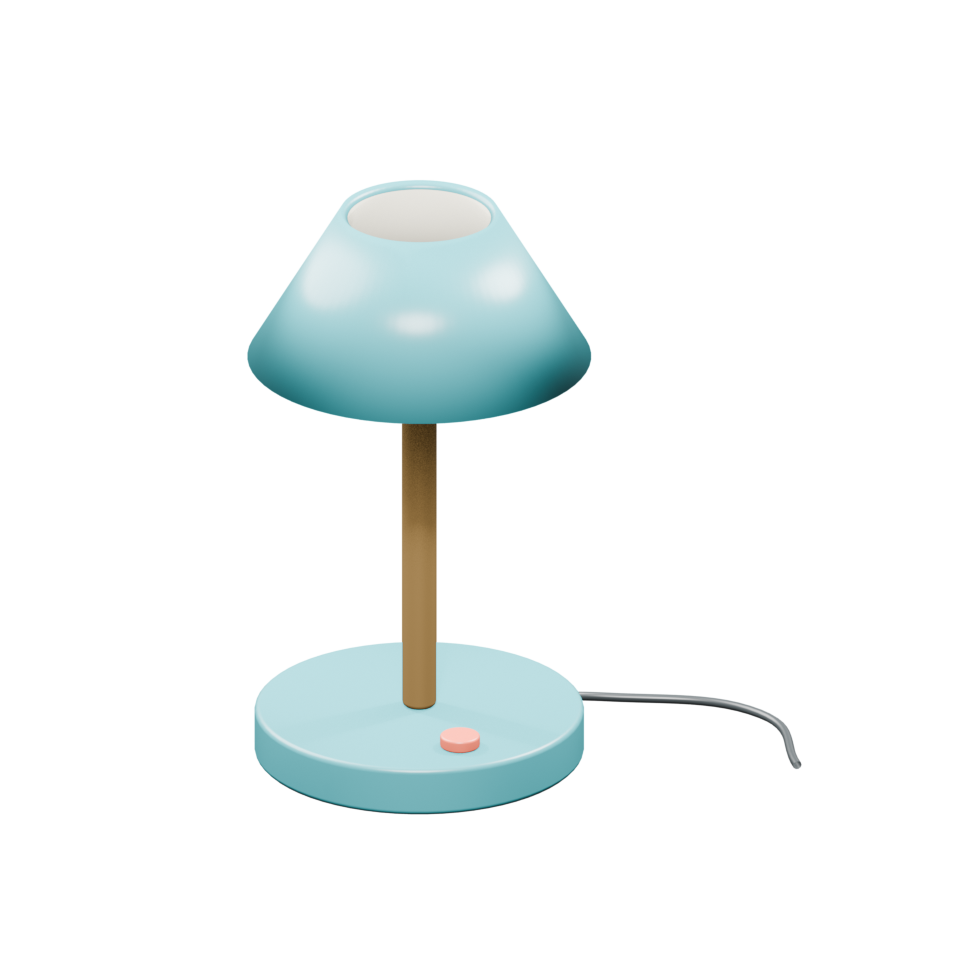
Use the front, right, back and left views to understand this one object. The three-quarter view shows the shade opening and switch. The transparent reference render is also available. These matching views come from one mesh assembly; independently generated angles would not establish the same geometric consistency.
Download the original GLB and editable Blender source. The sample contains five mesh objects and five materials, with no image textures. Our native import check reopened the exported GLB in Blender and found 1,988 triangles and finite vertex coordinates. It does not certify watertightness, real-world scale, printability or suitability for your project.
Read the actual GLB metadata before handoff
The free checker above reads a GLB version 2 file up to 10 MB locally in your browser. It reports declared mesh, node, material, image and primitive counts, triangle counts when determinable, required extensions and resource references. It does not fetch external resources, render the scene or inspect accessor contents. Its container checks follow the GLB structure specification; it is not a full glTF validator.
Choose Inspect original lamp to compare the sample with its saved metadata report: five meshes, five materials, six primitives, 1,988 declared triangles and zero images or external resource references. Zero images here means material colors without image textures, not a missing-texture diagnosis. An unknown triangle count remains unknown rather than becoming zero. A metadata result does not mean an asset is ready for production.
Review the prop in its actual cinema shot
Import the returned model into the application where you will use it. Rotate around the complete object, look inside openings and inspect the underside. Compare the shade lip, cable path, switch and contact with the floor. Test the actual camera and lighting: a defect outside one view may become obvious during an orbit or a close insert. Save screenshots of observed problems rather than replacing an observation with a quality score.
Confirm orientation and intended scale beside a known scene object. Inspect normals and material assignment, then check any UVs and texture files that your asset actually uses. Preview transparency in the destination renderer instead of assuming a reference image's transparent background survives as a material property. Reopen the delivered file after exporting; an attractive viewport before export does not prove a complete handoff.
Use the blank asset review ledger to record the source, exact model and workflow version, settings, exported filename and observed defects. Leave unmeasured values blank. Keep the original return and any cleanup as separate files so that a manual repair is not later attributed to the generator.
Keep generated geometry and manual cleanup traceable
If cleanup is needed, save a new version and describe the edit: reconnect a cable, replace a shade, change a normal or simplify an unseen surface. Re-export and reopen that version. A screenshot of the repaired model should not be described as an untouched TRELLIS output. Keep the same review camera when comparing versions so a more flattering view does not masquerade as an improvement.
The 3D reconstruction guide explains the difference between plausible appearance and geometry. For a separate model family and regional hosted-route considerations, read the Hunyuan 3D prop workflow. The generic image-to-3D tools comparison covers the broader choice between tools.
Plan the final insert and neighboring shots
Place the accepted prop in the actual camera and lighting setup, then render a short test that covers the opening, middle and ending view. Review the switch action and nearby shadows with the preceding wide shot and the following character reaction. If using rendered references for a generative scene, compare the returned video with the approved prop; source geometry alone does not guarantee stable generated details.
Use the short drama workflow to plan the reveal and multi-shot coverage for continuity. Explore Clout AI Cinema for its available project and scene operations. This guide does not establish TRELLIS hosting or arbitrary 3D asset import in Clout.