Subsurface scattering, or SSS, helps explain why wax and skin can look different from painted plastic under the same light. Some light travels through the material before returning to the view. The result depends on the material, its thickness and the lighting, not only on a softness setting.
This guide uses a controlled Blender material study and turns the observations into a practical AI image review. It does not claim to measure real skin or a particular wax. The comparison is a rendered shader experiment using Blender’s built-in Suzanne mesh in an authored scene.
What subsurface scattering changes
Blender’s Subsurface Scattering documentation describes light penetrating a surface, scattering internally and leaving nearby. It identifies materials such as skin, wax, marble and milk, and explains radius and scale as controls over the scattering distance.
Distinguish that behavior from a bright surface reflection, transparent glass or a blurred photograph. A glossy highlight can sit on an opaque object. A blur softens image detail without describing how light travels inside the object.
| Control or property | Question for the study | What remains separate |
|---|---|---|
| Scattering weight | How much the shader uses the scattering component | Lighting and geometry |
| Scattering radius and scale | How far light travels in the material model | The object’s actual scene scale and thickness |
| Surface roughness | How sharp or broad surface reflections appear | Internal scattering |
| Image blur | How much picture detail is softened | A physical material model |
Inspect one material with two scattering weights
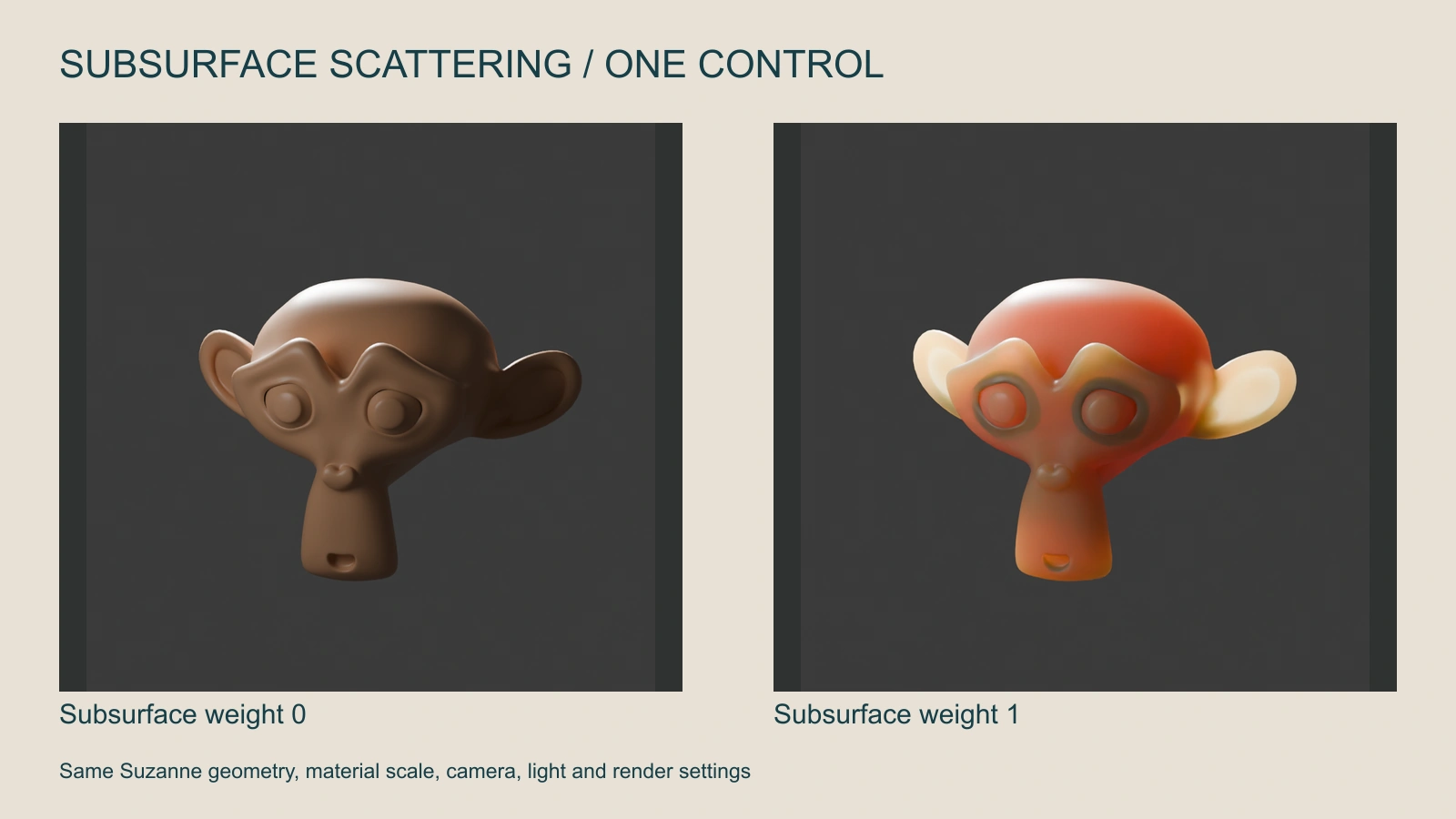
The left render uses subsurface weight 0. The right uses weight 1 with a scale of 0.18 and RGB radius values of 1, 0.35 and 0.15. The base color, roughness, camera and lights stay fixed. Inspect the thin ears and the broad face separately.
The strong right-hand treatment is a controlled demonstration, not a recommended skin preset. The ears become much brighter, and the face changes in warmth and softness. It makes the material response easy to see while showing why copying one value into every scene is a poor review method.
Download the surface-only render and scattering render. The original background-render script and manifest preserve the scene settings. Run the script only in a new background factory-startup process and use a new output directory, as its header describes.
Judge material behavior with thickness and light
Look at a thin region and a thick region of the same object. If both glow uniformly, the result may not match the intended material. Check where the light comes from and which paths through the object would be short or long.
For a wax object, a restrained warm response at a thin edge can support the material. For an opaque painted prop, the same treatment may make it look like a different substance. Start with the actual material brief instead of adding softness to every asset.
Preserve surface detail where it belongs. Fine texture, pores or small marks and internal scattering are separate visual properties. Removing all high-frequency detail can produce a waxy impression even when the lighting and color are otherwise plausible.
Write an AI material brief without inventing shader controls
Portrait of the approved fictional character in soft directional light. Preserve natural surface texture and coherent facial structure. Keep any warm light response restrained at thin backlit regions rather than making the whole face glow. Avoid uniformly smooth plastic-like skin, smeared pores or a broad beauty-filter blur.
This is original, untested direction for a supported Clout creator or image workflow. A text prompt expresses a desired appearance. It does not establish that the model exposes a scattering weight, a measurable radius or a physically based skin shader.
For an object instead of a person, name the material and the observable feature: a warm wax rim, a thin translucent edge or an opaque painted surface. Keep the approved geometry and light direction in the brief. Avoid replacing the entire material when the request was only for a localized change.
Fix a waxy AI appearance systematically
- Inspect the source: Compare the character or object with the approved reference rather than a generic ideal of realism.
- Separate shape from surface: Correct distorted features or object proportions before adding a material treatment.
- Review texture: Check whether a smoothing or denoising pass removed detail that the image needs.
- Review light: Inspect highlight position, shadow direction and whether the apparent glow follows the scene.
- Revise one decision: Keep the accepted source and compare the next result at the same crop and size.
Adding strong sharpening after excessive blur can create hard edges around already flattened detail. A better revision may need a cleaner source, a more specific material direction or a targeted edit. Keep the before-and-after assets so the change is visible.
Keep material decisions consistent through video
For a recurring creator, inspect the face under the planned lighting changes. A character that looks coherent in a still can become plastic-like during a turn, a close-up or a bright rim light. Review the entire returned take, including the strongest highlight and the deepest shadow.
For product content, keep the material stable across the campaign: a ceramic jar should not become wax in one angle and polished metal in another unless the concept deliberately changes it. Record material defects with timestamps and link them to the source reference.
Use the ambient occlusion guide for spatial contact, chromatic aberration guide for edge fringing and halation guide for highlight finishing. Each addresses a different cause of an image feeling wrong.
Download the render and processing manifest and blank finishing review ledger. They identify the authored study and provide a place to record your own review; they contain no paid generation or completed campaign result.