Halation is associated with light spreading around strong highlights in photographic film. A digital image can imitate part of that appearance, but a warm blurred highlight mask is a creative approximation rather than evidence that the scene was photographed on film.
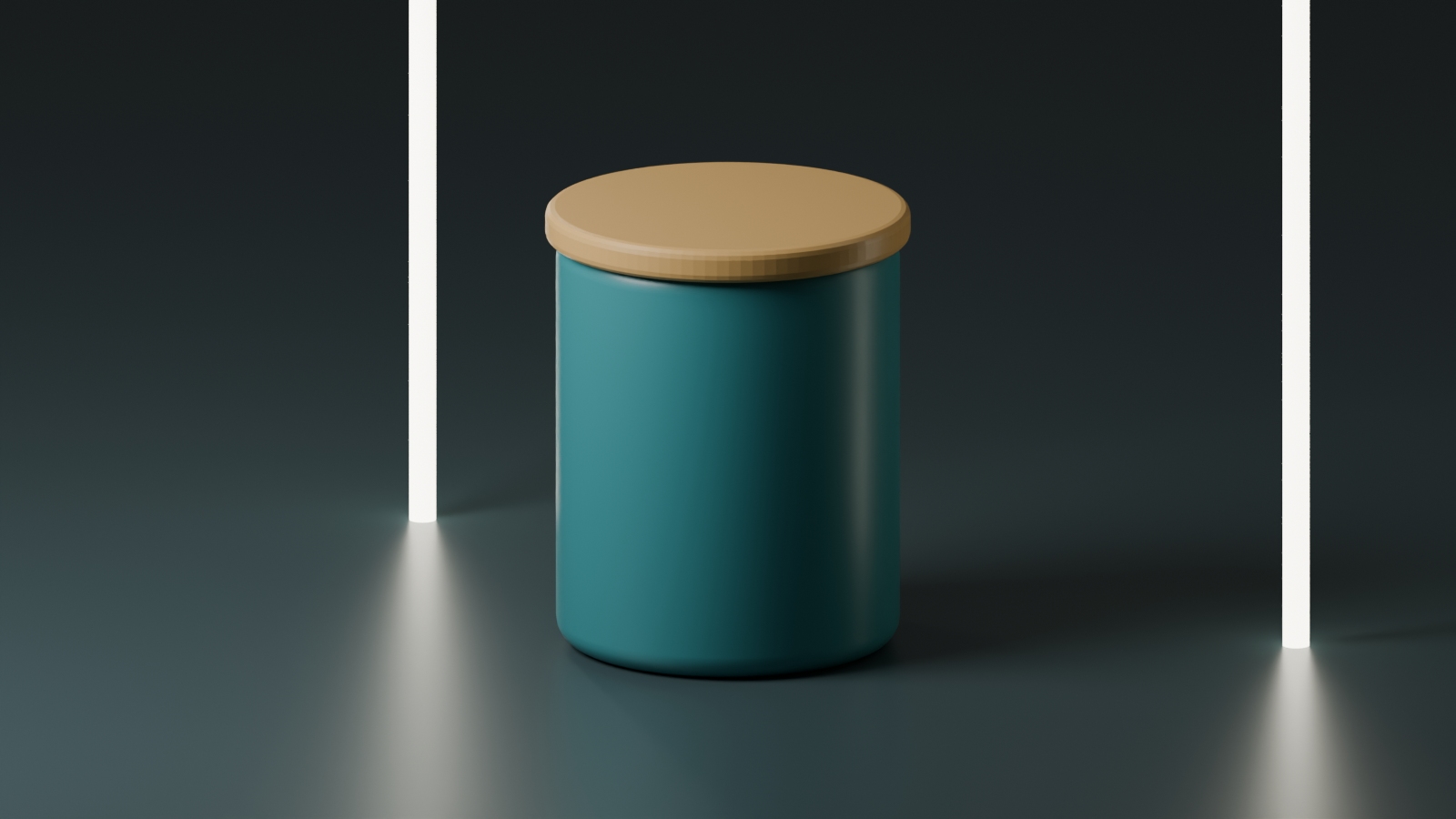
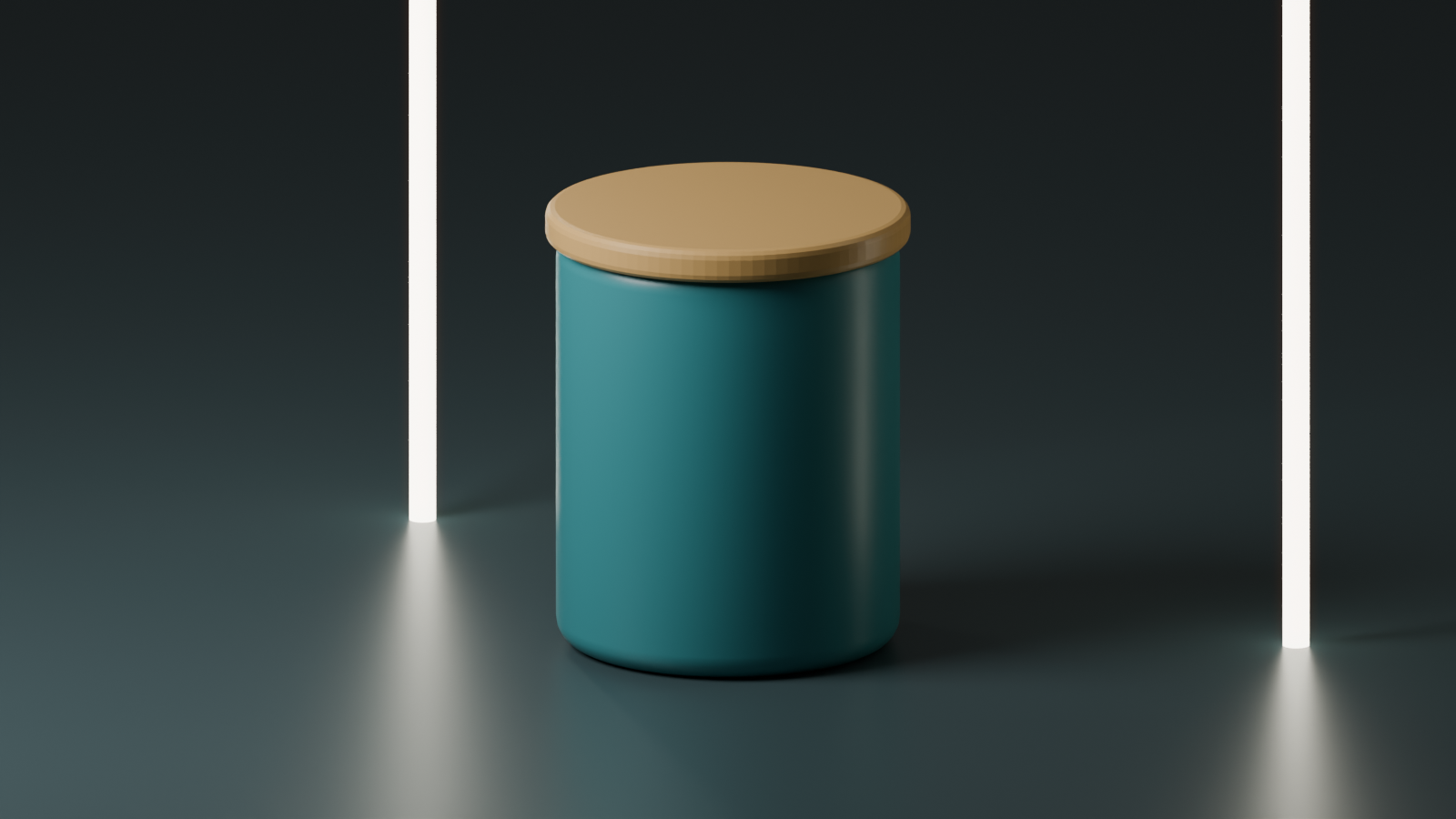
Start with a clean image whose subject and light sources already work. Then decide whether highlight spread supports the intended mood. This guide uses an original fictional ceramic-jar render and a defined processing study so the source and finishing choices remain inspectable.
What halation means in photographic film
Kodak’s motion-picture glossary describes halation as scattered light passing through or reflecting within film layers, producing local fog especially around light sources and sharp highlights. It describes antihalation backing as a layer that absorbs light that would otherwise reflect back into the emulsion.
That physical description is different from adding an orange blur to every bright edge. The appearance of a real film image also depends on the capture, material and processing. This guide does not claim to characterize a particular stock, exposure or laboratory process.
Separate halation from bloom and a general glow
| Term or operation | What to distinguish | Practical review |
|---|---|---|
| Film halation | A light-scattering phenomenon in photographic film | Do not infer a stock from a warm outline alone |
| Digital bloom or glow | A processing or rendering treatment around bright regions | Inspect the mask, spread, color and effect on the subject |
| Warm highlight mask in this tool | An explicit display-RGB approximation | Compare the clean source and saved PNG |
| RGB separation | Channels displaced relative to each other | Look for split outlines instead of only soft spread |
Use precise language in a production brief. “Warm highlight spread around the practical lamp” is easier to inspect than asking every stage to make the image cinematic. Keep lens, film, lighting and finishing decisions separate.
Inspect the original highlight study
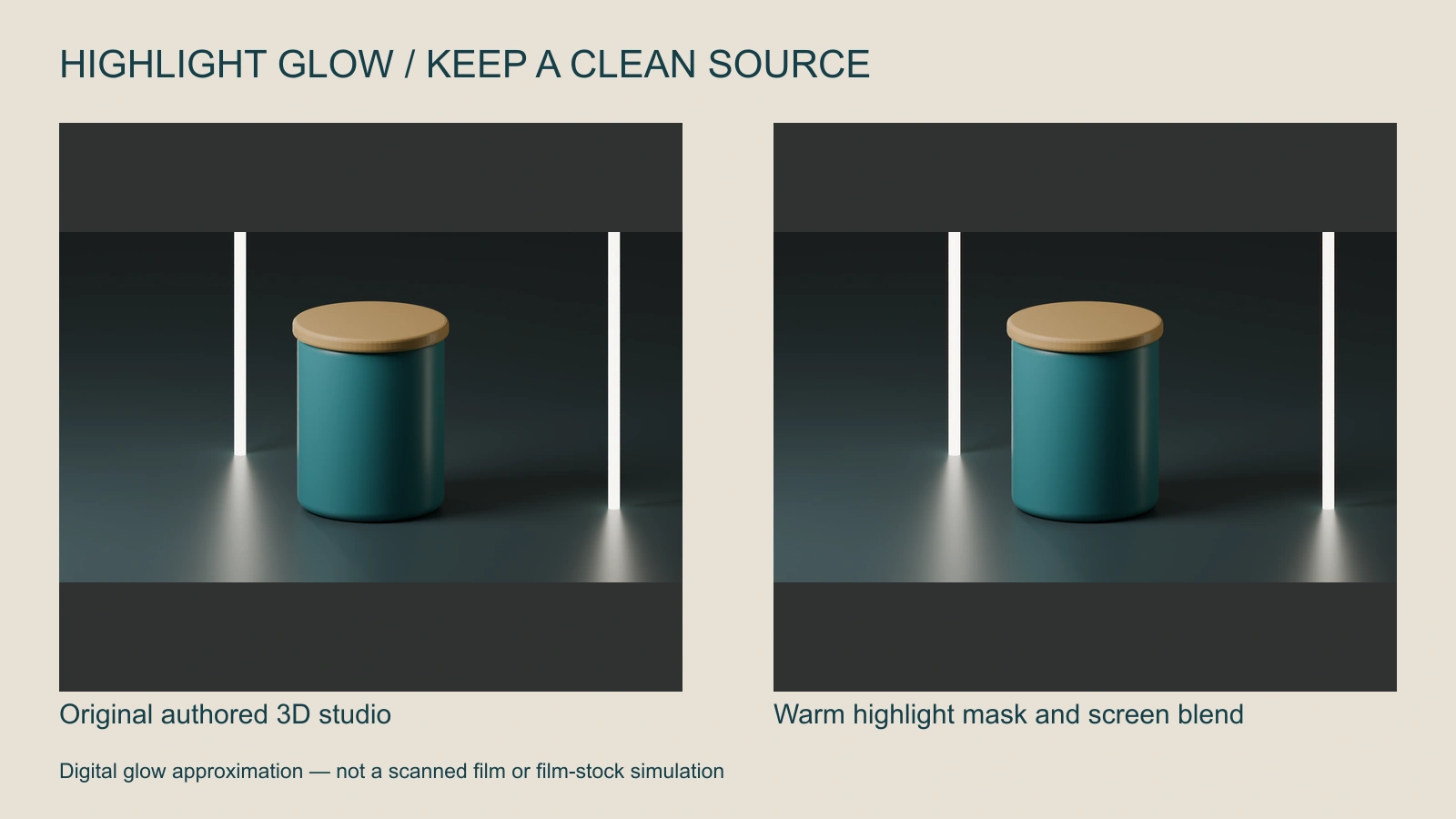
The static study builds a mask above a display-RGB luminance threshold of 215, colors it warm, blurs it and uses a screen blend over the source. It uses strength 0.8 and a Gaussian blur sigma of 12 source pixels. The downloadable manifest records those settings. The browser’s Canvas blur can differ from that offline implementation.
Download the original studio PNG and processed study PNG. Follow the tube edges and reflections, then inspect whether the jar still has the same shape and readable separation from the background.
Use the warm highlight glow tool
- Begin with the studio example: Toggle Show original image to establish the untreated view.
- Set the threshold: A higher threshold restricts the mask to brighter pixels. A lower one includes more of the picture.
- Set the radius: Change how far the masked highlight spreads at the output resolution.
- Set the strength: Compare a restrained treatment with an intentionally stronger study.
- Export and inspect: Download the current PNG and review it in the final crop.
The tool processes a selected image locally and preserves its aspect ratio with a maximum 1280-pixel long edge. Its threshold is not a camera exposure value, its radius is not a film-layer measurement and its warm color is an authored choice. It does not infer a film stock from the image.
Build a consistent finishing order
Approve the subject before adding the glow. Correct an unwanted color cast, confirm the crop and inspect the bright regions. Keep the clean master alongside each version so you can compare the change without trying to reverse a flattened edit.
When several shots belong together, compare them in sequence. The same numerical setting can look much stronger on a night scene with small bright lamps than on a broad daylight image. Judge the visual relationship across the sequence rather than forcing every frame through one unchecked preset.
Add final text and inspect it with the treatment. If a bright title acquires an unintended glow or loses edge clarity, change the finishing order or keep the text outside that effect layer. A stylized highlight should not make the offer unreadable.
Direct the source light in an AI scene
Quiet workshop product scene using the approved ceramic jar. Place a restrained bright practical light behind the product while keeping its lid, silhouette and surface contact clear. Preserve a clean image without large colored outlines or lettering. Add the final highlight treatment after approving the source.
This original, untested direction can guide a Clout image or video task. It does not establish an exposed halation control or a film renderer in the selected model. Keep the lighting brief concrete and review the returned file before finishing it.
For a narrative scene, use the motivated lighting guide to decide why the light belongs in the shot. Use the multi-shot workflow to keep the source and edit consistent across coverage.
Fix the problems a glow can hide
The whole image feels washed out: Inspect how much of the picture enters the mask. Compare a higher threshold or a lower strength before changing the underlying grade.
Product edges disappear: Reduce the spread around the important boundary and compare at the actual display size. The treatment should not change what viewers think the product looks like.
Bright areas become a flat patch: Revisit the source and grading. A glow operation cannot recover highlight detail that is already absent from the pixels.
The video flickers: Review the moving sequence in your finishing software. This still-image tool does not analyze temporal consistency or export video. A mask that changes abruptly across frames needs a separate motion-aware review.
Download the render and processing manifest and blank finishing review ledger. They identify the authored study and provide a place to record your own review; they contain no paid generation or completed campaign result.