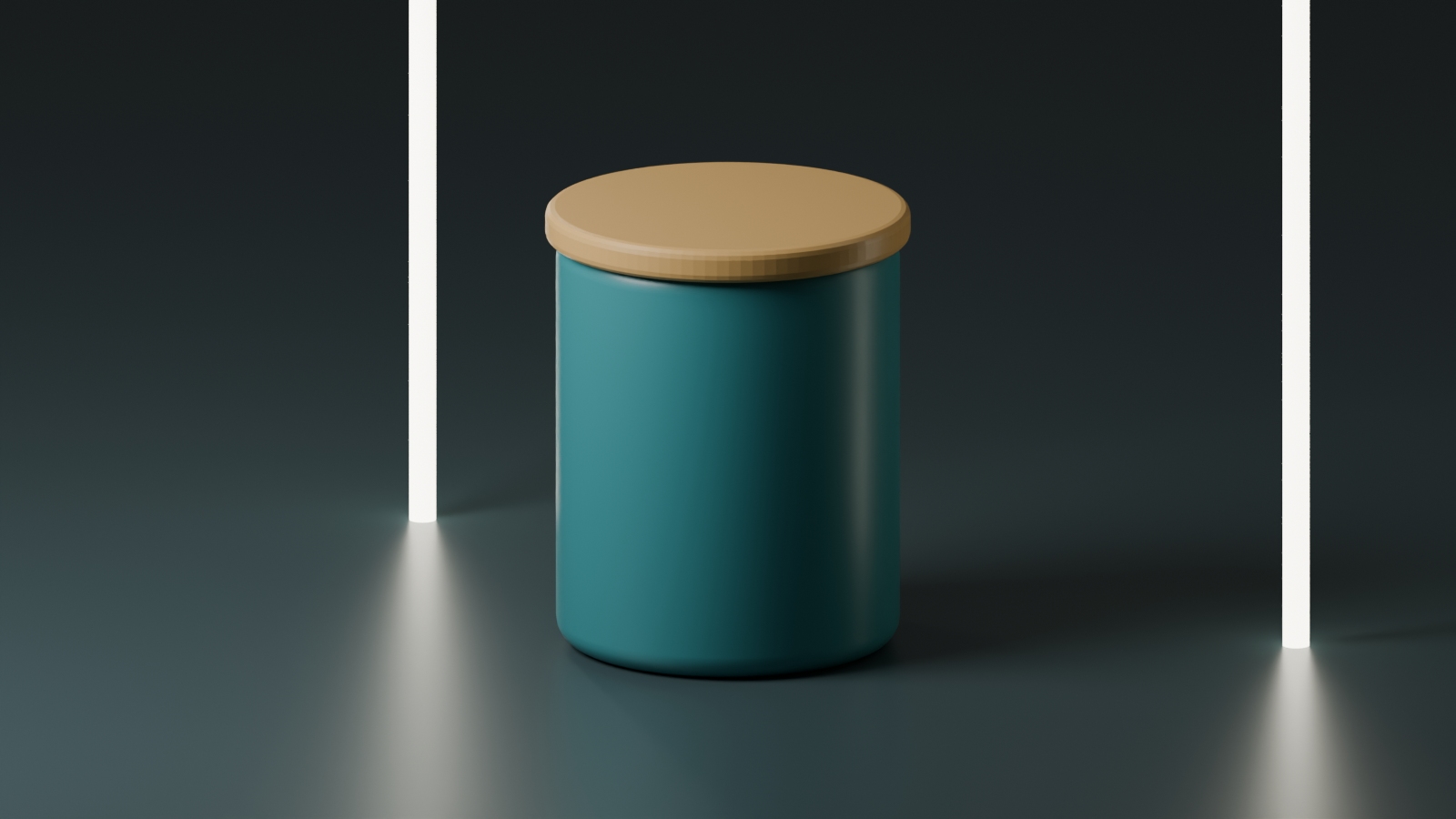
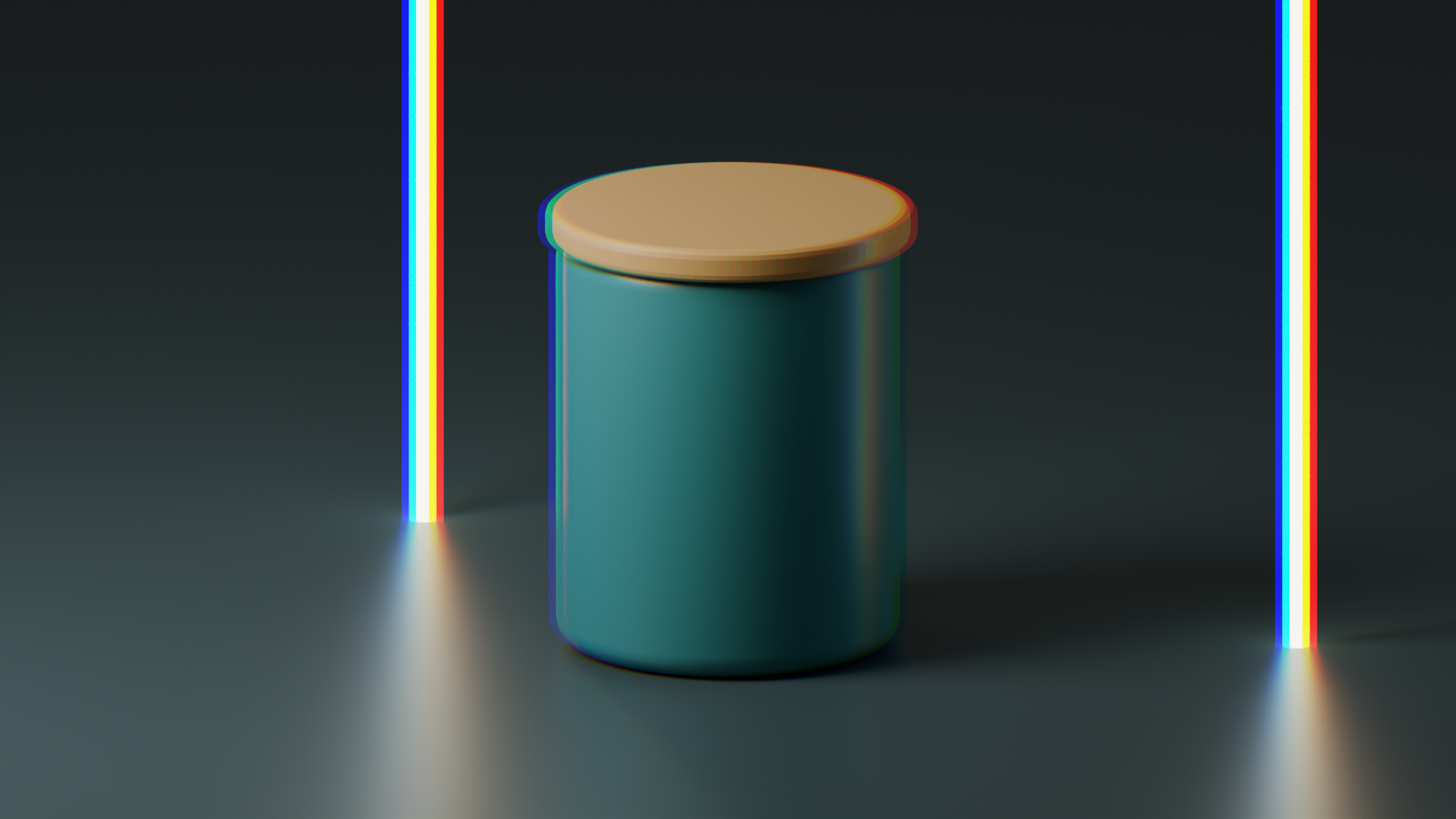
Chromatic aberration often becomes visible where a bright edge meets a dark one: branches against sky, a window frame or a reflective product detail. A narrow color fringe can be an unwanted capture defect. Similar-looking color separation can also be added deliberately as a graphic effect.
Decide whether you are correcting an image or styling it. This guide covers both decisions and provides an original studio render for a controlled RGB experiment. The sample is a Blender scene, not a photograph captured through an aberrated lens or an AI model result.
Compare a repeatable texture with our film grain guide and free PNG tool: open the guide
What chromatic aberration looks like
Adobe’s lens-correction guide describes colored fringes along high-contrast edges when wavelengths are not focused alike. Inspect several edges, including the center and corners, rather than diagnosing the entire image from one bright line.
Separate color fringing from a colored reflection, a rim light, motion blur or a deliberately painted outline. In an AI-created picture, a fringe can be a synthesized visual pattern without having passed through a physical lens at all. That affects which correction method makes sense.
| Observation | Question to ask | Useful next step |
|---|---|---|
| Fringing on a captured photograph | Is the camera and lens information available | Evaluate the appropriate lens correction |
| A colored edge in an AI still | Is it an artifact or intended lighting | Compare with the source reference and revise selectively |
| Uniform red and blue displacement | Was a graphic channel split added | Compare with an untouched master |
| A soft bright halo | Is this glow rather than channel separation | Inspect the highlight glow guide |
Compare the original render and a known RGB shift
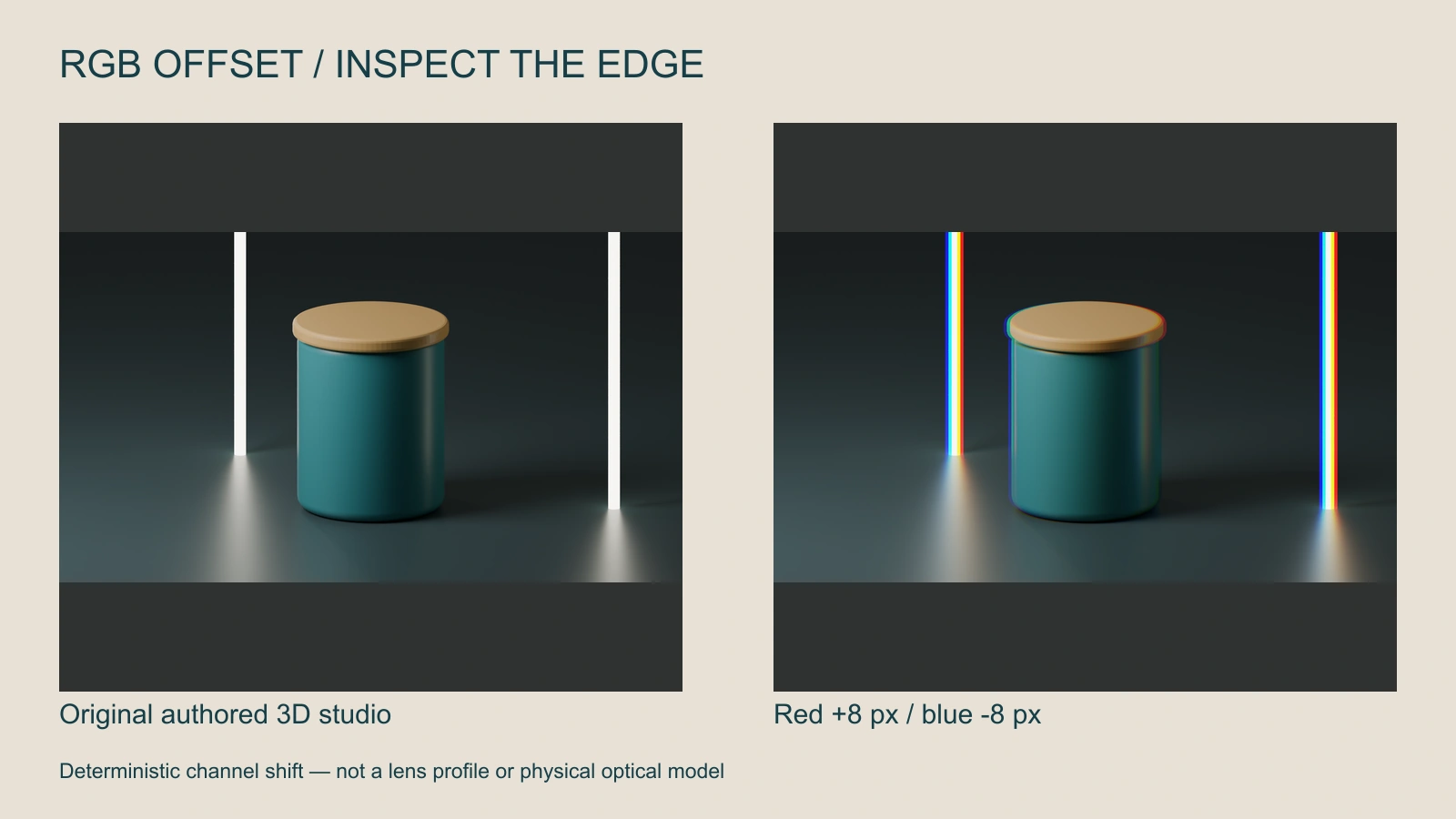
The right image shifts the red channel eight pixels right and the blue channel eight pixels left at the source resolution. Green and alpha remain unchanged, and edge sampling is clamped. The scene geometry is identical. Look at the light tubes, jar outline and lid to see which boundaries make the separation easiest to notice.
The tool above runs a similar horizontal offset on a smaller preview. Change its sign, compare zero offset with a stronger setting, and use Show original image before exporting. It preserves aspect ratio with a maximum 1280-pixel long edge. A pixel value refers to that output, not the original camera sensor.
Download the original studio PNG and known offset PNG. These let you compare an authored source with a defined transformation instead of treating an arbitrary generated fringe as calibrated lens behavior.
Correct captured color fringing in an optics workflow
Keep an untouched source. In Lightroom’s Optics workflow, evaluate Remove Chromatic Aberration and the relevant lens corrections. In Photoshop, Filter then Lens Correction provides automatic profile choices and manual fringe controls.
Inspect the result at a useful detail view and at delivery size. A correction that removes a thin fringe can also change a nearby intentional color edge. Compare the original and edited version around hair, metal, product markings and bright reflections.
Use a matching lens profile when the capture information supports it. Do not invent camera metadata for an AI image just to obtain a profile. For synthesized edges, a targeted image revision or careful local finishing may be more appropriate than assuming a particular optical defect.
Add RGB separation as a deliberate creative effect
For a poster, glitch-style opening or stylized product card, decide which details must remain crisp. Apply the effect after approving the product and typography. Small offsets may read as edge color; larger offsets can split the subject into visibly different silhouettes.
Use the local PNG tool on your own approved still. The selected file stays in the browser. Compare the result in the actual campaign crop, especially around small type or logos. Keep the clean source so the effect can be removed without another generation.
This tool is a channel translation, not radial lens correction. It does not estimate a camera profile, reconstruct missing pixels, repair blur or export a video. Use an editor for an animated treatment and review how its displacement behaves through motion.
Write a clearer AI image brief
Use the approved ceramic jar reference in a clean studio composition. Preserve the lid, rim, body proportions and contact with the surface. Keep product edges coherent and readable without duplicated color outlines. Place any stylized color separation in a later finishing pass rather than changing the jar itself.
This is original, untested creative direction for Clout Image and Video or a product campaign. Select the actual supported reference workflow and inspect the returned image. Prompt wording expresses visual intent; it does not activate a calibrated optical model.
Review the final image as a deliverable
Check the strongest edge, the main product detail and the smallest text region. Then look at the whole composition. If the effect becomes the first thing viewers notice when the product should lead, reduce it or retain the clean version.
For related realism decisions, compare ambient occlusion for spatial contact and subsurface scattering for material response. These address different image properties and should not be combined into one vague request for realism.
Download the render and processing manifest and blank finishing review ledger. They identify the authored study and provide a place to record your own review; they contain no paid generation or completed campaign result.